Create a Multi-Level Calculation
You can create multi-level calculations from a sales order or directly from a calculation card.
Create from a Sales Order
To create a multi-level calculation from a sales order:
- Create a sales order for an item with a production BOM or assembly BOM.
- On the Lines FastTab, choose Line > Calculation.
- If a single calculation exists for the sales order line, the Calculation Card opens.
- If no calculation or multiple calculations exist, the Calculations page opens. Choose the New action to create a calculation or the Edit action to open an existing calculation.
- If the Standard Calc. Schedule No. field is filled in on the item, the standard calculation schedule is applied automatically. Otherwise, the Calculation Schedules page opens for you to select a calculation schedule.
- On the Calculation Card, on the General FastTab, turn on the Multi-Level Calculation toggle. If calculation lines already exist, choose Yes on the confirmation dialog.
- Choose the Update Calculation action.
The calculation processes all subordinate BOMs automatically.
Create from a Calculation Card
To create a multi-level calculation directly from a calculation card:
- Choose the
 icon, enter Calculation Card, and choose the related link.
 - Fill in the following fields:
- Item No.: Select the item with a production BOM or assembly BOM
- Calculation Date: Enter the calculation date
- Calculation Schedule No.: Select an appropriate calculation schedule
- On the General FastTab, turn on the Multi-Level Calculation toggle. If calculation lines already exist, choose Yes on the confirmation dialog.
- Choose the Update Calculation action.
The calculation processes all subordinate BOMs automatically. You do not need to create separate calculations for each component.
Example: Bicycle with Multi-Level Calculation (Manufacturing Item)
The following example uses item 1000 (Bicycle) to illustrate the difference between calculations with and without Multi-Level Calculation enabled.
BOM Structure
The Bicycle (1000) has a production BOM that includes the following components:
- Front Wheel (1100) - has its own production BOM
- Back Wheel (1200) - has its own production BOM
- Chain Assy (1300) - has its own production BOM
- Brake (1700) - has its own production BOM
- Mudguard front (1400), Mudguard back (1450), Lamp (1500), Red Bell (1600), Handlebars (1800), Saddle (1850), Frame (1900) - purchased components
The Front Wheel (1100) production BOM includes components like Rim, Spokes, Axle Front Wheel, Socket Front, Tire, and Tube. Similarly, the Back Wheel (1200), Chain Assy (1300), and Brake (1700) each have their own production BOMs with subordinate components.
Without Multi-Level Calculation
When you create a calculation for the Bicycle without enabling Multi-Level Calculation, the calculation detail lines show only the top-level components from the Bicycle production BOM:
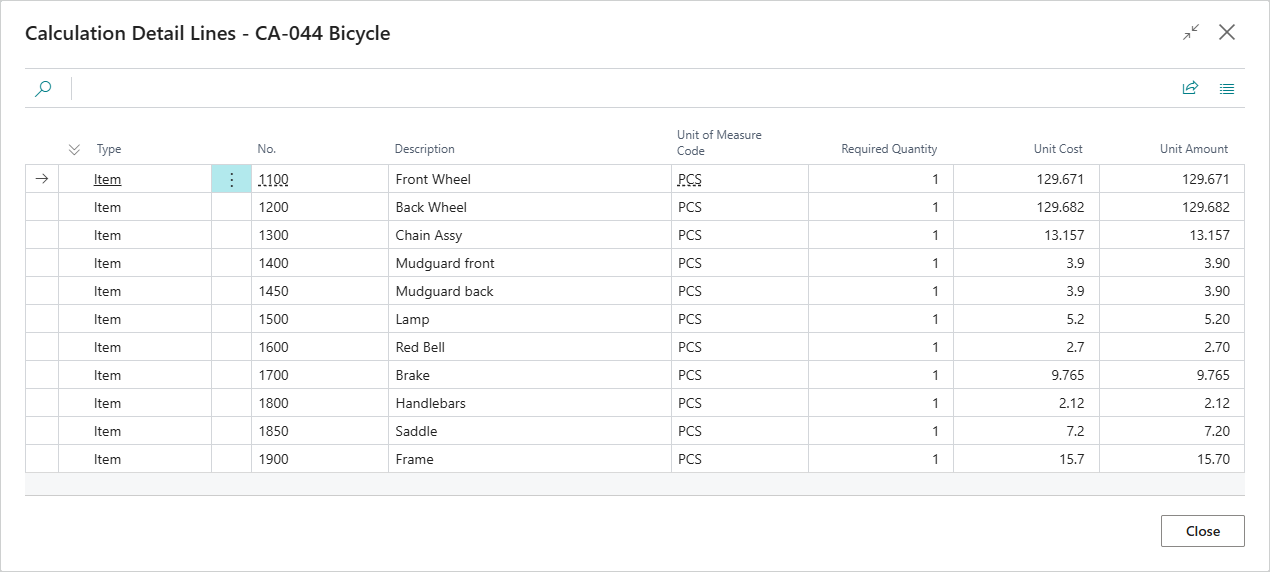
The calculation includes 11 lines representing the direct components of the Bicycle. The Front Wheel, Back Wheel, Chain Assy, and Brake appear as single line items with their calculated or standard costs.
With Multi-Level Calculation
When you enable Multi-Level Calculation and recalculate, the calculation detail lines expand to show all subordinate components across all BOM levels:
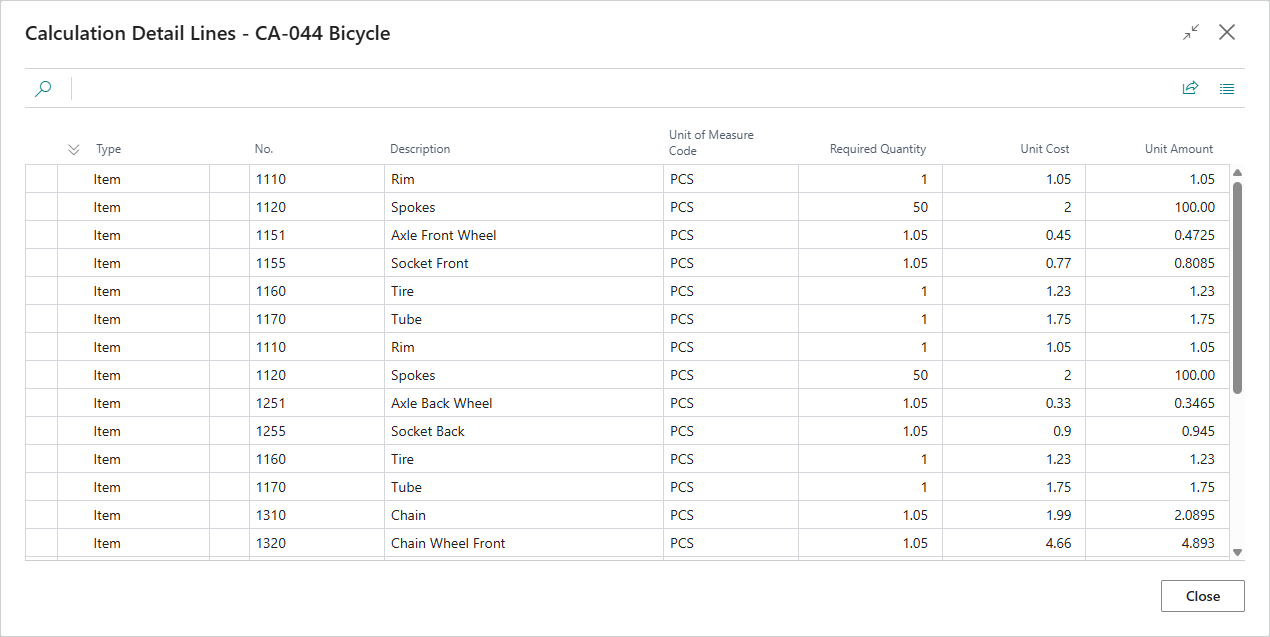
The calculation now includes all components from the nested BOMs:
- Front Wheel components: Rim, Spokes, Axle Front Wheel, Socket Front, Tire, Tube
- Back Wheel components: Rim, Spokes, Axle Back Wheel, Socket Back, Tire, Tube
- Chain Assy components: Chain, Chain Wheel Front, Chain Wheel Back
- Brake components and any subordinate items
Each component appears with its required quantity, which may include scrap factors and quantity-per calculations from multiple BOM levels. The total cost calculation includes all material and routing costs across the entire BOM hierarchy.
Note
Multi-level calculations work the same way for assembly items with assembly BOMs. The calculation expands through all subordinate assembly BOMs and shows all nested components in the detail lines.
See Also
Multi-Level Manufacturing Calculations
Mixed Assembly and Manufacturing Items
Feedback
Submit feedback for this page .