Usage
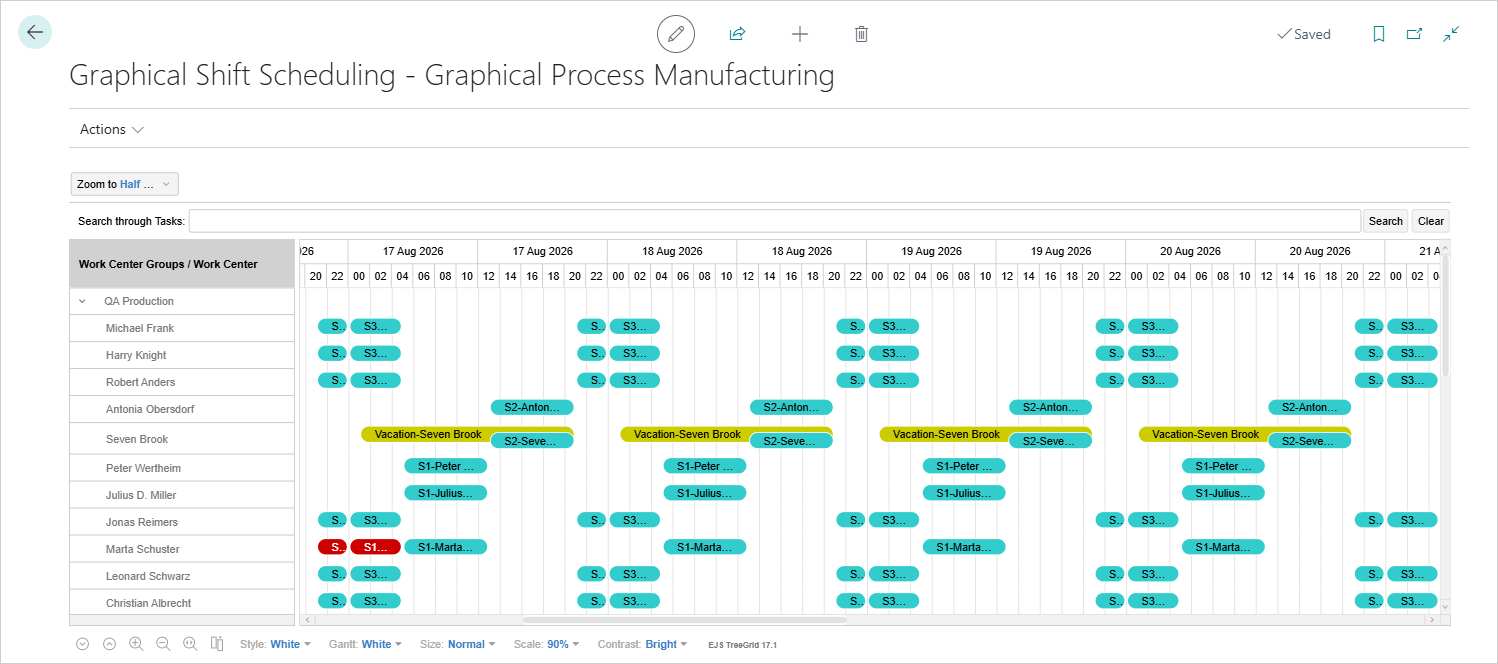
The Graphical Shift Scheduling page provides a graphical view of working time and absences for Work Center Resources. It organizes work center groups and their work center resources by shift and Resource Planning Group, so you can review and adjust calendar entries, calendar absence entries, and extraordinary calendar capacity entries within a selected date range.
Work center data is available on the page when the work center has both a Shop Calendar Code and a Shift Schedule Code. The page displays the related calendar entries, calendar absence entries, and extraordinary calendar capacity entries.
Confirm Date Range
Each time you open the Graphical Shift Scheduling page, the Calendar Entry Date Range dialog opens with prefilled start and end dates. The proposed dates are calculated from the shift scheduling formulas in Graphical Extension Setup.
If Shift Sched. Formula Before and Shift Sched. Formula After in Graphical Extension Setup are empty, the defaults are used: two weeks before and two weeks after the work date. For example, with a work date of 8/25/2026, the dialog proposes 8/11/2026 as the start date and 9/8/2026 as the end date.
When you confirm the date range, the page loads the data for eligible work centers.
Change Date Range or Center the Chart
You can change the date range at any time by selecting Update Calendar or focus on a specific date using Go to Date, both in the Actions menu:
- The Go to Date action allows you to quickly navigate to a specific date and center the chart on it.
- The Update Calendar action allows you to refresh the schedule with the latest calendar data for the selected date range. This ensures that any changes to work center calendars, absences, or extraordinary capacity entries are reflected in the chart.
Reschedule Entries
To reschedule entries, you can either extend/shorten the time frame or move the entire entry horizontally to another time or date.
- In the chart, extend or shorten the time frame by dragging the start or end of the entry, or horizontally drag a calendar entry, calendar absence entry, or extraordinary calendar capacity entry to a new time period.
- If a confirmation message opens because the new time falls outside the planning horizon, confirm the change to continue.
Adjusted entries appear as grey while processing the changes. Once the changes are processed, the entries return to their original color.
The entry is recreated at the new date and time. When the new period crosses midnight, separate entries are created for the affected days.
Important
To move entries, the user must have the Resource Scheduling Auth. checkbox selected in User Setup. Otherwise, the move is rejected.
Feedback
Submit feedback for this page .