Credit reports
Retrieving credit reports
In order to retrieve a credit report for a company, the company must be identified via online search. If the company already exists in Dynamics 365 Business Central as a customer, vendor or contact the Creditsafe Online Search can be called from the particular page using the button Actions and Get Creditsafe Report. If the company does not exist in Dynamics 365 Business Central, the Creditsafe Online Search page can be used. The Creditsafe Online Search is accessed via the search. In the search field, enter Creditsafe Online Search and select the corresponding link.
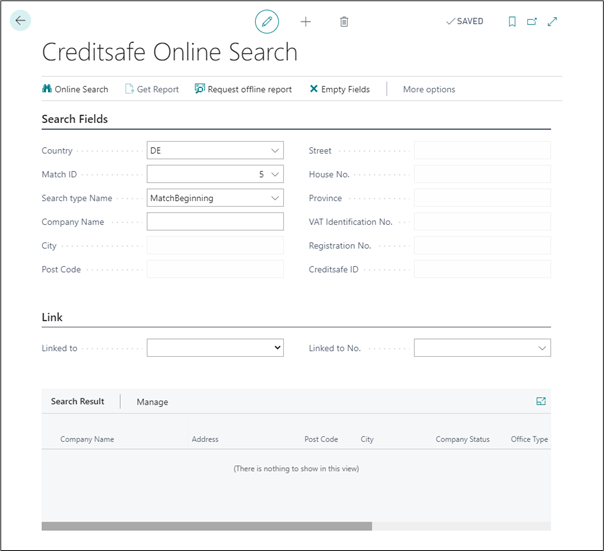
Fast tab Search Fields
The fields of the Search Fields fast tab are described in the following table.
| Field | Description |
|---|---|
| Country | Select a country from Creditsafe Countries. This field is are preallocated with the value from the setup (see setup and administration guide for more information) |
| Match ID | Select a Match ID from Creditsafe in depending on the Creditsafe Countries. This field is are preallocated with the value from the setup (see setup and administration guide for more information) |
| Search type Name | Select a Search type Name from Creditsafe in depending on the Creditsafe Countries. This field is are preallocated with the value from the setup (see setup and administration guide for more information) |
| Company Name | Enter the company name for online search. |
| City | Enter the city for online search. |
| Post Code | Enter the post code for online search. |
| Street | Enter the street for online search. |
| House No. | Enter the house no. for online search. |
| Province | Enter the province for online search. |
| VAT Identification No. | Enter the VAT Identification no. for online search. |
| Registratiion No. | Enter the registration no. for online search. |
| Creditsafe ID | Enter the Creditsafe ID for online search. |
Fast tab Link
The fields of the Link fast tab are described in the following table.
| Field | Description | ||
|---|---|---|---|
| Linked to | Choose the table you want to link. Options are Contact | Customer | Vendor. |
| Linked to No. | Choose the number you want to link. In depending on the table from Contact | Customer | Vendor. |
The Match ID controls which fields are active for searching in the selected country and are corresponding to the web service of Creditsafe. Using the lookup button in the Match ID field, the search type can be changed. All Fields with the same Match ID are enabled if a field is picked. At the bottom of the lookup Select from full list can be opened to see all details. If the value Optional is not set, the field is mandatory for this search group.
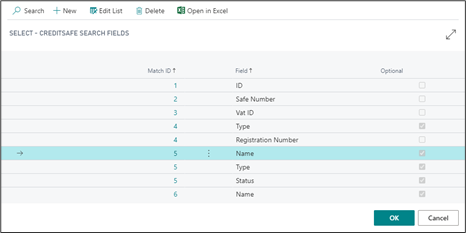
Overview about Search type name :
MatchBeginning – matches exact first chars of the string ex: "Alpha Bravo Charlie" can be found by "alph", alpha bra" etc.
Match Block – matches a block of text anywhere in the string ex: "Alpha Bravo Charlie" can be found by "ravo", ha bra", ha bravo char" etc.
MatchAnyParts – matches blocks ot text anywhere in the string – one block per query token ex: "Alpha Bravo Charlie" can be found by "alph ravo arl", lph harl" etc.
MatchWords – matches whole words (order insensitive) ex: "Alpha Bravo Charlie" can be found by "alpha", "alpha bravo", bravo alpha" etc.
MatchBlockOrWords – matches either a block of text anywhere in the string or whole words (order insensitive). Some Countries may not have word order insensitivity. ex: "Alpha Bravo Charlie" can be found by any string that either MatchBlock or MatchWords would find it by.
ExactValue – matches the whole text ex: "Alpha Bravo Charlie" can be found by "alpha bravo Charlie"
ClosestKeywords – each query word is matches with a set of keywords describing each Company and a set of closet matches is returned ex: "Alpha Bravo Charlie" can be found by all strings MatchWords would find it by plus "brava", "brawo" etc.
When all mandatory fields are filled with data, the button Online Search is enabled. If pressed, the search field entries are sent to the Creditsafe database. All data search results are shown in the subpage Search Results.
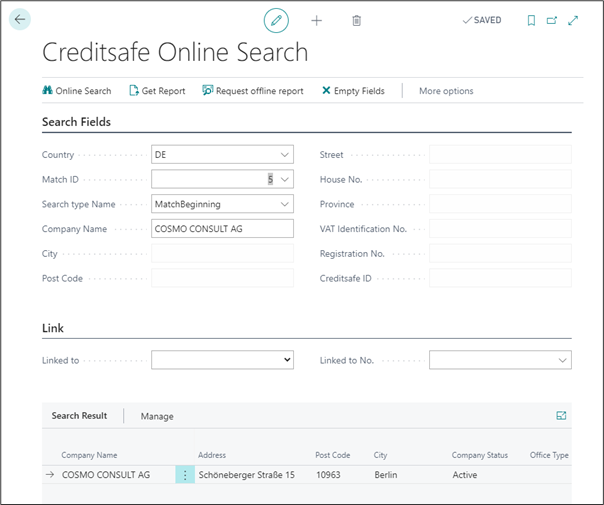
If the desired company is not among the listed ones, the search parameters can be altered, and the Creditsafe Online Search can be called again. If a company cannot be found at all, an offline report may be requested using the button Request offline report. This feature orders an investigation from Creditsafe, see the description in chapter Request Offline Reports.
The credit report is requested using the button Get Report after selecting the correct company in the subpage Search Result.
The fields in the request page Creditsafe Report Request are preallocated with the values from the setup (see setup and administration guide for more information).
Creditsafe Report Request
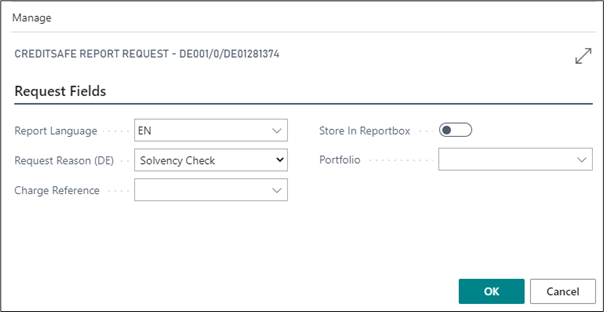
The fields of the Creditsafe Report Request page are described in the following table.
| Field | Description |
|---|---|
| Report Language | Choose your report language. |
| Request Reason (DE) | Choose your request reason. Only needed for Germany. |
| Charge Reference | Choose your charge reference. |
| Store in Reportbox | Can store report in Reportbox. |
| Portfolio | Choose your Portfolio. |
After setting the values and pressing the OK button the report is retrieved and the report page is opened.
Creditsafe Report Card

The fields of the Creditsafe Report page are described in the following table.
| Field | Description |
|---|---|
| Companyname | Further information available from Creditsafe. |
| Description | Further information available from Creditsafe. |
| Description | Further information available from Creditsafe. |
| Provider Rating Max. Value | Further information available from Creditsafe. |
| Credit Limit | Further information available from Creditsafe. |
| Credit Class | Further information available from Creditsafe. |
| Credit Score | Further information available from Creditsafe. |
| Provider Rating Min. Value | Further information available from Creditsafe. |
| Last Credit Rating Change | Further information available from Creditsafe. |
| Currency | Further information available from Creditsafe. |
| Range | Further information available from Creditsafe. |
| Revenue | Further information available from Creditsafe. |
| Creditsafe ID | Further information available from Creditsafe. |
| Company Status | Further information available from Creditsafe. |
| Street | Further information available from Creditsafe. |
| Post Code | Further information available from Creditsafe. |
| Phone No. | Further information available from Creditsafe. |
| Website | Further information available from Creditsafe. |
| Tradename | Further information available from Creditsafe. |
| Country | Further information available from Creditsafe. |
| House No. | Further information available from Creditsafe. |
| City | Further information available from Creditsafe. |
| Further information available from Creditsafe. | |
| Office Type | Further information available from Creditsafe. |
| Main Industry | Further information available from Creditsafe. |
| Employees | Further information available from Creditsafe. |
| VAT Identification No. | Further information available from Creditsafe. |
| Registration No, | Further information available from Creditsafe. |
| Ultimate Parent Company | Further information available from Creditsafe. |
| Legalform | Further information available from Creditsafe. |
| Commercial Court | Further information available from Creditsafe. |
| Immediate Parent Company | Further information available from Creditsafe. |
| Group Structure | Further information available from Creditsafe. |
| Link Allocations | Shows all linked data for contact, customer and vendor. |
| Link Portfolio | Shows your linked Portfolios. |
| Active Report | Further information available from Creditsafe. |
| Creation Date | Date of received report. |
| Order No. | Further information available from Creditsafe. |
| Charge Reference | Shows the charge reference number. |
| Ribbon bar | |
| (Contact) New | Create a new contact from Creditsafe report. |
| (Contact) Allocate | Allocate Creditsafe report to existing contact. |
| (Customer) New | Create a new customer from Creditsafe report. |
| (Customer) Allocate | Allocate Creditsafe report to existing customer. |
| (Vendor) New | Create a new vendor from Creditsafe report. |
| (Vendor) Allocate | Allocate Creditsafe report to existing vendor. |
| (Allocation) Remove | Remove all allocations. |
| (Portfolio) Add | Add Creditsafe report to existing Creditsafe Portfolio. |
| (Portfolio) Remove | Remove Creditsafe report from existing Creditsafe Portfolio. |
| (Address) Synchronize | Compare data of Creditsafe report with data of contact, customer, or vendor. |
| (Report) History | Shows a list of all Creditsafe reports. |
| (Report) Show PDF | Shows the PDF file from this Creditsafe report. |
| (Report) Refresh | Get a new Creditsafe report. |
Opening the attached PDF document
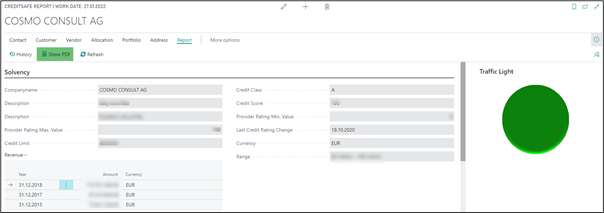
The credit report in Microsoft Dynamics 365 Business Central contains only the most important fields. The complete credit report can be viewed using the attached PDF document. It can be opened using the button Report and Show PDF onribbon bar.
Creditsafe Report Card
Report history
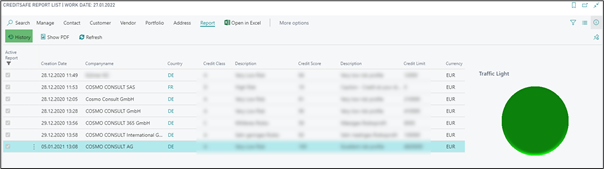
If a Creditsafe report exists in Microsoft Dynamics 365 Business Central and a new one is called for the same company (a company with the same Creditsafe ID ), the field Active Report will be disabled in the old report and will be enabled in the recent one. Older versions can be viewed using the button Report and History. Only active reports are shown in the regular report list. The Creditsafe Report List is accessed via the search. In the search field, enter Creditsafe Report List and select the corresponding link.
Creditsafe Report List
Linking credit reports to customer, contacts and vendors
Credit reports are linked to customers, vendors and contacts using the Creditsafe ID. If there is an allocation and a new report is retrieved for the same company ( Creditsafe ID ), the allocation will remain.
If a credit report is retrieved from a customer, vendor or contact it is automatically linked to it and all its business relations.
Link allocations in Creditsafe report card
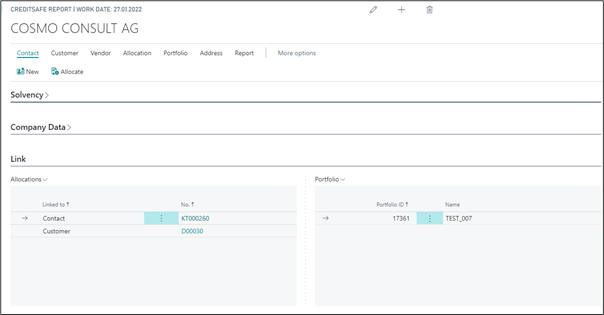
The Credit Class and Creation Date are then shown in the respective factbox, list and documents. The report can be opened using the lookup function of the creditsafe fields.
Customers List
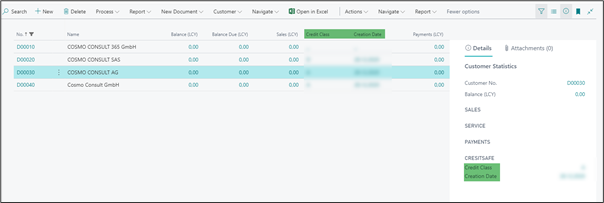
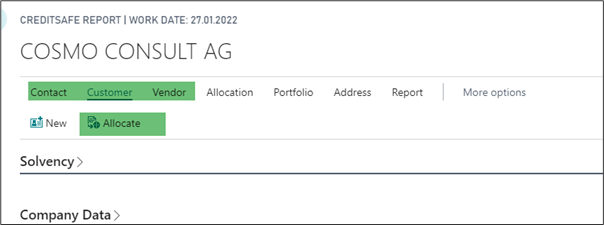
If there is no allocation the report was called without a link. In case this happened by mistake and a customer, vendor or contact already exists for the company, the report can be assigned using then button function Allocate in the ribbon bar for Customer , Vendor , or Contact. The Creditsafe ID is then linked to the selected customer, vendor or contact and all its business relations.
Allocate on Creditsafe Report
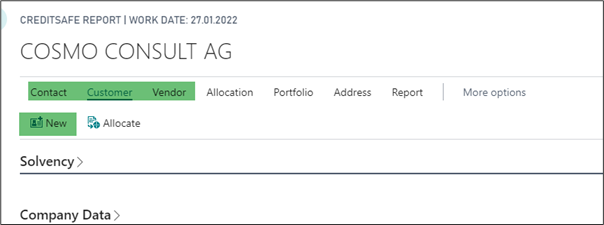
It is also possible to create a new customer, vendor or contact from a Creditsafe Report using the button function New in the ribbon bar for Customer , Vendor , or Contact. The information from the credit report will be transferred to the customer, vendor or contact and an allocation will be created.
New on Creditsafe Report
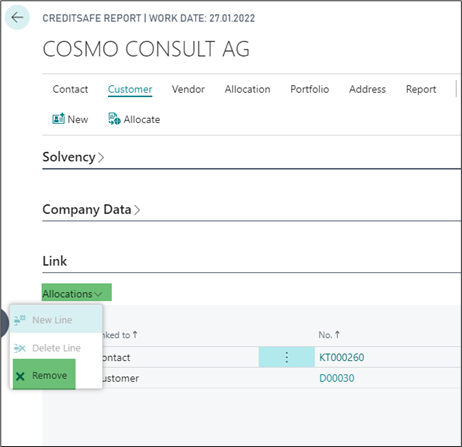
If an allocation was created by mistake it can always be removed using the button function Remove in the report card after selecting the wrong allocation in the subpage.
Function Remove in subpage Allocations
Address synchronization
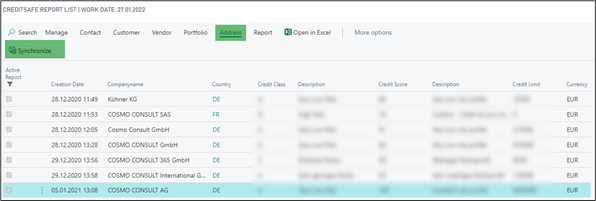
If automatic address synchronization is not enabled (see setup and administration guide for more information), it can be done manually. Using the button function Synchronize in ribbon bar Address, the target company can be selected (if there are multiple links) and any values from the credit report can be transferred to the customer, vendor or contact.
Manually address synchronization Creditsafe Report List_
Creditsafe Address Synchronization
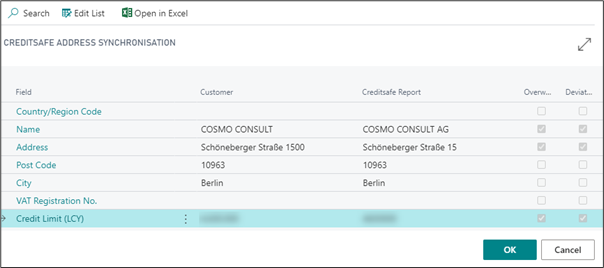
Any deviating values (which can be altered in the synchronization form) having the Overwrite flag set in their respective line, will be transferred to the selected customer, vendor or contact when OK is pressed. Afterwards regular Microsoft Dynamics 365 Business Central synchronisation will transfer these values to all contact business relations.