Team Managment - Introduction
What is a Team?
The Digital Consultant allows to maintain a team within the system. The team members can be assigned to the individual tasks.
Team Member Card
Below you can find a list of the most important fields on the team member card:
| Field | Description |
|---|---|
| Code | Unique code for this team member. |
| First Name | First Name of the team member |
| Last Name | Last Name of the team member |
| User ID | User ID in the system. This field must be filled so the user can properly filter the task tiles in the role center. |
| All Tasks visible | Check this option if the system should not filter the tasks in the role center for the specific user. This might be relevant to Project Managers who are supposed to see and manage all tasks in the system. |
| Allow Solution/Asset Update | There is an update option for solutions and assets. For security reasons, those actions should only be performed by users who are clearly aware of the impact. Using this field, the update actions can be restricted to certain users. |
| Order Restriction | This field allows to determine which users can order items from the solution/asset catalog and works in conjunction with the field "Order Credit (LCY)" |
| In-App Consulting | In case the "main switch" is on in the Digital Consultant setup, the In-App Consulting can also be set individually for certain users. In case this field is switched to OFF users will not get hints about useful assets or solutions that are available in the solution/asset catalog or were previously purchased. |
| Hide DC part in Role Center | Switch this field to ON in case users do not want to view the Digital Consultant information in their role center. |
| Extended Role Center View | Switch this field to ON if users want to display the Digital Advisor information in their Role Centre. |
| Preferred Language | Set your preferred language for searching in the STORE of the Digital Consultant here (regardless of the system language). |
| Search Engine URL | Enter the path of your preferred search engine here as follows: 1. Open your preferred search engine (e.g. Bing) 2. Search for Business Central 3. Copy the path from the browser menu bar to the word "Business Central" and add a plus sign + to the end of the path (e. E.g. https://www.bing.com/search?q=business+central+) What can this function do? If you are on their task card and want to search for more information about this task on the web, clicking on "search the web" in the menu bar will give you more content about it. |
Task List
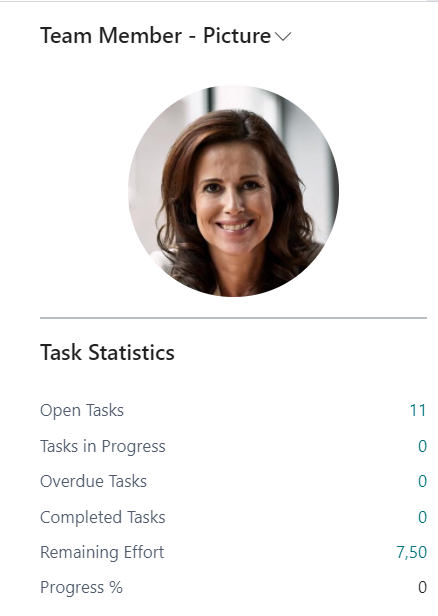
On the team member card, you can also see the tasks that are assigned to the selected user. On the right section of the screen you can see the fact boxes with detailed task information. To get more information about these elements, please refer to Task Management Introduction.