Install and Register Advance Payment App (DACH only)
The COSMO Advance Payment app is only available in German-speaking countries (DACH) and therefore is not included in the COSMO Project Manufacturing Pack by default. However, it is included in the license and can be installed and registered manually to be used with COSMO Project Manufacturing Pack. Additionally, there are no special integrations between the COSMO Advance Payment app and the apps in the COSMO Project Manufacturing Pack.
Install Advance Payment App
This section covers the installation of the COSMO Advance Payment. Typically an installation is only performed once and is not executed by the user but an administrator. The installation differs from SaaS and On-Premises (OnPrem) environment.
To install in SaaS environment
In SaaS environments, the app can be installed from the AppSource. There are two ways to install the app, from external and internal of Business Central. All dependencies are installed automatically.
Depending on the current Microsoft upgrade policy, you may not have the most current version of the app. To upgrade to the most current version, go to the Dynamics 365 Business Central admin center and perform the app upgrade for your environment.
AppSource
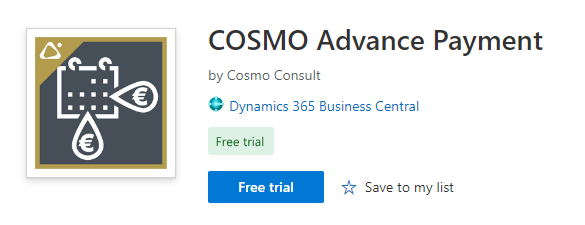
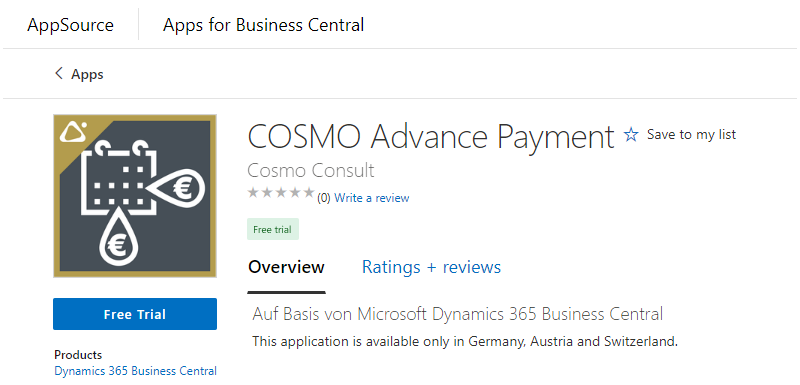
Visit the AppSource and then choose Free trial. You will be forwarded to page where you must log in with your Business Central user credentials and select an environment to install the app to. Follow the wizard instructions to complete the installation.
Extension Marketplace
In Business Central, choose the  icon, enter Extension Marketplace, and then choose the related link. In the marketplace, search for COSMO Advance Payment and then choose Free Trial. Follow the wizard instructions to complete the installation.
To install in on-premises environment
For installing the COSMO Advance Payment app and its requirements in an on-premises environment, you can find the compiler packages of the apps in the COSMO CONSULT Solution Portal. Check the technical specifications of each version to find the minimum dependent version of Business Central and the Base Application. For customer installations without a Business Central developer license, you need to create and install a runtime package of the app (Microsoft Documentation).
The other COSMO Project Manufacturing Pack apps were already installed; therefore, you only need to install the COSMO Advance Payment app in your on-premises environment.
App Registration and Licensing
This section covers the registration and license check of the COSMO Advance Payment app. When installing the app, COSMO Licensing is automatically installed. After installing the app, you need to register it.
To register the app
If the registration notification does not show in the notification bar, refresh the environment.

On the notification line, choose Open License Overview. The app is listed in the COSMO License Overview page with Status = Unregistered.
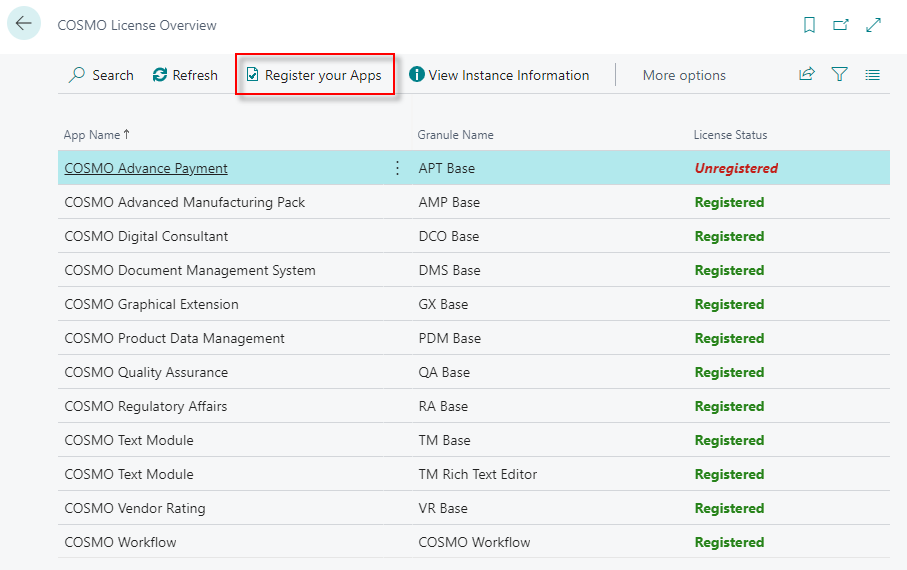
Choose the Register your Apps action.
The COSMO App Registration Wizard opens with the app listed.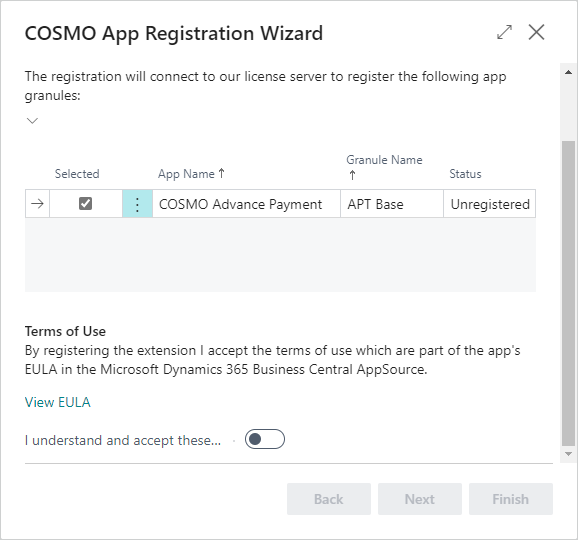
In order to agree to the Terms of Use, scroll down, turn on the I understand and accept these terms toggle, and then choose the Next button.
Enter your customer name. The name is used to identify the company. For test purposes, enter any Cronus-related name.
Choose the Next button to sign into the COSMO Platform to link the registration with your account. The COSMO Platform opens in a new browser tab. After sign in you can close this tab and return to the final page of the COSMO App Registration Wizard.
To skip this step, choose the Skip Login button.
You have successfully registered for a demo version of the app. Contact appsource@cosmoconsult.com and use the displayed license key to update your demo subscription.
Note
Your demo license will be valid for 30 days.
The app has Status = Registered. Choose the Finish button to close the wizard.

The status for each app is updated in the COSMO License Overview page. Leave the COSMO License Overview page to return to the Role Center.
Note
You can register the app and perform other administrative licensing tasks from the COSMO License Overview page.
To check the license
The COSMO License Overview page lists the license status of all COSMO apps and is accessed using the Tell Me feature.
- Choose the icon, enter COSMO License Overview, and then choose the related link. This page can also be opened from the Advance Payment Setup page on (Actions > App Licensing) and the last page of the COSMO App Registration Wizard by choosing Open License Overview.
- In the COSMO License Overview page, apps can be registered if not done on the Role Center notification bar. Other administrative tools are available as well.
- Hover over an action on the COSMO License Overview page to read a short description.
To activate COSMO Advance Payment
After installation and registration, you must activate COSMO Advance Payment in the application.
- Choose the icon, enter Advance Payment Setup, and then choose the related link.
- On the General FastTab, turn on the Enable Application Area toggle.
- Close the page or continue with further setup (see Advance Payment Setup).
- Assert that all other users log in again.
See Also
Feedback
Submit feedback for this page .