Additional Configuration Text Module - Logistics
Before using the COSMO Text Module features within COSMO Logistics, additional configuration needs to be completed.
Print Management Codes
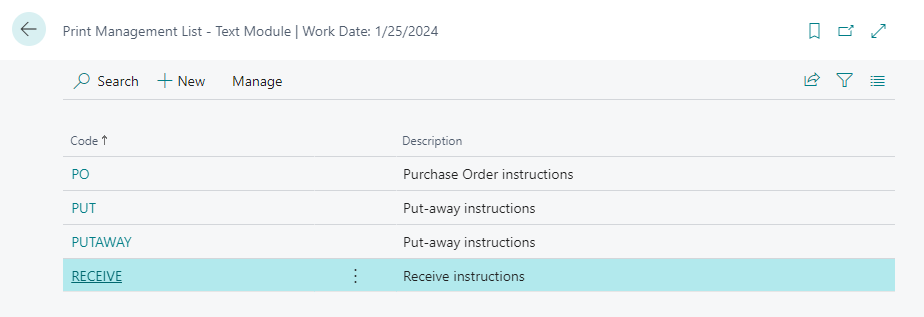
After the Logistics objects are made available in the Text Module Objects Setup, it is possible to define specific Print Management Codes in the Text Module setup (use the Tell Me feature to search for Print Management List - Text Module).
Per Print Management Code it is possible to define which objects are included.
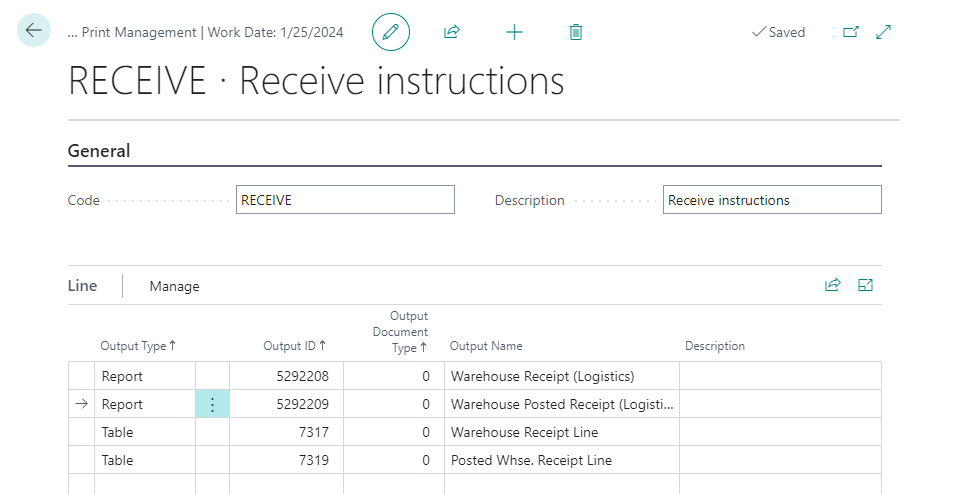
Table filters
With standard Text Module functionality all relevant TM text is added to header/footer/line on a certain document, which can result for example in sales oriented text being shown on a warehouse shipment or pick document, which for a warehouse user might be completely irrelevant. To address this it is possible to define specific table filters within Logistics Text Module.
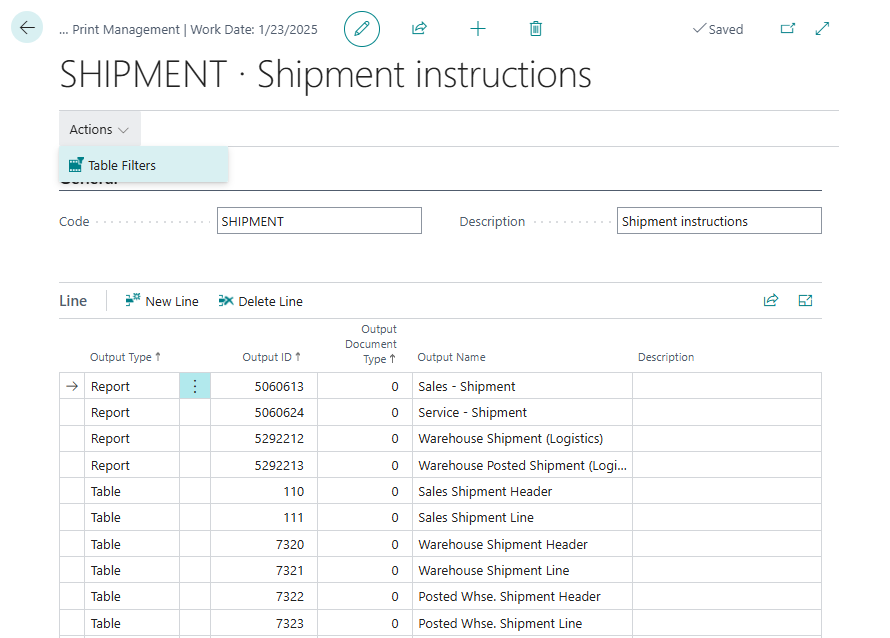
These filters can be added using the Table Filters action on a specific print management code page.
From here it is possible to define which related tables are relevant for this print management code (this only works for the warehouse related tables). For example, when you only want to display shipment related information on certain tables, this can be accomplished by defining a table filter.
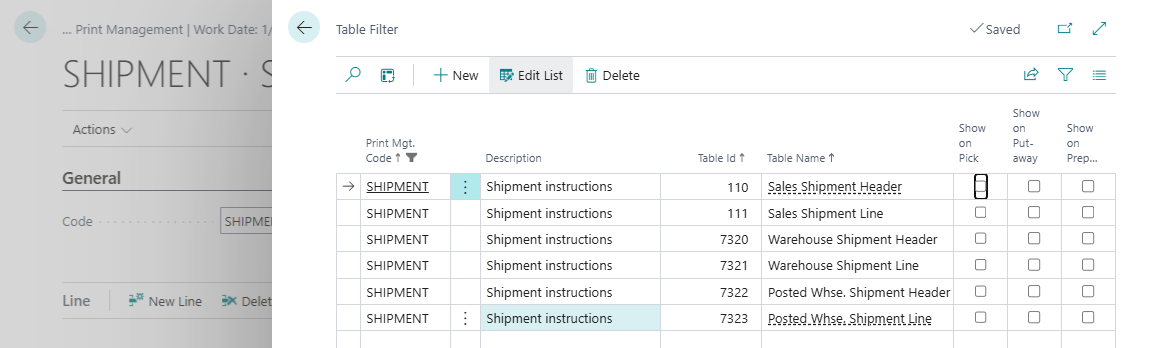
By adding tables here, it will filter out other print management codes for this specific table (unless for the other specific print management code similar table filters are defined).
Consider the below example where on item level several standard text instructions are added:
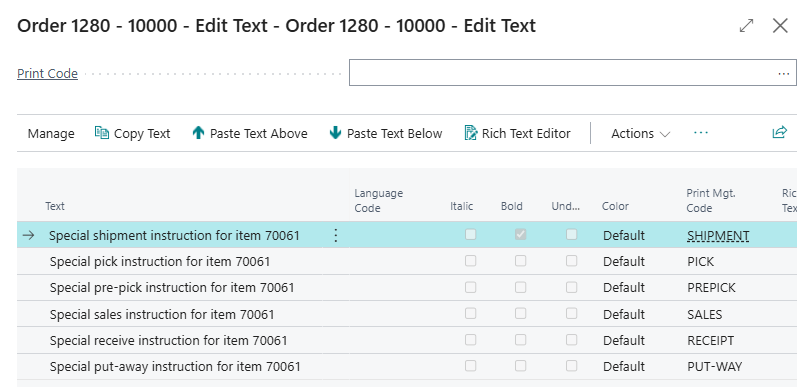
Basically only one line in the above example is relevant for shipment instructions (all the other instructions are relevant in other areas of the application). With the standard print management code it is possible to define where this information needs to appear (report) or popup (table), but by TM default behavior when navigating to the TM pages ALL linked text is being displayed. With the additional table filtering, it is now possible to filter out all the irrelevant text components when navigating to the TM text lines for a specific table. In the below example this results in the following when displaying the line text on a shipment:
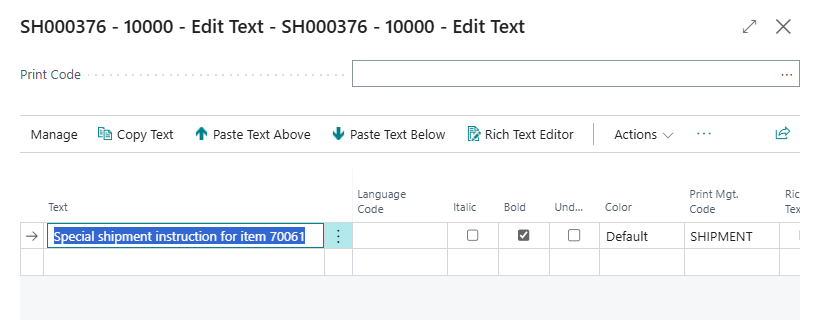
It is not showing the other print management codes as for these codes no table filters were defined.
N.B. For the warehouse activity releated tables the filtering works slightly different. This is because these tables are used for different purposes, such as (pre)pick and put-away. In order to tackle this on the table filter for the warehouse activity related tables, an additional setup needs to be done to let the system know when exactly the text needs to be displayed.
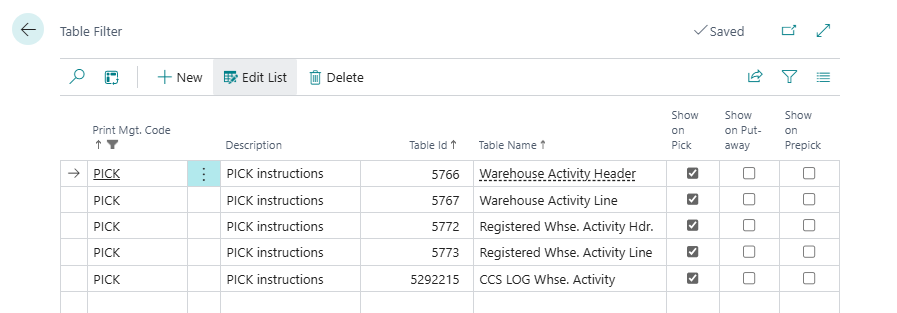
In the above example the PICK instructions are only displayed on a pick related warehouse activity header due to the additional settings on the table filter record.
Report Selection - Warehouse
To be able to show the additional text provided by the Logistis - Text Module integrations, some logistics specific report were added. Although these reports are added to the Text Module Objects Setup automatically when running the initiation function from Logistics Setup, these reports will not be used automatically.
For this to work properly within Report Selection - Warehouse, the standard reports from Business Central need to be replaced by the Logistics specific ones.
| Object Name | Standard ID | Logistics ID |
|---|---|---|
| Warehouse Receipt | 7316 | 5292208 |
| Posted Warehouse Receipt | 7308 | 5292209 |
| Put-way list | 5751 | 5292210 |
For example, here is the report selection for the Logisitics put-away report:
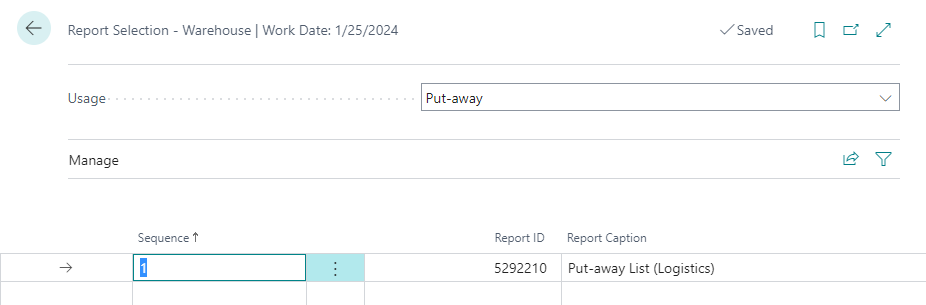
When COSMO Text Module integration is de-activated in the Logistics Setup page, the Report Selection - Warehouse settings are NOT changed. If a specific report, like 5292210, is still being used, an error is shown.
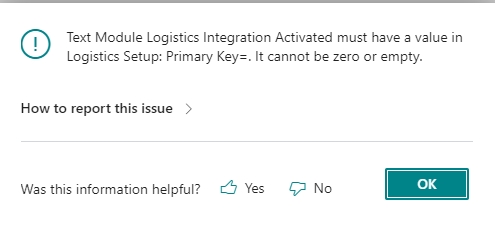
To solve this issue, either replace the report with the standard or client-specific one, or re-activate the COSMO Text Module integration.
Master Data Configuration
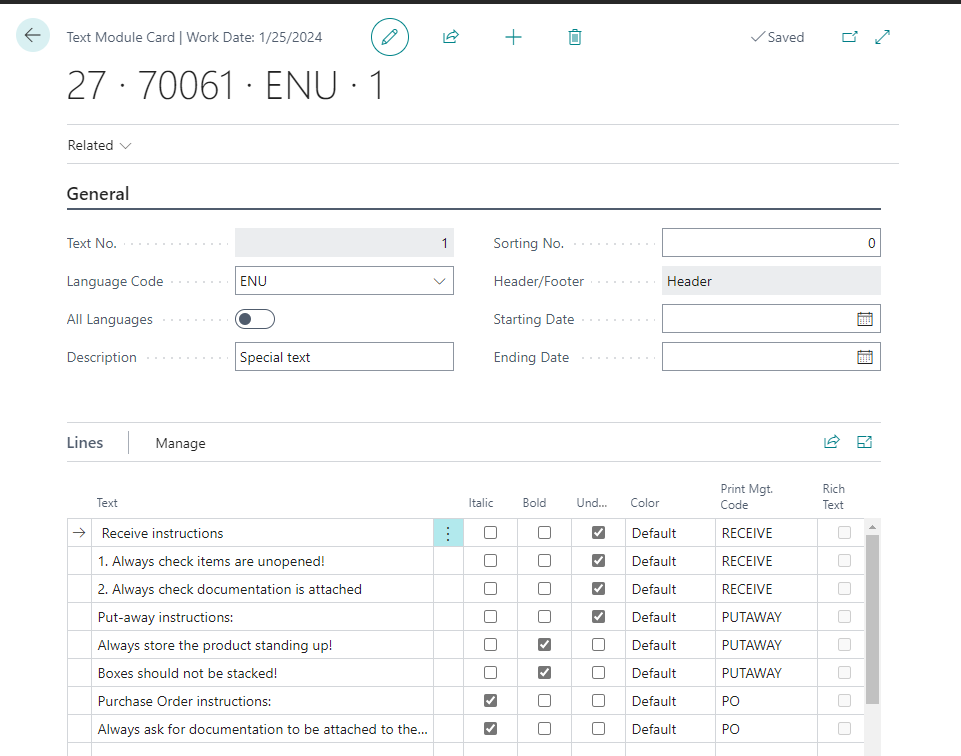
On master data level (item) it is possible to define additional text. See below for an example in which specific text related to print management codes are added.
Feedback
Submit feedback for this page .