Search Results for

    Show / Hide Table of Contents

    Azure App Registration

    • How do I register a Web Type Azure App in a SaaS environment?
    • How do I register a Mobile Type Azure App in a SaaS environment?
    • How do I register a Web Type Azure App in an on-premises environment?
    • How do I register a Mobile Type Azure App in an on-premises environment?
    • How do I fill the fields of the OAuth Settings page properly?
    Tip

    Summary: This guide provides detailed instructions on how to register Azure applications for use with OAuth authentication in both SaaS and on-premises environments. It covers the process for registering both Web and Mobile type applications, highlighting key differences and steps for each environment.

    To use your SaaS or on-premises (OnPrem) environment with OAuth authentication, set up your Azure app registration and COSMO Mobile Solution (Business Central extension) as described in this topic.

    Note

    The app registration can be done using the Microsoft Entra admin center or Azure Portal. This content demonstrates how to do it in the Azure Portal but the process is generally the same in the Microsoft Entra admin center.

    App Registration Types

    COSMO Mobile Solution supports two types of app registration: Web and Mobile. Both can be used in SaaS and OnPrem, both have advantages and disadvantages as described below.

    The Web type app registration:

    • Requires a client secret, which has an expiration date.
    • Ignores the MFA location checks, which can be useful when the Intermediate Layer or Business Central is running in a non-trusted location while the user is in a trusted location.

    The Mobile type app registration:

    • Does not require a client secret.
    • Requires the MFA location checks to be passed, which can be an issue when the Intermediate Layer or Business Central is running in a non-trusted location while the user in in a trusted location.

    The different registration types based on the SaaS/OnPrem environments are designated in the separate tabs below.

    • Web Type SaaS
    • Mobile Type SaaS
    • Web Type OnPrem
    • Mobile Type OnPrem

    To register a Web type application in a SaaS environment, follow the steps listed below.

    1. Choose the Lightbulb that opens the Tell Me feature icon, enter Mobile Solution Settings and choose the related link.

    2. Ensure that the OAuth without Client Secret toggle is turned off.

    3. Choose the OAuth Settings action to open the OAuth Settings page. Keep this page open during the app registration process.

    4. Open a new tab in your browser and go to Microsoft Azure portal and log in with your admin account.

    5. Enter App registrations in the search bar.

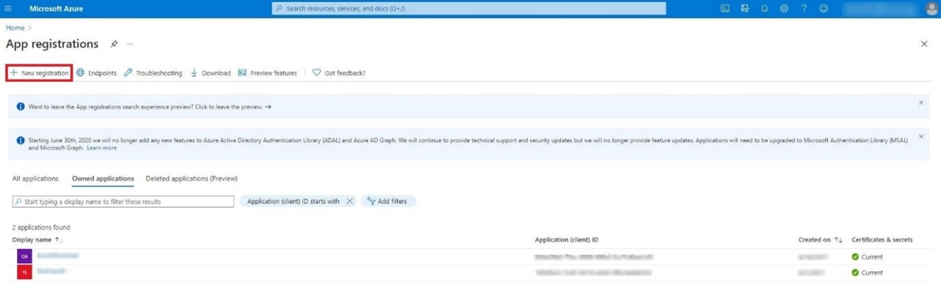
    6. Choose New registration.

      New app registration

    7. Fill in the required data and then choose the Register button:

      • Name: it can be anything, e.g., OAuthTest.
      • Supported account types: the first option is set by default; however, it can be selected regarding your company settings.
      • Redirect URI (optional): leave it blank, it will be set later.
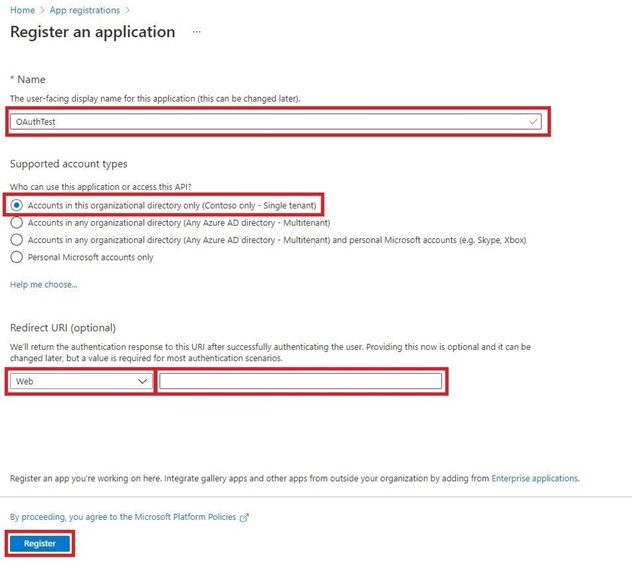
      Application registration form

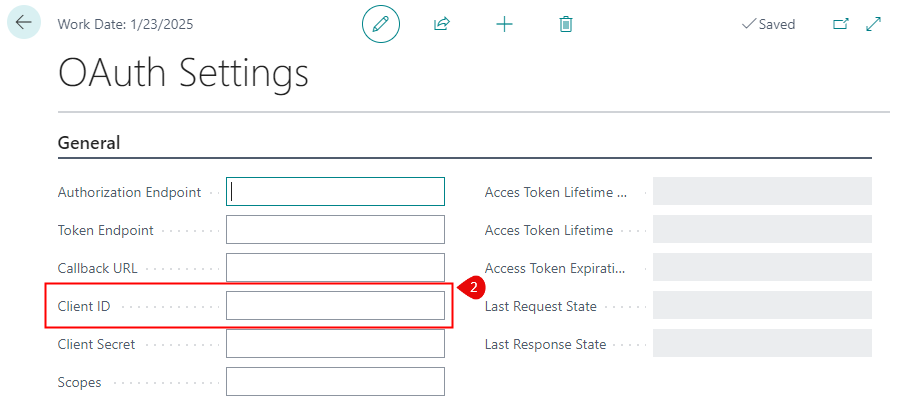
    8. Next, you'll be redirected to your App registrations window. Copy the Application (client) ID value (1), open the OAuth Settings page in Business Central and paste it in the Client ID field (2). Go back to Microsoft Azure and choose Endpoints (3).
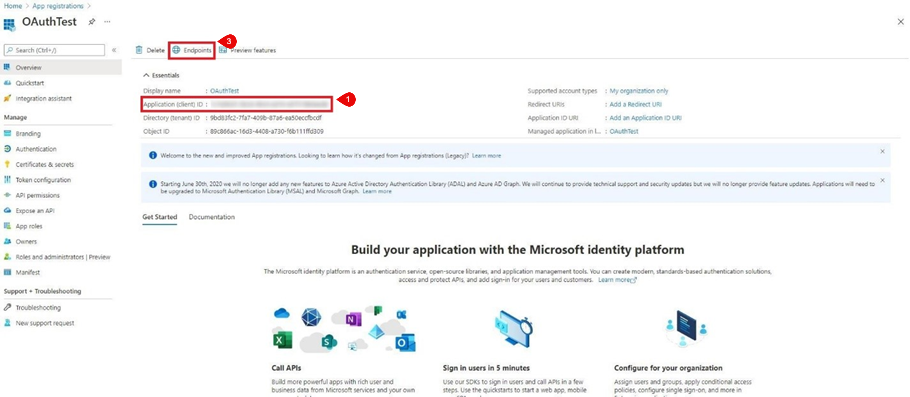
      App registration settings window

      Client ID

    9. In the Endpoints window:

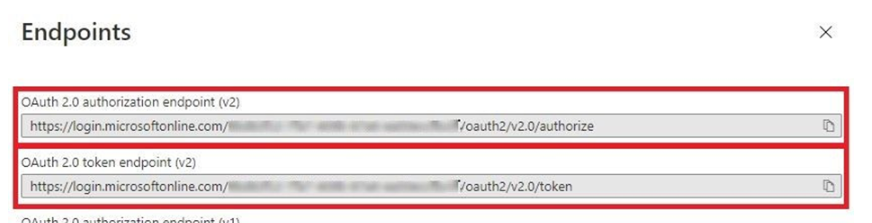
      • copy the following endpoint values:

      Endpoints window


      • open the OAuth Settings page in Business Central and paste them in the Authorization Endpoint and Token Endpoint fields.
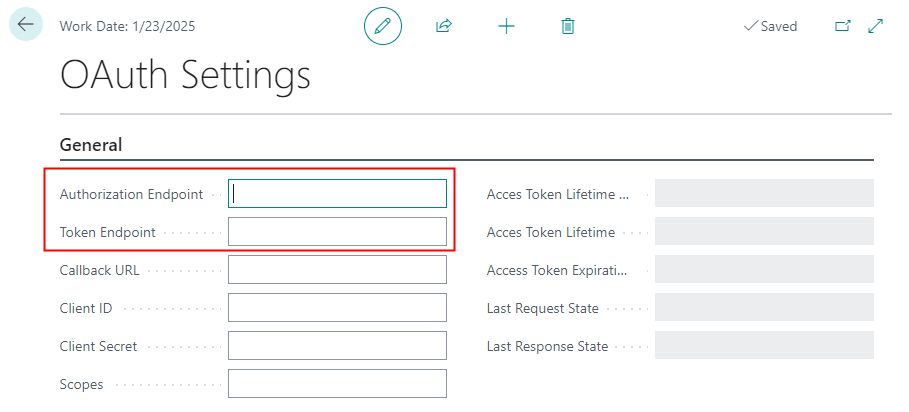
      Endpoints

    10. Go back to Microsoft Azure. In the navigation pane, choose Authentication and then choose Add a platform.
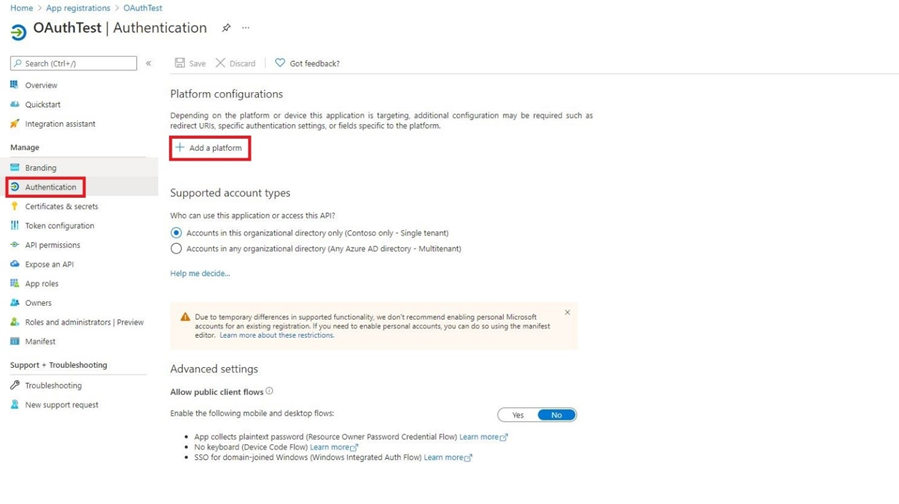
      Add authentication platform

    11. In the Configure platforms window, choose the Web application.
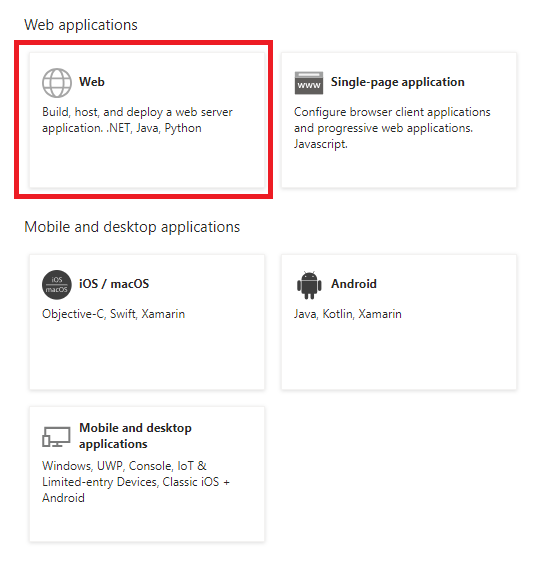
      Platform selection window

    12. After selecting Web, the Configure Web window opens. Enter http://localhost in the Redirect URIs field, then choose the Configure button.
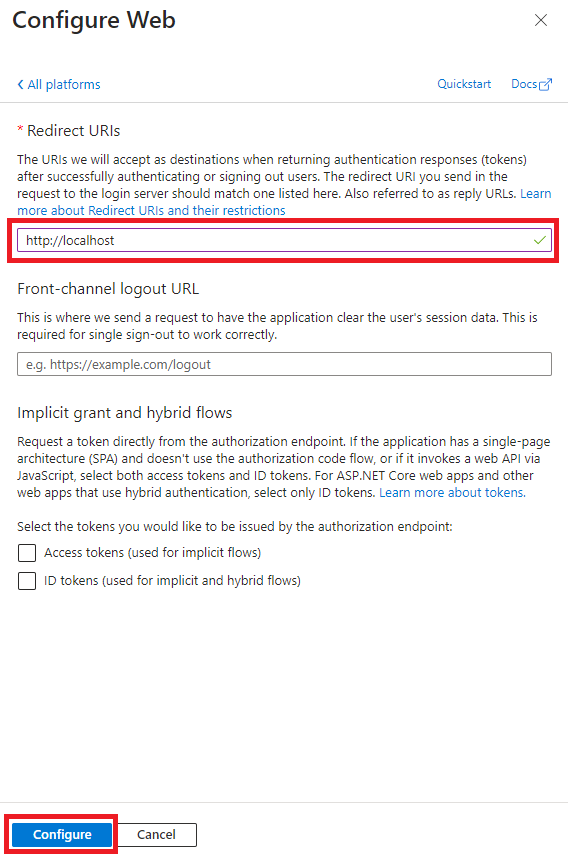
      Redirect URI settings

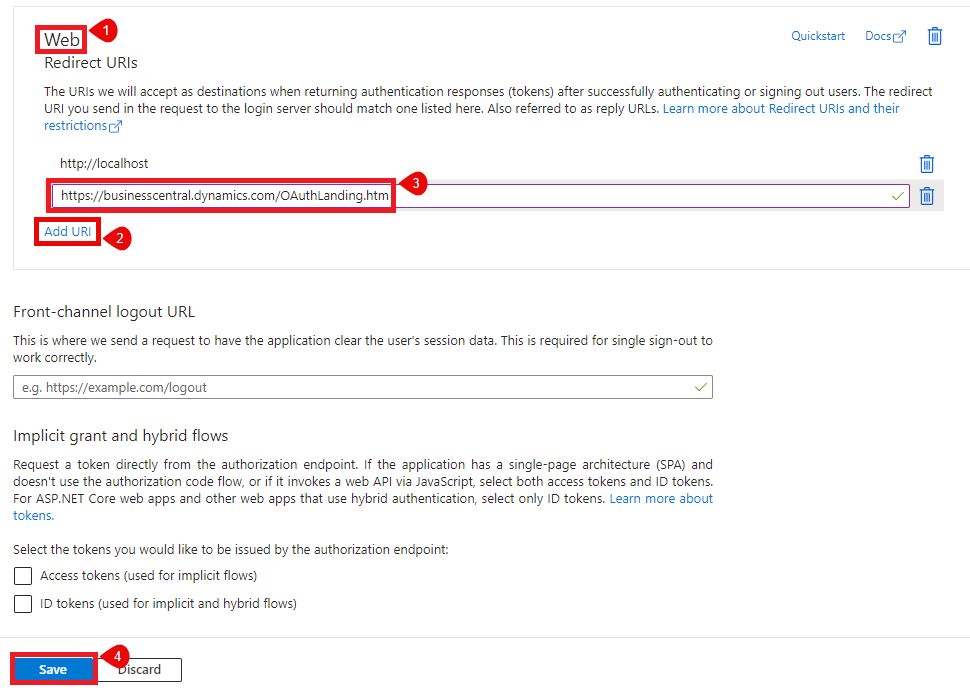
    13. Go back to the Authentication tab. In the Web section (which shows your previously added localhost URI), choose Add URI. Copy and paste your Business Central communication URI: https://businesscentral.dynamics.com/OAuthLanding.htm Choose the Save button.

      Add Business Central URI

    14. Open the OAuth Settings page in Business Central and paste it in the Callback URL field.
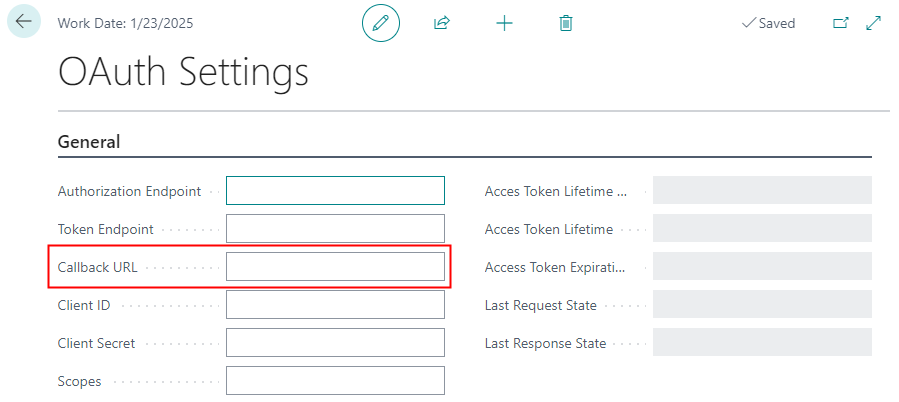
      Callback URL

    15. Go back to Microsoft Azure. In the navigation pane, choose API permissions and then choose Add a permission.
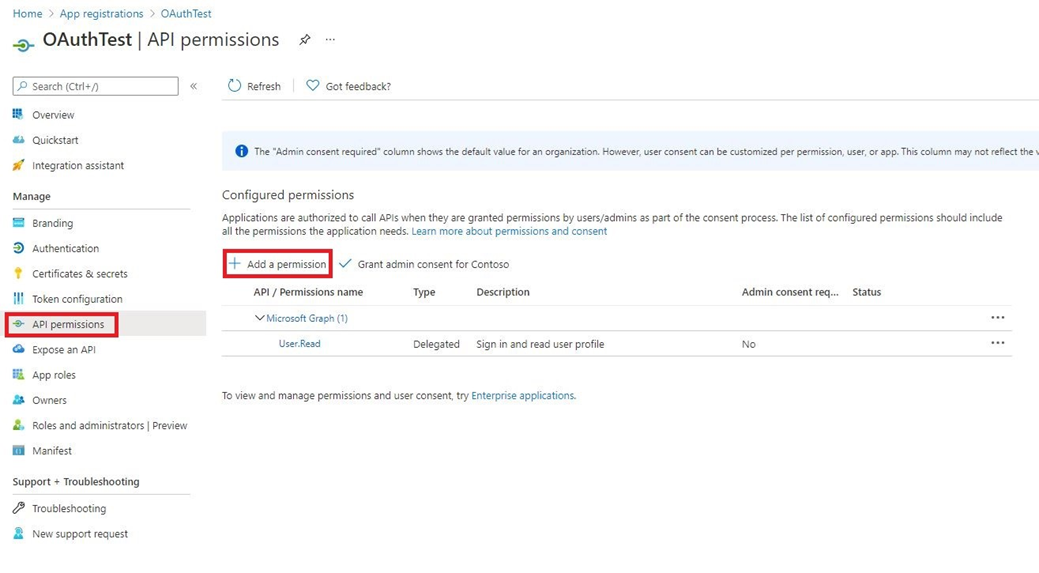
      API permissions window

    16. In the Request API permissions window, choose the Dynamics 365 Business Central API.
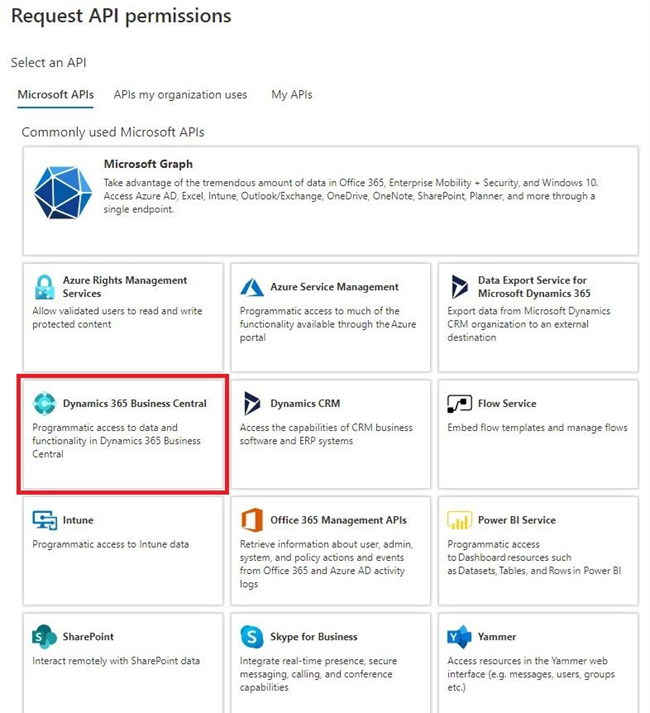
      Request API permissions window 1/2

    17. Select Delegated permissions as the permission type, check the Financial.ReadWrite.All option under the Financials drop-down, and then click Add permissions. After adding, ensure you grant admin consent for both User.Read and Financial.ReadWrite.All permissions by choosing the Grant admin consent for... action among the listed permissions.
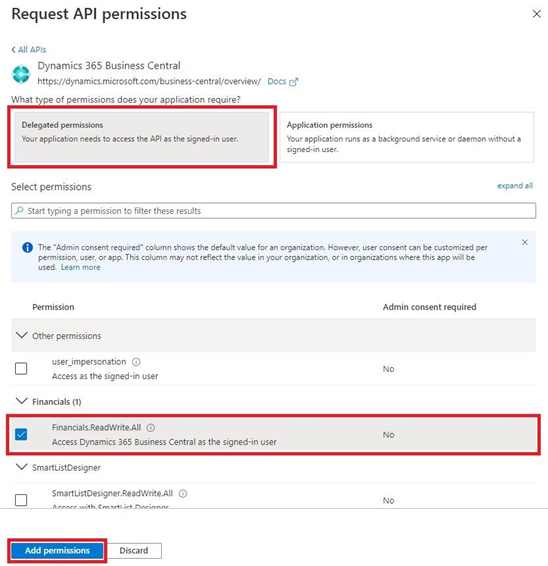
      Request API permissions window 2/2

    18. In the navigation pane, choose Certificates & secrets and then choose New client secret.
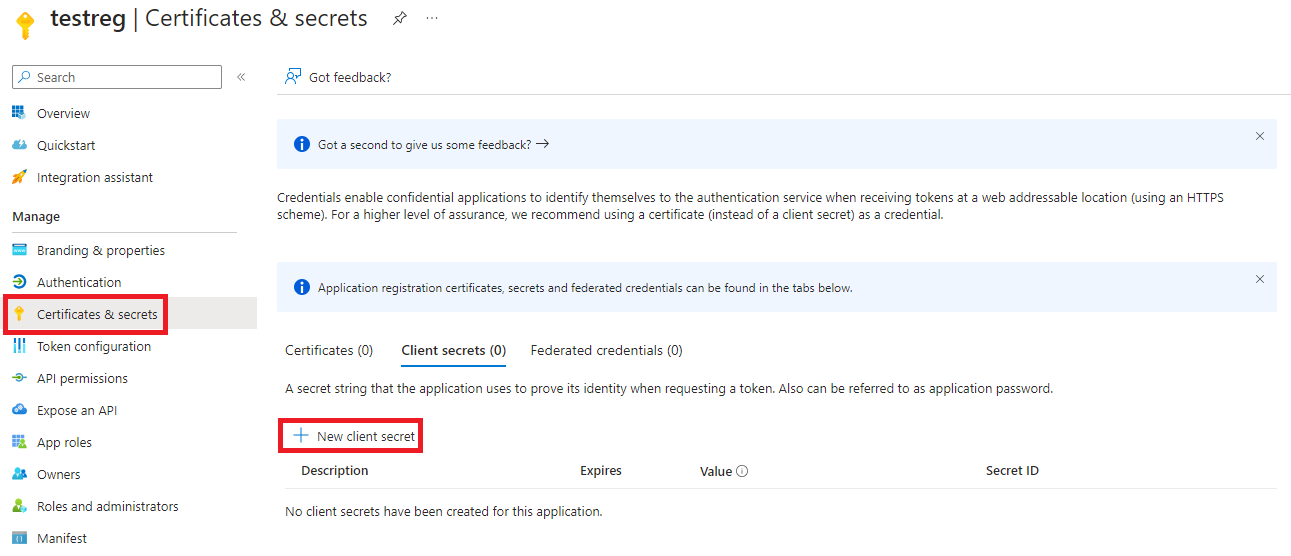
      Certificates & secrets window

    19. In the Add a client secret window, enter a description of the client secret, set the expiration date, and then choose the Add button.
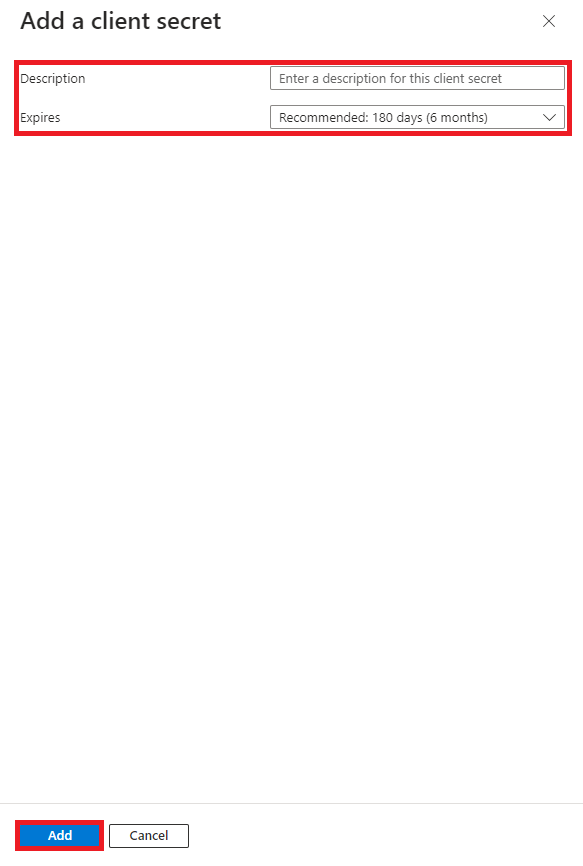
      New client secret window

    20. Copy the client secret value, open the OAuth Settings page in Business Central, and paste it in the Client Secret field. Once the secret is created, its value will no longer be accessible after the page is closed in Microsoft Azure.

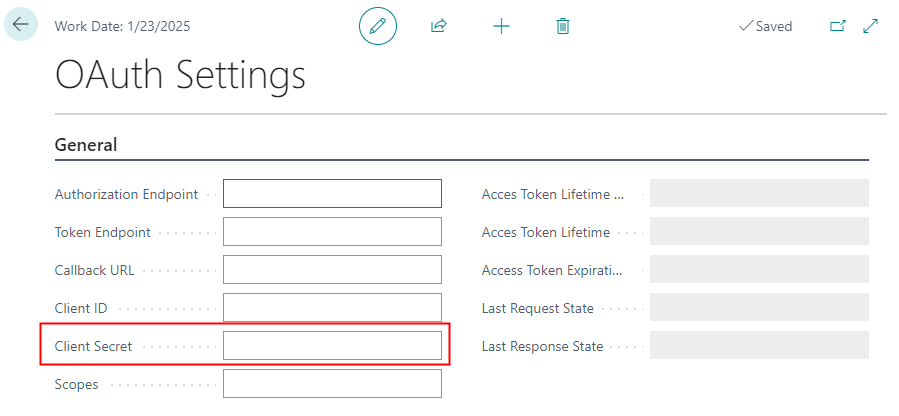
      Client secret value

      Client Secret

    21. In the OAuth Settings page, paste the following scope value in the Scopes field: https://api.businesscentral.dynamics.com/Financials.ReadWrite.All offline_access

      Ensure that the " offline_access" section of the URL is included in the copied value (with a space before "offline").
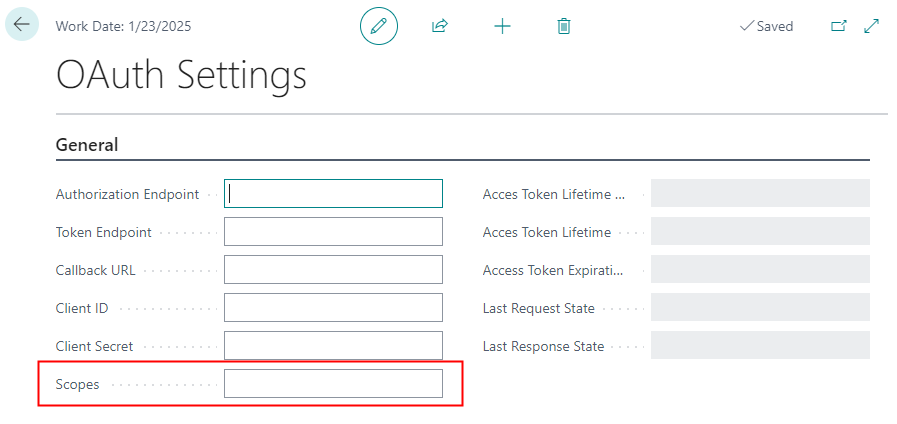
      Scopes

    22. In case of a non-production environment, choose the Lightbulb that opens the Tell Me feature icon, enter Extension Management and choose the related link.

    23. Locate and open COSMO Mobile Solution and then turn on the Allow HttpClient Requests toggle in the Extension Settings page.
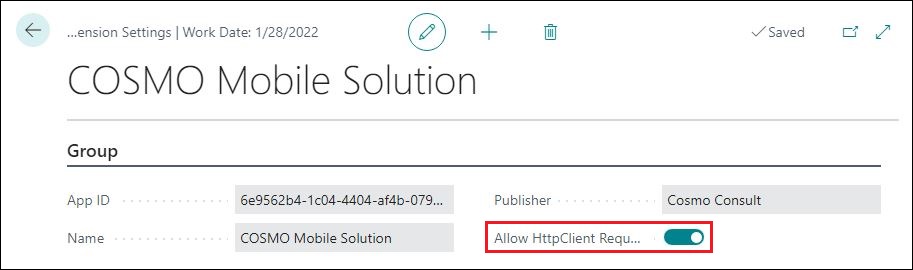
      COSMO Mobile Solution configuration

    To register a Mobile type application in a SaaS environment, follow the steps listed below.

    1. Choose the Lightbulb that opens the Tell Me feature icon, enter Mobile Solution Settings and choose the related link.

    2. Ensure that the OAuth without Client Secret toggle is turned on.

    3. Choose the OAuth Settings action to open the OAuth Settings page. Keep this page open during the app registration process.

    4. Open a new tab in your browser and go to Microsoft Azure portal and log in with your admin account.

    5. Enter App registrations in the search bar.

    6. Choose New registration.

      New app registration

    7. Fill in the required data and then choose the Register button:

      • Name: it can be anything, e.g., OAuthTest.
      • Supported account types: the first option is set by default; however, it can be selected regarding your company settings.
      • Redirect URI (optional): leave it blank, it will be set later.

      Application registration form

    8. Next, you'll be redirected to your App registrations window. Copy the Application (client) ID value (1), open the OAuth Settings page in Business Central and paste it in the Client ID field (2). Go back to Microsoft Azure and choose Endpoints (3).

      App registration settings window

      Client ID

    9. In the Endpoints window:

      • copy the following endpoint values:

      Endpoints window


      • open the OAuth Settings page in Business Central and paste them in the Authorization Endpoint and Token Endpoint fields.

      Endpoints

    10. Go back to Microsoft Azure. In the navigation pane, choose Authentication and then choose Add a platform.

      Add authentication platform

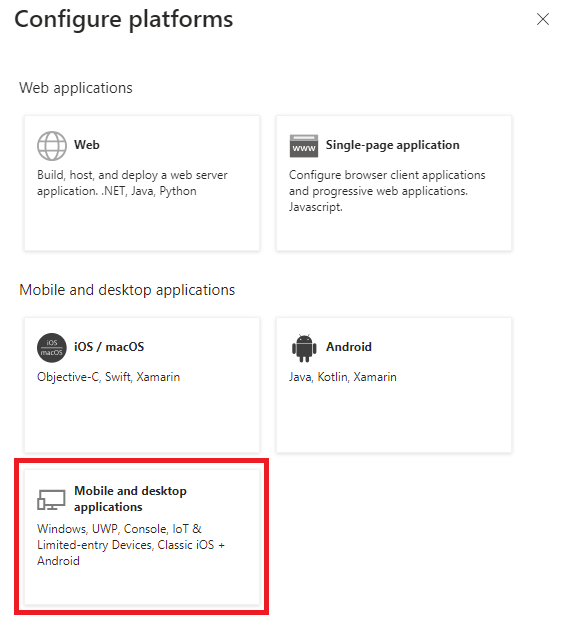
    11. In the Configure platforms window, choose the Mobile and desktop applications application.

      Platform selection window

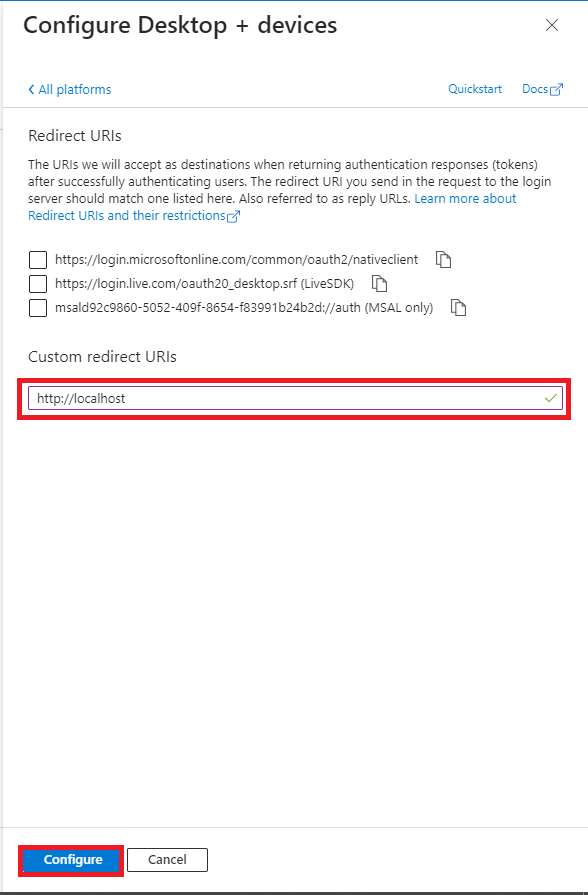
    12. After selecting Mobile and desktop applications, the Configure Desktop + devices window opens. Enter http://localhost in the Custom redirect URIs field, then choose the Configure button.

      Redirect URI settings

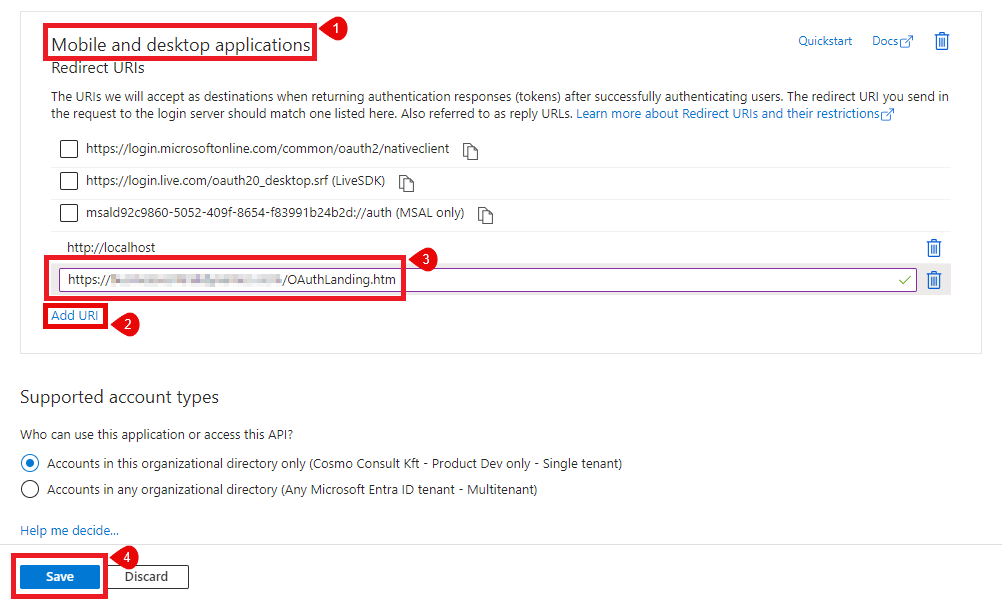
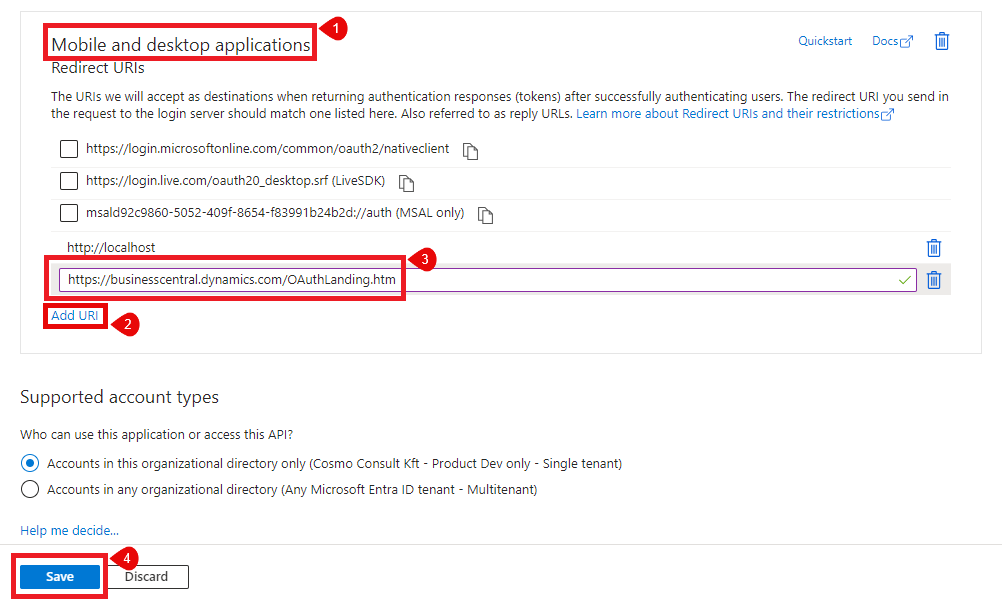
    13. Go back to the Authentication tab. In the Mobile and desktop applications section (which shows your previously added localhost URI), choose Add URI. Enter your Business Central communication URI: https://businesscentral.dynamics.com/OAuthLanding.htm
      Choose the Save button.

      Add Business Central URI

    14. Open the OAuth Settings page in Business Central and paste it in the Callback URL field.

      Callback URL

    15. Go back to Microsoft Azure. In the navigation pane, choose API permissions and then choose Add a permission.

      API permissions window

    16. In the Request API permissions window, choose the Dynamics 365 Business Central API.

      Request API permissions window 1/2

    17. Select Delegated permissions as the permission type, check the Financial.ReadWrite.All option under the Financials drop-down, and then click Add permissions. After adding, ensure you grant admin consent for both User.Read and Financial.ReadWrite.All permissions by choosing the Grant admin consent for... action among the listed permissions.

      Request API permissions window 2/2

    18. Open the OAuth Settings page in Business Central and paste the following scope value in the Scopes field:
      https://api.businesscentral.dynamics.com/Financials.ReadWrite.All offline_access

      Ensure that the " offline_access" section of the URL is included in the copied value (with a space before "offline").

      Scopes

    19. In case of a non-production environment, choose the Lightbulb that opens the Tell Me feature icon, enter Extension Management and choose the related link.

    20. Locate and open COSMO Mobile Solution and then turn on the Allow HttpClient Requests toggle in the Extension Settings page.
      COSMO Mobile Solution configuration

    To register a Web type application in an on-premises environment, follow the steps listed below.

    1. Choose the Lightbulb that opens the Tell Me feature icon, enter Mobile Solution Settings and choose the related link.

    2. Ensure that the OAuth without Client Secret toggle is turned off.

    3. Choose the OAuth Settings action to open the OAuth Settings page. Keep this page open during the app registration process.

    4. Go to Microsoft Azure portal and log in with your admin account.

    5. Enter App registrations in the search bar.

    6. Choose New registration.

      Azure new app registration

    7. Fill in the required data and then choose the Register button:

      • Name: it can be anything, e.g., MobSolTest.
      • Supported account types: choose the first option if the Business Central server is in the same domain as your Azure App Registration, or the second option if they are in different domains.
      • Redirect URI (optional): leave it blank, it will be set later.

      Application registrations form

    8. Next, you'll be redirected to your App registrations window. Copy the Application (client) ID value (1), open the OAuth Settings page in Business Central and paste it in the Client ID field (2). Go back to Microsoft Azure and choose Endpoints (3).

      App registration settings window

      Client ID

    9. In the Endpoints window:

      • copy the following endpoint values:

      Endpoints window


      • open the OAuth Settings page in Business Central and paste them in the Authorization Endpoint and Token Endpoint fields.

      Endpoints

    10. Go back to Microsoft Azure. In the navigation pane, choose Authentication and then choose Add a platform.

      Add authentication platform

    11. In the Configure platforms window, choose the Web application.

      Platform selection window

    12. After selecting Web, the Configure Web window opens. Enter http://localhost in the Redirect URIs field and then choose the Configure button.

      Redirect URI settings

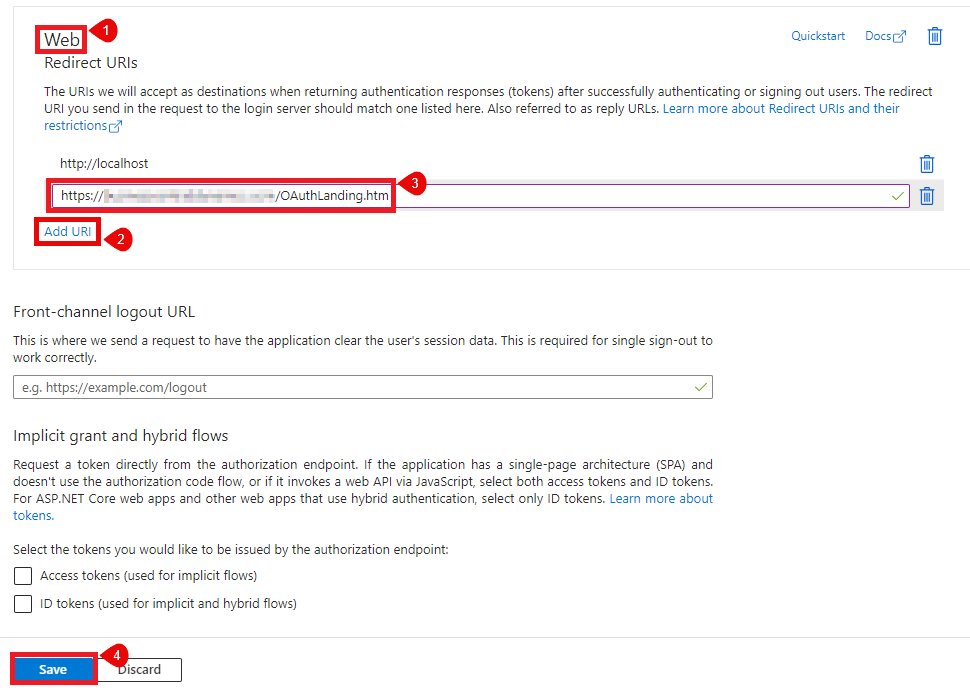
    13. Go back to the Authentication tab. In the Web section (which shows your previously added localhost URI), choose Add URI. Copy and paste your Business Central communication URI, based on the following structure: https://'server name'/'YourEnvironment Name'/OAuthLanding.htm
      Choose the Save button.

      Add Business Central URI

    14. Open the OAuth Settings page in Business Central and paste it in the Callback URL field.

      Callback URL

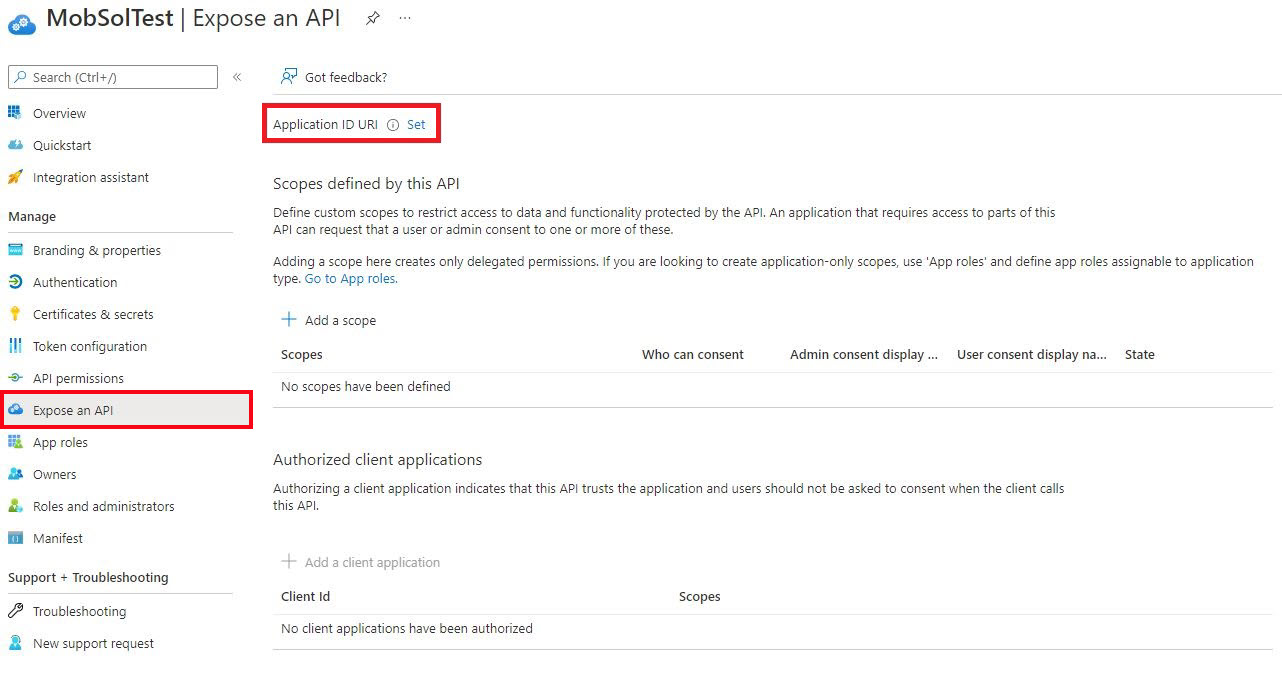
    15. Go back to Microsoft Azure. In the navigation pane, choose Expose an API and then set your Application ID URI. Copy its value to the valid audiences in the Business Central instance settings. For information about configuring Business Central on-premises web server instances, see the configuration guide in the Microsoft Documentation.

      Expose an API window

    16. A new window opens which contains your Application (client) ID starting with an api:// prefix. Leave it as it is by default and choose the Save button.

      New App ID URI

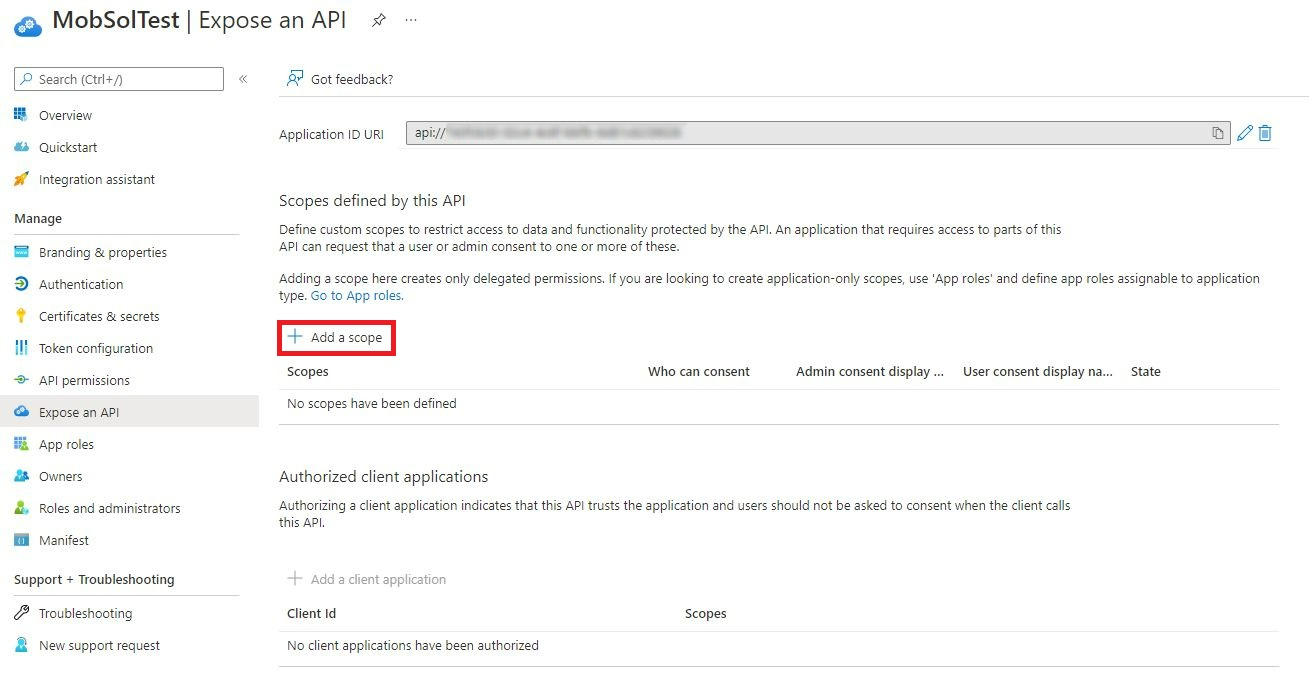
    17. Choose Add a scope.

      Expose an API – Add a scope

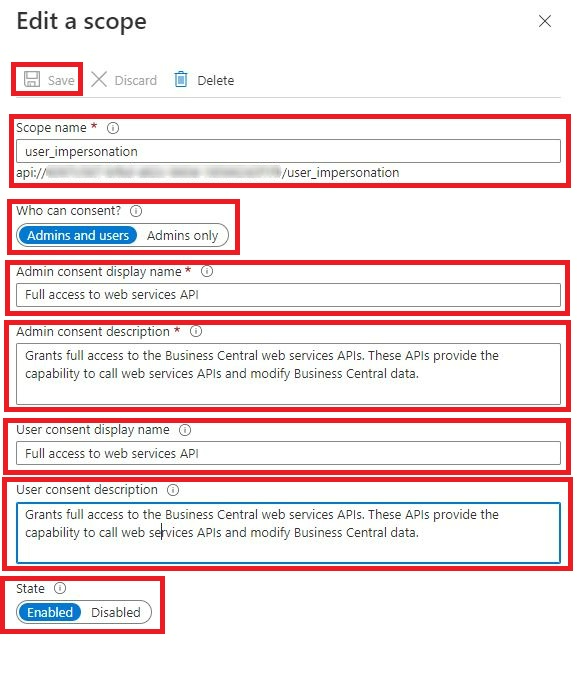
    18. In the Edit a scope window, set the following values, and then choose the Save button:

      • Scope name: user_impersonation
      • Who can consent: Admins and users
      • Admin consent display name: set any value (e.g., Full access to web services API)
      • Admin consent description: set any value (e.g., Grants full access to the Business Central web services APIs. These APIs provide the ability to call web services APIs and modify Business Central data.)
      • User consent display name: set any value (e.g., Full access to web services API)
      • User consent description: set any value (e.g., Grants full access to the Business Central web services APIs. These APIs provide the ability to call web services APIs and modify Business Central data.)
      • State: Enabled

      Expose an API – New scope settings

    19. Open the OAuth Settings page in Business Central and paste the following scope value in the Scopes field: api://'yourClientId'/user_impersonation offline_access

      Use the Application (client) ID value as 'yourClientID'. Ensure that the " offline_access" section of the URL is included in the copied value (with a space before "offline").

      Scopes

    20. Go back to Microsoft Azure. In the navigation pane, choose Certificates & secrets and then choose New client secret.

      Certificates & secrets window

    21. In the Add a client secret window, enter a description of the client secret, and set the expiration date, and then choose the Add button.

      New client secret window

    22. Copy the client secret value, open the OAuth Settings page in Business Central, and paste it in the Client Secret field. Once the secret is created, its value will no longer be accessible after the page is closed in Microsoft Azure.

      Client secret value

      Client Secret

    23. In case of a non-production environment, choose the Lightbulb that opens the Tell Me feature icon, enter Extension Management and choose the related link.

    24. Locate and open COSMO Mobile Solution and then turn on the Allow HttpClient Requests toggle in the Extension Settings page.
      COSMO Mobile Solution configuration

    To register a Mobile type application in an on-premises environment, follow the steps listed below.

    1. Choose the Lightbulb that opens the Tell Me feature icon, enter Mobile Solution Settings and choose the related link.

    2. Ensure that the OAuth without Client Secret toggle is turned on.

    3. Choose the OAuth Settings action to open the OAuth Settings page. Keep this page open during the app registration process.

    4. Go to Microsoft Azure portal and log in with your admin account.

    5. Enter App registrations in the search bar.

    6. Choose New registration.

      Azure new app registration

    7. Fill in the required data and then choose the Register button:

      • Name: it can be anything, e.g., MobSolTest.
      • Supported account types: choose the first option if the Business Central server is in the same domain as your Azure App Registration, or the second option if they are in different domains.
      • Redirect URI (optional): leave it blank, it will be set later.

      Application registrations form

    8. Next, you'll be redirected to your App registrations window. Copy the Application (client) ID value (1), open the OAuth Settings page in Business Central and paste it in the Client ID field (2). Go back to Microsoft Azure and choose Endpoints (3).

      App registration settings window

      Client ID

    9. In the Endpoints window:

      • copy the following endpoint values:

      Endpoints window


      • open the OAuth Settings page in Business Central and paste them in the Authorization Endpoint and Token Endpoint fields.

      Endpoints

    10. In the OAuth Settings page, paste the following scope value in the Scopes field: api://'yourClientId'/user_impersonation offline_access

      Use the Application (client) ID value as 'yourClientID'. Ensure that the " offline_access" section of the URL is included in the copied value (with a space before "offline").

      Scopes

    11. Go back to Microsoft Azure. In the navigation pane, choose Authentication and then choose Add a platform.

      Add authentication platform

    12. In the Configure platforms window, choose the Mobile and desktop applications application.

      Platform selection window

    13. After selecting Mobile and desktop applications, the Configure Desktop + devices window opens. Enter http://localhost in the Custom redirect URIs field and then choose the Configure button.

      Redirect URI settings

    14. Go back to the Authentication tab. In the Mobile and desktop applications section (which shows your previously added localhost URI), choose Add URI. Enter your Business Central communication URI, based on the following structure: https://'server name'/'YourEnvironment Name'/OAuthLanding.htm
      Choose the Save button.

      Add Business Central URI

    15. Open the OAuth Settings page in Business Central and paste it in the Callback URL field.

      Callback URL

    16. Go back to Microsoft Azure. In the navigation pane, choose Expose an API and then set your Application ID URI. Copy its value to the valid audiences in the Business Central instance settings. For information about configuring Business Central on-premises web server instances, see the configuration guide in the Microsoft Documentation.

      Expose an API window

    17. A new window opens which contains your Application (client) ID starting with an api:// prefix. Leave it as it is by default and choose the Save button.

      New App ID URI

    18. Choose Add a scope.

      Expose an API – Add a scope

    19. In the Edit a scope window, set the following values, and then choose the Save button:

      • Scope name: user_impersonation
      • Who can consent: Admins and users
      • Admin consent display name: set any value (e.g., Full access to web services API)
      • Admin consent description: set any value (e.g., Grants full access to the Business Central web services APIs. These APIs provide the ability to call web services APIs and modify Business Central data.)
      • User consent display name: set any value (e.g., Full access to web services API)
      • User consent description: set any value (e.g., Grants full access to the Business Central web services APIs. These APIs provide the ability to call web services APIs and modify Business Central data.)
      • State: Enabled

      Expose an API – New scope settings

    20. In case of a non-production environment, open Business Central, choose the Lightbulb that opens the Tell Me feature icon, enter Extension Management and choose the related link.

    21. Locate and open COSMO Mobile Solution and then turn on the Allow HttpClient Requests toggle in the Extension Settings page.
      COSMO Mobile Solution configuration


    Feedback
    Submit feedback for this page .

    In This Article
    Back to top 2025 © COSMO CONSULT - Data protection - Imprint