Mobile Application Setup and Login
- How do I download and install COSMO Mobile Solution's mobile application?
- What information is displayed on the initial screen?
- How do I provide Intermediate Layer (Server) URL and Server (Company) ID to create connection to a certain company?
- How do I provide user credentials and PIN?
- How do I add myself as a new user in the mobile application?
Tip
Summary: This topic provides a step-by-step guide on downloading and installing the mobile application, configuring the Intermediate Layer (Server) URL and Server (Company) ID for connecting to a specific company, and entering user credentials and PINs based on the selected authentication method. It also covers how to manage login details and reset the mobile application settings after the first successful login.
Download and Install the Mobile Application
Caution
Before installing or updating the mobile application, ensure that the related components (COSMO Mobile Solution base application and Intermediate Layer) have already been updated. For more details, see Compatibility Matrix.
The latest version of the mobile application can be downloaded from Google Play or as a NuGet package.
Once the download is complete, install the application and grant the necessary permissions and enable it to send diagnostic data when prompted.
Initial Screen
After installing the mobile application on an Android device, opening COSMO Mobile Solution will display an initial screen.
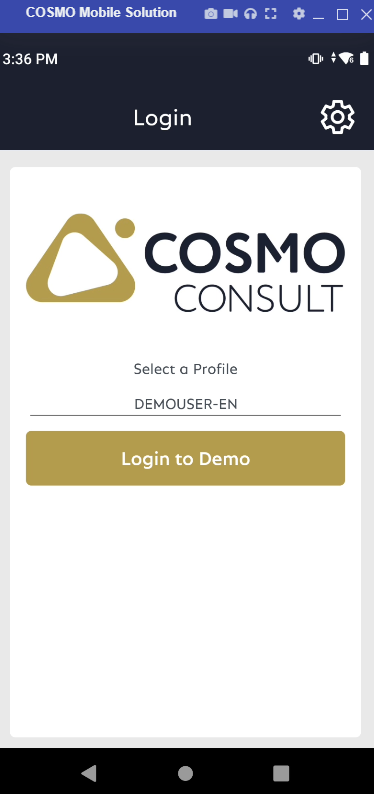
By selecting a user and pressing the Login to Demo button in the mobile application, the user will be logged into the Demo Environment. For more information, see Demo Application.
To connect to a real environment, choose the Cog icon in the upper-right corner.
Provide Intermediate Layer (Server) URL and Server (Company) ID
First, determine which company you would like to connect to by providing the Intermediate Layer (Server) URL and the Server ID of the specific company that has already been registered against the Intermediate Layer.
To add the Intermediate Layer (Server) URL, open the mobile application and choose the Cog icon in the upper-right corner. Scroll to the bottom of the page and choose the Change server URL button.
Enter the Intermediate Layer (Server) URL that you previously configured in the Mobile Solution Settings page in COSMO Mobile Solution.
After entering the URL, press the OK button to input the Server (Company) ID that was registered in the Intermediate Layer.
If you had previously used a Server (Company) ID, it can also be selected from a list. By pressing the Lookup icon, all previously used Server IDs will be displayed along with their associated company names.
Provide User Credentials
Depending on whether you selected OAuth or Basic/NTLM authentication during Server (Company) registration, different interfaces will be displayed.
Depending on whether you set Remember Password to "true" or "false" during Server (Company) registration, you might also need to provide a PIN. For more details, see the Profiles and Remember Login section.
After the First Login
From the second successful login onward, if Remember Password is enabled, you can select both the Server (Company) ID and User from a list.
To log in with a newly added user when the Remember Login feature is enabled, select the Login as New User option. This action will return you to the initial login screen, where you can enter the credentials for the new user.

If the intermediate layer is deleted, the application will revert to the initial screen displaying the demo login data.
Feedback
Submit feedback for this page .