Convert .bacpac to .bak
If you have a .bacpac file, e.g. from an Azure SQL database and want to convert it to a .bak file, you can use this functionality. It will start a SQL Server container, restore the .bacpac file to a database and then create a .bak file from it. Currently the only supported way to get a .bacpac file into the service is to store it on the Azure Fileshare.
To convert a .bacpac file, take these steps:
- Upload the file to the Azure Fileshare directly in the root folder or in a subfolder (e.g. in a subfolder "backups" and the name of the file is "database-backup.bacpac")
- Go to an organization, project and repository of your choosing. The conversion is not actually connected to the repository, but the container will appear below that repository.
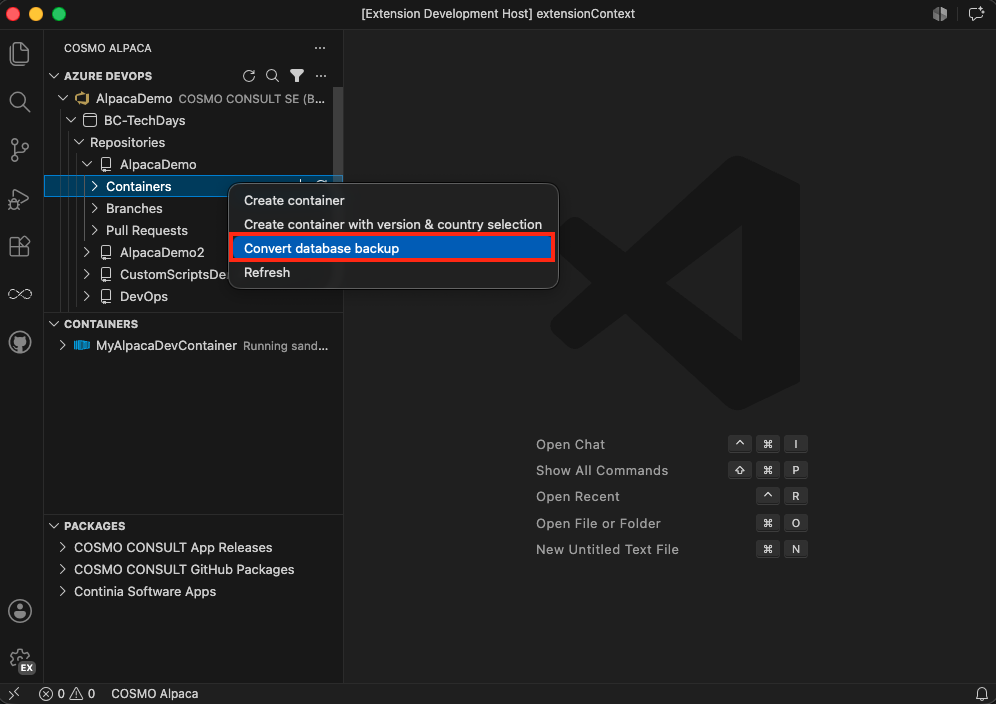
- Do a right-click on the Containers item and select Convert database backup
- Enter the display name for the conversion container, e.g. "Backup Conversion"
- Enter the path to your
.bacpacfile on the Azure Fileshare (e.g./fileshare/backups/database-backup.bacpacorC:\azurefileshare\backups\database-backup.bacpac) - Optionally enter a company name if you want to remove all companies except that one during the conversion
- When the container was created, you can do a right-click on it and select Open log
- You can ignore the first couple of lines until you see "SQL Server ready"
- Wait until you can see in the log that the SQL server is stopped again. Note that the conversion will take a couple of minutes even for smaller databases and can take hours for medium or large databases
- You will find a file with the same filename, but extension
.bakin the same folder as the original.bacpacfile - Delete the conversion container