Access SQL Server
With remote VS Code
- "Open file share" on your container
- On first launch, choose "Windows" as platform in the VS Code Window if you're asked
- In the new VS Code window, install the extension SQL server (mssql)
- Use the SQL Server extension and run "MS SQL: Connect" to connect to localhost\SQLEXPRESS with container user and password
- Run SQL queries:
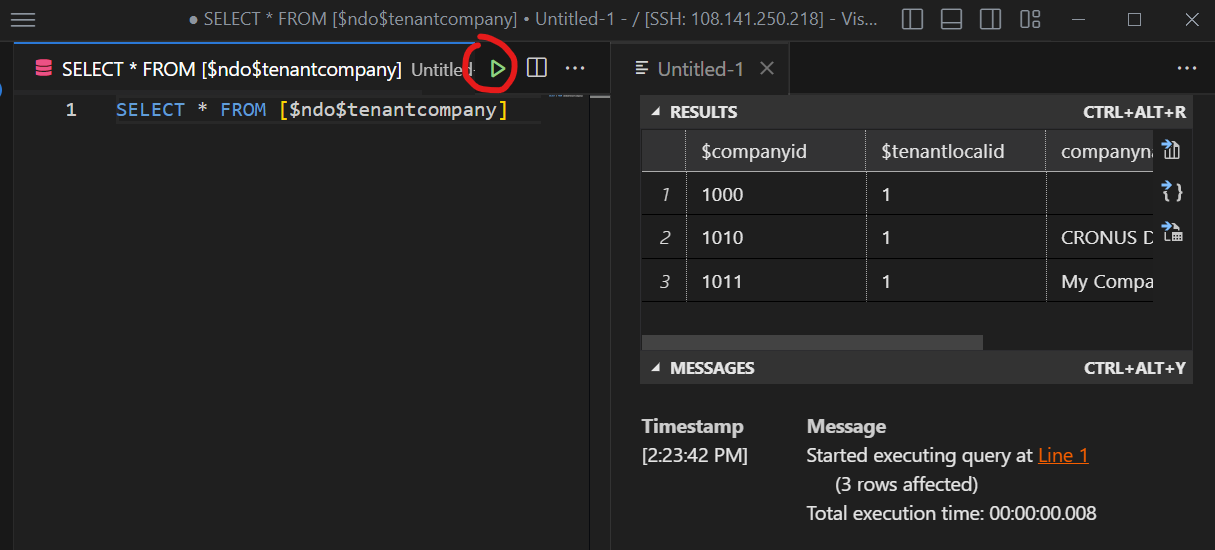
With local Software
"Open terminal" on your container
Exit remote terminal and copy IP address
PowerShell 7.4.6
PS C:\Users\sshuser> exit
Connection to <ip> closed.
Create SSH tunnel with a local shell (e.g. PowerShell)
ssh -N -L "1433:127.0.0.1:1433" "sshuser@<ip>"Note
Closing the shell will stop the SSH tunnel
Connect to SQL Server from any local software
(e.g. VS Code extension SQL server (mssql) or SQL Management Studio)- Server =
127.0.0.1\SQLEXPRESS - Port =
1433 - Authorization = Container user and password
- Server =