Ticket creation made easy
Opening a ticket via MyCOSMO is the quickest way to submit your request to us.
Tickets are at the heart of smooth communication and efficient problem solving in our customer service.
Below we explain step by step how you can create a new ticket
Ticket Creation
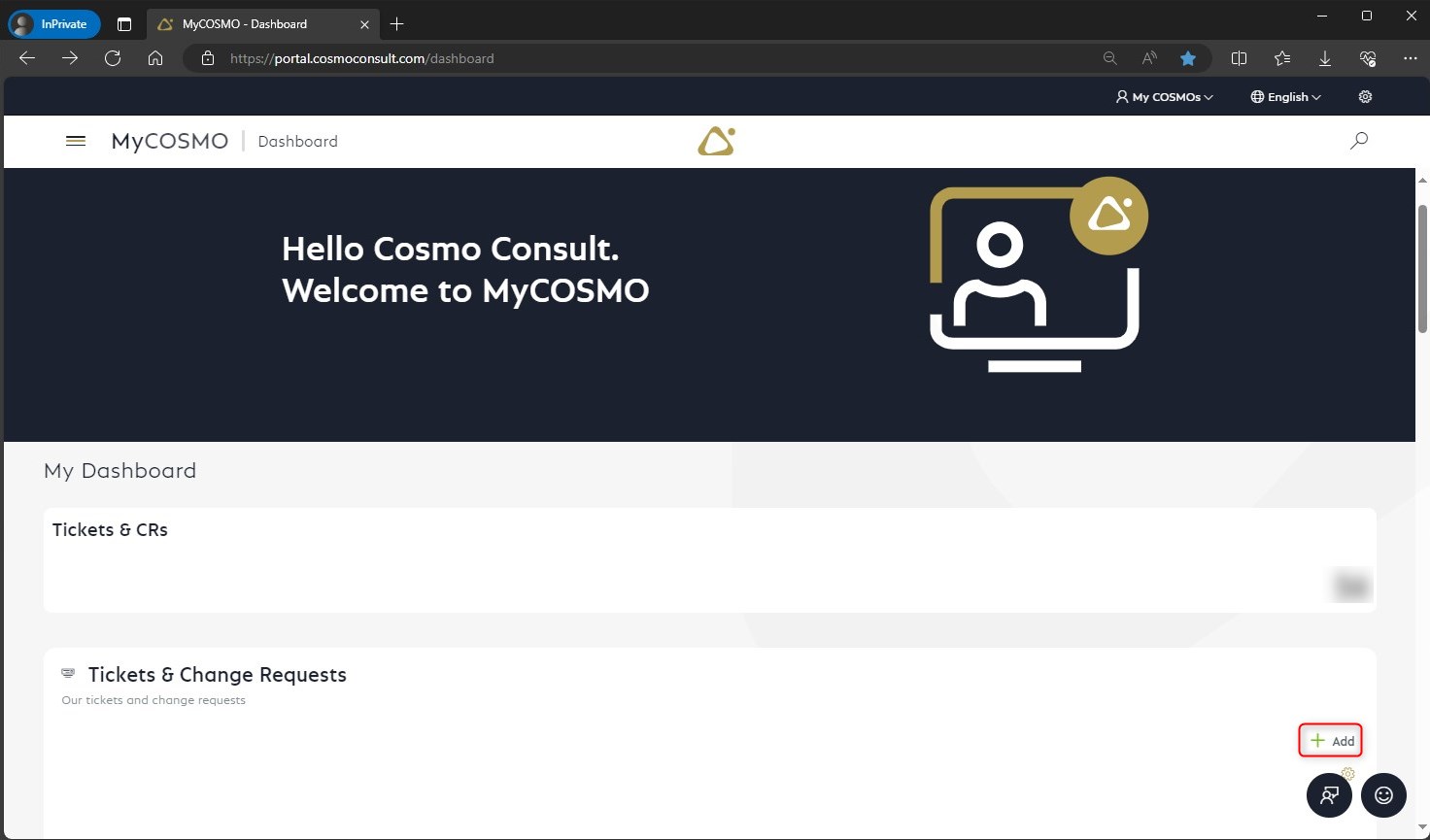
In the dashboard, you can access the active tickets and change requests via the Support/Service menu item.
You can also choose to switch to the completed tickets and change requests.
The view shows the number of tickets and a diagram by default.
The diagram gives you a quick overview and helps you to filter the ticket list by clicking on the desired category.
You can also access the ticket list via the number.
Use the "Add" function to create a new ticket
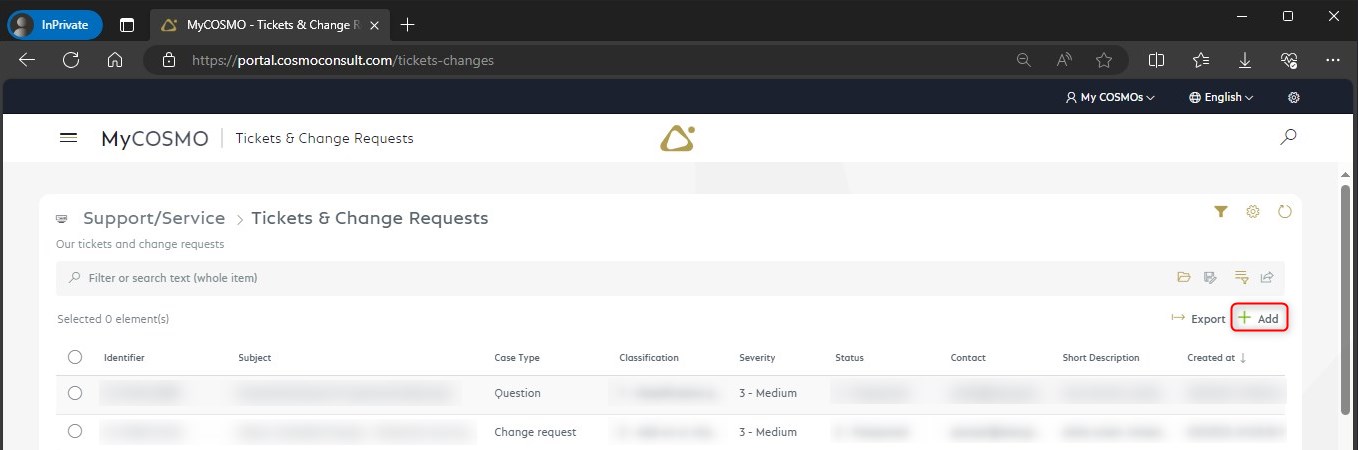
You can also create a new ticket from the list using the "Add" function.
When creating a ticket, some information is mandatory, other information is optional
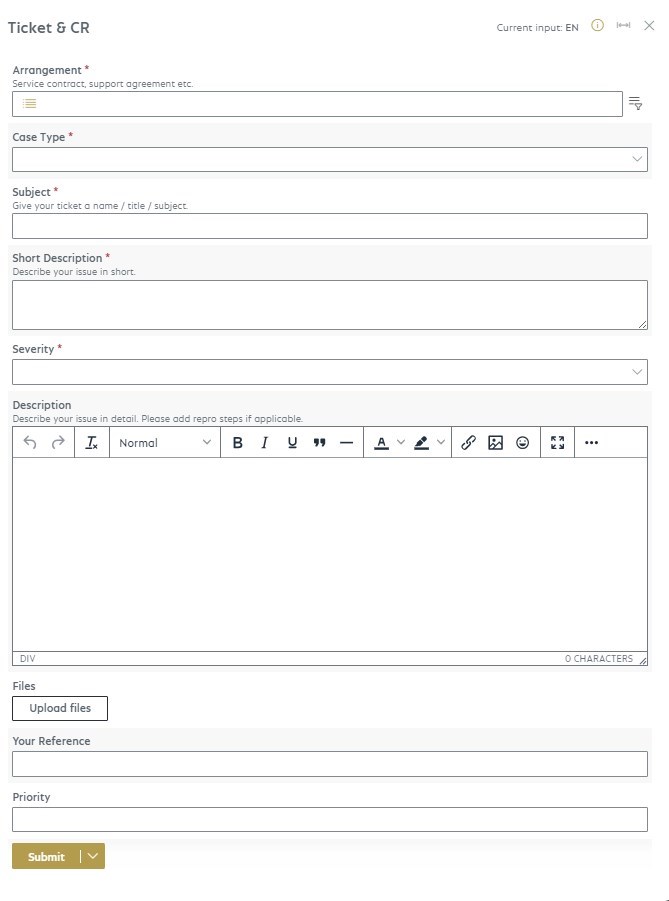
| Field | Possible values | Comment | |
|---|---|---|---|
| Arrangement | Selection of the stored agreement for the existing contract or general service requests (without contract) | If you have several Microsoft products in use, you will find the respective agreements here. This may also be the case for different country versions or locations. | |
| Case type | Technical support: Specific error messages or testing of existing functions. Question: Request for operation, process or setup Change Request: Customization of the existing software |
The request type has no effect on the severity or priority. |
Only the request type Technical support is considered SLA relevant. |
| Subject | Free text | The most appropriate title possible for the ticket, which should be formulated in such a way that you can also use the ticket system as a knowledge base. The title is printed on the invoice. It may be useful to prefix the title with the module/area concerned. |
|
| Short Description | Enter the most important information for your request in short form here | Brief description of the topic to give a quick overview of what it is about. This field can be edited afterwards, so only preliminary information should be included here and the description field should be used for a comprehensive description of the issue. | |
| Severity | 1 - Critical 2 - High 3 - Medium 4 - Low |
In accordance with the existing contractual agreement, you can enter the desired priority here. Details can be found in the Support contract and service level | |
| Description | Text, images, tables,... | Detailed description with case studies and screenshots. | |
| Files | Files | If further files are necessary or helpful, they can be attached here | |
| Your reference | Free text | Relevant references, e.g. internal ticket number, cost center,... | |
| Priority | Free text | Notes on dependencies or urgency | |
| Additional contact | e-mail address | Specification of an additional contact person |
Once the ticket has been saved, you will receive an email with the ticket number as confirmation of receipt and will find the ticket in the list.
The more detailed and precise the description or specification is, the faster processing can begin.
If the problem is reproducible, a step-by-step guide is helpful for the analysis.
The following points may be important for a query:
- The exact entry point in the program for the relevant activity in the form of the menu, the path or the ID of the report or page.
- The exact procedure up to the relevant point, as it can be important for reproducibility in context.
- Complete screenshots that contain all relevant data for the case/topic, as excerpts are often not meaningful enough.
- The aim and context of a change request, as alternatives may be available in the standard and consultation may be cheaper than customization.
- For change requests to reports, a PDF in which the comment function is used with markers and which shows a real data record.
- Which users and systems are affected, can the affected user reproduce the problem at another workstation and can the problem also be reproduced with another user at the affected workstation?
You can find more information on efficient ticket opening in our Best Practice
You can find a quick overview of the main functions here: MyCOSMO presentation - YouTube
Note
Preferably use Chrome or Edge as your browser to create tickets on https://portal.cosmoconsult.com/tickets.