
Licensing Guide
Welcome to the Licensing Guide, where you can find all the information you need about the licensing process.
On-Premises Installation BC20+
To get started with the app, please follow these steps:
- Install the app.
- Add the following granule to the license: 5529640 COSMO Portfolio.
- In order to authorize you in the Partner Source Business Center (PSBC), please provide us with your Microsoft ID.
- Register the App.
- Send the instance ID.
Note: The app will be active for 30 days immediately after registration.
How to Register:
- Visit the COSMO License Overview page in your environment.
- Click on Register your Apps in the menue.
- Turn on Register a trial license checkbox.
- Click continue.
- A login window will appear; you can ignore it and return to the previous screen.
- Enter the customer name.
- Your registration is now complete.
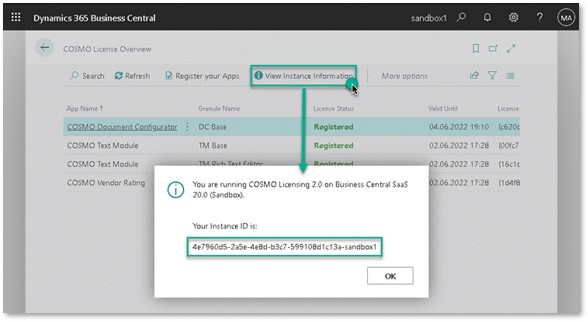
To extend your trial period beyond the default 30 days or to process the subsequent licensing, we need the customer's instance ID. The instance ID will be displayed after you have completed the registration process – you can also view it here at any time:
Tip
Please have in mind that the granule 5395810 Licensing App is no longer included in the license, it can lead to errors in the activated modules.
On-Premises Installation BC 14 - 19
- Install the App.
- After the objects have been imported, granules of the respective modules must be added.
- In addition, the granule 5395810 COSMO Licensing has to be added.
- Please contact us to authorize you in the Partner Source Business Center (PSBC).
SaaS Installation
To get started with the app, please follow these steps:
- Install and register the Apps needed from the Microsoft App Source Portal.
- Register the App.
- Send the instance ID.
Note: The app will be active for 30 days immediately after registration.
How to Register:
- Visit the COSMO License Overview page in your environment.
- Click on Register your Apps in the menue.
- Turn on Register a trial license checkbox.
- Click continue.
- A login window will appear; you can ignore it and return to the previous screen.
- Enter the customer name.
- Your registration is now complete.
To extend your trial period beyond the default 30 days or to process the subsequent licensing, we need the customer's instance ID. The instance ID will be displayed after you have completed the registration process – you can also view it here at any time:
Questions? Contact our Partner Support Hotline:
- E-Mail: Partnersolutions@cosmoconsult.com