COSMO Upgrade Implementation Guideline for Single Products or Product Bundles
To migrate a COSMO Consult single product or a different COSMO Consult product bundle than COSMO Advanced Manufacturing Pack, the performance packages should be reduced to the necessary commands and objects.
Note
It is not recommended to install unnecessary objects and apps for the migration of single products.
Adjust the Objects and App Files for a Single Product
Reduce the PowerShell script to the corresponding script lines for the COSMO extension and process the upgrade based on the UpgradeImplementationGuidelines.pdf.
Only the tasks below require modifications.
...
# Install Data Migration Temp. Tables App(s)
# Restart Server Instance
# Install COSMO Target Extension(s)
# Run COSMO App(s) Data Upgrade STEP2
# Remove Data Migration Temp. Tables App(s)
...
Note
The process steps are explained using the example of the COSMO Document Configurator app from BC14 to BC16.
Create and Install a Data Migration Temp. Tables App for BC16
Within the performance package BC14 to BC16, you will find a project folder with all available temporary table objects of the COSMO Advanced Manufacturing Pack.
To create an own Data Migration Temp. Tables app for COSMO Document Configurator, copy all necessary temporary tables to a new AL Project. Ensure that the object range in the customer BC16 environment is still available. Otherwise, you must customize it respectively.
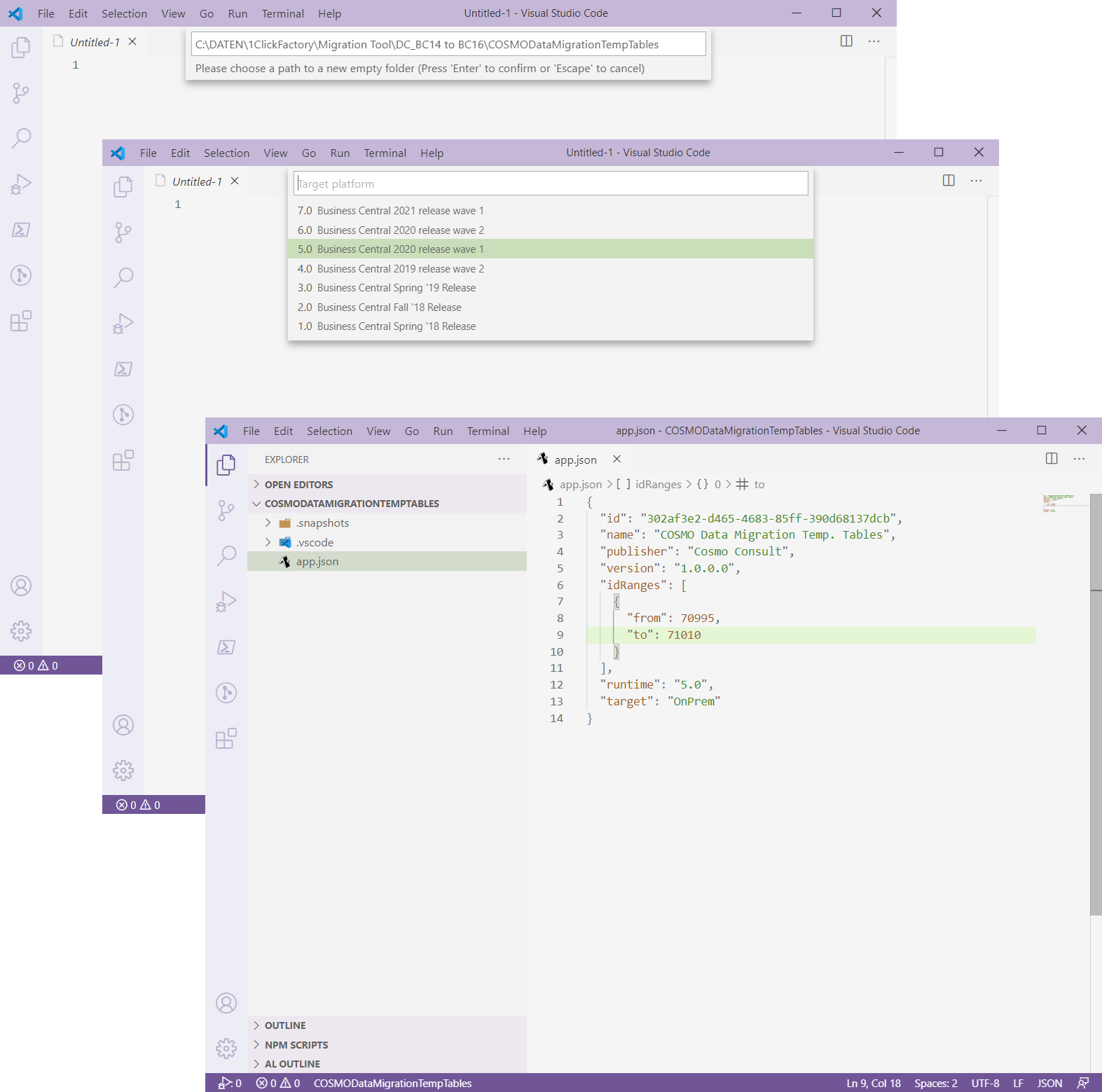
Run the build task (Control + Shift + B) to create the final Data Migration Temp. Tables app for the COSMO Document Configurator app and store the .app file in the $AppFolderPath directory.
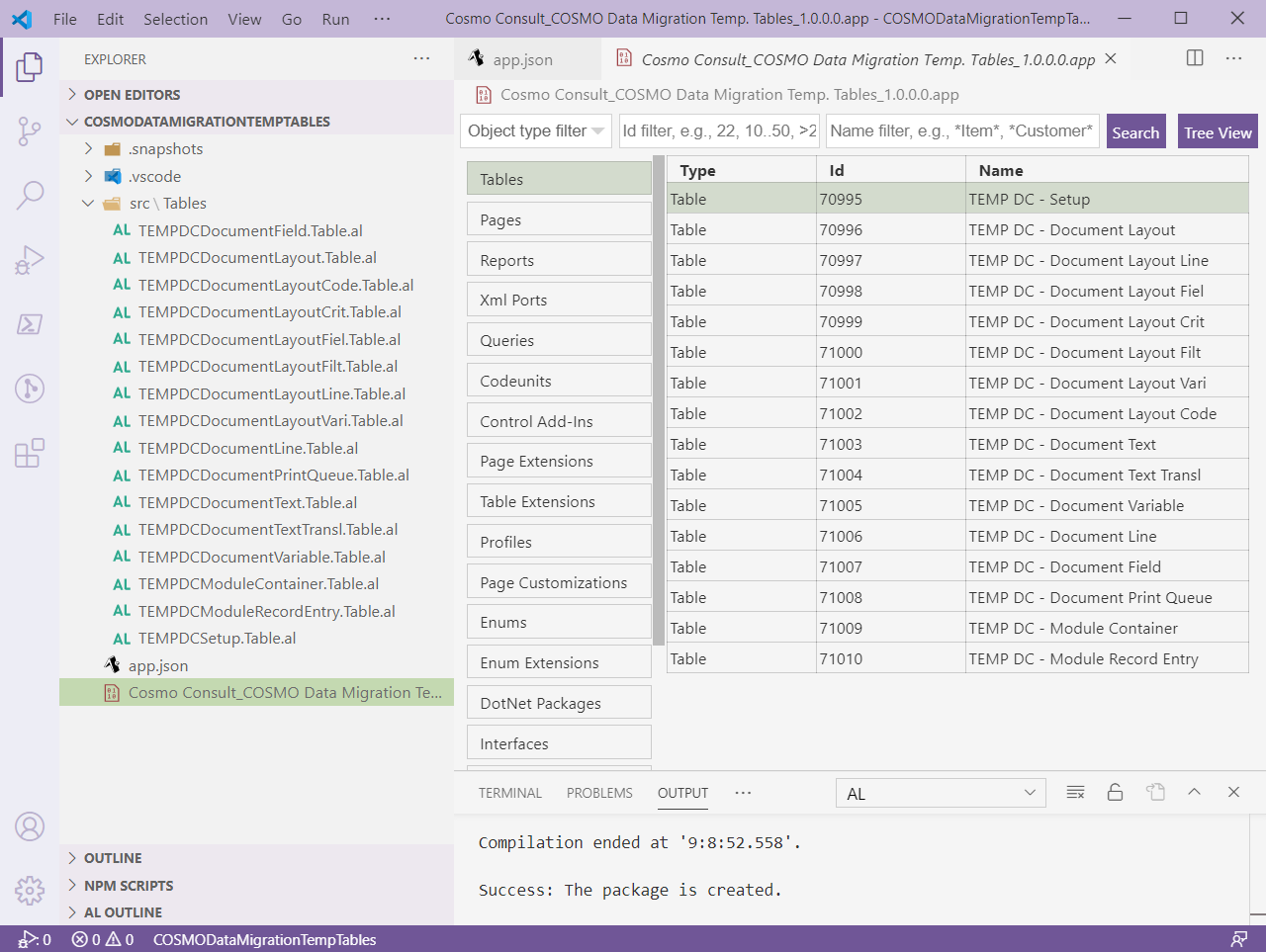
To install the Data Migration Temp. Tables app to the BC16 server instance, use the following PowerShell commands.
# Install Data Migration Temp. Tables App
Publish-NAVApp -ServerInstance $BC160ServerInstance -Path "$AppFolderPath\Cosmo Consult_COSMO Data Migration Temp. Tables_1.0.0.0.app" -SkipVerification
Sync-NAVApp -ServerInstance $BC160ServerInstance -Name "COSMO Data Migration Temp. Tables"
Install-NAVApp -ServerInstance $BC160ServerInstance -Name "COSMO Data Migration Temp. Tables"

# Restart Server Instance
Restart-NAVServerInstance -ServerInstance $BC160ServerInstance
Install COSMO Target Extension(s)
Within the performance package BC14 to BC16, you will find all available COSMO Consult target extensions.
Note
Apart from the Business Central Base Application, nearly all COSMO Consult apps depend on additional library apps that need to be installed in the correct order first.
For our example, we need both the COSMO Licensing and the COSMO Document Configurator app. Use the following PowerShell commands to install the apps to the BC16 server instance.
# Install COSMO Target Extensions
Publish-NAVApp -ServerInstance $BC160ServerInstance -Path "$AppFolderPath\Cosmo Consult_COSMO Licensing_1.2.0.34119.app" -SkipVerification
Sync-NAVApp -ServerInstance $BC160ServerInstance -Name "COSMO Licensing"
Install-NAVApp -ServerInstance $BC160ServerInstance -Name "COSMO Licensing"

Publish-NAVApp -ServerInstance $BC160ServerInstance -Path "$AppFolderPath\Cosmo Consult_COSMO Document Configurator_2.0.0.11032.app" -SkipVerification
Sync-NAVApp -ServerInstance $BC160ServerInstance -Name "COSMO Document Configurator"
Install-NAVApp -ServerInstance $BC160ServerInstance -Name "COSMO Document Configurator"
Run Data Upgrade STEP2
Within the performance package BC14 to BC16, you will find all available COSMO Consult upgrade apps to move data from the temporary tables to the COSMO extension tables.
To install and run the COSMO Document Configurator Data Migration Tool STEP2 app, use the following PowerShell commands.
# Run COSMO Document Configurator Data Upgrade STEP2
Publish-NAVApp -ServerInstance $BC160ServerInstance -Path "$AppFolderPath\Cosmo Consult_COSMO Document Configurator Data Migration Tool STEP2_1.0.0.0.app" -SkipVerification
Sync-NAVApp -ServerInstance $BC160ServerInstance -Name "COSMO Document Configurator Data Migration Tool STEP2"
Install-NAVApp -ServerInstance $BC160ServerInstance -Name "COSMO Document Configurator Data Migration Tool STEP2"
Get-NAVCompany -ServerInstance $BC160ServerInstance | % { Invoke-NAVCodeunit -ServerInstance $BC160ServerInstance -CodeunitId 70005 -CompanyName $_.CompanyName }
Uninstall-NAVApp -ServerInstance $BC160ServerInstance -Name "COSMO Document Configurator Data Migration Tool STEP2"
Unpublish-NAVApp -ServerInstance $BC160ServerInstance -Name "COSMO Document Configurator Data Migration Tool STEP2"

# Remove Data Migration Temp. Tables App
Uninstall-NAVApp -ServerInstance $BC160ServerInstance -Name "COSMO Data Migration Temp. Tables"
Unpublish-NAVApp -ServerInstance $BC160ServerInstance -Name "COSMO Data Migration Temp. Tables"
Get-NAVAppInfo -ServerInstance $BC160ServerInstance