UDI Clinical Sizes Categories
Clinical Sizes Categories are an optional setup feature that allows you to group and manage clinical size attributes. They provide a convenient way to add multiple item attributes (clinical sizes) to a UDI-DI by specifying a single Clinical Sizes Category Code. After selecting a category, users can add or modify the attribute values in a subsequent step, unless they are already predefined in the category.
Clinical sizes categories are specified in Business Central by using the standard Item Categories functionality.
To designate an item category as a UDI relevant category, turn on the UDI Clinical Size toggle in the UDI FastTab. This setting automatically filters the Clinical Sizes menu items/pages to show only these UDI categories. Conversely, clinical sizes are hidden on the Item Categories page.
The Clinical Sizes Categories page is accessed using Tell Me. Choose the  icon, enter Clinical Sizes Categories, and then choose the related link.
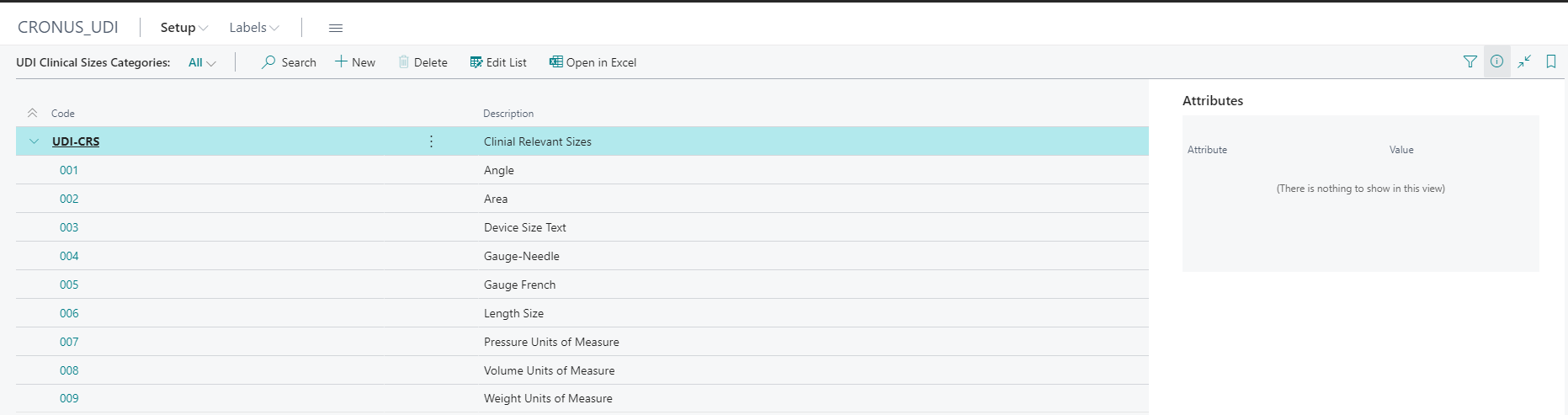
Choose the Edit List action to open the card.
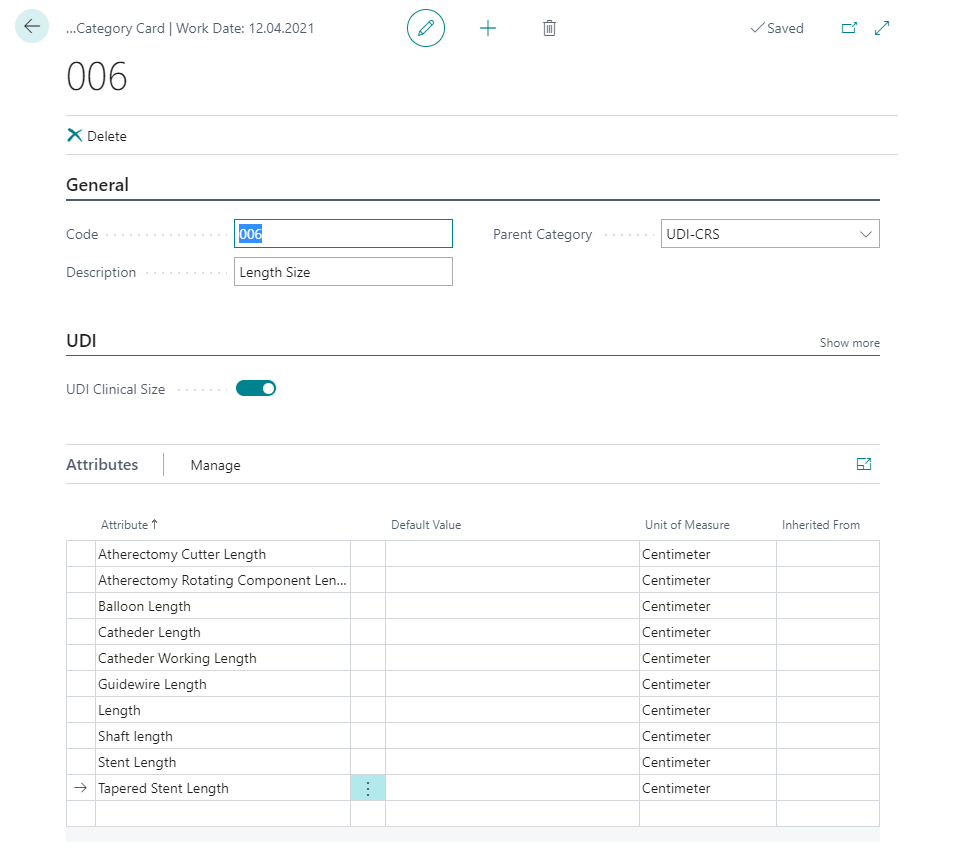
| Field | Description |
|---|---|
| Code | Specifies the item category. |
| Description | Specifies a description of the item category. |
| Parent Category | Specifies the parent item category that this item category belongs to. Item attributes that are assigned to a parent item category also apply to the child item Category. |
| UDI Clinical Size | If the toggle is turned on, it specifies that the item category is used as clinical relevant size and, therefore, reserved for UDI purposes. Item attributes that belong to a parent item category also apply to the child item category. |
| Attribute | Specifies the attribute which is chosen for this item category. |
| Default Value | Specifies the value of the item attribute. |
| Unit of Measure | Specifies the unit of measure code of the item attribute. |
| Inherited From | Specifies the parent item category that the item attributes are inherited from. |
Feedback
Submit feedback for this page .