Reverse Calculation (Target Costing)
COSMO Calculation provides market-oriented target cost management that is essential in the early phases of product development. Using the Reverse Calculation function in an existing Calculation, the value of a calculated line can be manually adjusted and then the difference can be reallocated to another line to offset the cost/price change.
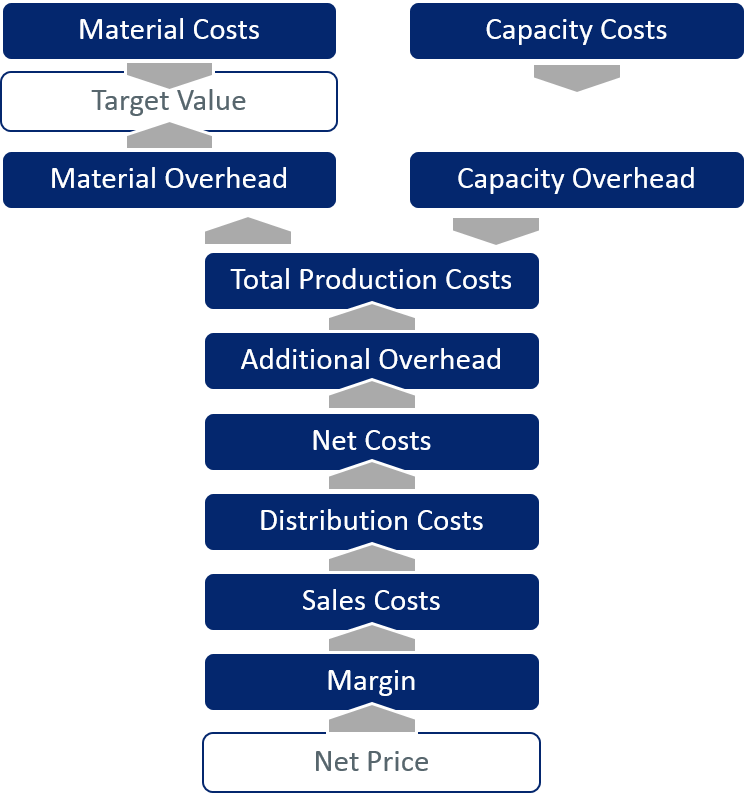
The following figure illustrates a sample target cost flow in COSMO Calculation. Starting from a competitive net price, the system calculates backwards and reduces each of the subtotals by the specified overhead, down to a target value.
To reverse a calculation
Choose the
 icon, enter Calculations, and then choose the related link.
After creating a calculation with costs/prices that need to be adjusted, choose the Reverse Calculation action.
The fields in the Reverse Calculation page are the same as the lines of the Calculation Card, with two additions. These additional fields are described in the following table.
Field Description Target Value Determines the charge line to which the adjusted cost is to be allocated.
Only rows of Totaling Type = Charge can be selected as Target Value.New Value (LCY) Indicates the adjusted cost/price for the calculation line.
These values are calculated backwards, starting from total (highest row number where adjusted prize is added) to row marked as Target Value.In the New Value (LCY) field, enter the adjusted cost/price for the calculation line.
Select the Target Value checkbox on the calculation line where the adjustment is to be allocated.
To see changes in calculation lines with Totaling Type = Sum and/or Arithm. Formula, choose the Update Calculation action.
If the reallocations are not acceptable, the Reverse Calculation page can be closed and the Reverse Calculation function can be run to start the process again.
If the reallocations are acceptable, choose the Make Calculation action on the New menu to create a new calculation and then choose the OK button to close the Reverse Calculation page.
Close the original Calculation Card and then open the new calculation, which includes the new values and shows the percentage changes that occurred due to the target costing adjustments.
See Also
Feedback
Submit feedback for this page .