Setup Artifacts to Import on Startup
Artifacts are specified in a different configuration file whether you're using Alpaca with GitHub or Azure DevOps:
Artifacts are configured in containerConfigurations.artifacts in alpaca.json config file. The defined artifacts are automatically installed in the dev containers during the container startup. Artifacts defined in the default, current, NextMajor or NextMinor container configurations are also automatically installed for build containers started from the respective AL-Go workflows.
Four types of artifacts are supported:
- Artifacts from a URL or the Alpaca fileshare
- Artifacts from a NuGet feed
- Artifacts from an Azure DevOps Artifact feed (only for Alpaca on Azure DevOps)
- Artifacts from a product feed
URL or Alpaca fileshare
- Open the Alpaca fileshare. Please contact the Alpaca support if you don't have access yet.
- Copy your artifact to the fileshare. One option to organize your folder structure could look like this, but if you have some other structure already in place in your organization, it also might be a good idea to use that:
- product-artifacts used by multiple projects:
/common/<product> - artifacts related to a customer project:
/<customer-name>/<project-name>
- product-artifacts used by multiple projects:
- Add the artifact to
artifactsin your respective configuration file (see above):
{
    "artifacts": [
        {
            "type": "url",
            "name": "myapp",
            "version": "1.2.3.4",
            // fileshare paths can reference a file or ZIP file
            "url": "C:\\azurefileshare\\my.app",
            "target": "app" // can also be DLL, RapidStart, Fonts, etc.
        },
        {
            "type": "url",
            "name": "myapp",
            // URLs MUST reference a ZIP file
            "url": "https://my.blob.core.windows.net/test/myapp/myapp_1.2.3.4.app.zip?sv=2019-02-02&...",
            "target": "app"
        }
    ]
}
Note
You need to escape the folder separator \ by using \\ because the value must be a JSON-String.
The fileshare path always is c:\azurefileshare inside of a container. That means that if you place a file fantastic-app.app in the root of your fileshare, you need to reference it as c:\\azurefileshare\\fantastic-app.app.
Fileshare artifacts can be a "normal" files or an archive (.zip extension) which will be extracted during the container startup.
Parameters
| Element | Type | Value | |
|---|---|---|---|
type |
string | mandatory for GitHub | The type of the artifact. Must be url for fileshare/URL artifacts. |
name |
string | mandatory for GitHub | The name of the artifact. Informational only. |
version |
string | optional | The version of the artifact. Informational only. |
url |
string | mandatory | The path or url to download the artifact. |
target |
string | optional | Specify the Artifact Target folder in the container file system and import action. |
targetFolder |
string | optional | This folder is used for "target": "dll" as optional subfolder: <serviceTierFolder>/Add-Ins/<targetFolder> |
appImportScope |
string | optional | Specify the import scope for apps. The value can be Global (default) or Tenant. |
appImportSyncMode |
string | optional | Specify the import sync mode for apps. The value can be Add (default), Clean, Development or ForceSync. |
ignoreIn |
string[] | optional | Specify in which container setup this artifact should be ignored. The value is an array of: dev and/or build. (see also cosmo.json) |
dependsOn |
string | optional | Specify the dependency of an artifact. The value can be missing (default) or App.Artifacts with a dependency will still be downloaded on container start but only installed by the build pipeline after the dependency (e.g. App) was installed. |
NuGet feed
By default all Microsoft NuGet feeds are available. Custom nuget feeds can either be configured globally, per-project or per-user by specifying custom nuget feeds in the Alpaca settings in VS Code.
{
    "artifacts": [
        {
            "type": "nuget",  // optional, default when not specified
            "name": "CosmoConsult.COSMORental.b945e3cd-da15-4575-990e-37ff46875f27",
            "version": "5.2.270944.0"
        }
    ]
}
Parameters
| Element | Type | Value | |
|---|---|---|---|
type |
string | mandatory for Azure DevOps | Type of the artifact, use nuget. |
name |
string | mandatory | The name of the artifact. |
version |
string | optional | The version of the artifact. (latest - when not specified) |
Azure DevOps Artifact feed
Important
This is only available for Alpaca on Azure DevOps
Grant read access to the feed for the respective users as well as the pipelines by adding the
Project Collection Build Service (<org-name>)group in Azure DevOps. This group has access to all feeds in the organization.Get the needed information for your artifact feed
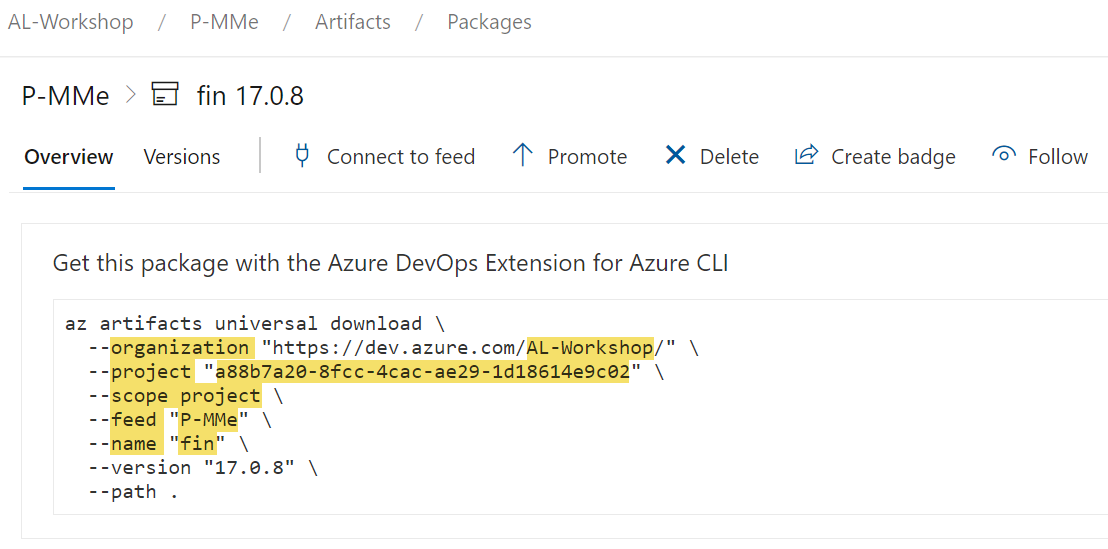
Add the Artifact to
artifactsin your configuration file:{ // ... "devopsArtifacts": [ { "organization": "AL-Workshop", "project": "a88b7a20-8fcc-4cac-ae29-1d18614e9c02", "scope": "project", "feed": "P-MMe", "name": "fin" } ], // ... }
Note
Only upack artifacts are supported.
The upack artifact name is always lower case.
Use the project ID for project
When you have a project-scoped feed in a different project of the same organization, follow the instructions here.
Parameters
| Element | Type | Value | |
|---|---|---|---|
organization |
string | mandatory | The organization name of the feed. |
project |
string | optional, mandatory | The project id of the artifact feed (mandatory for project scoped feeds). |
feed |
string | mandatory | The name of the artifact feed. |
name |
string | mandatory | The name of the artifact. |
scope |
string | optional | The scope of the feed can be organization or project (default). |
version |
string | optional | The version of the artifact. (latest - when not specified) |
view |
string | optional | The view (promotion-level) of the artifact determines which version is used. |
type |
string | optional | Specify the type of the artifact feed. COSMO uses upack (default). |
target |
string | optional | Specify the Artifact Target folder in the container file system and import action. |
appImportScope |
string | optional | Specify the import scope for apps. The value can be Global (default) or Tenant. |
appImportSyncMode |
string | optional | Specify the import sync mode for apps. The value can be Add (default), Clean, Development or ForceSync. |
ignoreIn |
string[] | optional | Specify in which container setup this artifact should be ignored. The value is an array of: dev and/or build. (see cosmo.json |
dependsOn |
string | optional | Specify the dependency of an artifact. The value can be missing (default) or App.Artifacts with a dependecy will still be downloaded on container start but only installed by the build pipeline after the dependency (e.g. App) was installed. |
Product feed
The use case for the product feed is to enable users and pipelines/workflows to consume artifacts managed in a central feed. This is mainly used for feeds hosting intelectual property. As a bonus you can use the version overview in the VS Code Extension to browse your regularly used artifacts.
Important
Before using product feeds, you need to configure the feed.
- Find out which name the IP artifact has and which version you want to use
- Add the Artifact to
ipArtifactsin your configuration file
{
    "artifacts": [
        {
            "type": "ipartifact",
            "name": "alloy-management",
            "version": "2.2.*"
        },
        {
            "type": "ipartifact",
            "name": "commission",
            "version": "2.1.36626"
        }
    ]
}
Parameters
| Element | Type | Value | |
|---|---|---|---|
type |
string | mandatory for GitHub | The type of the artifact. Must be url for fileshare/URL artifacts. |
name |
string | mandatory | The name of the artifact. |
version |
string | optional | The version of the artifact. (Latest - when not specified). The version can include wildcards ("*") at the end, e.g. 2.* or 2.1.* |
type |
string[] | optional | Specify the type of the artifact you want to use as an array. For now, you only get the full app with type "app", but in the future test apps, rapidstart packages or runtime packages might follow. |
ignoreIn |
string[] | optional | Specify in which container setup this artifact should be ignored. The value is an array of: dev and/or build. (see also cosmo.json) |
dependsOn |
string | optional | Specify the dependency of an artifact. The value can be missing (default) or App.Artifacts with a dependecy will still be downloaded on container start but only installed by the build pipeline after the dependency (e.g. App) was installed. |
Artifact Target
The target specifies the target folder and finally what should hapen with the artifact.
| Target(s) | Destination | Import |
|---|---|---|
bak |
--- | The first (not ignored) bak Artifact is used as database backup file during container creation. |
saasbak |
--- | Backup file from an online SaaS environment, converted from bacpac to bak, cannot be combined with bak. |
dll or add-ins |
<serviceTierFolder>/Add-Ins/<targetFolder> |
The Artifact will be imported as a DLL or Add-In. |
font or fonts |
c:/fonts |
The Artifact will be imported as a Font. |
app, fob, rapidStart, ... |
C:\run\my\apps |
The Artifact content will be imported as an App, Fob or RapidStart package depending on the file extension. |
The order of import is:
- DLL(s) and Add-Ins
- Font(s)
- FOB(s)
- App(s)
- Rapid Start Package(s)
Examples
Add Fonts as Artifacts
Adding an additional font to a container requires you to add also the default fonts as an additional artifact. This is because there are not fonts installed in the container and your Business Central Reports might use your additional font as default font for your reports.
Here is an example how to add additional fonts as artifacts. Please note the ignoreIn setting as you probably won't need the fonts in a build pipeline and as they require a restart of the service tier, they make the pipeline slower and can cause issues with symbol loading in hybrid dev setups.
{
    "artifacts": [
        {
            "type": "url",
            "name": "Default-Fonts",
            "url": "c:\\azurefileshare\\common\\default-fonts.zip",
            "target": "fonts",
            "ignoreIn": ["build"]
        },
        {
            "type": "url",
            "name": "Additional Fonts for Barcode Printing",
            "url": "c:\\azurefileshare\\myProject\\my-additional-fonts.zip",
            "target": "fonts",
            "ignoreIn": ["build"]
        }
    ]
}