Search Results for

    Show / Hide Table of Contents

    VS Code Extension Setup

    One of the clients that give you access to COSMO Alpaca is the VS Code Extension. Before setting it up you might want to create an organization beforehand.

    Note: The VS Code extension is therefore also easily usable by non-technical users in the browser via vscode.dev.
    For a complete installation guide, see VS Code in the browser.

    • GitHub (AL-Go)
    • Azure DevOps

    Installation

    1. Open Visual Studio Code. If you don't have it installed, you can get it for free here
    2. Go to the extensions view in the activity bar
    3. Search for and install the COSMO Alpaca Preview extension
    4. Wait until the installation has finished, you might have to reload the VS Code window
    5. Afterwards you should see the extension in the list of installed extensions
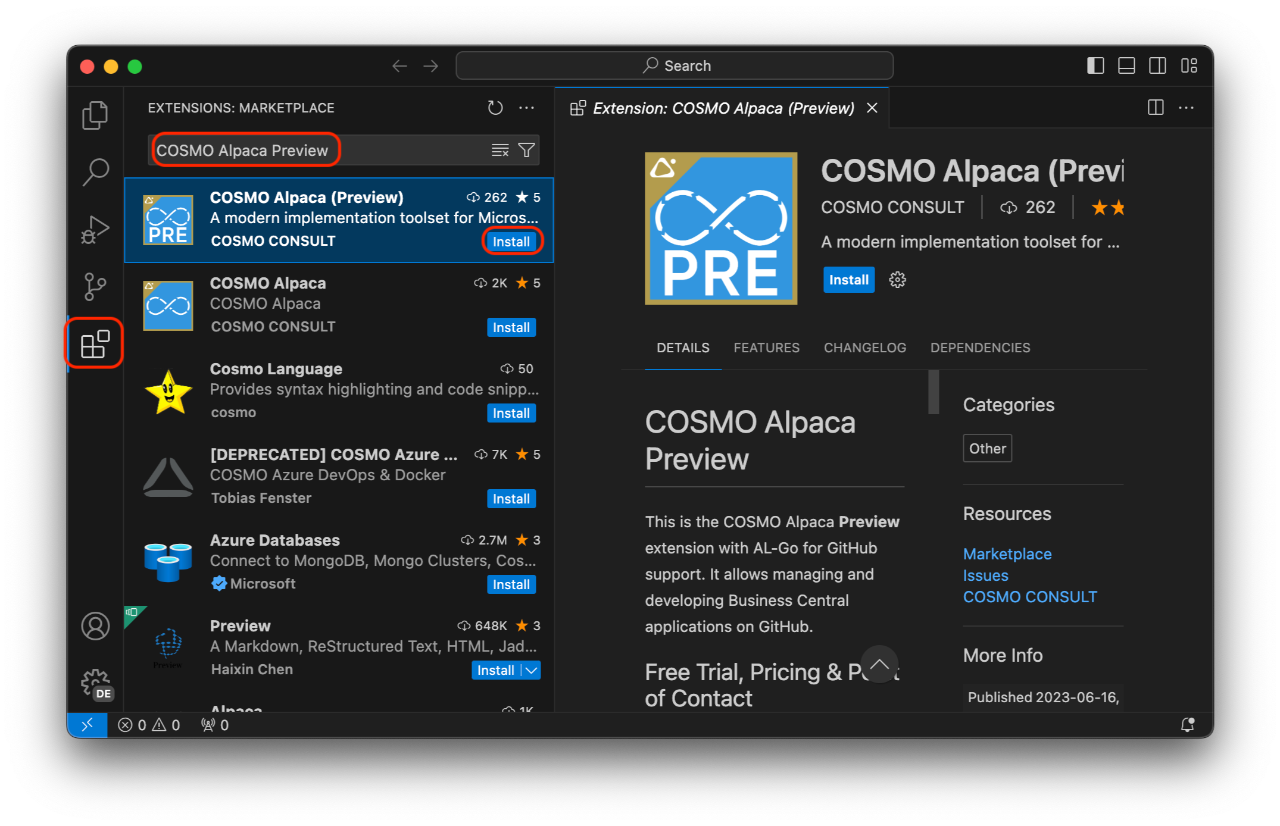
    Preview Extension Installation

    First Use

    To open the COSMO Alpaca Preview extension, click the respective icon in the activity bar. On the first use you're asked for your role and whether you want to use Azure DevOps or GitHub as a platform.
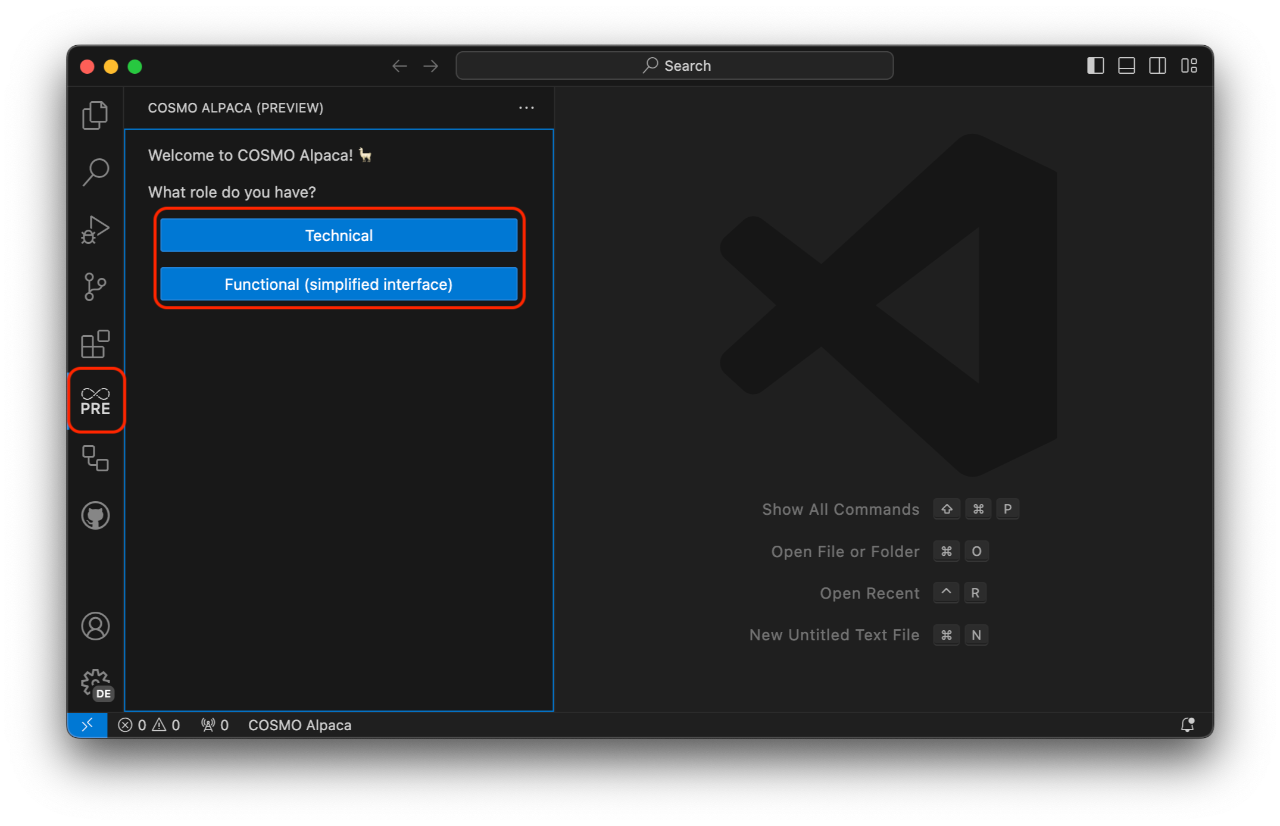
    Extension GitHub Role Selection

    Depending on what platform you choose you'll be asked to sign in with your GitHub or Microsoft account. Check the other tab in the documentation for Azure DevOps, we'll go with GitHub here.

    Now you can make yourself familiar with the interface:
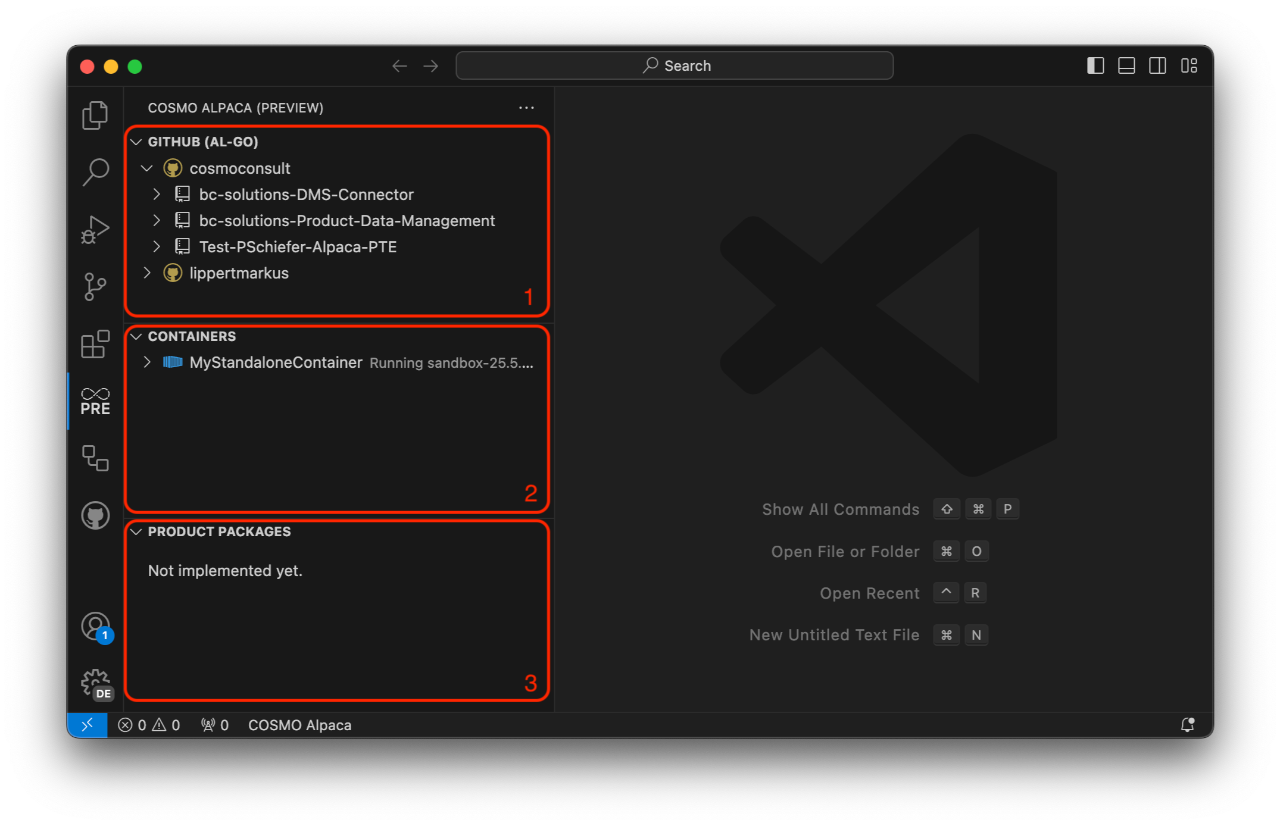
    Extension GitHub Overview

    1. The GitHub View let's you navigate through your Azure GitHub organizations, accounts, repositories and more.
    2. The Containers View shows you all your containers across all your organizations and accounts along with their state and details.
    3. The Product Packages View isn't currently implemented. In the future it will show shows product packages that you often need during development. The feed from which the packages are fetched will be configurable.
    Installation

    To get access, you need to:

    1. Open Visual Studio Code. If you don't have it installed, you can get it for free here
    2. Go to the extensions view in the activity bar
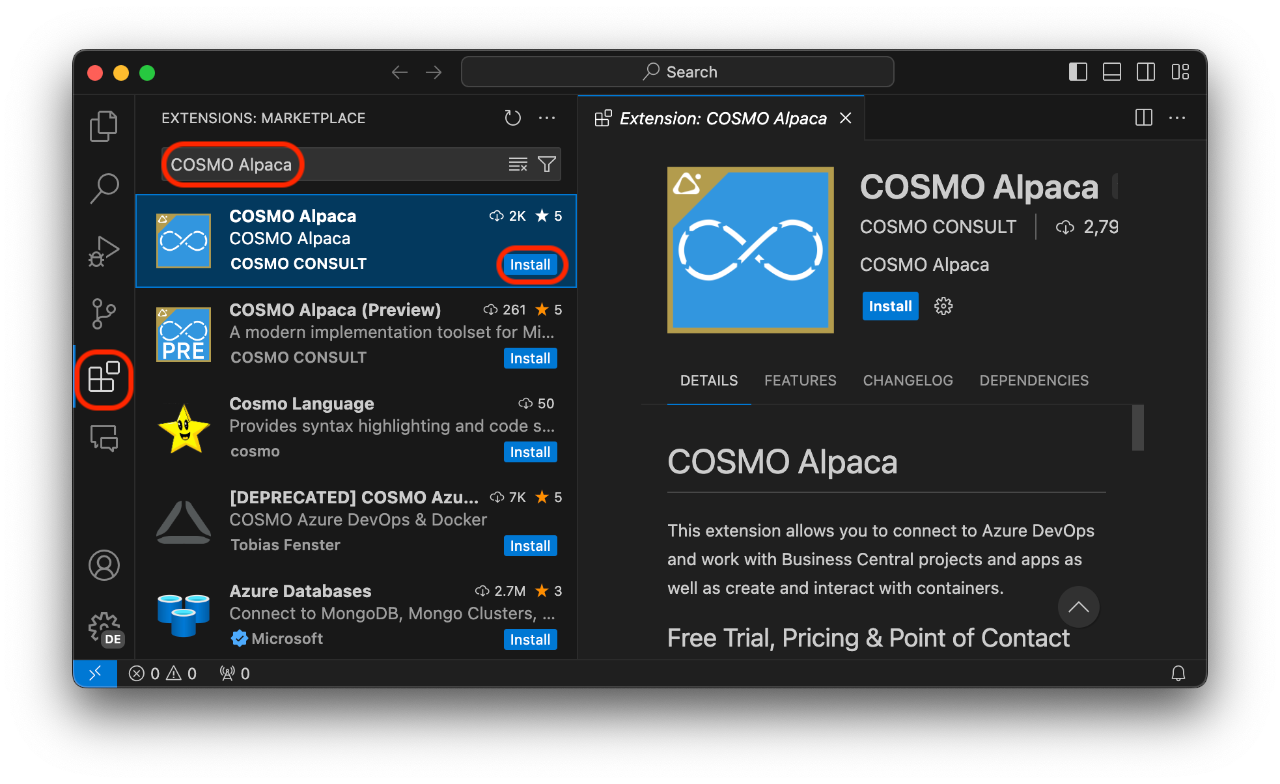
    3. Search for and install the COSMO Alpaca extension
    4. Wait until the installation has finished, you might have to reload the VS Code window
    5. Afterwards you should see the extension in the list of installed extensions

    Extension Azure DevOps Installation

    First Use

    If you never used Azure DevOps before you need to sign up first and create your first organization. After that please wait for 5min until your first Azure DevOps sign-up has been synchronized, else you'll get an error during the following step.

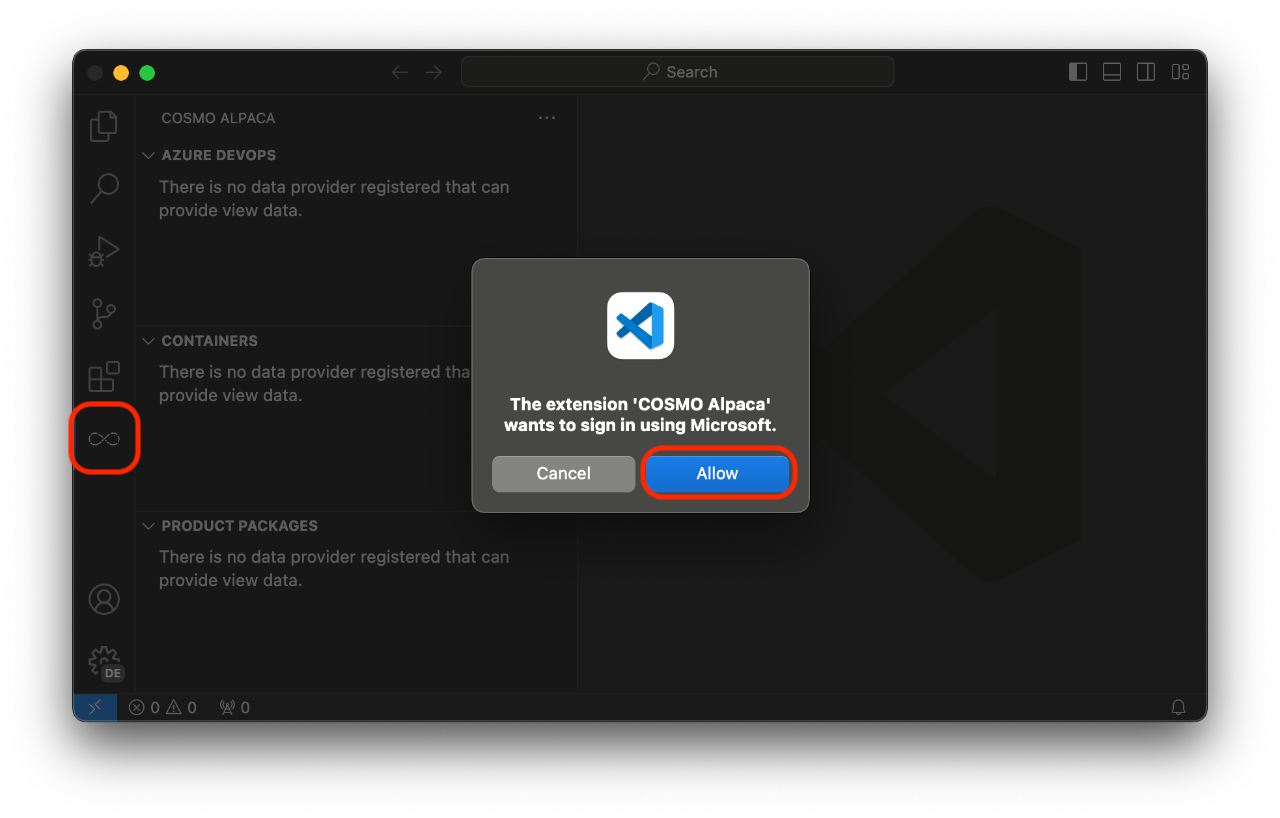
    When you use the extension for the first time by clicking on the COSMO Alpaca icon in the activity bar, you might be asked to log in with your Microsoft Account for up to 2 times:

    Extension Azure DevOps Login

    Depending on your tenant settings you might also need an Entra administrator to consent the required permissions for the extension as documented here.

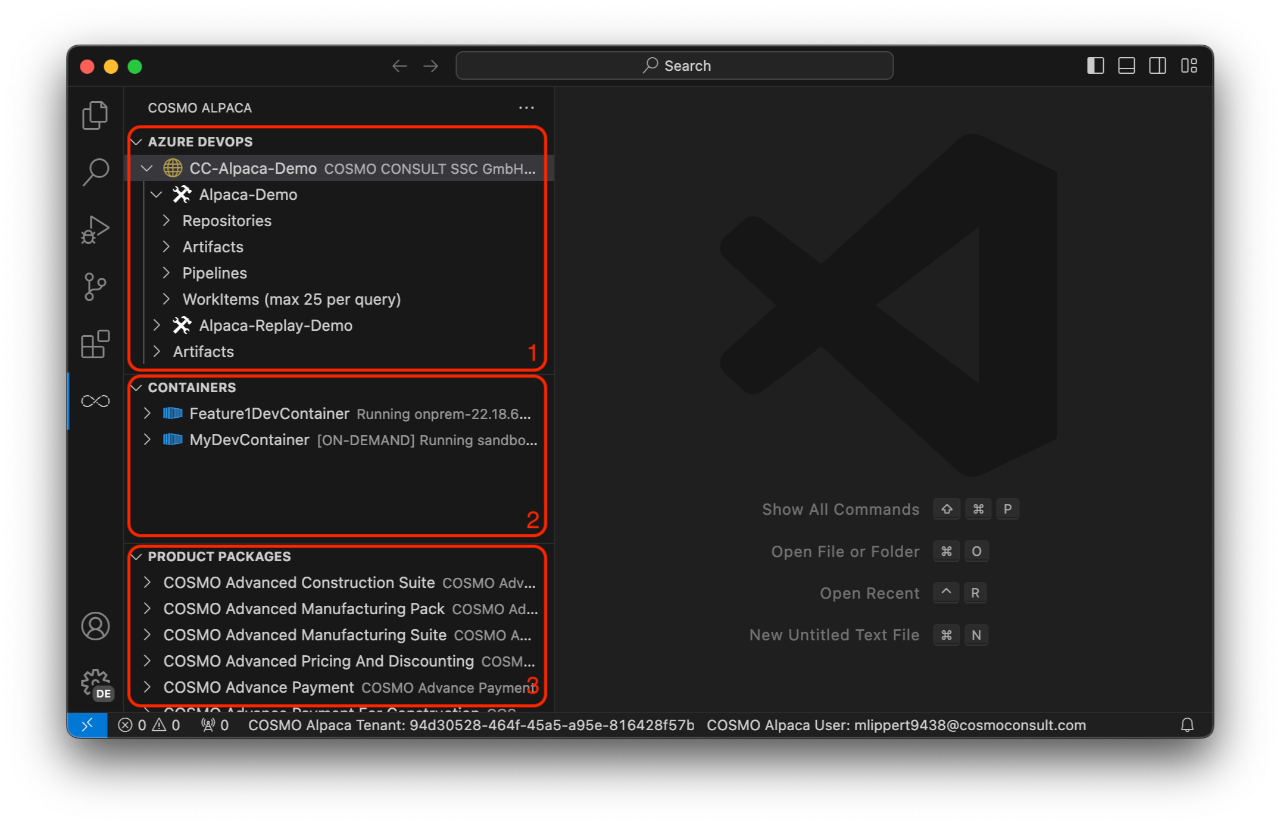
    Now you can make yourself familiar with the interface:

    Extension Azure DevOps Overview

    1. The Azure DevOps View let's you navigate through your Azure DevOps organizations, projects, repositories, artifacts, pipelines, WorkItems and more.
    2. The Containers View shows you all your containers across all your organizations along with their state and details.
    3. The Product Packages View shows product packages that you often need during development. The feed from which the packages are fetched can be configured by your administrator.

    You now may want to go through the walkthrough to get a first impression of COSMO Alpaca.

    In This Article
    Back to top 2025 © COSMO CONSULT - Data protection - Imprint