Graphical Resource Planning by Team
The Graphical Resource Planning by Team view allows you to organize and filter resources based on Resource Teams, providing a more intuitive and team-focused planning interface. It uses color coding to show project planners the resource availability by team for planned project lines based on Starting and Ending Dates defined in the Project Card. It also shows unplanned processes.
The Graphical Resource Planning by Team page can be accessed in the following ways:
- To show resource planning for all projects, use Tell Me. Choose the
 icon, enter Graphical Resource Planning by Team, and then choose the related link. This view can also be accessed from the Role Center by choosing Graphical Planning > Graphical Resource by Team Planning from the Planning action menu.
 - To show resource planning information for all projects assigned as My Projects in the Role Center, choose Graphical Planning > Graphical Resource by Team Planning - My Projects from the Planning action menu or Project Resource Planning by Team - My Projects from the My Projects drop-down arrow.
- To show resource planning information per project, open the Project Card. On the Navigate menu, choose the Graphical Resource by Team Planning action.
- To show resource planning information for planning processes for the project, open the Project Planning and Processing page. On the Process Planning menu, choose Graphical Resource Planning by Team.
- To show resource planning information for planning processes of a planning line, open the Planning Processes page (from the Project Planning and Processing page), and then choose Graphical Extension > Graphical Resource Planning by Team on the Related menu.
The Graphical Resource Planning by Team page can also be opened from the Graphical Project Planning page via the context menus and Graphical Resource Planning page via the context menus.
The following graphic shows processing lines grouped by team with different colors for project lines (in blue), unassigned lines (in blue), and assigned lines (in green), as well as the work date highlight (in yellow), resource availability (in teal), and completion percentages.

Note
If the Graphical Resource Planning by Team page is opened from the Project Card, and parameters (such as start/end date or project status) set in the Graphical Project Planning Setup page do not match the related project settings, then a message will inform the user that the project falls outside of these parameters and the data cache needs to be updated.
- Choosing the Yes button will update the parameters in the Graphical Project Planning Setup page and, therefore, the project will be shown in the Graphical Resource Planning by Team page.
- Choosing the No button will disregard the data cache update and the project will not be shown in the Graphical Resource Planning by Team page.
Chart Layout
The left pane first shows any unplanned processes (project and related process planned project lines) and then is grouped by resource team, resource, project, and related process planned project lines. The right pane shows the timeline of the availability or over-planning with color coding.
Availability
The availability is visible on the resource team and resource lines in the right pane. Depending on setup, the colors can be different. But if default settings are used, the chart shows:
- available time in teal (above the baseline)
- over-planned resources in red (below the baseline)
- not available or not over-planned shows neither (empty space)
Progress Completion Indicators
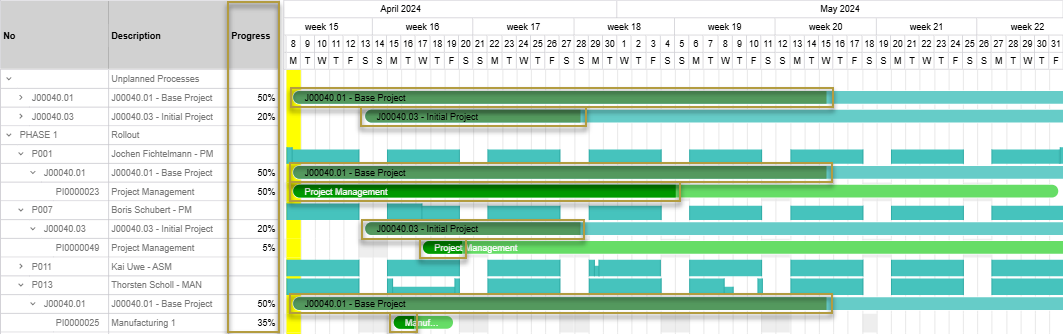
The % Complete from the planning processes is visualized in the project lines in two ways:
- Show the Progress column (only visible when manually shown via the Displays menu to choose visible columns icon below the chart)
- Color variation in the lines in which the darker color is the completed percentage (always visible)
The progress completion can be changed manually in the Progress column, which automatically updates the color variation in the lines.
Note
When the Sync "Realized %" to Process Lines field is enabled in Projects Setup, the % Complete values are automatically synchronized from the Realized % Finalized field in the Project Budget Line when a 1:1 relationship exists between the budget line and process line. For more information, see Realized Percent Synchronization.
Progress Line
Setting an end date in the Progress Line Date field and then selecting the Progress Line checkbox adds the Gantt progress line to the view.
- If the planning lines start before the Progress Line Date, then the progress line starts either at the start of or at the end of the completion percentage in the planning lines and ends at the specified end date.
- If the planning lines start after the Progress Line Date, then a vertical line is shown at the specified date, with no progress.
Lines with completed planning show no progress lines.

Procurement Signals
Procurement tracking provides transparency between project requirements and requirements fulfillment by calculating and displaying delayed procurement processes through a signal system. These procurement signals are visualized in the Procurement Signal Color and Procurement Signal columns (shown via the Displays menu to choose visible columns icon below the chart).
If a procurement signal is defined for the project in the Proc. Signal Code field on the Project Card, procurement signals are shown based on the procurement signal calculation for the project. The color in the Procurement Signal Color column and the symbol in the Procurement Signal column indicate the procurement signal status:
- Green (✓): Procurement is on time or within the tolerated delay threshold defined in the Signal Tolerance Green field, or the delay has been accepted.
- Yellow (!): Expected delay that exceeds the green tolerance but is within the Signal Tolerance Yellow field threshold (procurement finish date is in the future).
- Red (x): Actual delay where the procurement finish date has passed and the requirement has not been fulfilled (posted quantity < quantity).
If there are several lines in the Project Processing Procurement page with different signal colors for a project planning line, the highest priority color is always displayed (red > yellow > green).
Baseline
If the Baseline checkbox is selected, the version comparison baseline lines are shown at the bottom of the planning lines. For more information, see Baseline.
Scheduled Planning Process Lines
Scheduled planning process lines are shown at the top of the assigned resource lines to indicate the start and end dates of the planning lines. The color used is defined in the Project Schedule Color field in the Graphical Project Planning Setup page. Scheduled planning process lines cannot be moved or edited.
Resource Charts
Below the chart are the Resource charts options, which determine what availability information is shown in the chart. Each is described below:
- Free – No filtering, all availability usage is displayed.
- Used – Shows only the times in which resources are not available for planning.
- Errors – Shows only the resources that have been over-planned.
- Available – Shows only the times in which resources are available for planning.
Context Menus
On both sides of the chart, context menus can be opened to provide additional information about the resource team, resource, project, or process planning line. Tap and hold (or right-click) the line to open the context menu.
For detailed information about these menu items, see Capacity and Resource Planning.
For the resource teams:
- The Resource Team menu item opens the Resource Team page.
- The Graphical Project Planning menu item opens the Graphical Project Planning view that displays all projects and process lines assigned to the resource team within the time period.
For the resources:
- The Planning Resource Card menu item opens the Planning Resource Card for the individual resource.
- The Resource Card menu item opens the related Resource Card.
- The Schedule Entries menu item opens the Project Schedule Entries page filtered on all schedule entries for the resource within the time period.
- The Graphical Project Planning menu item opens the Graphical Project Planning view that displays only the planning assigned to that resource, for any projects the resource belongs to, within the time period.
For the projects:
- The Project Card menu item opens the related Project Card.
- The Project Team menu item opens the related Project Team page.
- The Project Planning Setup menu item opens the Project Planning Setup page.
- The Project Planning and Processing menu item opens the Project Planning and Processing page that focuses on all operative processes for planning, purchasing, and project delivery.
- The Project Procurement Block View menu item opens the Project Processing Procurement page that shows the block view of procurement processes for the selected project.
- The Mark menu item provides a visual indication of the selected project line by changing the color as well as adding a vertical line at the start and end of the line in the right pane. The color is based on the Highlight Color set in the Graphical Project Planning Setup page.
- If the project line is already marked, open the context menu again and choose the Unmark menu item to remove the visual indication.
- Only one line can be marked at a time. Unmarking another line will remove the vertical line from the previously marked line; however, the color change will remain until that line is unmarked specifically.
For the project planning lines with unplanned processes:
- The Project Card menu item opens the Project Card of the project corresponding to the selected project planning line.
- The Process Card menu item opens the Project Process Card that provides a card view of all the information in the Project Planning and Processing page for the selected project planning line.
- The Process Planning Block View menu item opens the Planning Processes page that shows the block view of unplanned processes for the selected project planning line.
- The Procurement Block View menu item opens the Project Processing Procurement page that shows the block view of procurement processes for the selected project planning line.
- The Assigned Resources menu item opens the Project Processes page where resources can be added to the selected project planning line.
- The Graphical Resource Planning menu item opens the Graphical Resource Planning view focused to the selected unplanned process line. The selected unplanned process line is shown in orange in the right pane and shaded in the left pane to mark which process line opened the Graphical Resource Planning page. The shading on the left pane will differ depending on style/gantt settings.
- The Graphical Resource Planning by Team menu item reopens the Graphical Resource Planning by Team view focused to the selected unplanned process line. The selected unplanned process line is shown in orange in the right pane and shaded in the left pane to mark which process line opened the Graphical Resource Planning page. The shading on the left pane will differ depending on style/gantt settings.
- The Mark menu item provides a visual indication of the selected project planning line with unplanned processes by changing the color as well as adding a vertical line at the start and end of the line in the right pane. The color is based on the Highlight Color set in the Graphical Project Planning Setup page.
- If the project planning line with unplanned processes is already marked, open the context menu again and choose the Unmark menu item to remove the visual indication.
- Only one line can be marked at a time. Unmarking another line will remove the vertical line from the previously marked line; however, the color change will remain until that line is unmarked specifically.
For the project planning lines with planned processes:
- The Project Card menu item opens the Project Card of the project corresponding to the selected project planning line.
- The Process Card menu item opens the Project Process Card that provides a card view of all the information in the Project Planning and Processing page for the selected project planning line.
- The Assigned Resources menu item opens the Project Processes page that shows all resources assigned to the selected project planning line, and where resources can be added or removed.
- The Process Planning Block View menu item opens the Planning Processes page that shows the block view of planned processes for the selected project planning line.
- The Procurement Block View menu item opens the Project Processing Procurement page that shows the block view of procurement processes for the selected planned process line.
- The Schedule Entries menu item opens the Project Schedule Entries page that shows the scheduled project planning lines for the selected project planning line.
- The Mark menu item provides a visual indication of the selected project planning line with planned processes by changing the color as well as adding a vertical line at the start and end of the line in the right pane. The color is based on the Highlight Color set in the Graphical Project Planning Setup page.
- If the project planning line with planned processes is already marked, open the context menu again and choose the Unmark menu item to remove the visual indication.
- Only one line can be marked at a time. Unmarking another line will remove the vertical line from the previously marked line; however, the color change will remain until that line is unmarked specifically.
Tooltips
The right-pane includes tooltips for the project and process lines:
- Project line tooltips show the related project number, status, project description, start/end date/time, and completion percent of the process line.
- Unplanned process line tooltips show the related project number, status, process description, process number, start/end date/time, completion percent of the process line, and duration (e.g., 2 Weeks).
- Planned process line tooltips show the related project number, status, start/end date/time, completion percent of the process line, and the assigned resource(s).
- Scheduled planning process line tooltips show the related project number, status, process description, process number, start/end date/time, completion percent of the process line, duration (e.g., 2 Weeks), and assigned resource(s).
- Baseline line tooltips show the related project number, status, process description, process number, and baseline version, start, and end date.
To view a tooltip, tap (or hover over) an entry.
While moving unplannned or planned process lines, a tooltip shows the new start and end days/dates of the potential change.
Usage
The Graphical Resource Planning by Team page provides a wide-range of information about team resource planning. It can be used as a general overview but also helps you focus attention on potential problems in your resource planning activities.
Additionally, you can assign resources to unplanned lines or move resources to different lines to prevent over-planning.
Unplanned Processes
Unplanned processes are shown at the top of the chart layout. Expanding this shows the processes that have yet to be assigned to a resource.
Note
The resource must be part of the Project Team in order to move a process to the resource.
To adjust unplanned process lines
Prior to assigning processes to a resource, adjustments can be made to the unplanned process lines.
- To move a start or finish date of an unplanned process line, tap and hold (or click) the start or end of the line and extend or shorten the time frame.
- Duration Quantity, Duration Format, Work Quantity, Work Format, and Planned Capacity % of the planning processes are updated in the Graphical Resource Planning page based on the standard COSMO Project Manufacturing calculations, which considers the time frame and capacity changes.
- If the start or finish date of an unplanned process line is extended/shortened in the right pane, and the Process Type Fixed field is:
- Work, then the Planned Capacity %, Duration Quantity, and Start and/or Finish dates are changed in the process line as well as in the left pane (if shown via the Displays menu to choose visible columns icon).
- Duration, then the Work Quantity and Duration Quantity are changed in the process line as well as in the left pane (if shown via the Displays menu to choose visible columns icon).
- To adjust unplanned process lines using the Work Quantity, Work Format, Duration Quantity, Duration Format, Process Type Fixed, and Planned Capacity columns, add the columns via the Displays menu to choose visible columns icon at the bottom of the chart.
- Changes made in the Work Quantity column will extend/shorten the time frame in the right pane as well as update the Duration Quantity and other relevant parameters in the process line if the Process Type Fixed field is Work. If the Process Type Fixed field is Duration, the Planned Capacity % is changed.
- Changes made in the Duration Quantity column will extend/shorten the time frame in the right pane as well as update the Planned Capacity % and other relevant parameters in the process line if the Process Type Fixed field is Work. If the Process Type Fixed field is Duration, the Work Quantity is changed.
- Changes made in the Planned Capacity column will extend/shorten the time frame in the right pane as well as update the Duration Quantity and other relevant parameters in the process line if the Process Type Fixed field is Work. If the Process Type Fixed field is Duration, the Work Quantity is changed.
- Changes made to the format (hours, days, etc.) can be done directly in the Work Format and Duration Format columns to update the planning line.
To assign a process to a resource
- In the left pane, tap and hold (or click) an unplanned process line.
- Drag and drop the line to a resource.
- Adjust the timing as needed.
- Adjust the assigned hours/capacity for the resource by choosing Assigned Resources on the content menu the process lines, as needed.
Planned Processes
The planned processes are assigned to the resources within the resource teams. If there is a over-planning for a resource, you can move the planning line to another time, another resource, or copy it to another resource to split the time.
To move planning to another time
You can either move the complete line to another time or you can extend or shorten the time frame.
- To move an entire line to another date, tap and hold (or click) the process line then and move it forward or backward to the new date.
- To move a start or end date of a process line, tap and hold (or click) the front or end of the line and extend or shorten the time frame.
To move planning to another resource
Moving allows you reassign a planning to a different resource.
- In the left pane, tap and hold (or click) the process line.
- Drag and drop the process line to the new resource.
- In the dialog box, choose the Move option and then choose the OK button.
- Adjust the timing as needed.
To copy planning to another resource
Copying allows you assign a planning to multiple resources.
- In the left pane, tap and hold (or click) the process line.
- Drag and drop the process line to the new resource.
- In the dialog box, choose the Copy option and then choose the OK button.
- Adjust the timing as needed.
- Adjust the assigned hours/capacity for the resources by choosing Assigned Resources on the content menu of one of the process lines, as needed.
Feedback
Submit feedback for this page .