Initialize Digital Consultant App
To download data from the COSMO CONSULT backend system using web services, HTTP client requests must be activated. Additionally, the setup must be initialized.
If the initialization notification is not shown in the notification bar, refresh the environment.

On the notification line, choose Initialize.
A message opens stating that initialization of the Digital Consultant extension requires activation of the HTTPClient-Requests.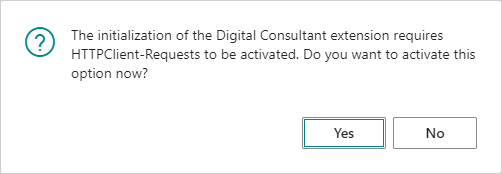
Choose the Yes button to active the option.
The Extension Settings page opens.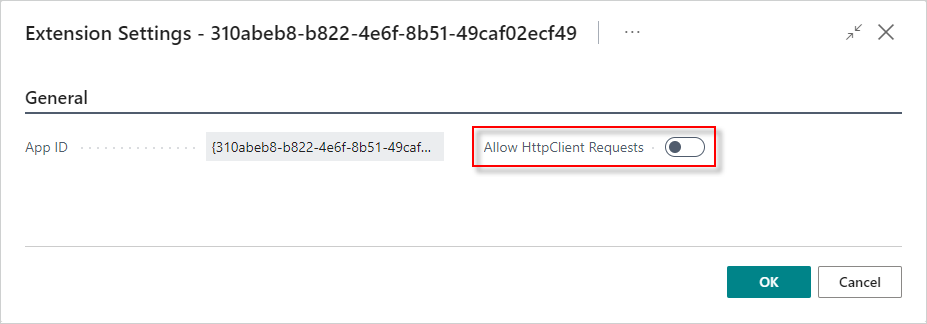
Turn on the Allow HttpClient Requests toggle.
Choose the OK button.
If the next initialization notification for Setup is not shown in the notification bar, refresh the environment.

On the notification line, choose Initialize.
Choose the OK button to close the confirmation message stating that the Digital Consultant has been successfully initialized.
After initializing the COSMO Digital Consultant app, you can continue with the steps for setting up the Digital Consultant environment.
| To | See |
|---|---|
| Create team members from existing BC users. | Create Team Member |
| Set and manage teams. | Team Setup and Management |
| Use the content catalog to download a digital solution. | Store |
See Also
User Permissions
Digital Consultant content for features, marketing, and support
Feedback
Submit feedback for this page .