Typical Problems & Solutions
Self-hosted agents in restricted networks
If you get errors in your pipelines like
System.Net.Http.HttpRequestException: The SSL connection could not be established, see inner exception.
---> System.Security.Authentication.AuthenticationException: The remote certificate is invalid because of errors in the certificate chain: UntrustedRoot
then might a reverse proxy is blocking access to certain URLs. Make sure that the following URLs are allowed:
- https://cosmo-alpaca.westeurope.cloudapp.azure.com
- https://cosmo-alpaca-enterprise.westeurope.cloudapp.azure.com
- All from https://learn.microsoft.com/en-us/azure/devops/organizations/security/allow-list-ip-url?view=azure-devops&tabs=IP-V4#allowed-domain-urls
My container doesn't start / the container in my pipeline doesn't start
If a container doesn't start, please always check the logs of the container through the VS Code Extension. If you see something like this
Exception calling "DownloadFile" with "2" argument(s): "The remote server returned an error: (403) Forbidden.",
Downloading license file ...
then very likely your license has expired and the corresponding link with it. You have to update the referenced license file in your cosmo.json file. see
My build pipelines sometimes fail and sometimes work with the same code
Error message type of 'Object lock by another user' during test automation
For automated tests, the best practice is to deactivate the task scheduler on the container. If you have this type of issue, try to modify the dockerParamsForBuild parameter in your cosmo.json file by adding the following parameter at the end : --env customnavsettings=enabletaskscheduler=false
My pipelines fails because my build / release agent can't access my artifact feed
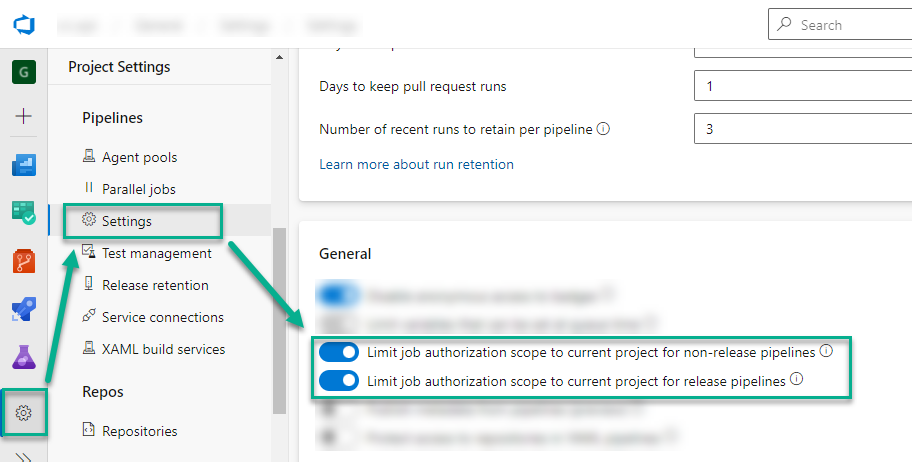
This happens in build and release pipelines as well during publish or promote universal packages. Mostly, this is caused by missing permissions for the respective build or release pipeline agent. In such a case please check the Pipeline Settings of your project. There are 2 options that should be enabled as follows:
My build agent has no access to my DevOps artifacts during build
This happens especially, when you add artifacts from an external artifact feed (from a different project in your Azure DevOps organization). In the most cases your build agent has no access to this artifact feed. In this case please:
- Check that you added your build agent (Name: "Project Name Build Agent (Organization Name)") your external artifact feed and assigned the role Reader or Contributer.
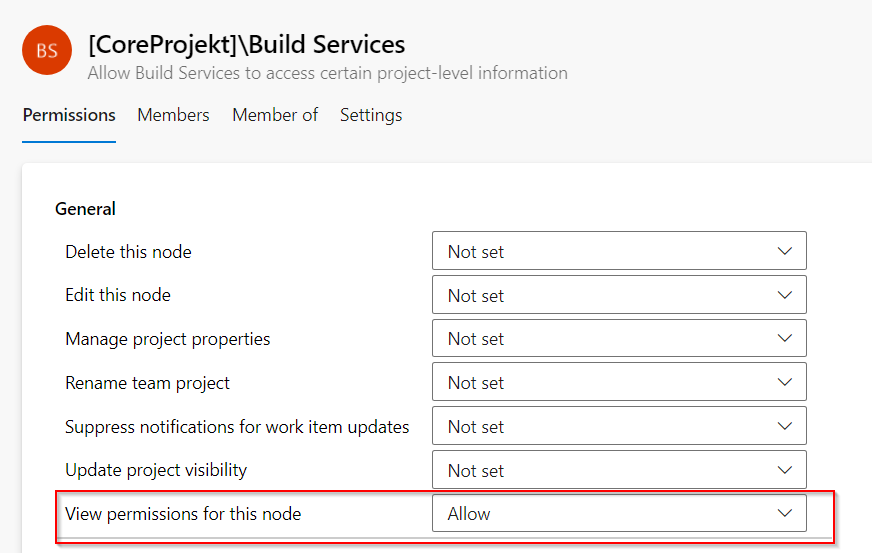
- Check that you added your build agent (Name: "Project Name Build Agent (Organization Name)") to your external project as a user and granted the permssion View permissions for this node.
I can't create build, release pipelines or import task groups
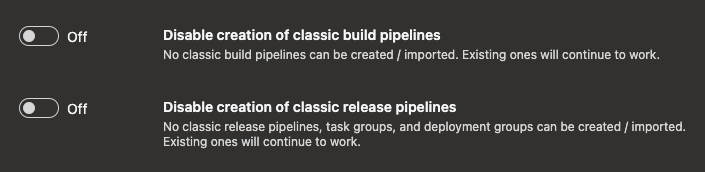
New projects in Azure DevOps have classic build and release pipelines disabled by default. When using Alpaca Pipelines, they have to be enabled. This can be done in the project settings (and organization settings) in Azure DevOps by enabling the features under General.
Note When setting up a new project using Alpaca, this should already be done automatically.
Performance Issues BC24
Starting with BC24 Microsoft switched the managment console from Powershell 5 to Powershell 7. Since some of the Scripts inside of Containers are still running on Powershell 5, we have some bridging in there. Theses bridging leads to a massive performance loss.
We worked with Microsoft to find a solution because this issue affects not only COSMO Alpaca but every container-based BC environment. But unfortunately, there is no solution for BC24 and BC25, but Microsoft has promised to fix it with BC26.
If you encounter problems with pipelines running into timeouts, please increase the timeout as a workaround. You can achieve this by setting the variable Build.TimeoutInMinutes in your library to a higher value (recommended: "120").
RapidStart Import Fails in BC 27
Starting with Business Central version 27, the setting EnforceUserPathForAlFileOperations is enabled by default (true).
This restricts AL file operations (e.g., RapidStart imports) to the service account’s user folder only.
In container environments (where the service typically runs under the SYSTEM account), RapidStart packages located in common directories such as C:\run, Temp, or Users fail to import with the following error message:
Files outside of the current user's folder cannot be accessed.
Solution: The setting must be disabled during container setup. This can be configured in the cosmo.json file using the customNavSettings property.
Add the following setting to your cosmo.json:
"customNavSettings": [
  {
    "settings": "EnforceUserPathForAlFileOperations=false"
  }
]
After updating the file, recreate the container. RapidStart imports should then function as before.
Azure DevOps Pipeline does not start due to missing parallelism
On new Azure DevOps organizations and private projects Microsoft does no longer provide free parallelism by default.If you have multiple pipelines (build or release) configured, they might not start due to missing parallelism.
You have to request the free grant by submitting the parallelism request form. (It can take several business days to process the request.)