Compare and Update Construction Orders
You can compare a Construction Order against a selected source (e.g., master data or another Construction Order) and review differences in a structured dialog. The comparison is initiated from the Construction Order header or from individual lines, against master data (Production BOM and Routing / Master BOM), Construction Orders, Construction Order Archives, Document BOMs, Document BOM Archives, Service BOMs, or Service BOM Archives.
Important
If the selected target is an archive (Construction Order Archive, Document BOM Archive, or Service BOM Archive), comparison runs in compare-only mode. In this mode, no changes are written to the archived document and update actions are not available.
Archives can be used as both source and target. When comparing two archived versions (archive-to-archive), both are in compare-only mode and no changes can be applied to either.
The matching rules for the base compare process are:
- Scope – Source and target children are matched only within the same parent (Belongs to Entry No. field).
- Identity (field values) – Matching uses Type, No., Variant Code, (optionally) Operation No., geometry (Depth, Width, Length), and Pre‑Order as applicable.
Note
"Move" pairing does not use Operation No. and matches on Type, No., Variant Code, Pre‑Order, and Depth/Width/Length (with progressive relaxation when needed).
- Ambiguity – If more than one candidate matches under the same parent, no automatic "Modify" is assigned (remains "Insert"/"Delete" for user decision).
Note
For exact rules that determine Insert, Delete, Modify, and Move (matching, ambiguity handling, apply behavior, renumbering), see Action Types in BOM Compare.
Together with the BOM Compare & Update feature, this process:
Compares all lines by checking all Construction Order lines in the source and target orders and detects:
- Insertions (lines in source, missing in target)
- Deletions (lines in target, missing in source)
- Modifications (same line under the same parent, but allowed field values or substructures differ)
- Movements (identical line shifts from one parent to another and can be uniquely paired as "Insert" and "Delete" across parents)
Displays differences in the BOM Compare & Update page (shows each delta):
- Field differences (only those marked Include in Insert and Include in Modify = true in the BOM Compare Fields page).
- Substructures are compared independently (attributes, dimensions, manufacturing dimensions, comments, tools, personnel, quality measures, and skill sets) and can trigger "Insert"/"Modify"/"Delete" within their scope.
- Color-coded visualization: added, removed, changed, moved.
- Manual changes in the target can be flagged (conflict indicators where applicable).
Allows you to select which changes to apply (all, none, or selected changes), when updates are allowed for the selected target:
- Apply direction: Changes are written to the selected target. To reverse the direction, start the compare with swapped source/target on the request page; within a compare session the direction is fixed.
- When updates are allowed, changes are written directly into the selected target (including subordinate entities where applicable).
- Optional validations may run depending on configuration.
If the selected target is an archive, compare-only mode applies and no changes can be applied.
Process Flow and Usage
The general process flow for comparing and updating construction orders is illustrated in the following diagram.
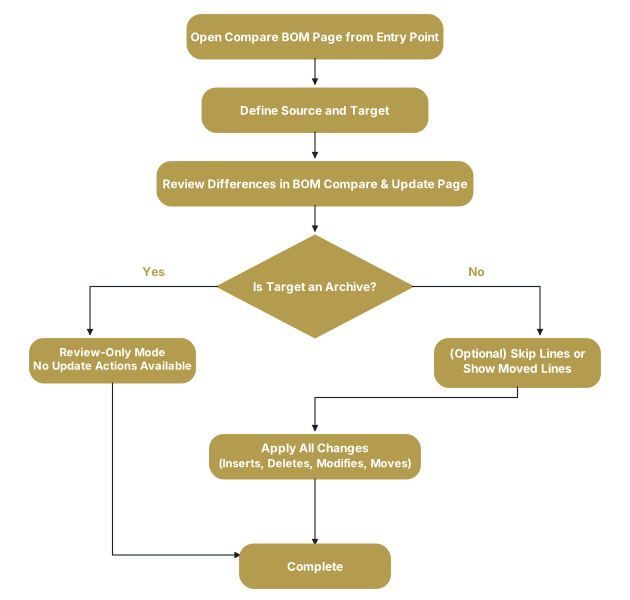
These steps are described in more detail in the following sections.
Define Source and Target in Compare BOM Page
To define the source and target Construction Orders and open the comparison page:
Open the Construction Order page and either:
- Choose Functions > Compare BOM action on the Actions menu to open the Compare BOM page for the entire Construction Order.
- Select a line and then choose Functions > Compare BOM on the Lines FastTab to open the Compare BOM page for that specific line.
In the Compare BOM page, enter the source and target in the Source No. or Target No. fields.
Note
The current Construction Order (or selected line) is set as the target but can be swapped via the Swap Source/Target toggle.
(Optional) If comparing archived versions, specify the version number in the Source Version or Target Version fields.
If created from the Construction Order line, define the line number to be used as the reference in the Source Ref. No. or Target Ref. No. fields.
Note
Depending on how you opened the Compare BOM page, you can choose to clear or populate the Source Ref. No. and Target Ref. No. fields.
Choose the OK button.
Update Construction Order Lines in BOM Compare & Update Page
The BOM Compare & Update page opens with all detected differences. For information about fields and actions, see BOM Compare & Update.
For Editable Targets
- Review and adjust differences as needed:
- Skip Lines (Optional) – Set any line to Skip to exclude it from update actions, or use mass skip actions (Skip Item, Skip Work Center, Skip Insert, Skip Modify, Skip Delete) to quickly skip groups of lines.
- Move Lines (Optional) – Use Auto Move or Move actions to pair and move Insert/Delete lines as needed (see Movements).
- Apply Changes – Choose the Apply Changes action to write all non-skipped differences to the target and confirm the action if prompted.
- Review Only (Optional) – Close the page without applying if you only want to review differences.
For Archive Targets
Archive targets (Construction Order Archive, Document BOM Archive, Service BOM Archive) open in compare-only mode. You can review differences but cannot apply changes.
Archive-to-Archive Comparison
When both source and target are archives, the comparison runs in compare-only mode for review purposes. No changes can be applied to either archived version.
Substitution-Based Modify
An item change at the same position is not treated as Modify by default—identity changes are shown as Insert and Delete.
However, if a valid substitution exists for the item, the change can be treated as Modify if:
- The substitution (item/variant) is valid per setup.
- Source and target are matched under the same parent (Belongs to Entry No.).
- Matching is unique (no ambiguity).
- All other matching rules and field configuration are satisfied.
This exception applies only to defined substitutions. Regular item changes without substitution remain Insert and Delete. Additionally, a substitution-based Modify does not override field rules. Differences are applied only for fields flagged Include in Modify. Substructures follow the standard rules.
Important
In the BOM Compare Fields page for table 5013631, "CCS DM Construction Line", the Validate in Modify checkbox must be empty in the No. and Variant Code fields for correct substitution.
Movements
After defining the source and target in the Compare BOM page, re‑parentings are shown in the BOM Compare & Update page as Insert and Delete. They become a Move only when you either:
- choose the Auto Move action (pairs unique candidates).
- select exactly one Delete line and one Insert line and then choose the Move action (manual).
The base comparison (field values) for movement matching are Type, No., Variant Code, Pre‑Order, Depth/Width/Length; a single unique pair is required, otherwise it stays Insert and Delete.
When a movement occurs, the corresponding lines are updated as follows:
- The moved line(s) Action changes from Delete to Move.
- The line(s) to where it is moved changes from Insert to None (or Modify if allowed fields differ).
- The Moved from assembly field specifies the description of the parent node from which the line(s) has been moved.
Note
Choose the Undo Move action to revert the movement (skipping is not possible with movements).
When the movement is applied, the existing target node is re‑parented. When the target is a Construction Order line, the Belongs to Entry No. field is updated on the moved line, and sub‑lines follow the parent.
Numbering Normalization
After applying changes, BOM line numbering may be re‑assigned. As a result, the visible Entry No. of lines can change without line creation or deletion.
Additionally, the compare page recalculates its Entry No. Representation to reflect the current hierarchy.
Feedback
Senden Sie Feedback für diese Seite . (Beachten Sie, dass diese Umfrage auf Englisch ist.)