Navigation
As a graphical interface showing rental planning information, the Graphical Rental Disposition page allows you to quickly change to different dates and time periods, search for specific rental lines, change the appearance of the page, and view the rental planning information using a Gantt chart.
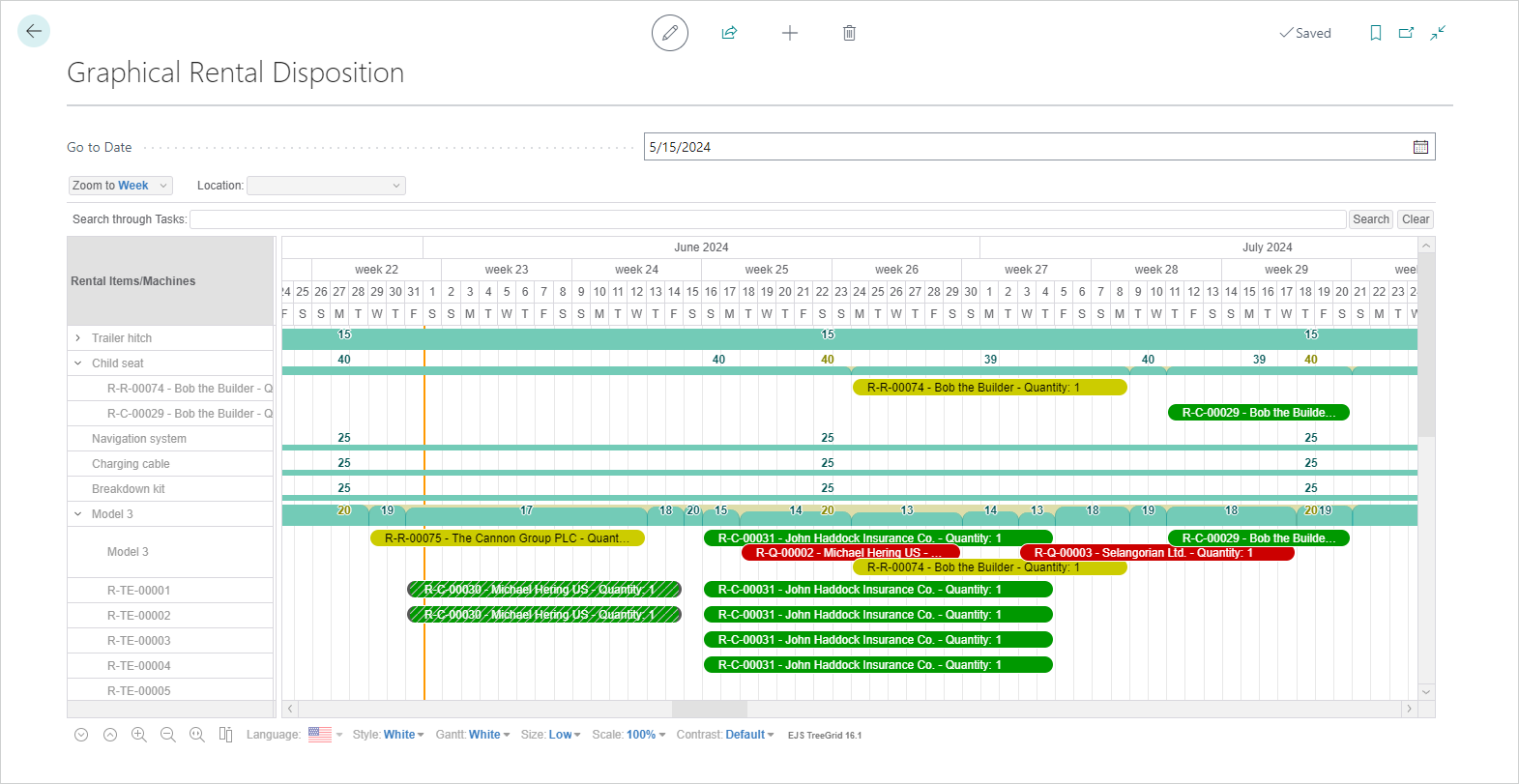
This section provides an overview of how to navigate this page, change settings, and so on.
Go to Date
The Go to Date field allows you to move to a specific date in the chart.
Zoom to ...
Just below the Go to Date field is the Zoom to ... drop-down, which allows you to change the view to different time periods. The options are Month, Week, and Day.
Location
Next to the Zoom to... field is the Location field, which allows you to filter the rental planning lines by a specific location.
Search through Tasks
Next you can search through the rental lines. This is a free text field so you can enter full or partial names of rental items, machines, machine components, supplementary parts, serial numbers, and rental document/service order numbers and then press Enter or choose the Search button to find all lines with the search criteria. The filtered entries can be cleared by choosing the Clear button.
Chart Layout
The left pane shows the rental items, machines, machine components, and supplementary parts. The information shown depends on whether the items/machines are serialized and whether rental documents exist.
- Non-serialized
- If no rental documents exist, then there is no drop-down arrow.
- If rental documents/service orders exist, then the rental document/service order numbers are shown when the drop-down is expanded.
- Serialized
- The expanded drop-down first shows a line with the item/machine name, which is used when no serial number has been selected/assigned.
- The expanded drop-down then shows all existing serial numbers.
The right pane shows the availability of the items/machines on the main item/machine line: numbers in gold = all inventory in Rental, Rented, or In-Transit locations; numbers in black = available inventory in the Rental location. Rental documents as well as service orders created for items/machines, serialized or not, are shown with their entire rental period (colors can be used to differentiate between rental documents and service orders). Blocks provide visual levels of availability: aqua = currently available inventory, gold = all inventory.
For more information about using the Graphical Rental Disposition page, see Usage.
Context Menus
On both sides of the chart, context menus can be opened to access various functions or provide additional information about the item/machine or rental document/service order. Tap and hold (or right-click) the item/machine, rental document, or serial number to open the context menu.
For the items/machines:
- The Create Rental Quote menu item opens the Customers list for customer selection, creates a rental quote for the selected item/machine, and then gives an option to open the rental quote.
- The Create Rental Reservation menu item opens the Customers list for customer selection, creates a rental reservation for the selected item/machine, and then gives an option to open the rental reservation.
- The Create Rental Order menu item opens the Customers list for customer selection, creates a rental order for the selected item/machine, and then gives an option to open the rental order.
- The Open Card menu item opens the related item/machine card.
For the rental documents:
- The Open Rental Quote/Reservation/Contract menu item opens the corresponding rental document.
- The Rental Extension menu item opens the dialog to extend the rental period for the selected rental document. For more information about extending rentals, see Extensions.
- The Release menu item releases the corresponding rental document.
- The Reopen menu item reopens the corresponding rental document.
- The Item Tracking Lines menu item opens the Item Tracking Lines for serialized items.
For the service orders:
- The Open Service Order menu item opens the corresponding service order.
Tooltips
To view a tooltip, tap (or hover over) an entry.
For the rental documents, the tooltips show the related rental document number, line number and status, customer number and name, quantity, serial number, planned start/end date (pre-shipment/return), start date (shipped date), and outbound/inbound date (shipping times). The information that is shown in the tooltips depends on where the documents are in the rental process.
For the service orders, the tooltip shows the service order number and service item number, service order status (from the Repair Status Code assigned to the line), and start/end dates. The start/end dates are shown as follows:
- Start Date - either the Expected Starting Date (Rental) or Starting Date, depending on which is entered in the service order line (one of these fields must be filled in). The Starting Date takes priority over the Expected Starting Date (Rental).
- End Date - empty if no Expected Finishing Date (Rental) or Finishing Date is entered in the service order line. Updated with the Expected Finishing Date (Rental) or Finishing Date when entered in the service order line. The Finishing Date takes priority over the Expected Finishing Date (Rental).
Chart Changes
The bottom of the page contains controls that allow you to change the appearance of the chart.
Expand/Collapse all rows
The first two icons allow you to either Expand all rows or Collapse all rows in the left pane of the chart.
Zoom in/Zoom out/Zoom to fit into page
The third and fourth icons allow you to zoom into or out of the time periods in the right pane of the chart. The fifth icon allows you reset to a month view that will fit into the page.
Displays menu to choose visible columns
The sixth icon allows you to add columns to the chart area. This is especially useful because you can add Start/End Dates as well as Item No. and Location.
Style
The Style drop-down allows you to change the color of the chart area, including text, as well as the control icons at the bottom of the page.
Note
The custom option works with the TreeGrid CSS defined with EJS TreeGrid 16.1.2.
Gantt
The Gantt drop-down allows you to change the color of the Gantt area of the chart.
Note
The custom option works with the TreeGrid CSS defined with EJS TreeGrid 16.1.2.
Size
The Size drop-down allows you to change the size (height) of the rows in the chart area.
Scale
The Scale drop-down allows you to change the size of the chart area.
Contrast
The Contrast drop-down allows you to change the contrast between the foreground and background of the chart area.
Feedback
Submit feedback for this page .