Create Repository & App
We recommend to use an organization for your repositories. One repository can contain one or many projects that can contain one or many apps.
Create Repository
To create a repositoy use the + action next to your GitHub organization or account:
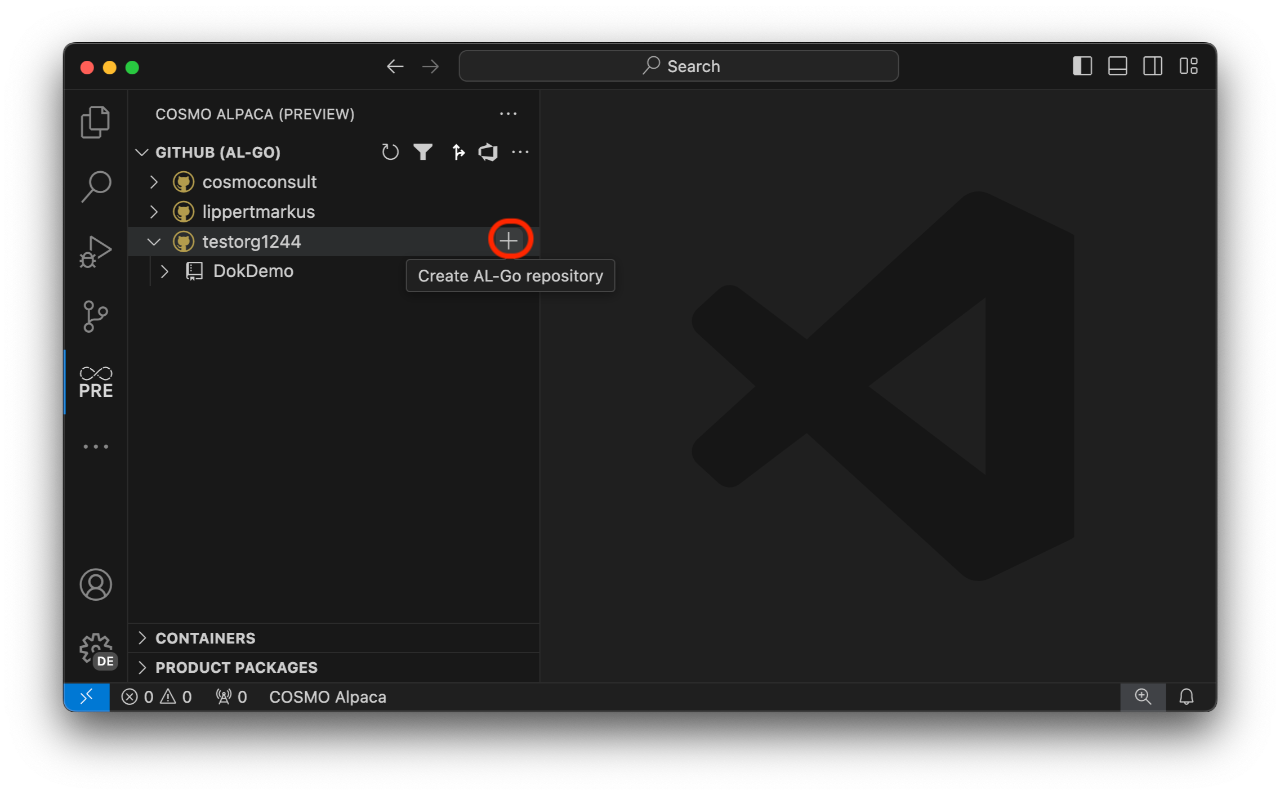
Now follow the wizard:
- Enter the type of the new repository. Here you can choose between the PTE or AppSource Templates from Mirosoft or the respective Alpaca templates (recommended). The Alpaca templates are using Alpaca's container infrastructure for the AL-Go pipelines which can then run much faster.
- Enter the name of the new repository
- Select if the new repository should be private.
With that a single-project repository will be created based on the selected template. If defined, your GitHub Repo Standards are applied to the new repo. The new repository will contain all needed workflows and configurations.
Create App
To create an app within your repository, select your repository and navigate the tree to Projects > [project] > Apps and click the + action:
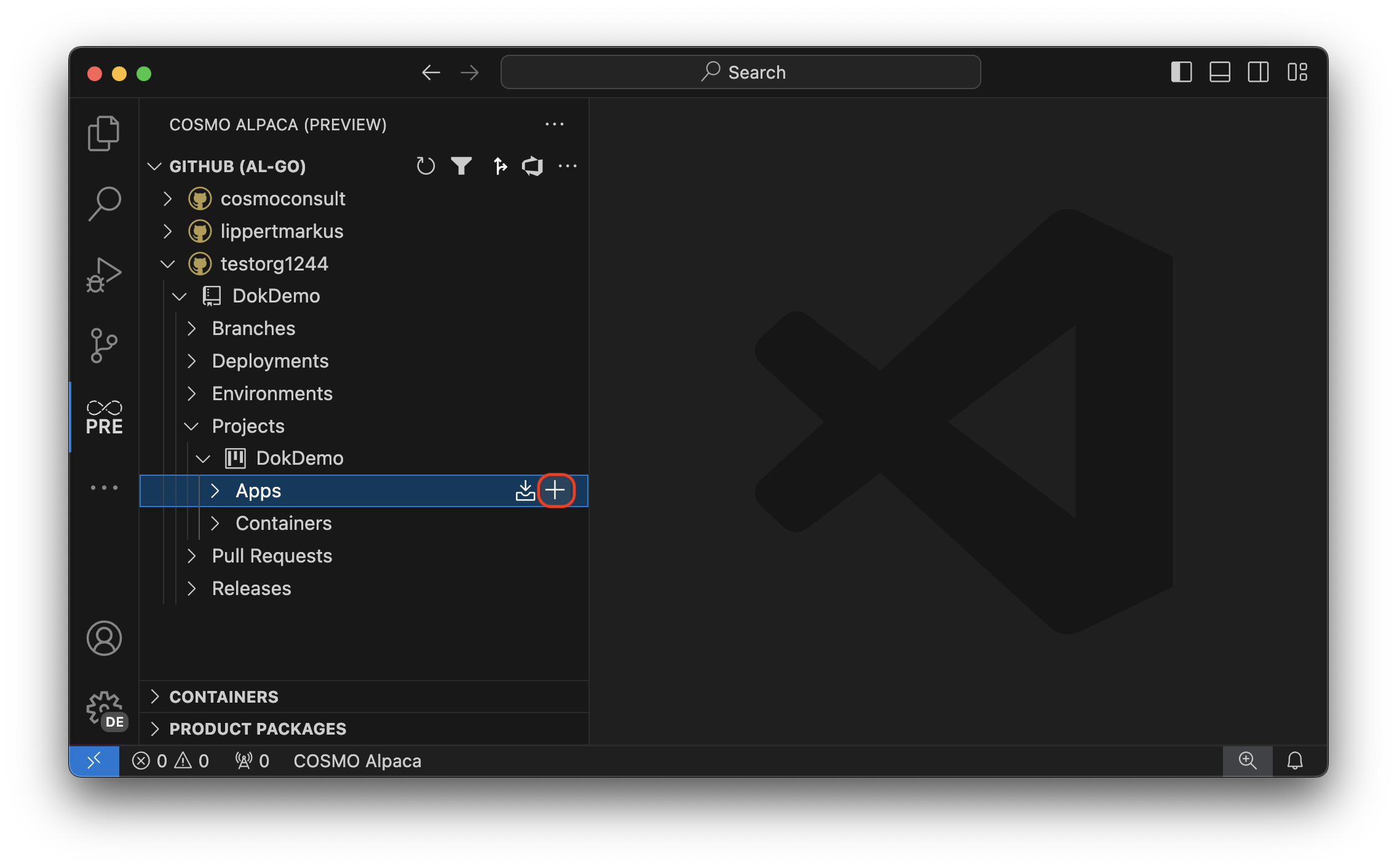
Now follow the wizard:
- Enter the name of the project where you want to create the app. You can use
_to use the default root project. If you enter a project name that doesn't exist yet, the new project will be created. The repo structure might be converted from single-project to multi-project. - Select the type (App, TestApp or PerformanceTestApp) of the new app
- Enter the name of the new app
- Enter the publisher name of the new app
- Enter the ID range of the new app
Now a workflow will run to create the new app and add all necessary files to the repository.