Register Account
Step 1: Activate HTTP client requests
To download data from the COSMO CONSULT backend system using web services, HTTP client requests must first be activated.
The following display on your homepage indicates that your app still needs to be initialized.
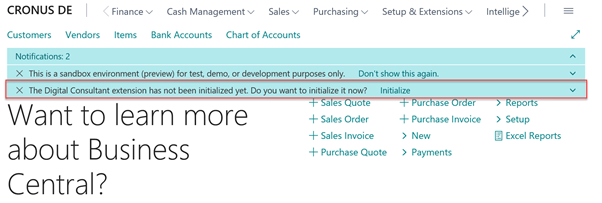
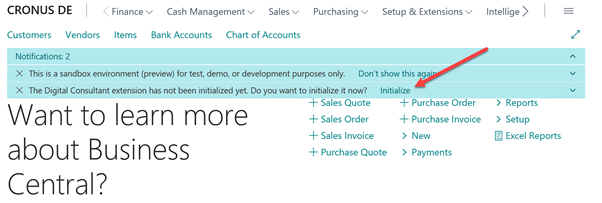
To initialize, please click on the Initialize field.
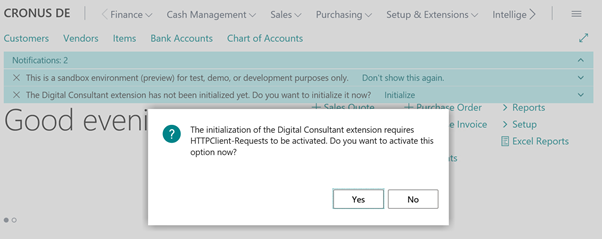
A window opens, which you must confirm with YES.
Then activate the App ID and confirm with OK.
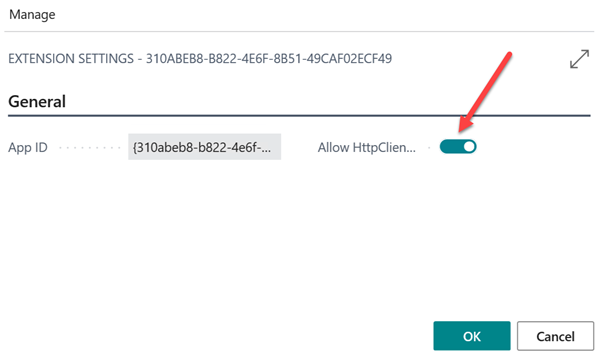
Step 2 - popup with updating (watch the video)(After clicking on store)
Step 3 - Registration and customer ID
Step 4 Update cataloge again.
The following video will take you through the different steps, further down you find detailed step-by-step instructions.
If you have opted for a paid solution/asset in your catalog, you must first register in order to place an order.
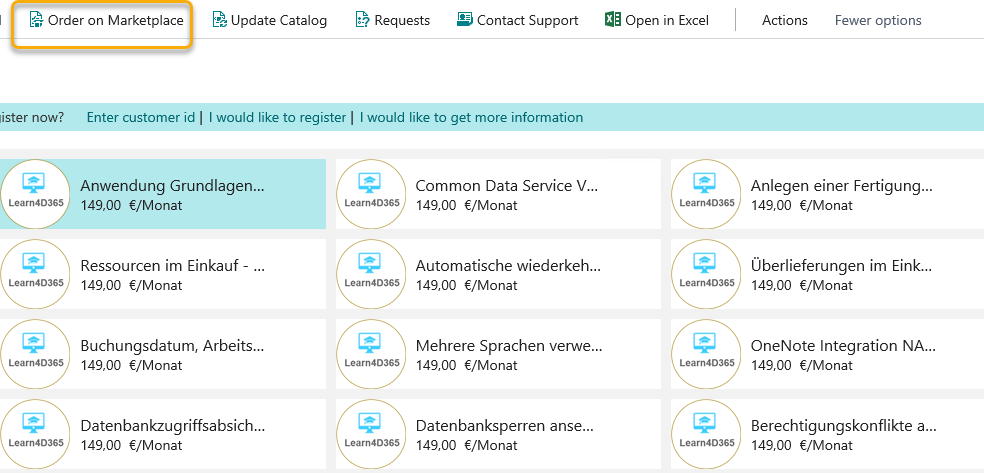
Click on the requested solution and Order on Marketplace.
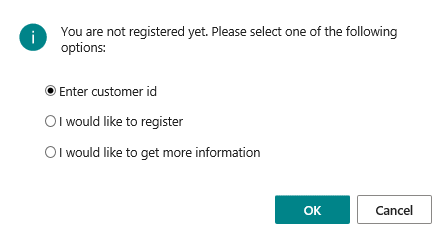
A prompt appears. If you are registering for the first time in Cosmo Consult Marketplace, select point 2 or 3 and confirm with OK.
You will be redirected to Cosmo Consult Marketplace and confirm with Add to Basket.
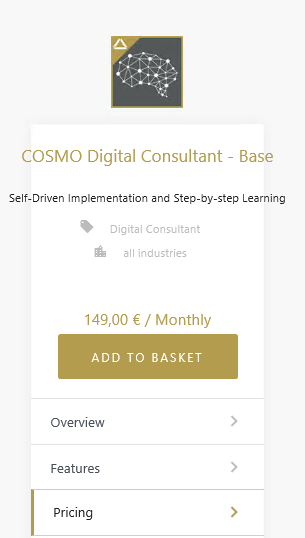
Then select Register and enter all necessary data.
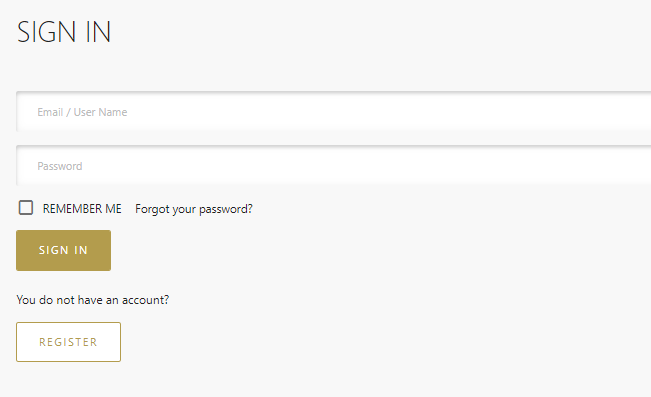
Your request will be processed and you will then receive an e-mail with further information and the customer ID you need to activate your account.
Activate Account
The following video will take you through the different steps, further down you find detailed step-by-step instructions.
After you have registered in the Cosmo Consult Marketplace, an e-mail with your customer ID has been sent to you. You need this to activate your account.
To do this, call up the solution/asset catalogue via the Consultant in your role centre.
Select Enter customer id in the display to enter your customer number.
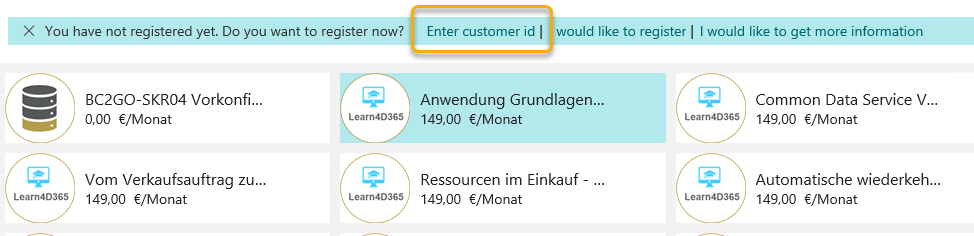
An input window appears. Type in your customer ID and confirm with Finish.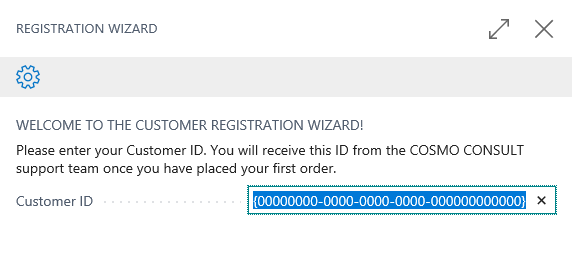
You will then be asked to update the catalogue again. After your confirmation, you will find the selected solution in your catalogue and can add this solution to your system using the function Download.