Complex Barcode Function
- How do I set up barcode categories?
- How do I define barcode formats for complex barcodes?
- How do I manage barcode lines in the Barcode Setup page?
- How do I assign barcodes to a page using Global Page Customization?
- How do I configure Complex Barcode Settings on barcode lines?
- How do I use Complex Barcodes in COSMO Mobile Solution?
Tip
Summary: This guide explains how to configure and use the Complex Barcode Function in the mobile application. It covers defining barcode categories, setting up barcode formats, managing barcode lines, assigning barcodes to pages, and configuring Complex Barcode Settings. It also provides details on using complex barcodes within the mobile application for scanning and processing data.
Complex barcodes are advanced barcodes capable of storing and conveying multiple pieces of detailed information and can embed a variety of data types, including text, numeric data, or dates.
Using COSMO Mobile Solution, you can manage how each part of a complex barcode populates specific fields.
Barcode Setup
The barcode setup page is available in the Mobile Solution Center by choosing the Barcode Setup tile. This page is dedicated to creating mappings for the expected barcodes.
The Barcode Setup page is structured as follows: in the top section, you can create a complex barcode Code and its Description. Each code is associated with a Lines FastTab, detailing the mapping for the specific barcode.
The Barcode Categories action opens a page to define default barcode mappings, which can be used in the Lines FastTab, with or without modifications.
The fields on the Barcode Categories page are described in the following table.
| Name | Description |
|---|---|
| Category Code | Specifies a unique code of the category. |
| Default Data Type | Specifies default data type of a barcode segment. The options are Textual, Date, and Numeric. |
| Default Prefix and Default Suffix | Specifies a prefix or a suffix of a barcode segment, which can be a specific string or symbol representing non-printable characters: '\t' represents a TAB character, '\n' represents a Line Feed (LF) character, '\r' represents a Carriage Return (CR) character, '\e' represents an ESC character, '\0' represents a string terminator, '\f' represents a Group Separator (GS) character, which is often used to represent FN1 character in GS1 barcodes. |
| Default Data Format | Specifies the data structure of a barcode segment, which can be a specific string or symbol: '#' - for numeric characters, number of the symbols represents the number of characters of the barcode segment, '?' - for alphanumeric characters, number of the symbols represents the number of characters of the barcode segment, 'yyyymmdd' - for date characters, '%' - undefined number of decimal characters in case of Numeric type, '*' - undefined number of alphanumerical characters can be used in case of Textual type. |
| Default Decimals | Specifies the default number of decimal places used for numeric barcode segments. |
Example
This example demonstrates the process of configuring Complex Barcodes and mapping them to a certain page within COSMO Mobile Solution.
Scenario
Generally, our vendors identify their items only by item number. But a specific vendor labels their products with barcodes that include the item number, lot (batch) number, expiration date, and lot (batch) quantity.
I want to use these barcodes for inventory put-away (Inventory Put-Away page).
The barcode structure provided by this specific vendor includes:
- Item Number: Variable length, consisting of letters and numbers.
- Batch Number: Starts with an "L" as a prefix, followed by 3 letters and 4 numeric characters.
- Expiration Date: Format is ddmmyyyy.
- Quantity: Fractional number with up to 1 decimal place.
Barcode Example:
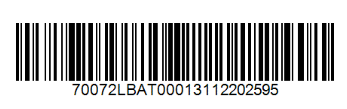
| Item Number | (Batch Prefix) | Batch Number | Expiration Date | Quantity |
|---|---|---|---|---|
| 70072 | L | BAT0001 | 31122025 | 9.5 |
Create Barcode Categories
Choose Barcode Categories action in the Barcode Setup page.
Enter values as shown in the following graphic.
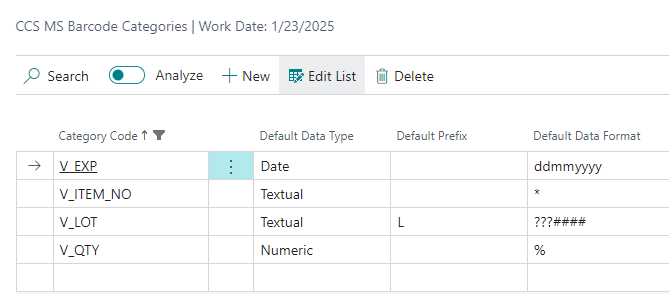
Close the Barcode Categories page.
Create Barcode Code and Assign Lines
This section outlines the process for creating barcode codes and assigning lines to map specific and general barcode setup.
Create a barcode mapping for the specific vendor:
On the Barcode Setup page, choose the New action.
In the Code field, enter V_BARCODE.
In the Description field, enter a proper description.
Go to the Lines FastTab and define barcode segments by populating the Category field with the previously added Barcode Categories.
Change the value of the Decimal field of V_QTY from 0 to 1. This setting ensures that the last digit of the decimal barcode segment is validated to one decimal place.
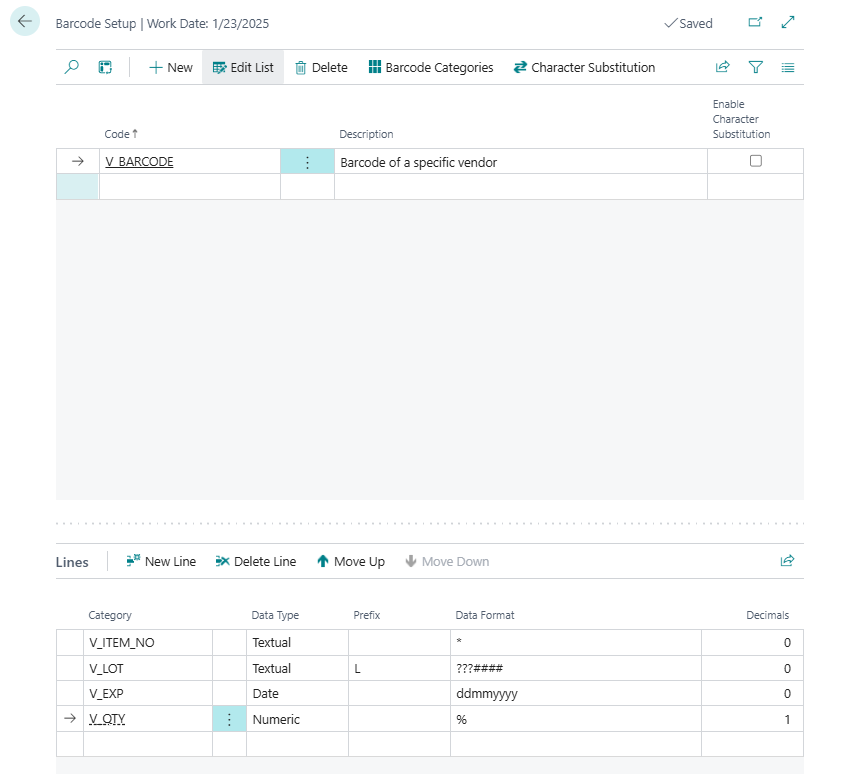
Create a barcode mapping for every other item:
- On the Barcode Setup page, choose the New action.
- In the Code field, enter N_BARCODE.
- In the Description field, enter a proper description.
- Go to the Lines FastTab and populate the Category field with Barcode Category V_ITEM_NO.
- Close the Barcode Setup page.
Assign Barcodes to Pages
This section provides step-by-step instructions for assigning barcodes to a page.
- In the Mobile Solution Center, choose the Page Customizations tile.
- Search for and open the Inventory Put-Away Line page (CCSMSInvtPutAwayLineWS).
- Choose the Assign Barcodes action, and then select N_BARCODE and V_BARCODE.
- Select the Scanning per Multiple Sided Subpage checkbox if the user should only populate fields on the current subpage with complex barcodes. This field is active only if the Multiple Sided Page toggle is turned on in the General FastTab of the Global Page Customization page.
Important
It is possible to modify the order of the assigned barcodes by choosing the Move Up and Move Down actions. The mobile application will match the barcodes in this order, so it is important to arrange the order from the most specific to the broadest in cases where there is overlap among the Barcode Categories used in the barcode template.
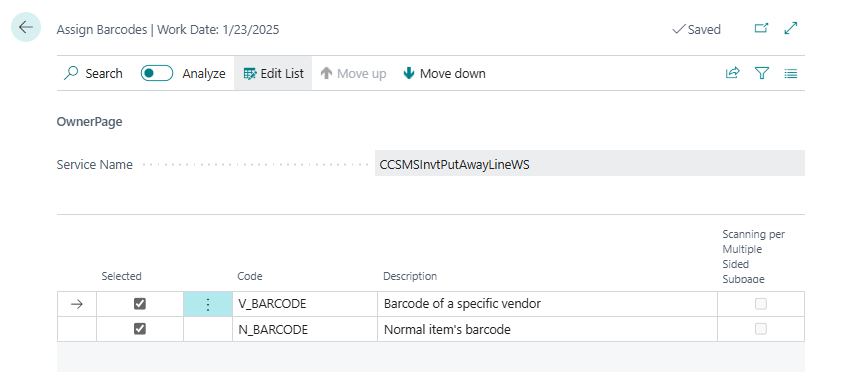
Important
In some processes, such as the Item Reclass. Journal, there are many similar fields that can be populated with the help of the same barcode setup (e.g., Source Location and Bin and Target Location and Bin). Previously, it was not possible to fill only one set of these fields with a complex barcode, even if they were on different subpages.
Now it is possible to scan each assigned barcode per multiple-sided pages using the Scanning per Multiple Sided Subpage field. For example, when this toggle is turned on and you are on the first subpage, scanning a complex barcode will only validate values for fields on the current subpage.
When Auto Focus is enabled after scanning a barcode and the Last Field To Validate is set, Auto Focus will be executed, even if the field is on another subpage.
Assign Barcode Segments to Fields
This section explains how to assign barcode segments to specific fields on a page and configure their searchability in the mobile application.
Close the Assign Barcodes page, go to the Card View FastTab, and then choose the Complex Barcode Settings action.
In the Barcode Setup Filter field, you can specify which segments of the Barcode code you want to assign to the individual fields of the given page.
In the Category field, choose the segment you want to assign to the specific field, in this case as follows:
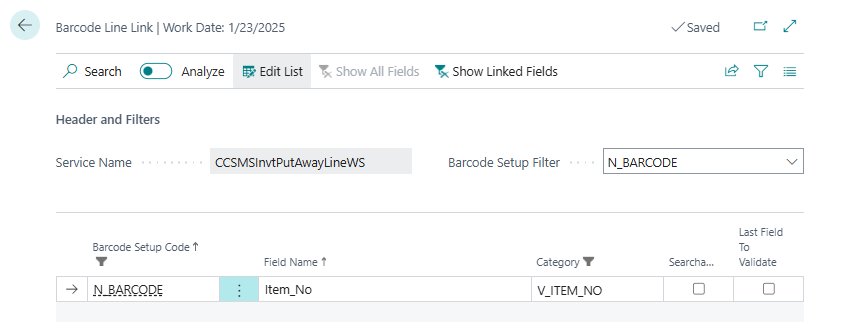
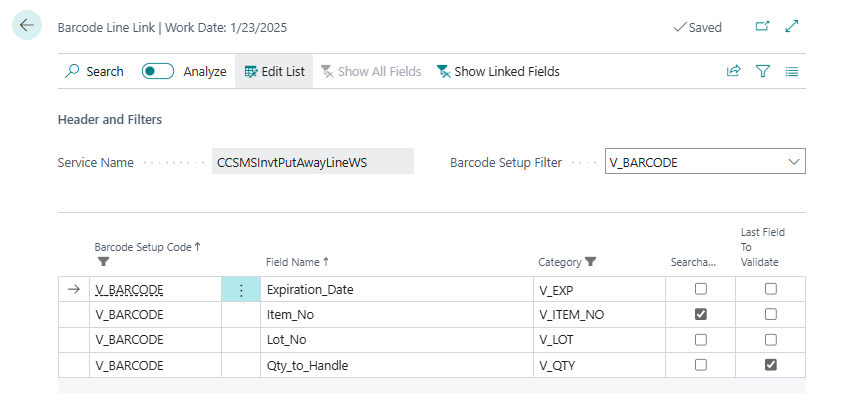
For better clarity you can choose the Show Linked Fields action to display only the fields that have a barcode segment (Category) assigned to them.
Select the Searchable checkbox for the respective field if you want the segment to be searchable using the mobile application's Quicksearch and Search functions. Make V_ITEM_NO searchable for both Barcode Codes.
Select the Last Field To Validate checkbox to designate the field as the starting point for the Auto Focus process when a barcode has been scanned.
Note
Fields marked as searchable in the Complex Barcode Settings also become searchable in the Card View section of the Page Customization. A message notifies you of this; however, disabling the searchable option in the Complex Barcode Settings does not turn off the searchable attribute in the Card View.
Search and Fill Fields by Scanning Complex Barcodes
This section demonstrates how to use the mobile application to search and populate fields by scanning complex barcodes.
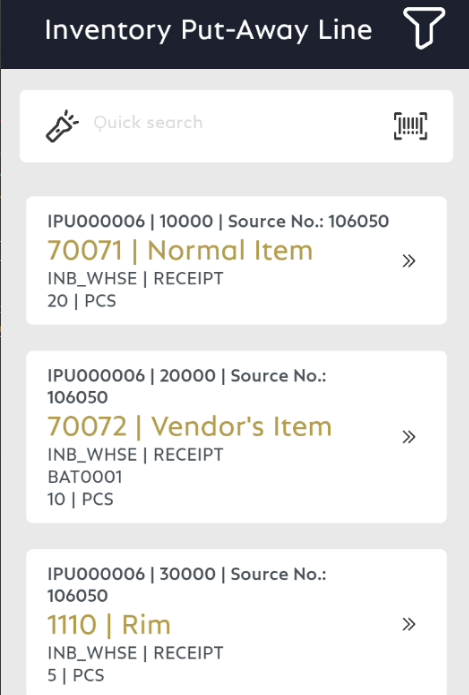
Log in to the mobile application and navigate to the Inventory Put-away Line page. The list displays all Inventory Put-away Lines, and in this example, there is one put-away line for each item.
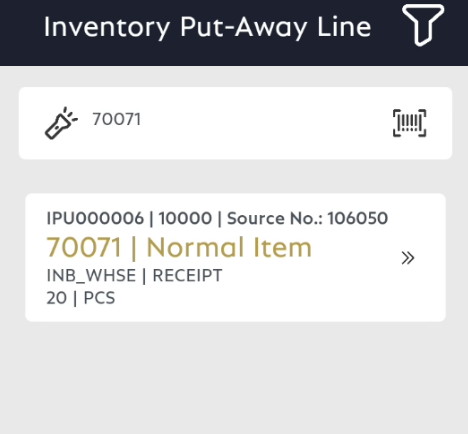
Scan the barcode of the Normal item. The application populates the Quick Search bar automatically and identify it based on the Item No. field, as this field was marked as searchable in the Complex Barcode Settings. If you use a device If there is a single match, the card view can open automatically, allowing you to manually fill in the Quantity field.
After posting or exiting, scan the vendor barcode. The application will find the item based on the Item No. field.
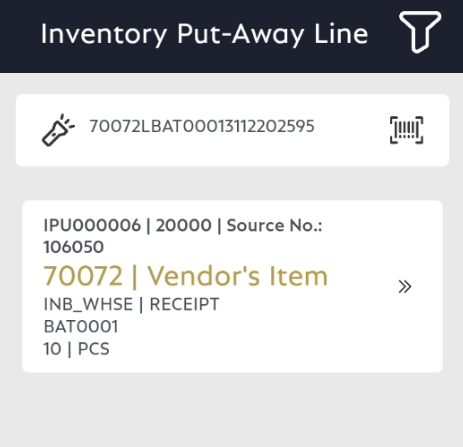
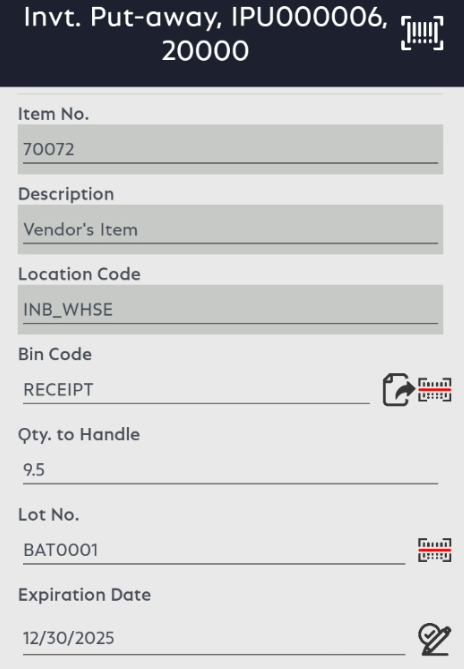
When the card is opened, scan the barcode again to automatically populate the Lot No., Expiration Date, and Qty to Handle fields, while the non-editable Item No. field remains unchanged. If your device supports only camera-based scanning, tap the barcode icon in the upper-right corner. This icon is available on all pages where a complex barcode has been configured. If the device does not have a camera and the icon is selected, an error message will be displayed.
Note
If you scan a barcode that does not match the schema defined in the Barcode Code, the application will search for it in the fields set as Searchable in the Card View FastTab of the Global Page Customization, which will likely result in no match.
Character Substitution
Control characters are special, non-printable characters used in barcode data to separate or mark segments. These characters help barcode readers and software correctly interpret and process complex barcode information. Barcode reading devices with integrated scanners typically process control characters correctly during scanning. However, external barcode readers may not always transmit control characters as expected; for example, they may scan the entire content of a complex barcode into a single field.
In such cases, configuring substitution characters is recommended. By setting up substitution characters, the handheld scanner can send these in place of control characters. COSMO Mobile Solution provides a character substitution feature for this purpose.
On the Barcode Setup page, enable Character Substitution for the relevant barcode, then choose the Prefix/Suffix Character Substitution action to open the Barcode Prefix/Suffix Character Substitution page and define the required substitutions for your devices. This solution is especially useful for resolving issues with GS1 barcode scanning.
The following control characters are supported and can be specified in the Prefix/Suffix fields:
| Prefix/Suffix | Control Character |
|---|---|
| '\t' | TAB character |
| '\n' | Line Feed (LF) character |
| '\r' | Carriage Return (CR) character |
| '\e' | ESC character |
| '\0' | String Terminator |
| '\f' | Group Separator (GS) character (commonly used as FN1 in GS1 barcodes) |
Example: External Barcode Readers
In this scenario, the following GS1 barcode is processed by COSMO Mobile Solution:
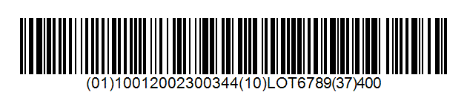
The barcode includes:
- a 01 prefix for GTIN
- a GTIN with 14 digits
- a 10 prefix for the Lot number
- a Lot number with variable length
- a 37 prefix for the Quantity value
- a Quantity value with 3 digits
For GS1 barcode strings, the initial character should be '\f', but this is often omitted by devices and does not need to be handled. Since the Lot number has variable length, a '\f' is required before the 37 prefix, resulting in the following string read by the device:
- \f 01 10012002300344 10 LOT6789 \f37 400
The first '\f' character is ignored, so the barcode setup in COSMO Mobile Solution should appear as follows:
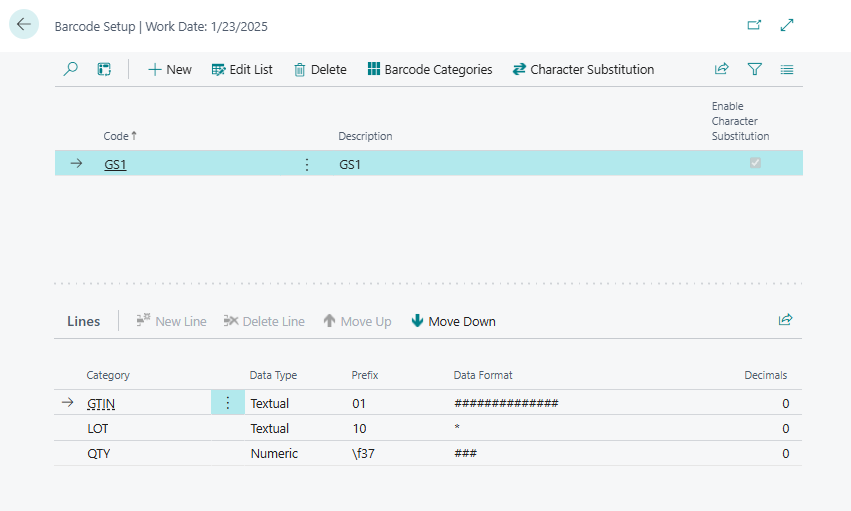
Because the Lot number's length is variable, a '\f' character is needed before the next element's prefix (Quantity).
If the Zebra DS2208 handheld scanner cannot transmit the '\f' or 'GS' control character, a substitution must be configured. Enable Character Substitution and use the Character Substitution action to specify the substitution value for '\f'. Ensure the substitution character does not appear elsewhere in the barcode string.
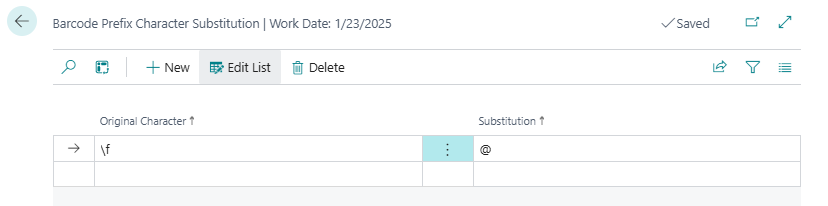
Character substitution can also be configured for external barcode readers. For details, see the External Barcode Reader Setup.
Example: Barcode Reading Devices
Barcode reading devices with integrated scanners generally transmit control characters correctly when scanning GS1 barcodes. If issues arise, character substitution can also be configured for these devices. For a Zebra TC53 barcode reader, follow these steps to scan the same example barcode:
- Open the DataWedge application on the device.
- Go to the Profiles page and select the profile used for COSMO Mobile Solution.
- Locate the Intent Output section and open Advanced Data Formatting.
- Enable Advanced Data Formatting.
- Open Rules and select Rule0 (or add a new rule if needed).
- Set Rule Enabled to "true".
- In the Actions menu, add the Replace String action.
- Set Find String to '\x1d' and Replace String to a non-control character (e.g., '@').
- Add the Send Remaining action, ensuring it follows the Replace String action.
- Restart the mobile application for COSMO Mobile Solution.
Note
This example describes the setup for a Zebra barcode reading device. For other brands, consult the respective documentation.
Feedback
Submit feedback for this page .