External Barcode Reader Setup
- When to use an External Barcode Reader?
- How do I set up an External Barcode Reader?
- How do I set up Character Substitution for External Barcode Readers?
Tip
Summary: You can use the mobile application with an external barcode reader. To ensure the scanner works correctly, it's essential to set a suffix character after the barcode data, which helps the system recognize the input accurately. This topic also provides detailed instructions about how to set up a certain external barcode reader.
You can use the mobile application with an external barcode reader. This is recommended in cases where the device running the mobile application does not have a built-in camera or barcode reading accessory, or if you prefer not to use the built-in options. A typical scenario is using a tablet at a fixed workstation to scan barcodes with a wired or Bluetooth external barcode reader.
Note
If the Remember Login feature is enabled or if you need to fill certain fields without using the external barcode reader, enable the on-screen keyboard in the Android settings.
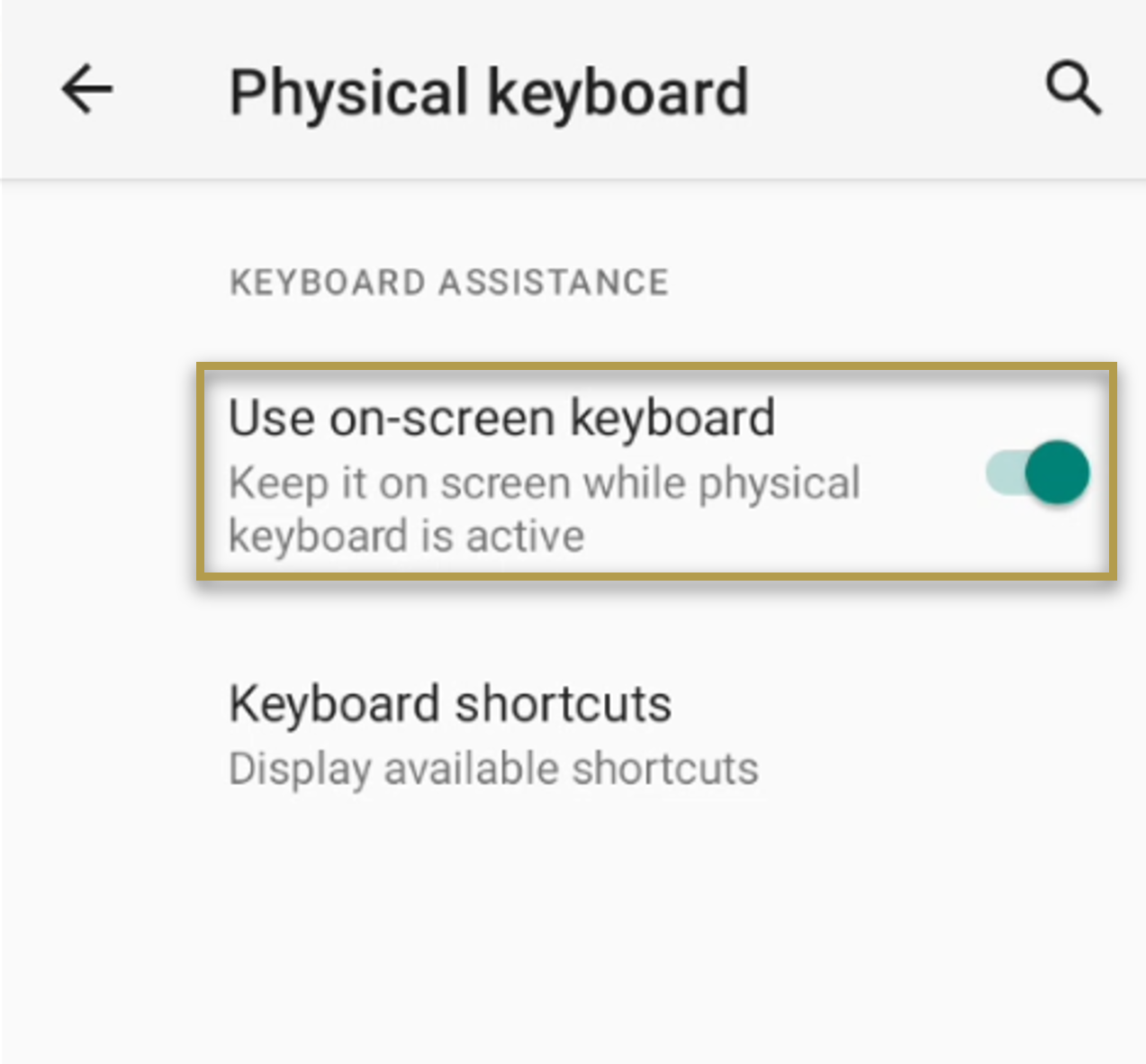
Important
The external barcode reader emulates a keyboard, meaning it will use the keyboard character set configured in the Android keyboard settings.
To ensure the external barcode reader functions correctly and is distinguishable from other input devices, it is necessary to set a suffix character after the barcode data. For optimal use with COSMO Mobile Solution, use the 'Enter' character. Refer to the device manual for these settings. Note that while the setup steps are generally similar, they may vary depending on the manufacturer.
Note
The setup instructions provided for the devices below are examples only. COSMO Mobile Solution is designed to work with a wide range of external barcode readers from various manufacturers and models. The solution is not limited to the devices described here; please consult your device’s manual for specific setup steps.
Zebra Devices
This section provides instructions for configuring the Zebra DS2208 cable-connected external barcode reader, referencing the official user manual.
Connecting to Mobile Application
The setup process described here also applies to Bluetooth barcode scanners. For Bluetooth devices, refer to the manufacturer's manual for initial setup steps. Zebra devices can utilize the Scan-to-Connect (STC) application to facilitate pairing and configuration. It is important to apply the correct STC settings, as these directly impact device operation. The graphic below highlights the essential settings required to ensure proper integration between a DS2278 model and the mobile application.
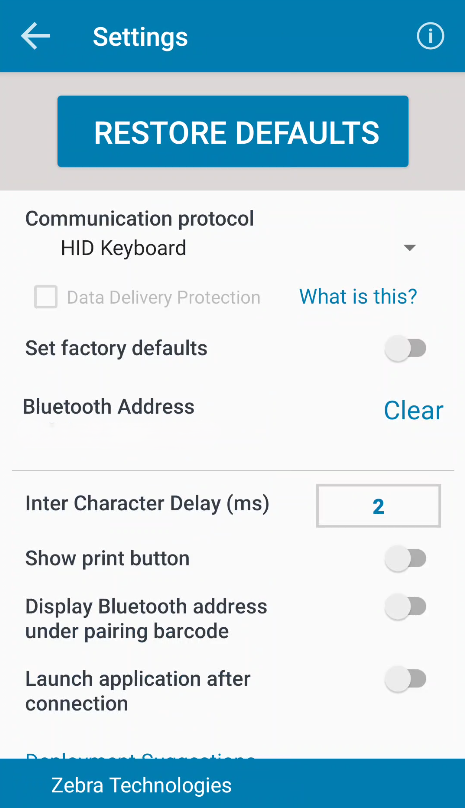
For Zebra Bluetooth devices, it is essential to configure the keyboard settings correctly to avoid scanning issues. In Android settings, navigate to Language & input. If the scanner is connected via STC, its ID should be visible, and the STC keyboard should appear among the On-screen keyboards. When scanning within the mobile application (for example, on an Item Journal page), a keyboard icon will appear at the bottom right of the on-screen keyboard. Tap this icon and select the Zebra Scan-to-Connect option.

To configure the Zebra DS2208 cable-connected external barcode reader, follow these steps:
Connect the External Barcode Reader: Attach the external barcode reader to the device running the mobile application.
Restore Default Settings (section 5-5): If the device was used previously, resetting it to default settings is recommended.
Scan the Restore Defaults barcode.
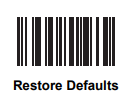
- Select Data Transmission Format (section 5-32):
Scan <DATA><SUFFIX 1>(1).

- Define Suffix (section 5-31):
Scan Scan Suffix 1 (6).
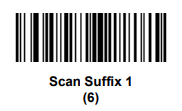
- Identify Suffix Numeric Code (section I-12):
The code is 7013.
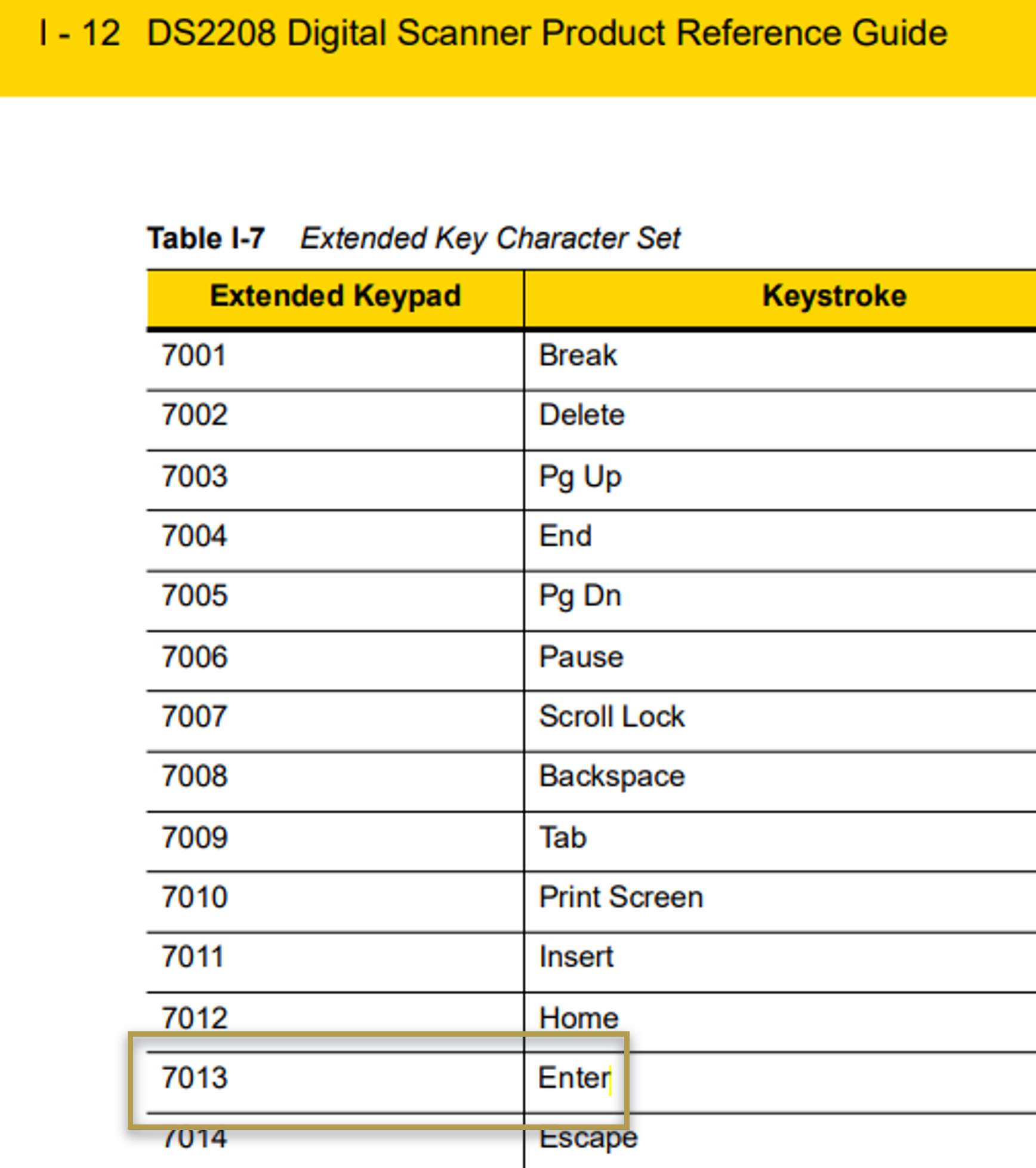
- Set Suffix Numeric Code (section G-2):
Scan the barcodes for 7, 0, 1, and 3 sequentially.

- Configure in the Mobile Application: Open the mobile application. In the upper-right corner, choose the Cog icon, then choose the External Reader Setup button. Scan the barcode displayed. If the connection is successful, the window will close, and the barcode reader will be usable after logging in.
Character Substitution
Control characters are special, non-printable characters used in barcode data to separate or mark segments, for more information see Character Substitution. External barcode readers may not always transmit control characters as expected, so configuration may be required.
For the Zebra DS2208 cable-connected external barcode reader, refer to the official user manual:
The following steps explain how to configure character substitution for external barcode readers when working with EAN 128 barcodes.
Scan the Set FN1 Substitution Value barcode (section 5-34).
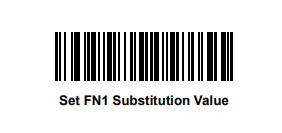
Determine the ASCII value for the substitution character. In this example, '\f' is substituted with '@'. Scan the barcodes for the ASCII value (1,0,6,4 - section G-2).

Scan the Enable USB Keyboard FN1 Substitution barcode (section 7-13).
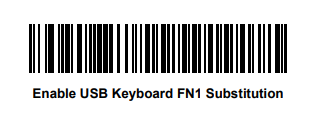
Configure in the Mobile Application: Open the mobile application. In the upper-right corner, choose the Cog icon, then choose the External Reader Setup button. Scan the barcode displayed. If the connection is successful, the window will close, and the barcode reader will be usable after logging in.
Important
If the device settings are modified, it must be reconnected to the mobile application.
Inateck Devices
This section provides instructions for configuring the Inateck BCST-36 Bluetooth-connected external barcode reader, referencing the official user manual.
Connect the External Barcode Reader: Pair the external barcode reader to the device running the mobile application via Bluetooth.
Inateck Office Application: Download and install the official Inateck Office application on the device, the application is available on Google Play. Open the application and connect the external scanner to the device via Inateck Office.
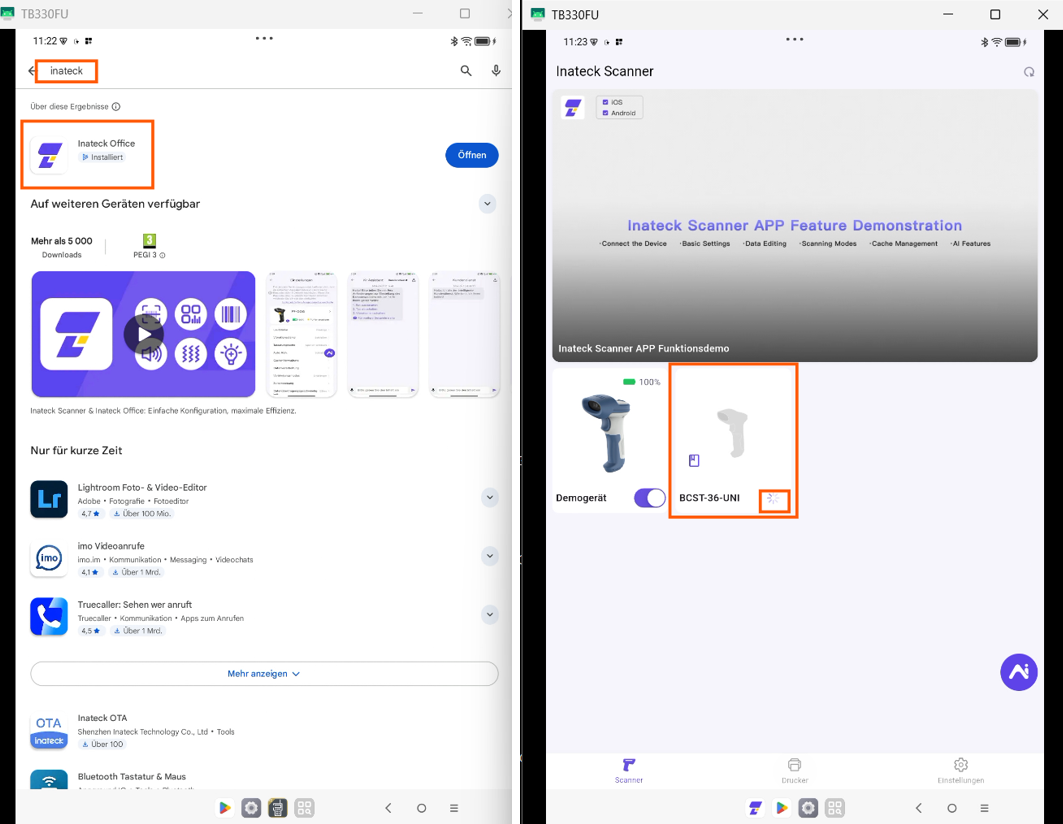
Language: Language should be adjusted in the application. The language should align with the device language.
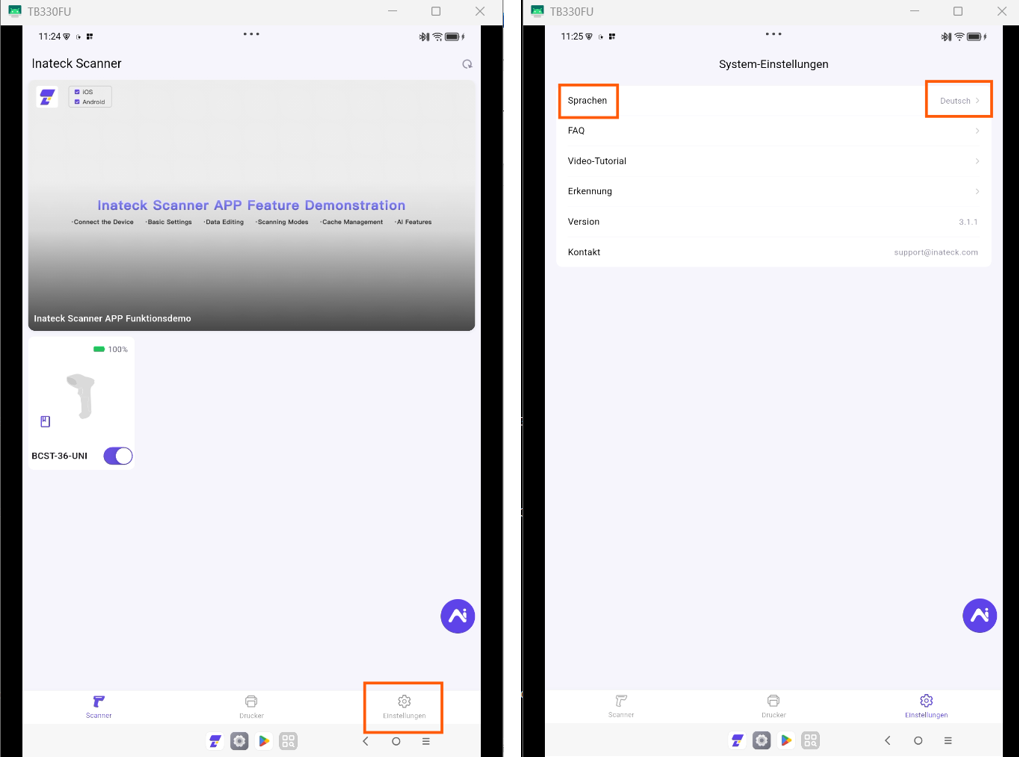
Configure in the Mobile Application: Open the mobile application. In the upper-right corner, choose the Cog icon, then choose the External Reader Setup button. Scan the barcode displayed. If the connection is successful, the window will close, and the barcode reader will be usable after logging in.
Feedback
Submit feedback for this page .