Search Results for

    Show / Hide Table of Contents

    Multi-level Configuration Examples

    This topic provides examples of how to configure the Multi-level Lookup functionality in COSMO Mobile Solution.

    • Configure 1 Layer Search
    • Configure 2 Layer Search
    • Configure Multi-level Lookup Combined with Complex Barcode

    Configure 1 Layer Search

    This example demonstrates the process of configuring the Multi-level Lookup to search values based on one additional layer of a related page.

    The goal is to be able to search by Item Reference No. in the Items list.

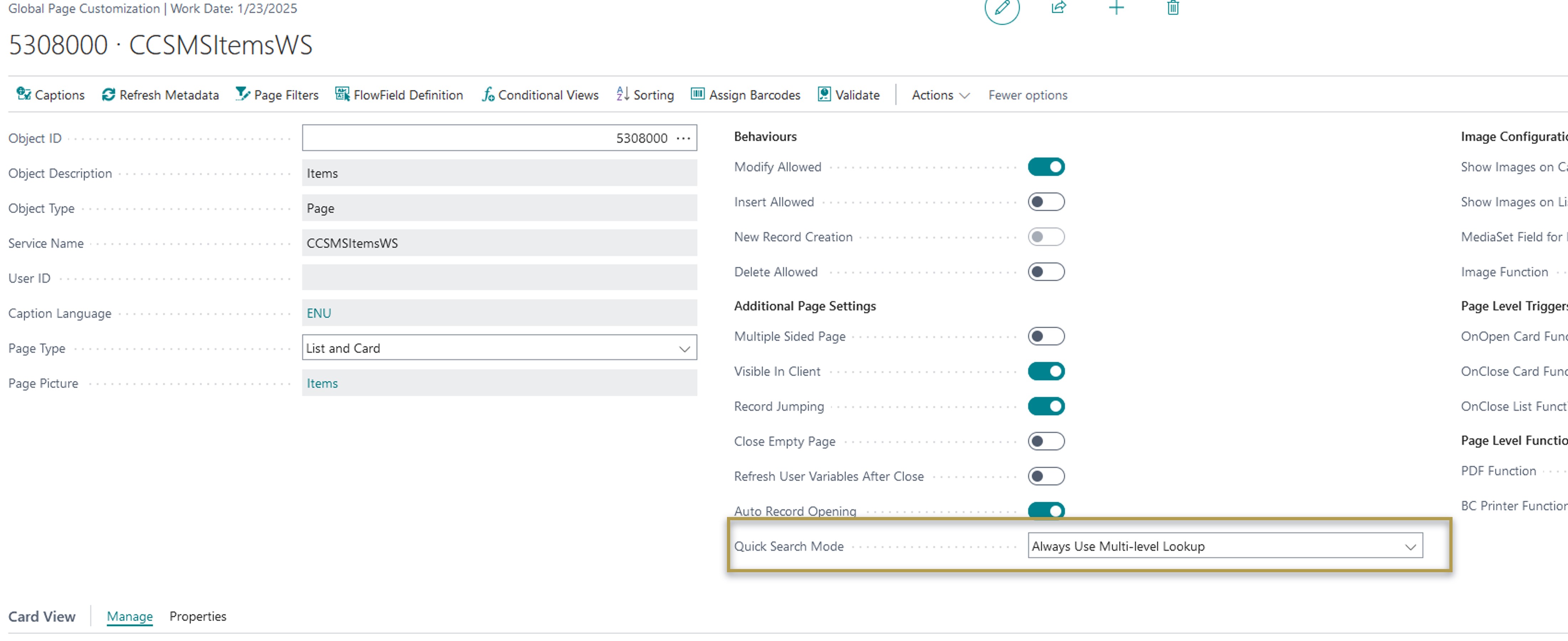
    Set Quick Search Mode

    1. Open the CCSMSItemsWS page customization.
    2. In the Quick Search Mode field, choose Always Use Multi-level Lookup.

    For more information, see Quick Search Mode.
    Setup1

    Configure the Relation

    1. In the Card View FastTab, locate the line for the "No" field, and then open the Relations page by choosing the Relation Type field or the Relations action.
    2. In the Related Service Name field, choose CCSMSItemReferenceWS.
    3. In the Related Field Name field, choose Item_No.
    4. Select the Enable Multi-level Lookup and Multi-level Lookup Only checkboxes.
    5. Click on the Search Field for Multi-level Lookup field to open the field selection page.
    6. From the displayed options, choose Reference_No as the searchable field.

    This setup ensures that the Multi-level Lookup is configured correctly with "Reference_No" as the searchable field.

    The following graphic shows what the setup should look like.

    Setup4

    Important

    To ensure the "Reference No" field is visible in the popup, it must be set as searchable in the page customization line.

    1. Open the CCSMSItemReferenceWS page customization.
    2. Locate line for the Reference_No field.
    3. Select the Searchable checkbox.

    This will allow the "Reference No" field to be included in search results and display in the popup page as intended.

    In the relation, both of the Enable Multi-level Lookup and Multi-level Lookup Only checkboxes were selected: the Enable Multi-level Lookup is a requirement for the validation and quick search functionality to work; the Multi-level Lookup Only is enabled to hide the lookup icon in the mobile application.

    Now that the setup is complete, if the Items list is searched by a reference number, the corresponding item(s) are found.
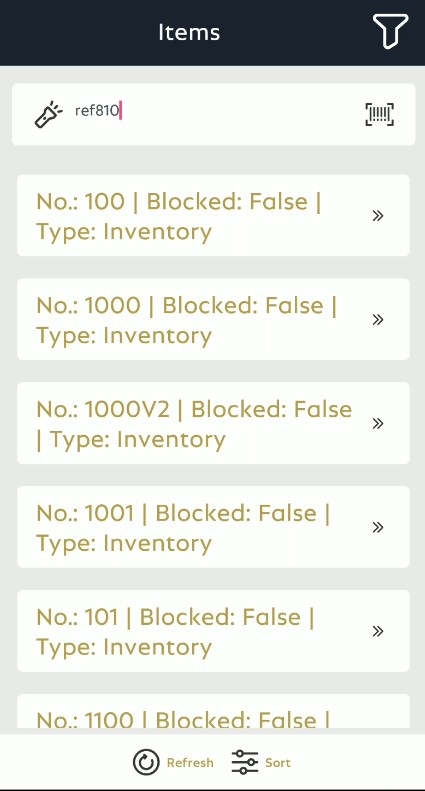
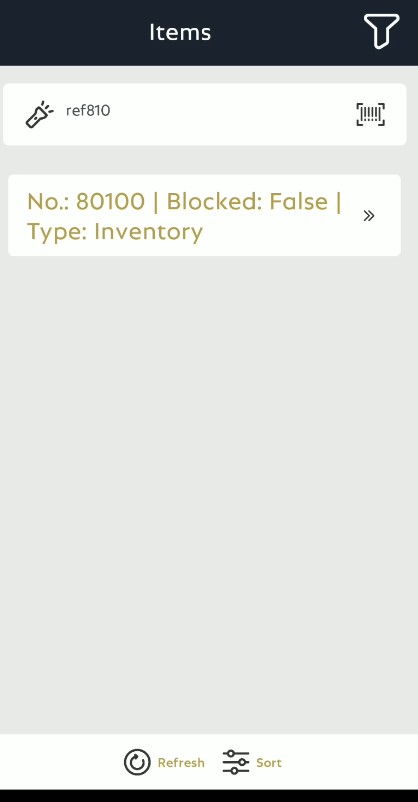
    Demo1 Demo2

    Configure 2 Layer Search

    This example demonstrates the process of configuring the Multi-level Lookup to search values based on two additional layers of a related page.

    The goal is to be able to search Warehouse Shipment Header by Item Reference No. on the Warehouse Shipment Lines in the Warehouse Shipment Header List.

    Set Quick Search Mode

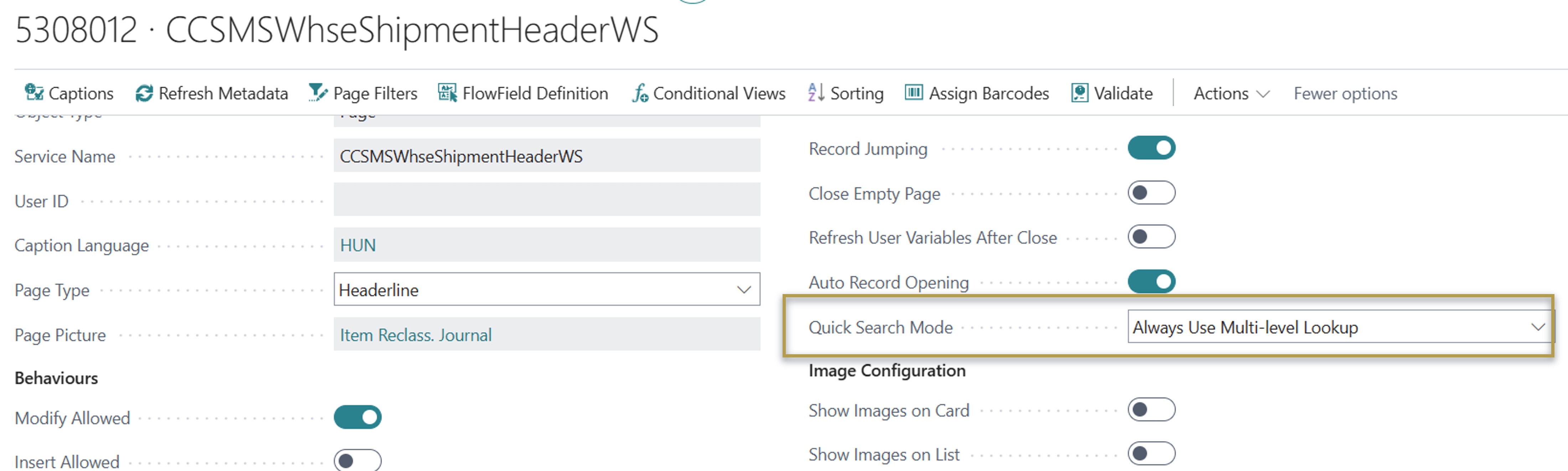
    1. Open the CCSMSWhseShipmentHeaderWS page customization.
    2. In the Quick Search Mode field, choose Always Use Multi-level Lookup.

    For more information, see Quick Search Mode.

    Setup4

    Configure the Relation - Layer 1

    1. In the Card View FastTab, locate the line for the "No" field, and then open the Relations page by choosing the Relation Type field or the Relations action.
    2. In the Related Service Name field, choose CCSMSWhseShipmentLineWS.
    3. In the Related Field Name field, choose No.
    4. Select the Enable Multi-level Lookup and Multi-level Lookup Only checkboxes.
    5. Choose the Search Field for Multi-level Lookup field to open the field selection page.
    6. From the displayed options, choose Item_No as the searchable field.

    This setup ensures that the Multi-level Lookup is configured correctly with "Item_No" as the searchable field.

    The following graphic shows what the setup should look like.

    Setup5

    Important

    To ensure the "Item No" field is visible in the popup, it must be set as searchable in the page customization line.

    1. Open the CCSMSWhseShipmentLineWS page customization.
    2. Locate line for the Item_No field.
    3. Select the Searchable checkbox.

    This will allow the "Item No" field to be included in search results and display in the popup page as intended.

    The first layer setup is complete, which allows the searching of Warehouse Shipment Headers by Item No.

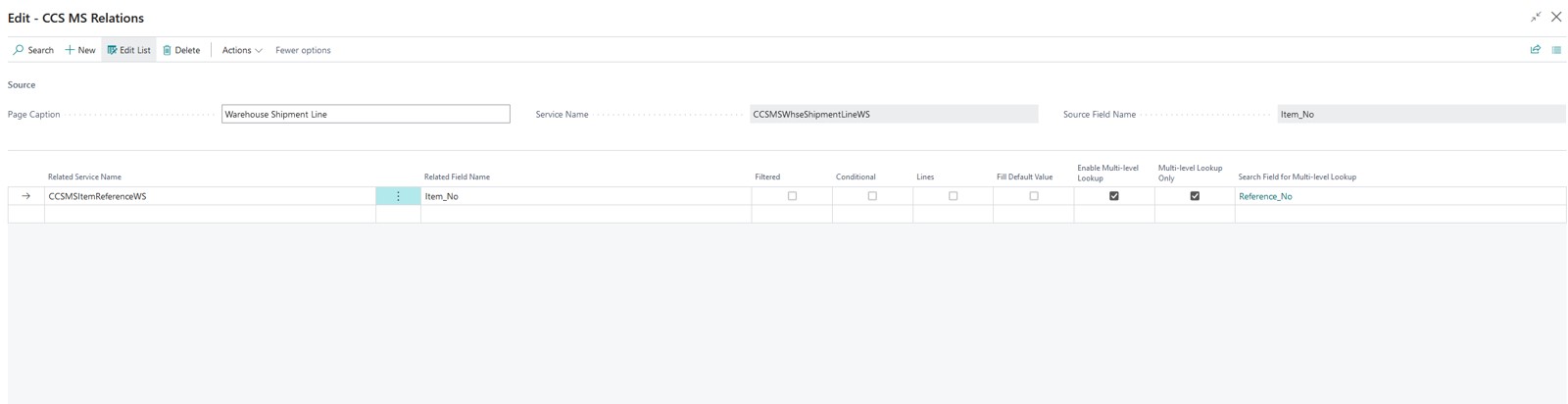
    To be able to search by Item Reference No., another relation needs to be set up.

    Configure the Relation - Layer 2

    1. Go back to the CCSMSWhseShipmentLineWS page customization.
    2. In the Card View FastTab, locate the line for the "Item_No" field, and then open the Relations page by choosing the Relation Type field or the Relations action.
    3. In the Related Service Name field, choose CCSMSItemReferenceWS.
    4. In the Related Field Name field, choose Item_No.
    5. Select the Enable Multi-level Lookup and Multi-level Lookup Only checkboxes.
    6. Choose the Search Field for Multi-level Lookup field to open the field selection page.
    7. From the displayed options, choose Reference_No as the searchable field.

    This setup ensures that the Multi-level Lookup is configured correctly with "Reference_No" as the searchable field.

    The following graphic shows what the setup should look like.

    Setup3

    In the relations, both of the Enable Multi-level Lookup and Multi-level Lookup Only checkboxes were selected: the Enable Multi-level Lookup is a requirement for the validation and quick search functionality to work; the Multi-level Lookup Only is enabled to hide the lookup icon in the mobile application.

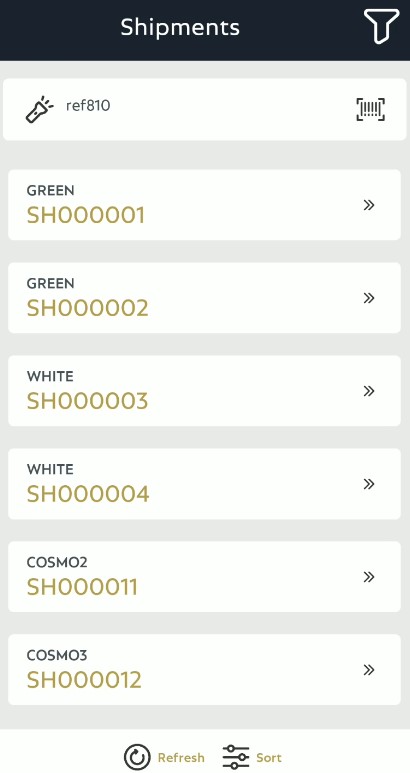
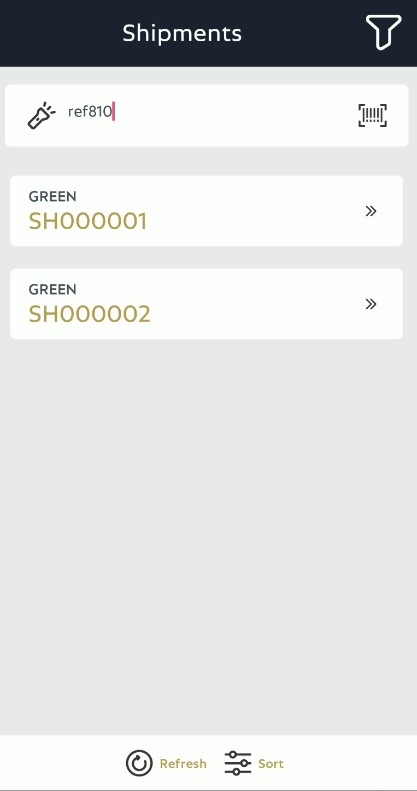
    The configuration for 2 layer Multi-level Lookup is complete. If the Warehouse Shipment Header list is searched by a Reference No, the system will search through the setup tables and return Warehouse Shipment Header No(s).

    Demo1 Demo2

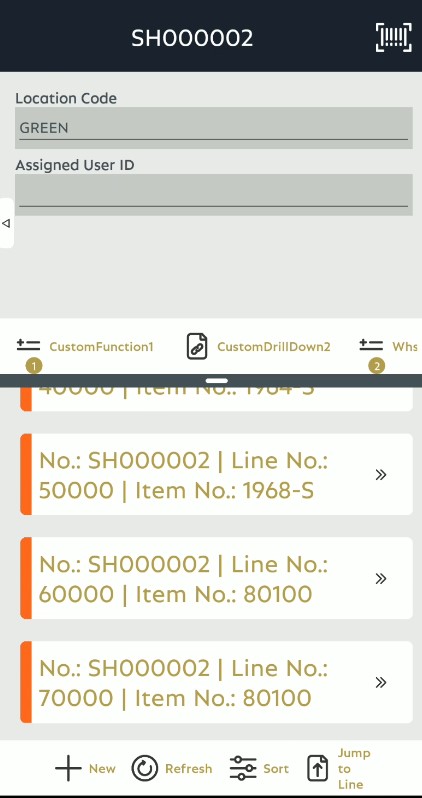
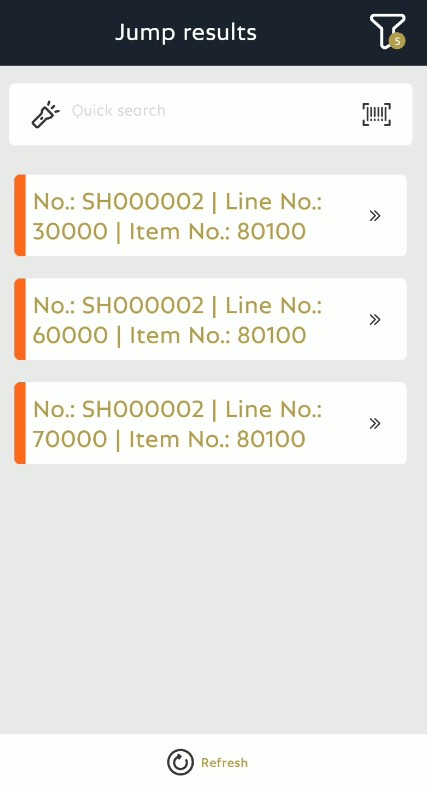
    If the Quick Search Mode field is set to Always Use Multi-level Lookup in the "CCSMSWhseShipmentLineWS" page customization, you can go further and open one of the Warehouse Shipment results and use the "Jump To" search functionality and search for the same Item Reference No. The result will be filtered by the corresponding item(s).

    Demo1 Demo2

    Configure Multi-level Lookup Combined with Complex Barcode

    This example demonstrates the process of configuring the Multi-level Lookup to validate values from a complex barcode input.

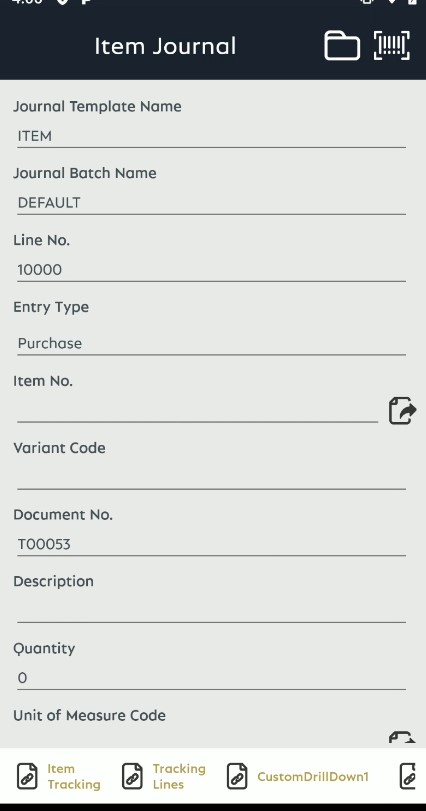
    The goal is to be able to validate the Item No. and Location Code in CCSMSItemJournalWS using a barcode that contains only indirect values, the Item Reference No. and Bin Code.

    Complex Barcode Setup

    For information about the complex barcode configuration, see Barcode Setup.

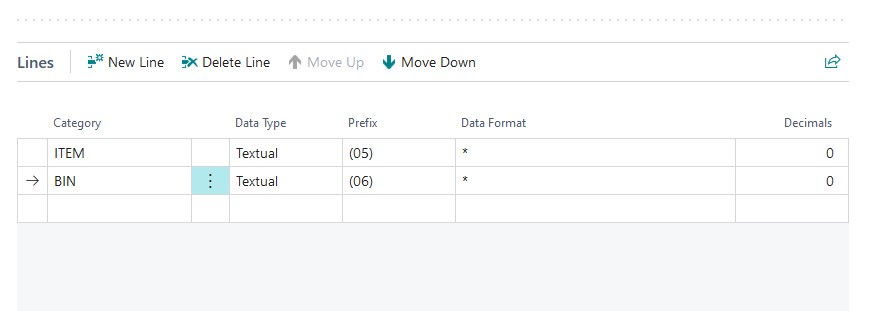
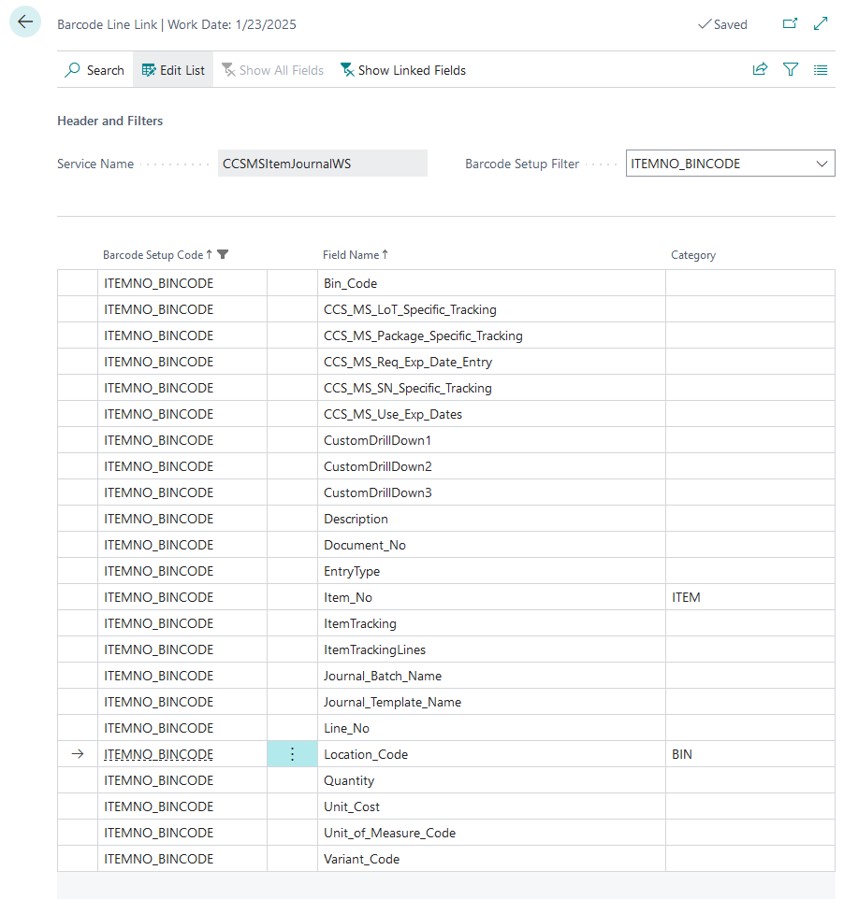
    This example requires a simple setup that contains two barcode values. Create your preferred Barcode setup, and assign them to the Item No and Location Code in the CCSMSItemJournalWS page customization. The following graphic provides an example of how this setup could be done. BarcodeSetup1 BarcodeSetup2

    The barcode being used is the following: (05)REF810(06)C1, where REF810 is an Item Reference No., C1 is a Bin Code.

    Configure the Relation

    This relation configuration has two relations: Item No. and Location Code.

    Item No Validation

    1. Open the CCSMSItemJournalWS page customization.
    2. In the Card View FastTab, locate the line for the "Item_No" field, and then open the Relations page by choosing the Relation Type field or the Relations action.
    3. In the Related Service Name field, choose CCSMSItemReferenceWS.
    4. In the Related Field Name field, choose Item_No.
    5. Select the Enable Multi-level Lookup and Multi-level Lookup Only checkboxes.
    6. Choose the Search Field for Multi-level Lookup field to open the field selection page.
    7. From the displayed options, choose Reference_No as the searchable field.

    This setup ensures that the Multi-level Lookup is configured correctly with "Reference_No" as the searchable field.

    Setup


    Location Code Validation

    1. Go back to the CCSMSItemJournalWS page customization.
    2. In the Card View FastTab, locate the line for the "Location_Code" field, and then open the Relations page by choosing the Relation Type field or the Relations action.
    3. In the Related Service Name field, choose CCSMSBinsWS.
    4. In the Related Field Name field, choose Location_Code.
    5. Select the Enable Multi-level Lookup and Multi-level Lookup Only checkboxes.
    6. Choose the Search Field for Multi-level Lookup field to open the field selection page.
    7. From the displayed options, choose Code as the searchable field.

    This setup ensures that the Multi-level Lookup is configured correctly with "Code" as the searchable field.

    Setup

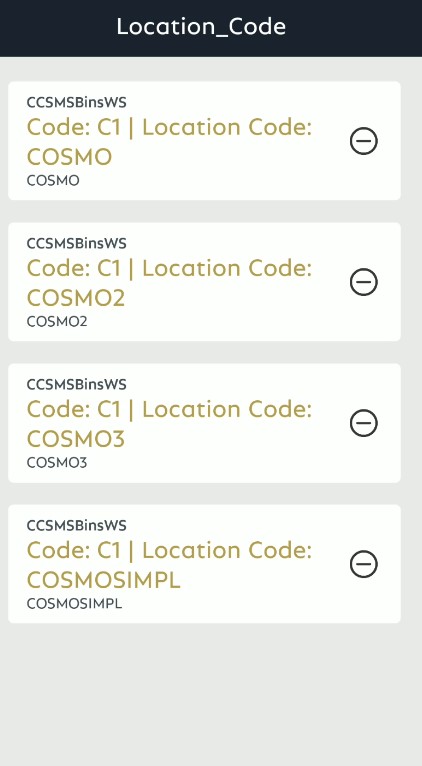
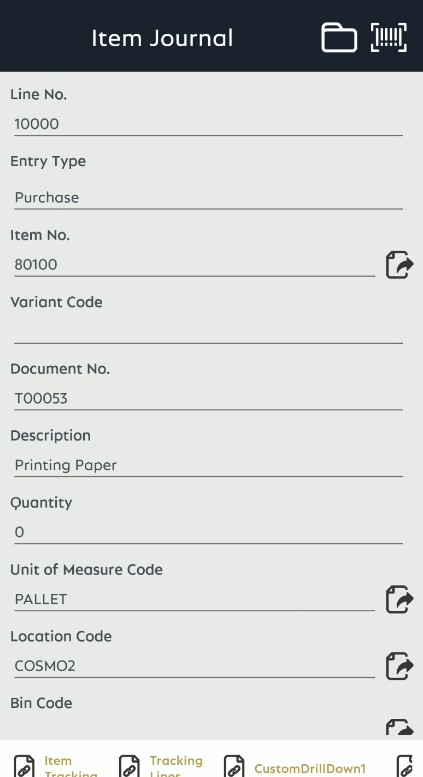
    The Multi-level Lookup configuration is complete. If you open an Item Journal in the mobile application, and scan the barcode (05)REF810(06)C1, the system will start validating the values found after going through the Multi-level configuration. In this case, the system found exactly 1 Item No. for REF810 Item Reference No., so this value is automatically validated; however, the C1 is being used for multiple different Locations in the system. A value selector page will open that waits for user interaction; if you cancel this selection, all validation done by this barcode scan will be disregarded.

    Setup Setup Setup

    Tip

    Ensuring that the "Second Part" is properly configured in List and List and Card page types can enhance the functionality of the Multi-level Lookup. When multiple values are found according to your setup, the data from the "Second Part" will be displayed to facilitate selection. This setup is illustrated in the Location Code Validation example, where multiple options for the Location Code are shown.


    Feedback
    Submit feedback for this page .

    In This Article
    Back to top 2025 © COSMO CONSULT - Data protection - Imprint