Barcode Setup
- How do I configure barcode reading settings in COSMO Mobile Solution?
- How do I use base config import to make COSMO Mobile Solution barcode reading settings easier?
- How do I configure Zebra devices for barcode scanning?
- How do I configure Honeywell devices for barcode scanning?
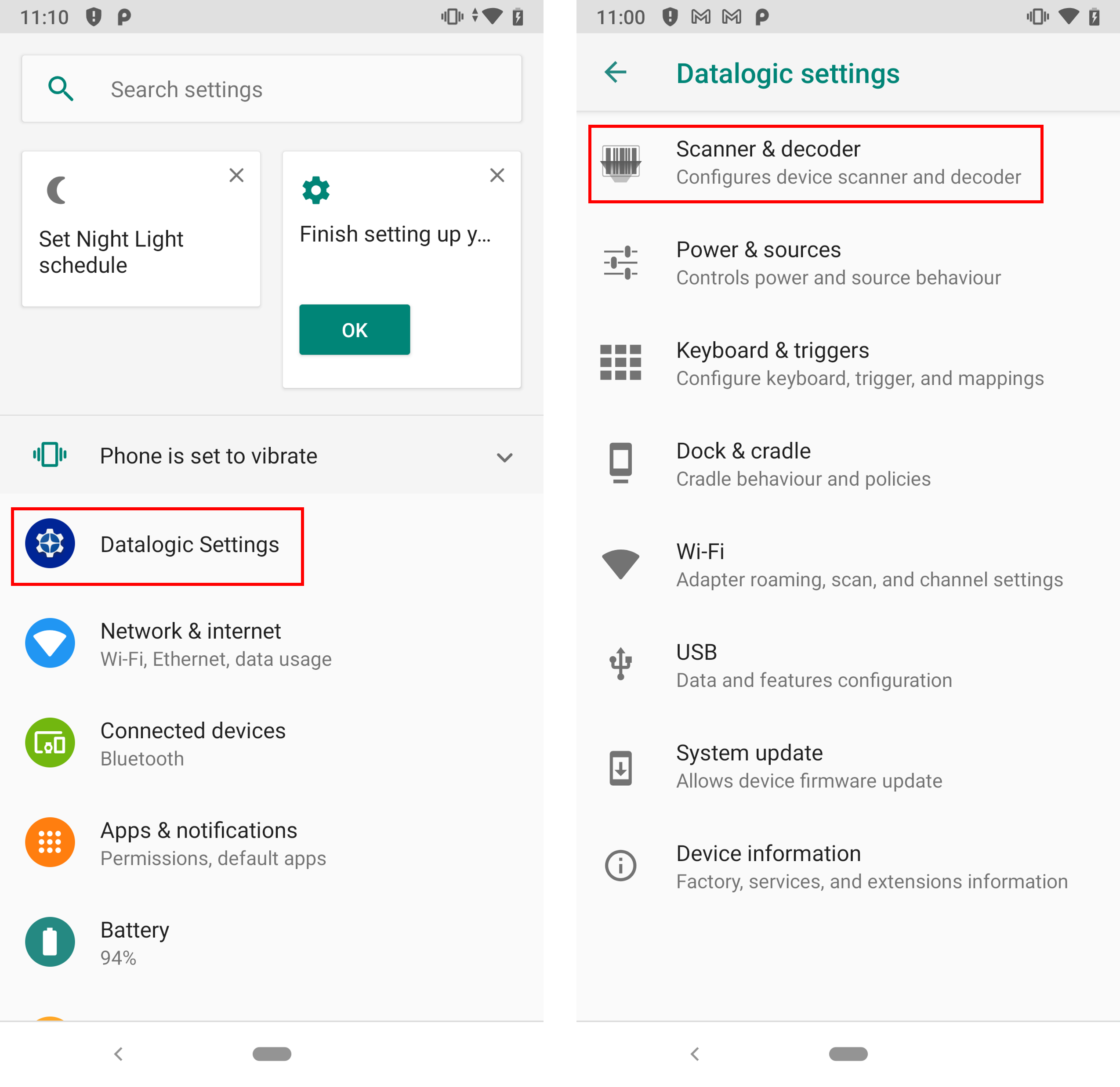
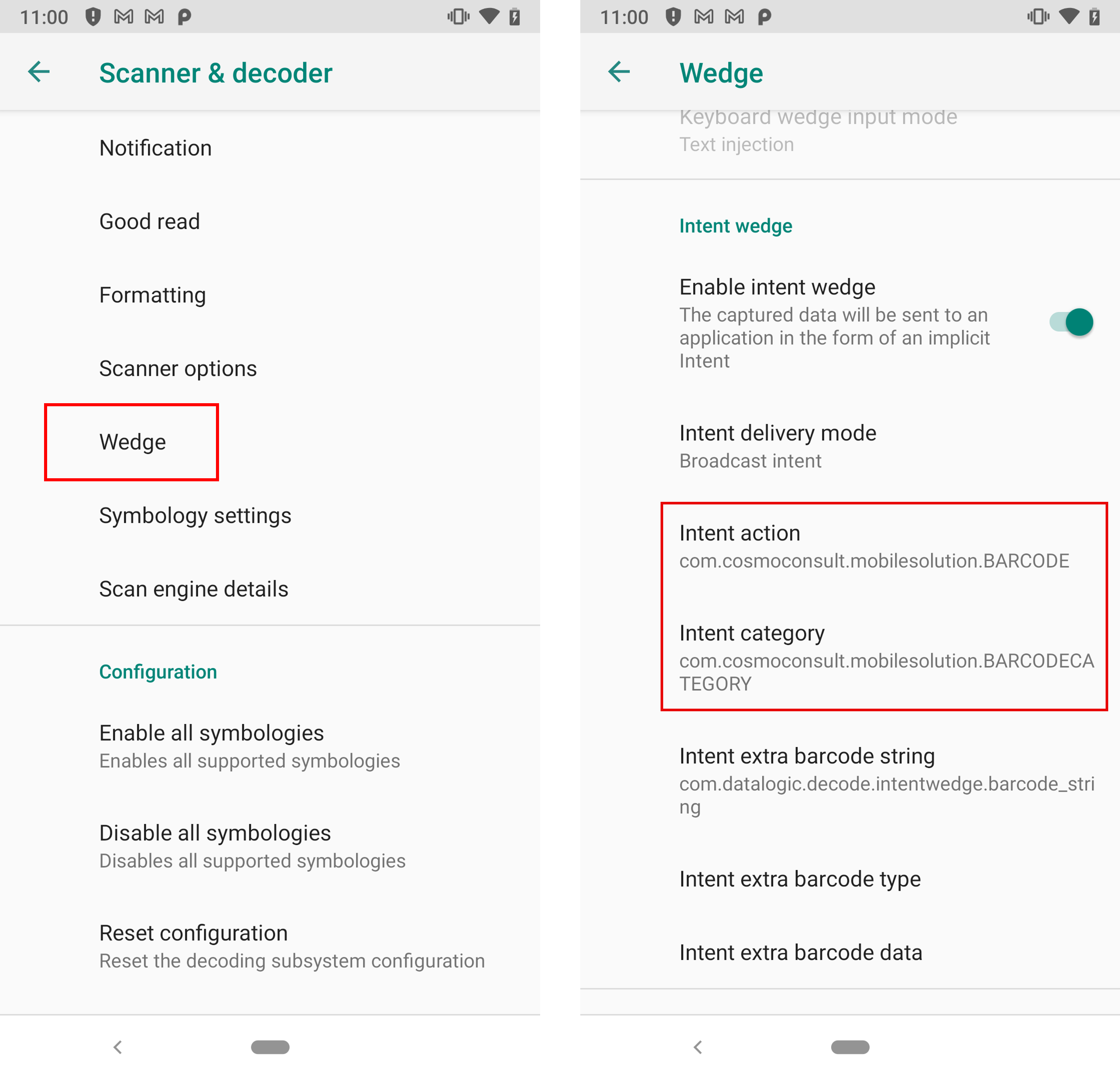
- How do I configure Datalogic devices for barcode scanning?
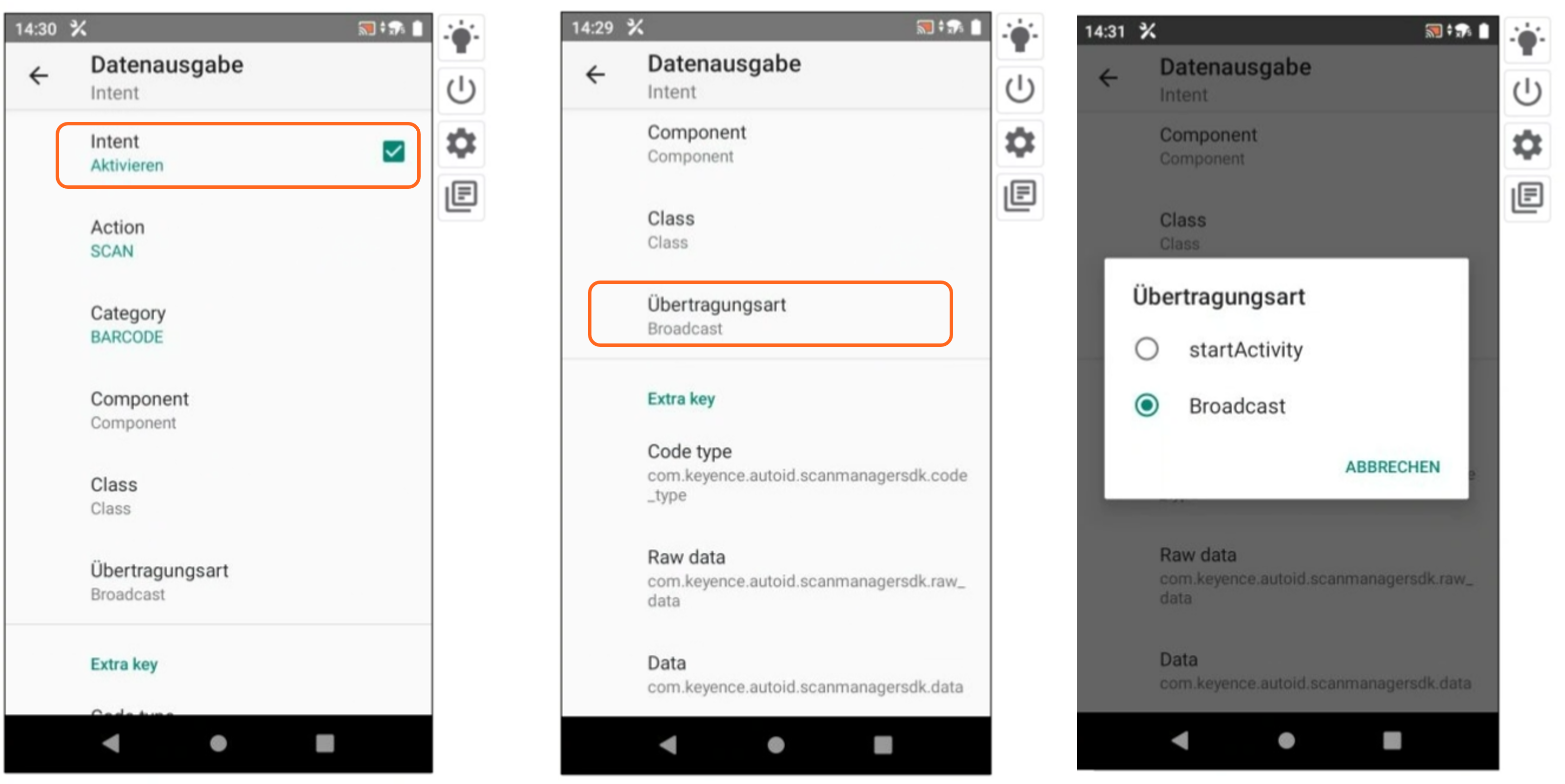
- How do I configure Keyence devices for barcode scanning?
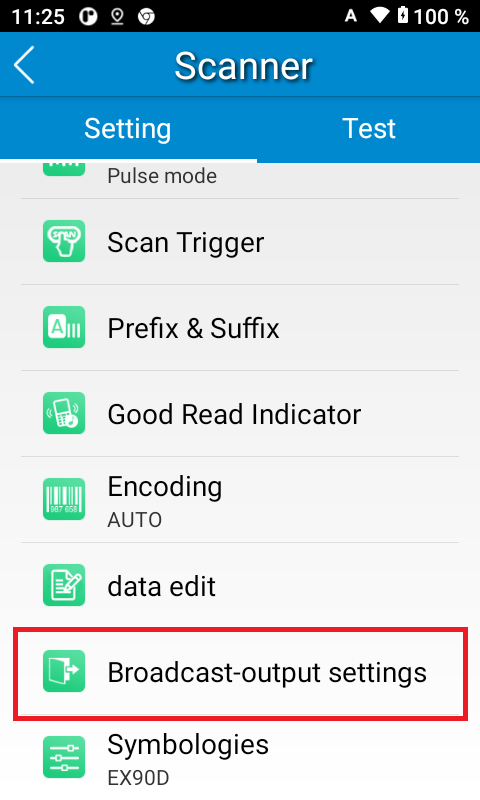
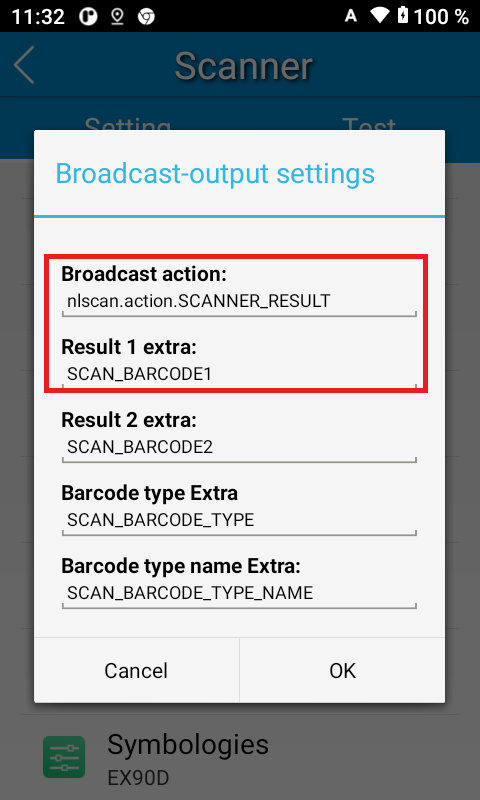
- How do I configure Newland devices for barcode scanning?
Tip
Summary: This topic provides detailed instructions for configuring barcode scanning functionality in both COSMO Mobile Solution and certain mobile devices with built-in scanners. It covers the necessary settings for various manufacturers' devices, including Zebra, Honeywell, Datalogic, Keyence, and Newland.
To ensure proper barcode scanning functionality in the mobile application, certain values must be configured in both COSMO Mobile Solution and the mobile application.
Since different manufacturers have different configuration interfaces, which may even vary by model, the configuration interfaces and steps described below may slightly differ from the device you are using.
The following sections detail the values that need to be set in COSMO Mobile Solution for each manufacturer (these values can also be set by importing the default configuration) and where to set these values on each manufacturer's mobile devices. In some cases, additional settings may also be required. Always refer to the manufacturer's documentation for the most accurate configuration instructions.
Currently, we have experience with devices of the following manufacturers: Zebra, Honeywell, Datalogic, Keyence, Newland.
COSMO Mobile Solution Settings
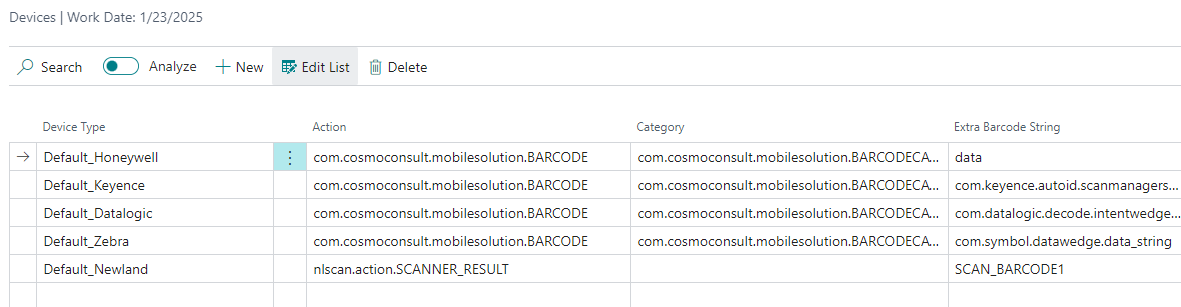
In the Mobile Solution Settings page, choose the Device Settings action to open the Devices page.
The fields this page are explained in the following table.
| Field | Description |
|---|---|
| Device Type | Required in COSMO Mobile Solution. Specifies the device type. It is advised to name the device type according to the manufacturer of the given device. |
| Action | Required in both COSMO Mobile Solution and the mobile device. Specifies the required action. - Default: com.cosmoconsult.mobilesolution.BARCODE - Newland: nlscan.action.SCANNER_RESULT |
| Category | Optional in both COSMO Mobile Solution and the mobile device. Specifies the category. - Default: com.cosmoconsult.mobilesolution.BARCODECATEGORY - Newland: empty |
| Extra Barcode String | Required in both COSMO Mobile Solution and the mobile device. Specifies the extra barcode string. In case of certain manufacturers, this is a default value and might be non-editable. - Zebra: com.symbol.datawedge.data_string - Honeywell: data - Datalogic: com.datalogic.decode.intentwedge.barcode_string - Keyence: com.keyence.autoid.scanmanagersdk.data - Newland: SCAN_BARCODE1 |
Important
Except for the Device Type, which only needs to be specified in COSMO Mobile Solution, all field values must match between COSMO Mobile Solution and the mobile device. The Category is optional but if you define it in COSMO Mobile Solution you have to do the same in the mobile device and vice versa.
Tip
Field values do not need to be entered manually; they can be populated using the base configuration import:
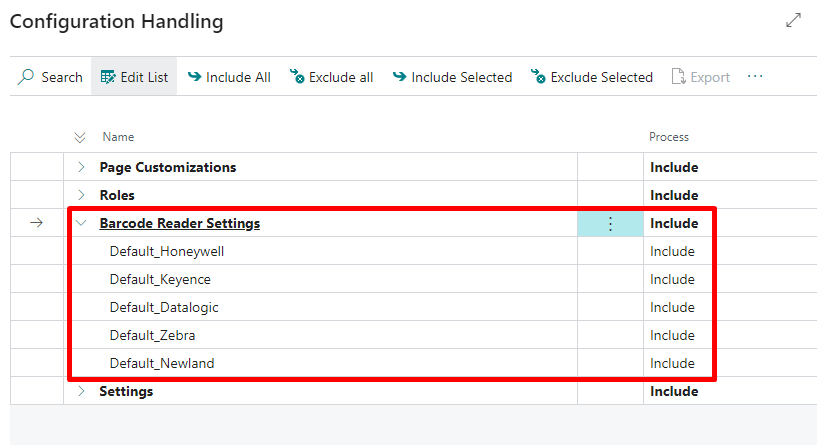
Device Settings
The settings of the various devices are listed in the separate tabs below.
This section covers the setup of the Zebra android devices with the DataWedge application for barcode scanning.
The Device Setting prerequisites in COSMO Mobile Solution are:
- Action: com.cosmoconsult.mobilesolution.BARCODE
- Category: com.cosmoconsult.mobilesolution.BARCODECATEGORY or empty
- Extra Barcode String: com.symbol.datawedge.data_string
To set up the Zebra android devices, follow these steps.
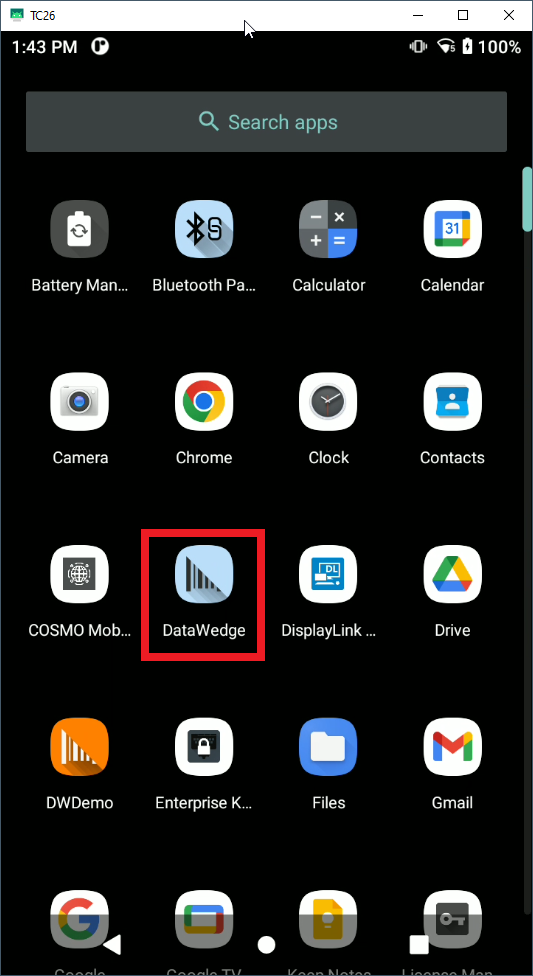
Open the DataWedge application on your device.
In the upper-right corner, choose the options icon and then choose New profile.
Enter a name for the profile.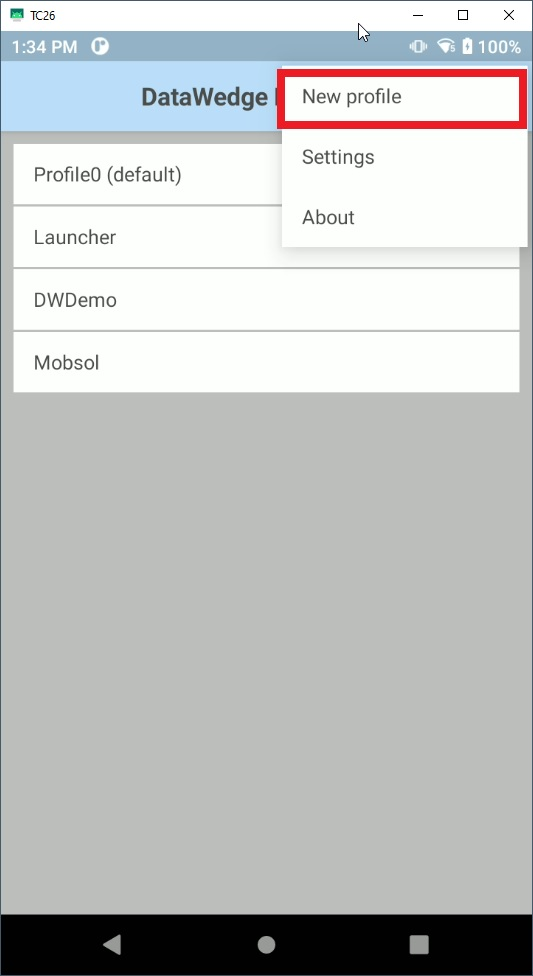
Open the newly created Profile from the list, select the Profile enabled checkbox, and then choose the Associated apps section.
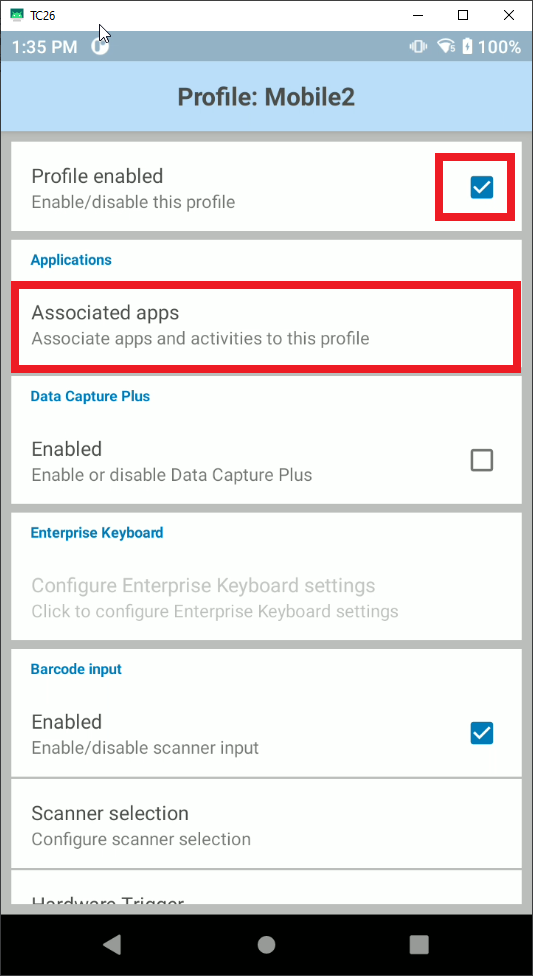
In the Select application list, search for and choose "com.cosmoconsult.mobilesolution".
In the Select activity list, choose the one with an "*" (astrisk).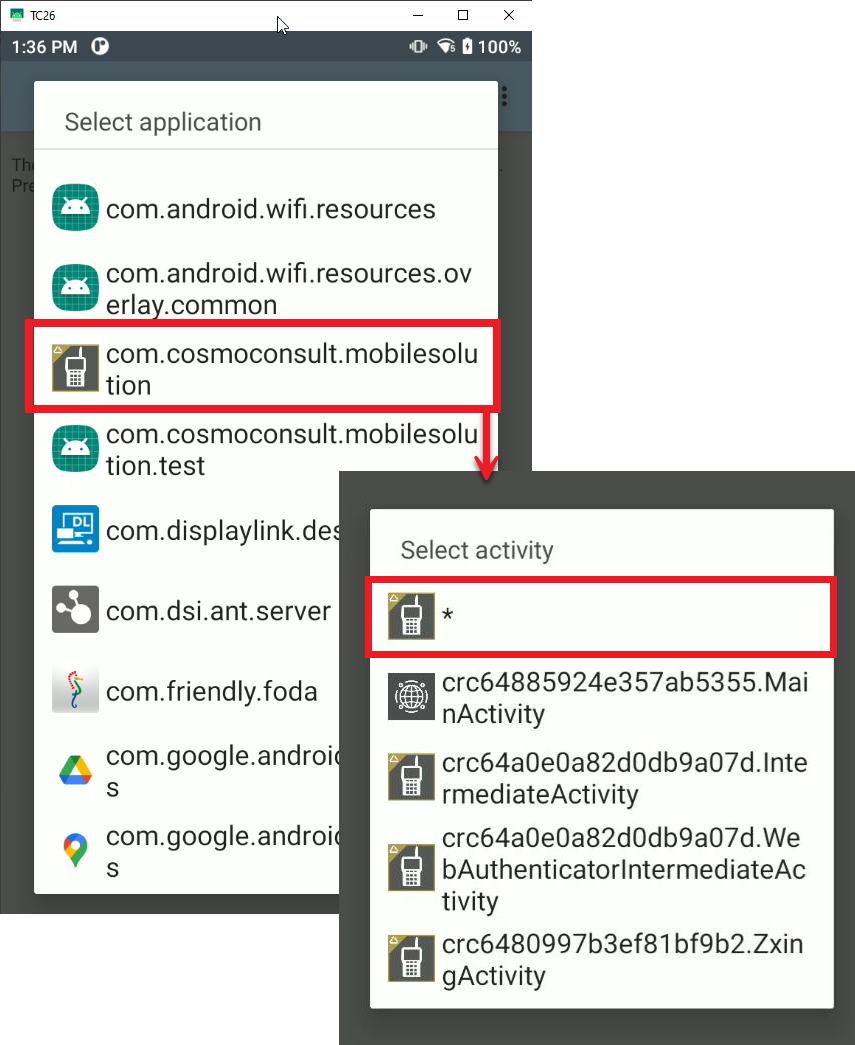
Afterwards, go back to the Profile page and scroll down to the Barcode input section.
Select the Enabled and Hardware trigger checkboxes.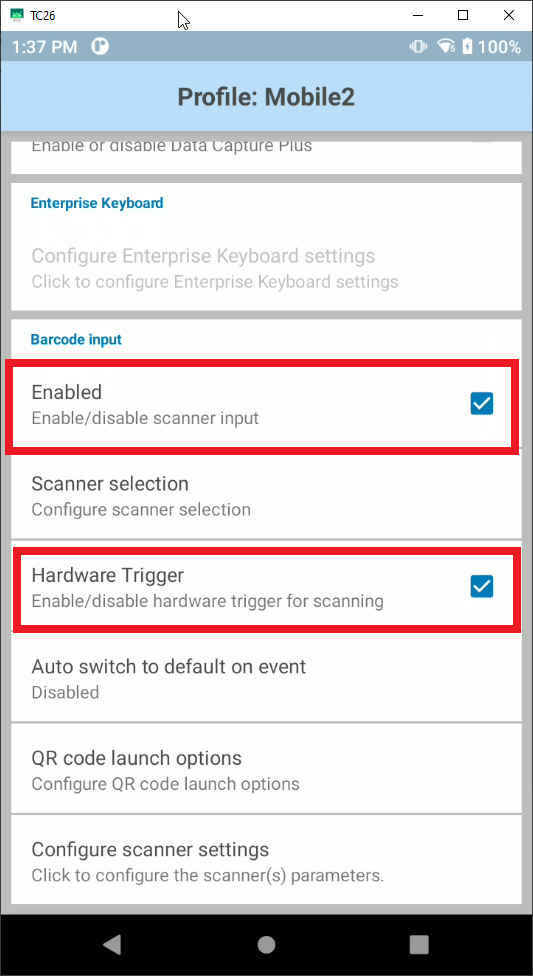
Scroll down to the Intent output section and select the Enabled checkbox.
The Intent action must be set to com.cosmoconsult.mobilesolution.BARCODE, the Intent category (leave empty if you left it empty in COSMO Mobile Solution) set to com.cosmoconsult.mobilesolution.BARCODECATEGORY, and the Intent delivery to Broadcast intent.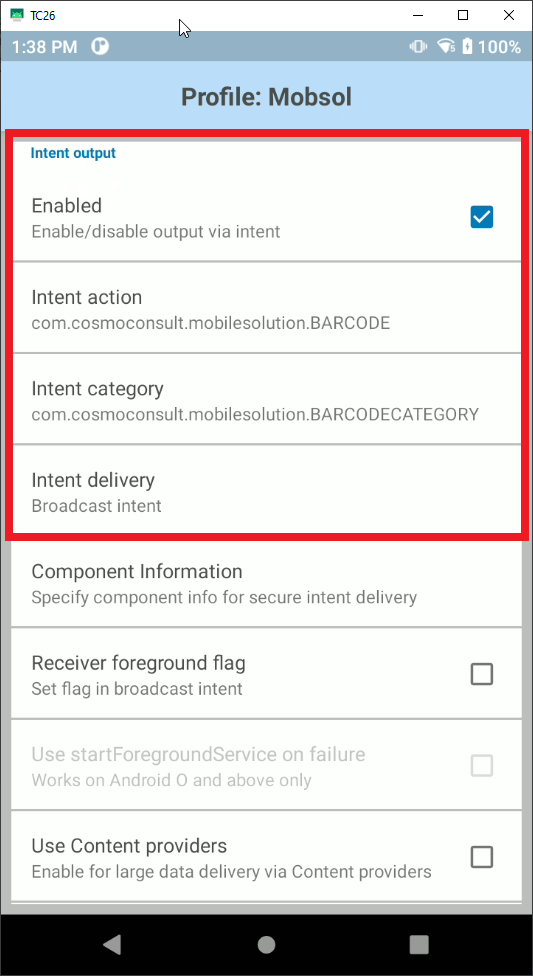
In the same section, scroll down and choose the Basic data formatting section.
Ensure that the Enable and Send data checkboxes are selected. The Send ENTER key is an optional setting; on some devices it's needed but we recommend to try without it first.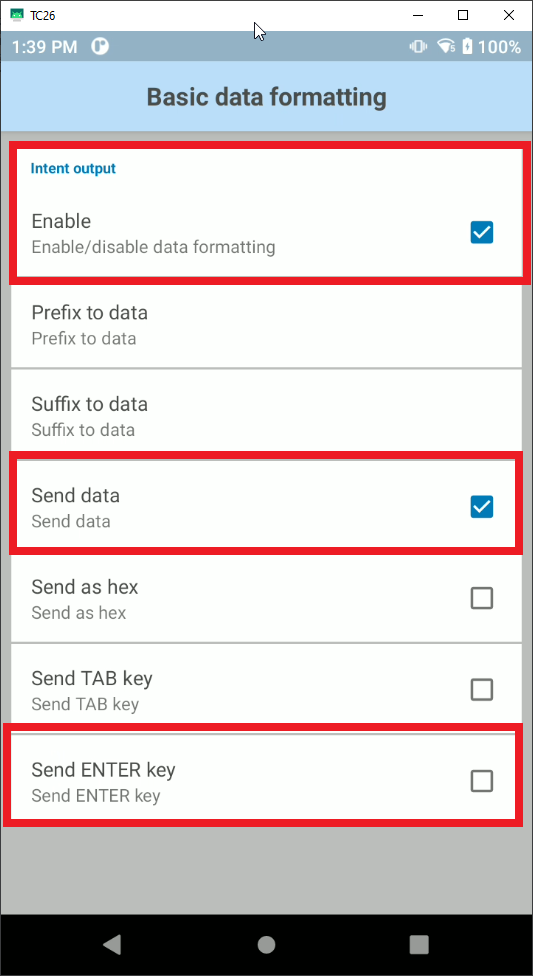
Feedback
Submit feedback for this page .