Configuration Export and Import
- What is the purpose of the configuration export and import functionality in COSMO Mobile Solution?
- Which configuration elements are company-specific and which are environment-specific?
- Which elements are merged on import, and which are fully replaced?
- Where can I find the options to export and import configurations?
- What settings can be exported and imported in COSMO Mobile Solution?
- How do I export configurations from COSMO Mobile Solution?
- What steps are involved in importing configurations into COSMO Mobile Solution?
- What is the base configuration package, and what does it include?
- Are there specialized configuration packages available, and what do they cover?
- How can I access and install additional configuration packages?
- What should I do if I'm using a version of COSMO Mobile Solution prior to 21.0.216?
Tip
Summary: This section provides a comprehensive overview of the configuration export and import functionality in COSMO Mobile Solution. It explains how users can efficiently transfer configuration settings between different environments and companies, outlines the types of configurations available for export and import, and describes the process for handling both base and specialized configuration packages. Guidance is also provided for users working with earlier versions of the solution.
Most configuration components are company-specific, meaning that changes made to the configuration in one company do not impact the configuration of other companies. However, certain entities are environment-specific. The most significant of these include:
Important
Profiles assigned to users are company-specific settings. The access token generated after the first login is also company-specific and linked to the saved profile.
The configuration elements listed above can be exported and imported between environments or companies to facilitate a more streamlined and efficient setup process.
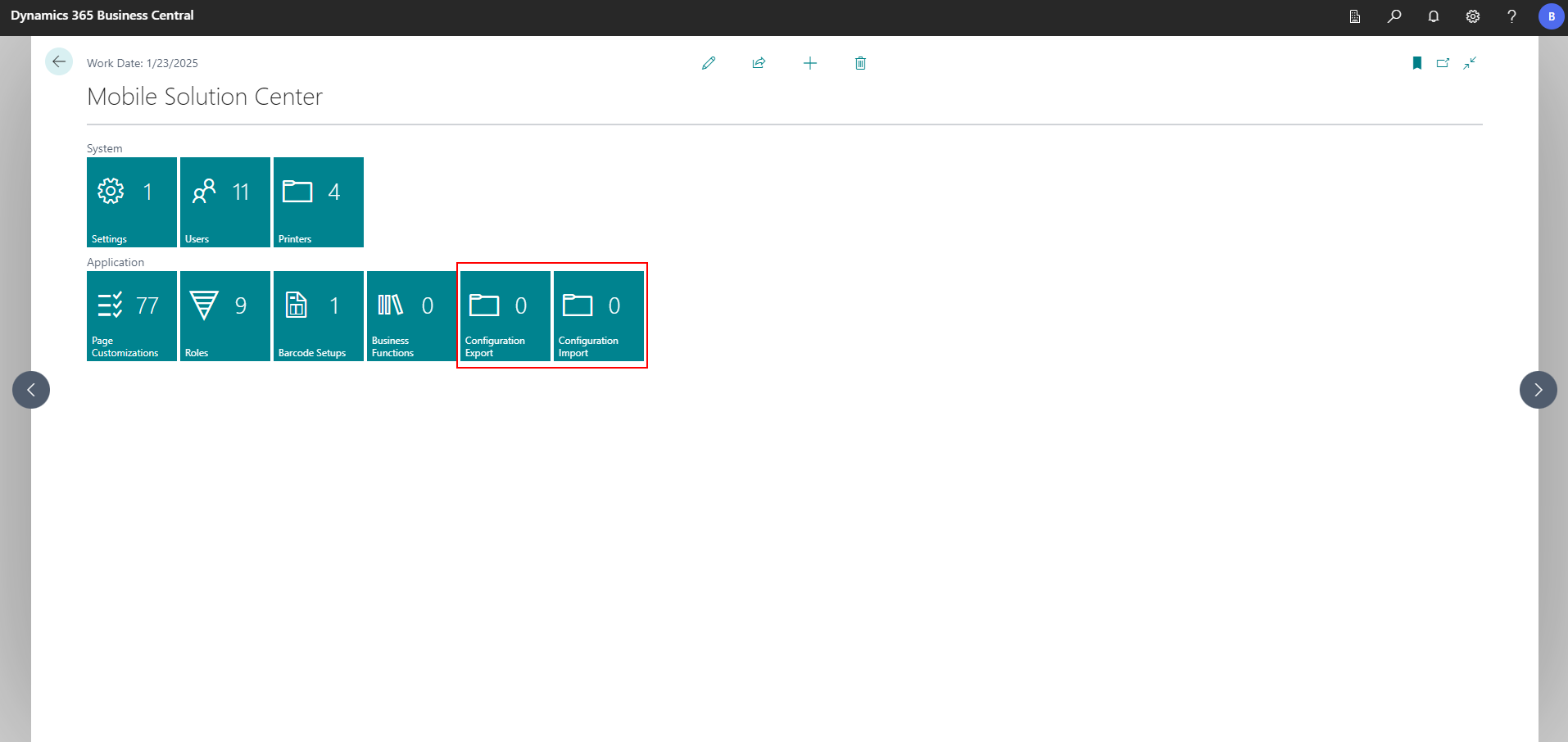
Configuration export and import functionality can be accessed in the Mobile Solution Center using the Configuration Export and Configuration Import tiles. Alternatively, you can search for Configuration Handling - Mobile Solution in the search bar; when using this method, you will be prompted to specify whether you wish to perform an import or export action after selecting the option.
Exportable and Importable Configuration Options
The following settings can be exported and imported:
- Page Customizations
- Roles
- Complex Barcode Setup
- Movement Bins
- Users (with User Roles and User Variables)
- Printers
- Barcode Reader Settings
- Business Function Settings
- Show Images on Items Page
- Enable Mobile Solution Physical Inventory Features
- Forward Scheduling at Recalculation of Production Orders
- Custom Business Functions (for customly developed features)
- Global Settings
- Enable Force Etag Update
- Enable Debugging
- Intermediate Layer Address
- Languages
- Default Profile Settings
- OAuth Settings (Secrets are not exported)
- Sound Settings
- Sounds
Import Behaviour
Even though imports are triggered manually, the system applies two strategies depending on the entity:
Clean Import:
- Deletes existing entities of the selected type before import.
- Fully replaces the configuration with the contents of the file.
- Missing values (for example, captions) revert to their default values.
Merge Import:
- Keeps existing entities.
- Updates or extends the current configuration with imported data.
- Does not delete any records.
Import Rules by Entity
The following section describes which import strategy is applied to each type of configuration entity during an import operation.
Structural Configuration — Clean Import
The following entities always use Clean Import:
- Roles and role content
- Pages and page content
- Captions
- Business Functions
Important
If captions are omitted in the import file, the system restores default captions to avoid retaining outdated or incomplete text.
Context-Specific Configuration — Merge Import
The following entities use Merge Import to preserve user- and device-level settings:
- Devices
- User Settings
- User Variables (always merged)
- Printer Settings
- Barcode Reader Settings
- Movement Bins
If a location–bin pair does not exist in the target company, the related movement bin entry is skipped. An error message is shown after the import completes.
User Variables
User variables are always merged, regardless of other rules. Validation includes:
- Non-deletable user variables are ignored.
- Empty values must be validated.
- Any configuration issues are reported during or after import.
Complex Barcode Import and Export
- If a Barcode Setup exists both in the system and in the import file, it is overwritten based on the data from the import file.
- If a Barcode Setup exists only in the system, it remains unchanged.
- If a Barcode Setup exists only in the import file, it is added to the system.
- If a Barcode Category exists both in the system and in the import file, it is overwritten based on the data from the import file.
- If a Barcode Category exists only in the system, it remains unchanged.
- If a Barcode Category exists only in the import file, it is added to the system.
- When at least one Barcode Setup is exported, all Barcode Categories are exported automatically.
Note
Pages and Roles can be exported individually or in bulk, allowing you to select one or multiple items for export as needed. These export options are accessible from the Global Page Customizations and the Roles.
To Export Configurations
- Choose the
 icon, enter Mobile Solution Center and then choose the related link.
 - Choose the Configuration Export tile.
- Choose the configuration(s) to export:
- In the Process field, manually select Skip or Include, to exclude or include the configurations. When a header line (bolded) is set to either of these values, it will be applied to all child lines. If a child line is set to Include but others are set to Skip, the header line will be set to Partially Include.
- Choose the Include All action to set the Process field to Include for all configurations.
- Choose the Exclude All action to set the Process field to Skip for all configurations.
- When a role is selected, all pages linked to that Role will automatically be included in the export process.
- Choose the Export action to export the configuration as a JSON file.
To Import Configurations
- Choose the icon, enter Mobile Solution Center and then choose the related link.
- Choose the Configuration Import tile.
- Choose a file to import with the Choose File action.
- Choose the configuration(s) to import:
- In the Process field, manually select Skip or Include, to exclude or include the configurations. When a header line (bolded) is set to either of these values, it will be applied to all child lines. If a child line is set to Include but others are set to Skip, the header line will be set to Partially Include.
- Choose the Include All action to set the Process field to Include for all configurations.
- Choose the Exclude All action to set the Process field to Skip for all configurations.
- When a role is selected, all pages linked to that Role will automatically be included in the import process.
- Choose the Import action to import the configuration(s).
Important
The standard Business Central Configuration Package function is not supported for importing Mobile Solution configurations. Always use the dedicated COSMO Mobile Solution import functionality to ensure proper setup and compatibility.
Load Base Configurations
Use the default configuration packages to accelerate setup and customization. For new installations, only the Base Configuration package is required. For existing environments, you can load additional packages as needed (see the note below).
- On the Actions menu, choose the Base Configurations action.
- Choose the Load Base Configuration action.
- Choose the Import action to import the configurations.
The Base Configuration package includes the essential settings needed to start using the mobile application. It contains:
- Pages
- Roles
- Barcode Reader Settings
- Language Settings
- Sound Settings
Key capabilities provided by the Base Configuration package:
Warehousing:
- Items
- Locations, Zones, and Bins
- Warehouse Receipts and Posted Warehouse Receipts
- Warehouse Shipments and Posted Warehouse Shipments
- Warehouse Put-aways and Registered Warehouse Put-aways
- Warehouse Picks and Registered Warehouse Picks
- Inventory Put-aways and Posted Inventory Put-aways
- Inventory Picks and Posted Inventory Picks
Manufacturing (requires a Business Central Premium license):
- BOMs
- Routings
- Released Production Orders
- Components
- Production Routings
- Consumption Lines and Consumption Calculation
- Output Lines and Output Calculation
Purchase:
- Vendors
- Purchasers
- Contacts
- Purchase Price Lists
- Purchase Orders
- Purchase Receipts
- Purchase Return Orders
- Purchase Return Shipments
Sales:
- Customers
- Salespeople
- Contacts
- Sales Price Lists
- Sales Orders
- Sales Shipments
- Sales Return Orders
- Sales Return Receipts
Movement:
- Movement: Provides item movement processes based on the Item Reclassification Journal; optimized for barcode‑scanner workflows.
- Find Items: Provides real-time inventory information via a filter and results page.
- Item Reclassification Journal
- Transfer Orders
- Transfer Shipments
- Transfer Receipts
- Direct Transfers
Inventory Adjustment:
- Items
- Inventory Adjustment: Provides inventory adjustment processes based on the Item Journal; optimized for barcode‑scanner workflows.
- Item Journal
Physical Inventory:
- Physical Inventory Recording: Provides physical inventory processes based on Physical Inventory Recordings; optimized for barcode‑scanner workflows.
Specialized configuration packages are available to address specific business needs:
- Base Configuration: Includes all available roles and pages in the solution.
- Manufacturing: Offers a Manufacturing role and pages for standard Business Central manufacturing tasks.
- Purchase: Provides a Purchase role and pages for purchase-related processes, including orders, receipts, returns, and price lists. Optimized for warehouse operations.
- Sales: Provides a Sales role and pages for sales-related processes, including orders, shipments, returns, and price lists. Optimized for mobile and handheld use in warehouse and field environments.
- Physical Inventory: Includes a Physical Inventory role and pages for standard Business Central physical inventory processes, focused on Physical Inventory Orders and Recordings, and optimized for handheld devices.
- Inventory Adjustment: Offers an Inventory Adjustment role and pages for item adjustment processes, based on the Item Journal and optimized for handheld warehouse devices.
- Movement: Provides a Movement role, that contains Transfer Orders and related documents (Transfer Shipments, Transfer Receipts, Direct Transfers), Item Reclass. Journal, Movement and Find Items. Movement functionality provides item movement processes based on the Item Reclassification Journal; optimized for barcode‑scanner workflows.
These packages can be loaded via the Configuration Import tile on the Mobile Solution Settings page. All available packages are listed under the Actions menu in the Configuration Handling page.
Note
If you are using a COSMO Mobile Solution version prior to version 21.0.216 and you want to install any of the packages, you can download the files from here. Consider the version numbers of the installed COSMO Mobile Solution Base Application, Intermediate Layer, and Mobile Application.
To import the packages, choose one of the following actions on the Global Page Customizations page:
- Import Page Customization – overwrites the existing pages that are included in the json file but does not delete the others.
- Clean Import Page Customizations – deletes all existing page customizations and imports all that are included in the json file.
Feedback
Submit feedback for this page .