Printer Setup and User Configuration
The topic describes the configuration of printers and assignment to printers to users.
Printer Configuration
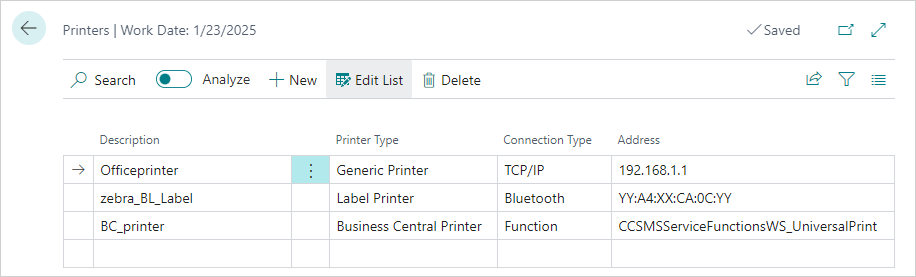
Printers are configured based on type, connection type, and address in the Printers page.
Choose the
 icon, enter Mobile Solution Center, choose the related link and then choose the Printers tile.
Create a new printer by choosing the New action.
In the Description field, enter a unique identifier for the printer.
In the Printer Type field, choose the relevant option:
- Generic Printer: For direct PDF printing. PDF printing requires a printer that supports PDF files. Check your printer manual or specifications to confirm this capability.
- Label Printer: For label printing.
- Business Central Printer: For Business Central printing.
In the Connection Type field, choose the relevant option:
- TCP/IP: For network printing (valid for generic and label printers).
- Bluetooth: For Bluetooth printing (valid for generic and label printers).
- Function: For Business Central printing (valid for BC printers).
In the Address Format field, enter the format based on the printer type/connection type:
- Connection Type, TCP/IP: IP address.
- Connection Type, Bluetooth printer: MAC address of the Bluetooth-enabled printer.
- Printer Type, Business Central Printer: Unbound function.
Tip
An IP address can include a port number if different from the default printing port (9100), e.g., 192.168.1.100:5000 or 192.168.1.100 (if the default port is enough).
Unbound function example: CCSMSServiceFunctionsWS_UniversalPrint
MAC address example: 0D:XX:F8:E4:FB:XX
User Setup
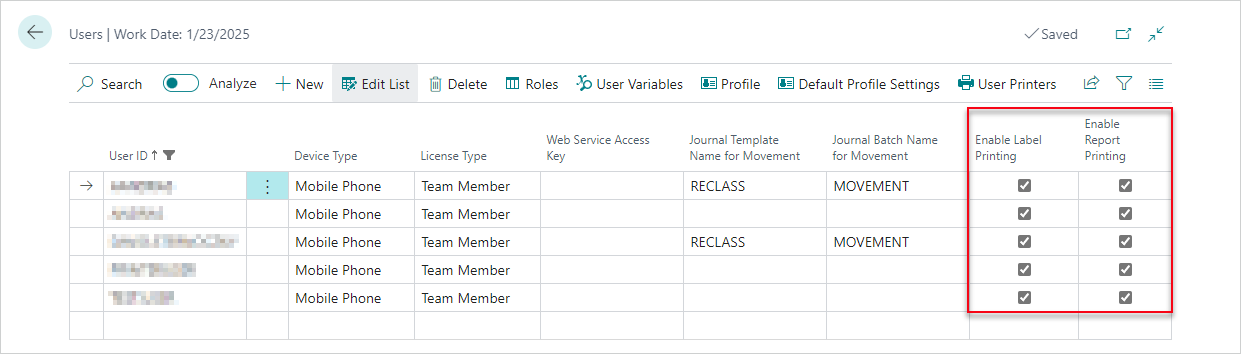
You can enable printing functionalities and define default printers for PDF and label printing for every user in the Users page via the Enable Label Printing and Enable Report Printing fields.
- Choose the icon, enter Mobile Solution Center, choose the related link and then choose the Users tile.
- For the relevant users, choose the Enable Label Printing and/or Enable Report Printing checkboxes to grant access to label or PDF printing.
Assign Printers to Users
It's possible to assign specific printers to users, which allows customization of printer access. Furthermore, it's possible to set the default printers on this page, which affects the user variables.
- In the Users page, choose the user to assign printers to, and then choose the User Printers action to open the User Printers page.
- Choose the printer to assign to the user.
- Select the Assigned checkbox.
- For access to label printing, select the Default Label Printer checkbox.
- For access to PDF printing, select the Default Printer checkbox.
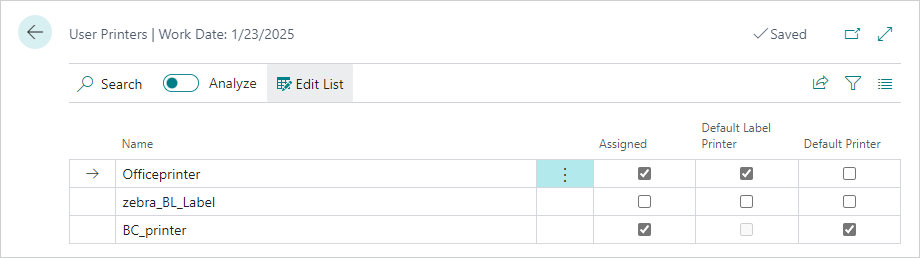
Only one default printer can be determined per each type. Please note, if a default printer (label or report) is set for a user, the user's corresponding Default_Label_Printer or Default_Printer user variable will be modified on the User Variables page.
Number of Copies Limit
To control the maximum number of copies that can be printed, it is possible to set a specific limit for each user in their user profile. This setting applies to both report and label printing.
Important
For the printer-specific required settings, see Troubleshooting.
Feedback
Submit feedback for this page .