User Variables
- What are user variables?
- What are the default user variables of COSMO Mobile Solution?
- How can I set up user variables for a user?
- How does filtering work within user page customizations?
- What kind of configuration options do I have for user variables on Page Customizations?
- Are there any specific functionalities of user variables in connection with printing in COSMO Mobile Solution?
- Can I modify user variables in the mobile application too?
Tip
Summary: This topic explains how user variables can be set up in COSMO Mobile Solution and how they should be used related to different configuration options.
What Is a User Variable?
User variables are configurable dynamic values that can be utilized for page filtering, conditional views, default values, flowfield filtering, or as filters for relations and conditions. They can be modified per user in a simple way, eliminating the need to adjust filters or default values individually on the user page customizations. A specific user variable can be assigned to a user as a variable type, and the value of it can be changed either in COSMO Mobile Solution or if configured, in the mobile application too. The mobile application will use the current user variable value when populating or validating a certain field/filter.
Opening and Viewing User Variables
- Click the
 icon, enter Mobile Solution Center, select the corresponding link, and then open the Users tile.
 - Select a user and choose the User Variables action.
This opens a list of predefined user variables, initially without assigned values. These variables are organized into the following default categories:
- Printing: variables for label and report printers.
- Adjustment: variables for the Positive and Negative Adjustment processes.
- Movement: variables for the Movement process, supporting both directed put-away and standard locations.
- Manufacturing: variables for the Output and Consumption posting processes.
- Sales: a Salesperson variable used as a filter or default value during sales processes.
- Purchase: a Purchaser variable used as a filter or default value during purchase processes.
- Journal: variables for the Item Journal and Item Reclassification Journal processes.
These predefined user variables and categories are essential to the standard functionality of COSMO Mobile Solution and cannot be deleted. When upgrading to a version that introduces User Variable Categories, any previously created custom variables (not predefined) are automatically placed in the Custom category. Users may also create additional categories and reassign variables between categories as needed. The following image displays the predefined variables, some with example values populated.
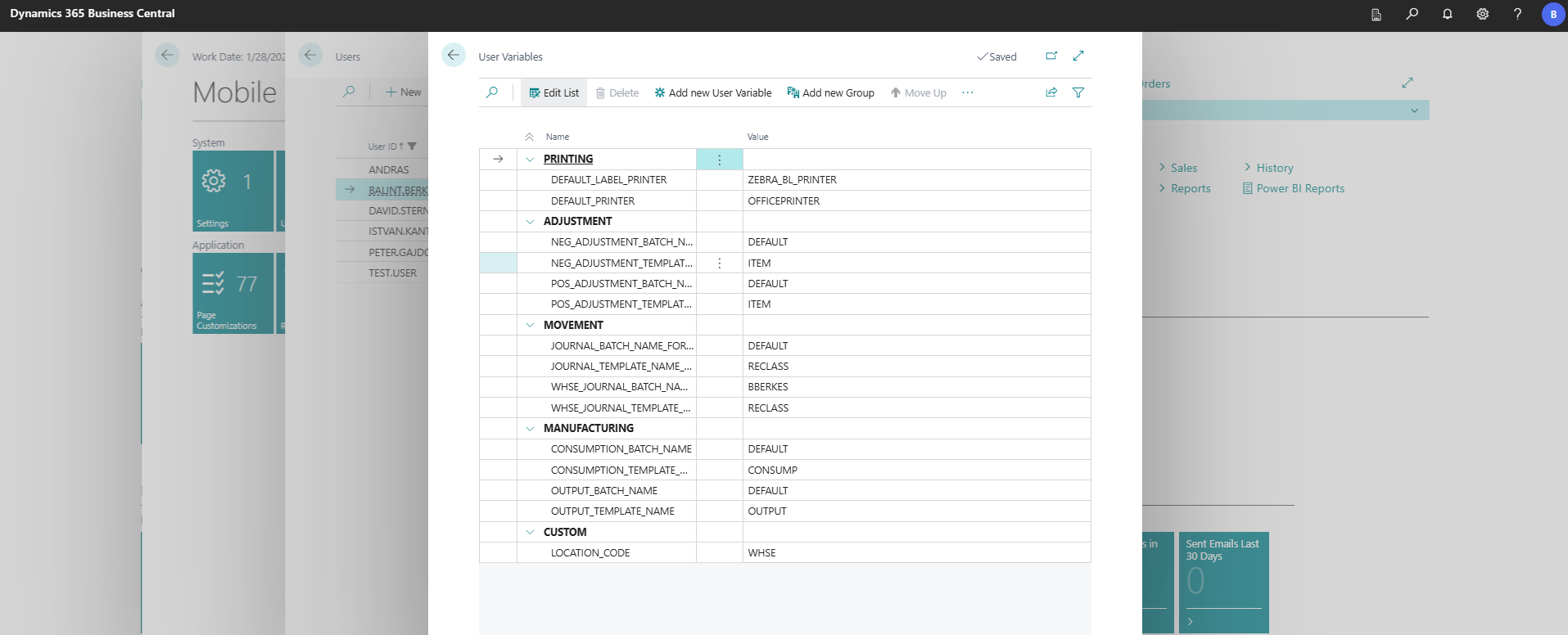
The name and purpose of the predefined user variables are shown in the following table.
| User Variable Name | Description |
|---|---|
| Default_Label_Printer | Default label printer for the selected user. For more information, see Printer User Setup. |
| Default_Printer | Default report printer for the selected user. For more information, see Printer User Setup. |
| Neg_Adjustment_Batch_Name | Batch name for the Negative Inventory Adjustment posting process of COSMO Mobile Solution. The selected user will use this batch when posting negative inventory adjustment in the mobile application. In the Value field, choose the ellipsis button to open the template-filtered list of batches. |
| Neg_Adjustment_Template_Name | Template name for the Negative Inventory Adjustment posting process of COSMO Mobile Solution. The selected user will use this template when posting negative inventory adjustment in the mobile application. In the Value field, choose the ellipsis button to open the list of item journal templates. The assigned template will have Type = Item. |
| Pos_Adjustment_Batch_Name | Batch name for the Positive Inventory Adjustment posting process of COSMO Mobile Solution. The selected user will use this batch when posting positive inventory adjustment in the mobile application. In the Value field, choose the ellipsis button to open the template-filtered list of batches. |
| Pos_Adjustment_Template_Name | Template name for the Positive Inventory Adjustment posting process of COSMO Mobile Solution. The selected user will use this template when posting positive inventory adjustment in the mobile application. In the Value field, choose the ellipsis button to open the list of item journal templates. The assigned template will have Type = Item. |
| Journal_Batch_Name_For_Movement | Batch name for the Movement posting process of COSMO Mobile Solution for simple warehouse handling. The selected user will use this batch when posting movement in the mobile application. In the Value field, choose the ellipsis button to open the template-filtered list of batches. |
| Journal_Template_Name_For_Movement | Template name for the Movement posting process of COSMO Mobile Solution for simple warehouse handling. The selected user will use this template when posting movement in the mobile application. In the Value field, choose the ellipsis button to open the list of item journal templates. The assigned template will gave Type = Transfer. |
| Warehouse_Journal_Batch_Name_For_Movement | Batch name for the Movement posting process of COSMO Mobile Solution for directed put-away. The selected user will use this batch when posting movement in the mobile application. In the Value field, choose the ellipsis button to open the template-filtered list of batches. |
| Warehouse_Journal_Template_Name_For_Movement | Template name for the Movement posting process of COSMO Mobile Solution for directed put-away. The selected user will use this template when posting movement in the mobile application. In the Value field, choose the ellipsis button to open the list of warehouse journal templates. The assigned template will have Type = Reclassification. |
| Consumption_Batch_Name | Batch name for the Consumption process of COSMO Mobile Solution. Used on the CCSMSCalcConsumptionWS (5308084) and CCSMSConsumptionWS (5308076) page customizations as page filters. The selected user will use this batch when posting and calculating manufacturing consumption in the mobile application. In the Value field, choose the ellipsis button to open the template-filtered list of batches. |
| Consumption_Template_Name | Template name for the Consumption process of COSMO Mobile Solution. Used on the CCSMSCalcConsumptionWS (5308084) and CCSMSConsumptionWS (5308076) page customizations as page filters. The selected user will use this template when posting and calculating manufacturing consumption in the mobile application. In the Value field, choose the ellipsis button to open the list of item journal templates. The assigned template will have Type = Consumption. |
| Output_Batch_Name | Batch name for the Output process of COSMO Mobile Solution. Used on the CCSMSCalcOutputWS (5308085) and CCSMSOutputWS (5308074) page customizations as page filters. The selected user will use this batch when posting and calculating manufacturing output in the mobile application. In the Value field, choose the ellipsis button to open the template-filtered list of batches. |
| Output_Template_Name | Template name for the Output process of COSMO Mobile Solution. Used on the CCSMSCalcOutputWS (5308085) and CCSMSCOutputWS (5308074) page customizations as page filters. The selected user will use this template when posting and calculating manufacturing output in the mobile application. In the Value field, choose the ellipsis button to open the list of item journal templates. The assined template will have Type = Output. |
| Salesperson | A variable used as a filter or default value during sales processes. |
| Purchaser | A variable used as a filter or default value during sales processes. |
| Item_Journal_Batch_Name | Batch name for the Item Journal process of COSMO Mobile Solution. Used on the CCSMSItemJournalWS (5308027) page customization as a page filter. The selected user will use this batch when posting and creating item journal lines in the mobile application. In the Value field, choose the ellipsis button to open the template-filtered list of batches. |
| Item_Journal_Template_Name | Template name for the Item Journal process of COSMO Mobile Solution. Used on the CCSMSItemJournalWS (5308027) page customization as a page filter. The selected user will use this batch when posting and creating item journal lines in the mobile application. In the Value field, choose the ellipsis button to open the list of item journal templates. The assigned template will have Type = Item. |
| Reclass_Journal_Batch_Name | Batch name for the Item Reclassification Journal process of COSMO Mobile Solution. Used on the CCSMSItemReclassJournalWS (5308004) page customization as a page filter. The selected user will use this batch when posting and creating item reclass. journal lines in the mobile application. In the Value field, choose the ellipsis button to open the template-filtered list of batches. |
| Reclass_Journal_Template_Name | Template name for the Item Reclassification Journal process of COSMO Mobile Solution. Used on the CCSMSItemReclassJournalWS (5308004) page customization as a page filter. The selected user will use this template when when posting and creating item reclass. journal lines in the mobile application. In the Value field, choose the ellipsis button to open the list of item journal templates. The assigned template will gave Type = Transfer. |
Note
When configuring a specific process (such as Movement, Output, or Consumption), it is important to select the appropriate template first. The batch must then be selected from a prefiltered list, regardless of the alphabetical order of predefined user variables within each category.
A special user variable, which cannot be seen in the predefined list, is the USER_ID. Its value is unique, and always the user ID of the specific user. It can be used as any other user variable when configuring processes. In the base configuration, the USER_ID variable is used for the following processes:
- Find items: page filters for CCSMSFindItemsFilterWS (5307954) and CCSMSFindItemsResultWS (5308065)
- Item tracking: page filters for CCSMSItemTrackingListWS (5307989), CCSMSItemTrackingCardWS (5307990) and CCSMSSerialNoCreationWS (5308095)
- Inventory adjustment: page filters for CCSMSInvAdjCardWS (53080165), CCSMSInvAdjListNegWS (5308073), and CCSMSInvAdjListPosWS (5308073)
- Manufacturing - consumption: relation filter for the item tracking of CCSMSConsumptionWS (5308076)
- Manufacturing - consumption calculation: page filter for CCSMSCalcConsumptionWS (5308084)
- Manufacturing - output calculation: page filter for CCSMSCalcOutputWS (5308085)
- Movement: relation filter for the target bin selection of CCSMSMovementScanListWS (5308035)
Creating and Updating User Variables
- On the Users page, select the desired user.
- Click the User Variables action.
- In the User Variables page, select Add New User Variable. In the dialog that appears, enter a unique identifier (without spaces) and confirm by clicking OK.
- To create a new group, select Add New Group, enter a unique identifier (without spaces) in the dialog, and confirm by clicking OK. You can then add variables to the new group.
- Specify the required value in the Value field.
Once a user variable is created, it is inherited by all users. When accessing User Variables for other users, the newly created variable will be visible. If different values are required for individual users, update the Value field accordingly.
Deleting User Variables
- Select any user in the Users page.
- Choose the User Variables action.
- Select the user variable that should be deleted.
- Choose the Delete action.
Two confirmation messages will open. If both messages are confirmed, the variable (name and value) will be deleted for every user. Additionally, the corresponding settings will also be deleted; therefore, if a variable was used as a page filter or a relation filter, it will be removed.
User Variable Usage
Existing user variables can be used for the following configuration elements:
- Default values
To be able to use variables as default values, the Variable Default Value should be "true" on the Card View FastTab of the Global Page Customization page. If the value is "true", a list of available user variables will open when choosing the Default Value field. If the value is "false", user variables cannot be used, so the user can provide an individual value in the Default Value field. - Page filters
- Relation filters
- Relation conditions
- Default printers
- Filters for label layouts and printable reports
- Conditional view filters
- FlowField filters
After modifying a user variable value for a specific user, the mobile application will use the new value when evaluating filters/conditions or populating a field with a default value. If a value was modified, the Refresh Schema button should be pressed in the mobile application (Settings).
Modifying User Variables in the Mobile Application
User variables may need to be updated directly within the mobile application, for example, when an employee changes location or requires a new batch for a specific posting process. The mobile application supports modifying user variables as needed.
The base configuration includes the CCSMSUserSettings (5308058) page, which is assigned to the User Setup role. Field captions on this page can be customized without affecting variable functionality. In the General FastTab of the CCSMSUserSettings page, select Show more to access the Refresh User Variables After Close option and enable the toggle. This ensures user variables are refreshed in the mobile application when the page is closed.
If required, a new role can be created, or the page can be assigned to any existing role. In the example below, the User Setup role is used. When the User Settings page is opened in the mobile application, 18 variables are displayed, with some populated and others left blank. All predefined user variables are listed, along with general variables available for custom use (Default Location Code, Default Bin Code, Journal Template Name, and Journal Batch Name).
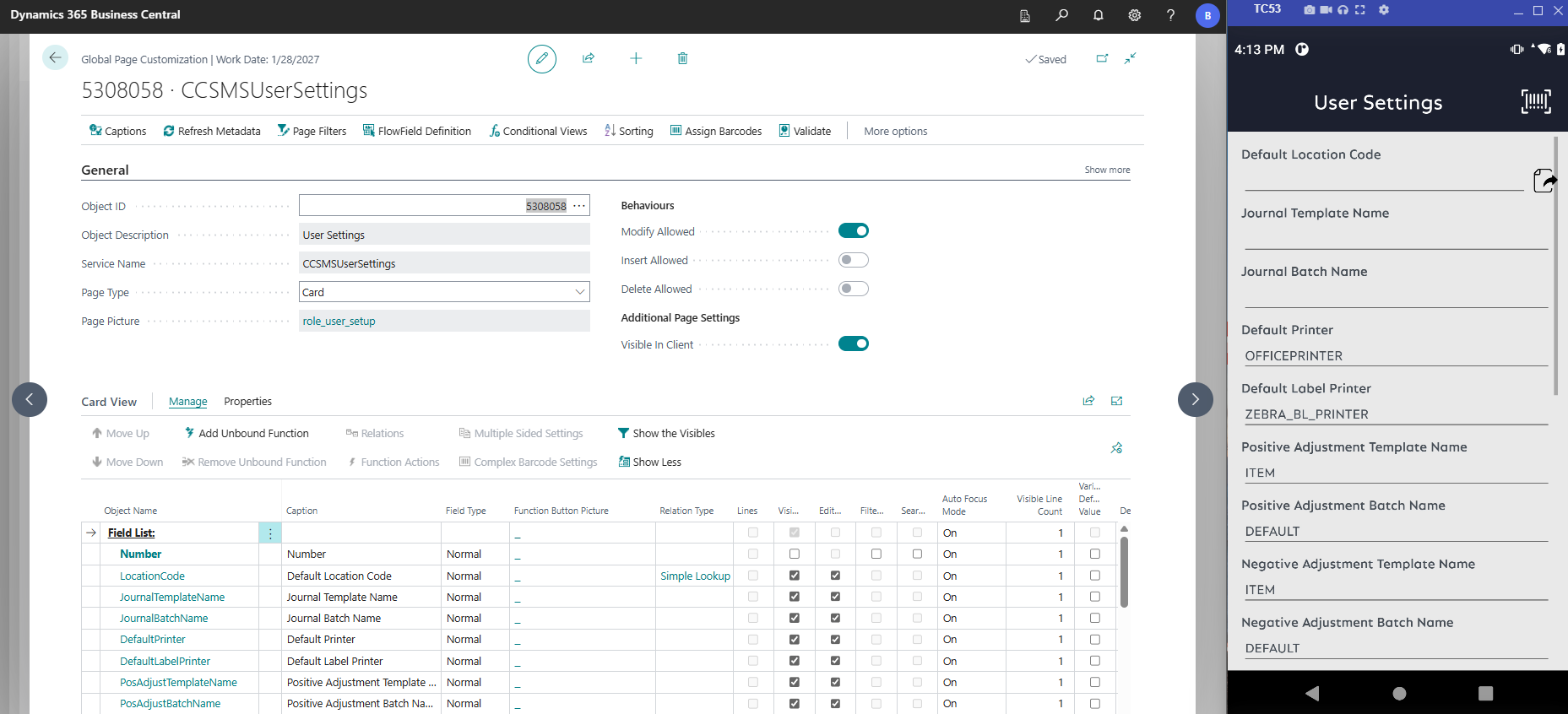
The data shown on the User Variables page for a specific user matches the information on the User Settings page in the mobile application. In this example, a general variable is utilized.
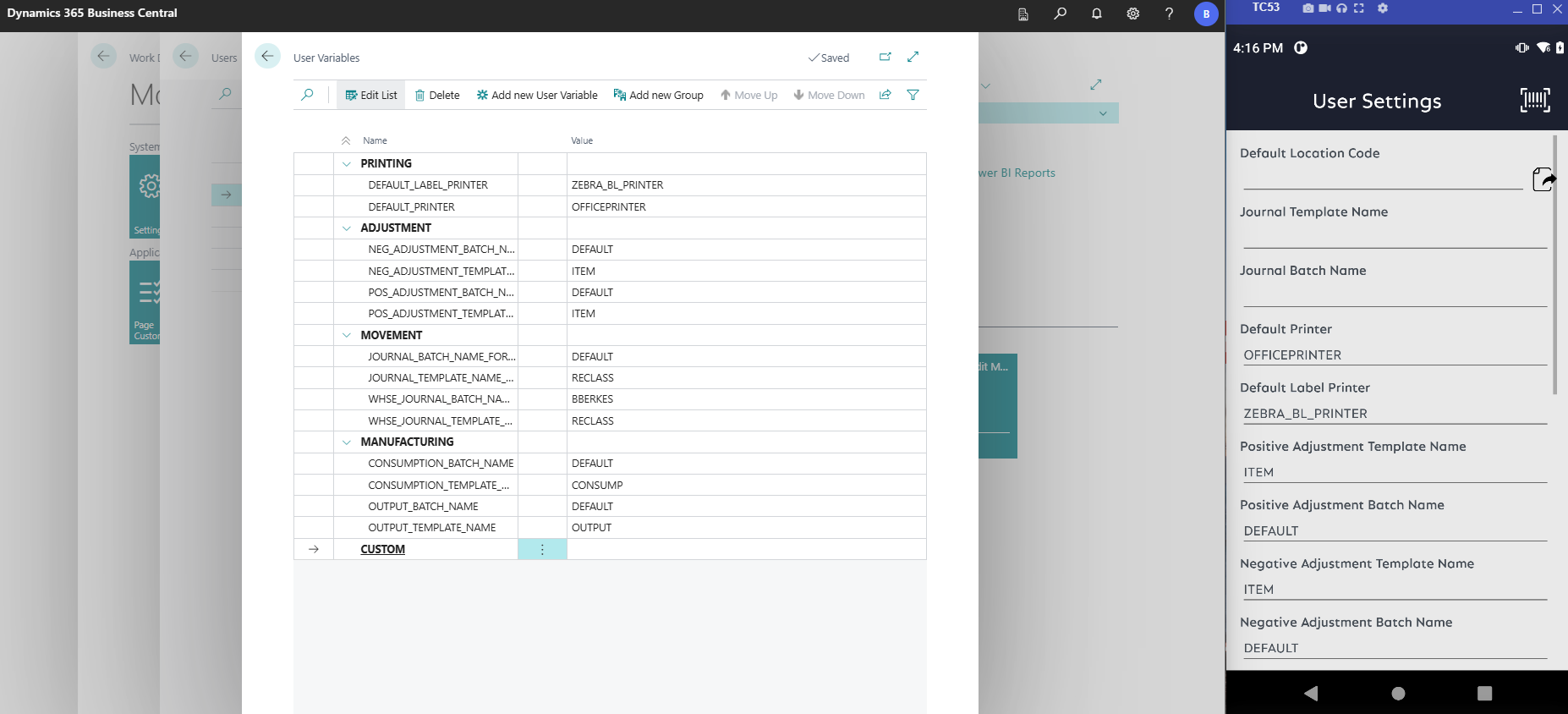
After selecting the Default Location Code in the mobile application, entering a value, and pressing the Back button, a new user variable is created for the selected user. For newly created variables, the value is initially set for all users; subsequent modifications will only affect the logged-in user. The variable name corresponds to the object name of the selected field from the User Settings page.
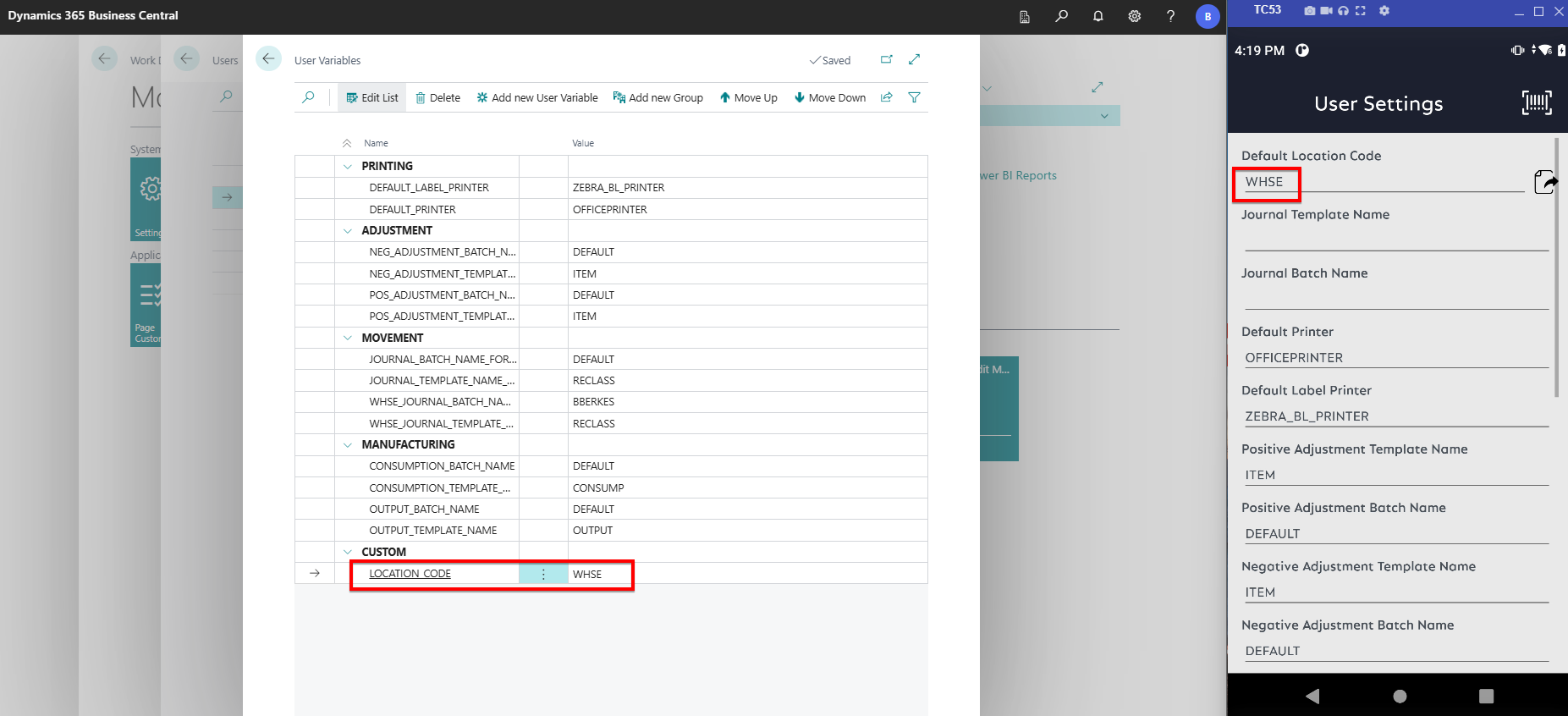
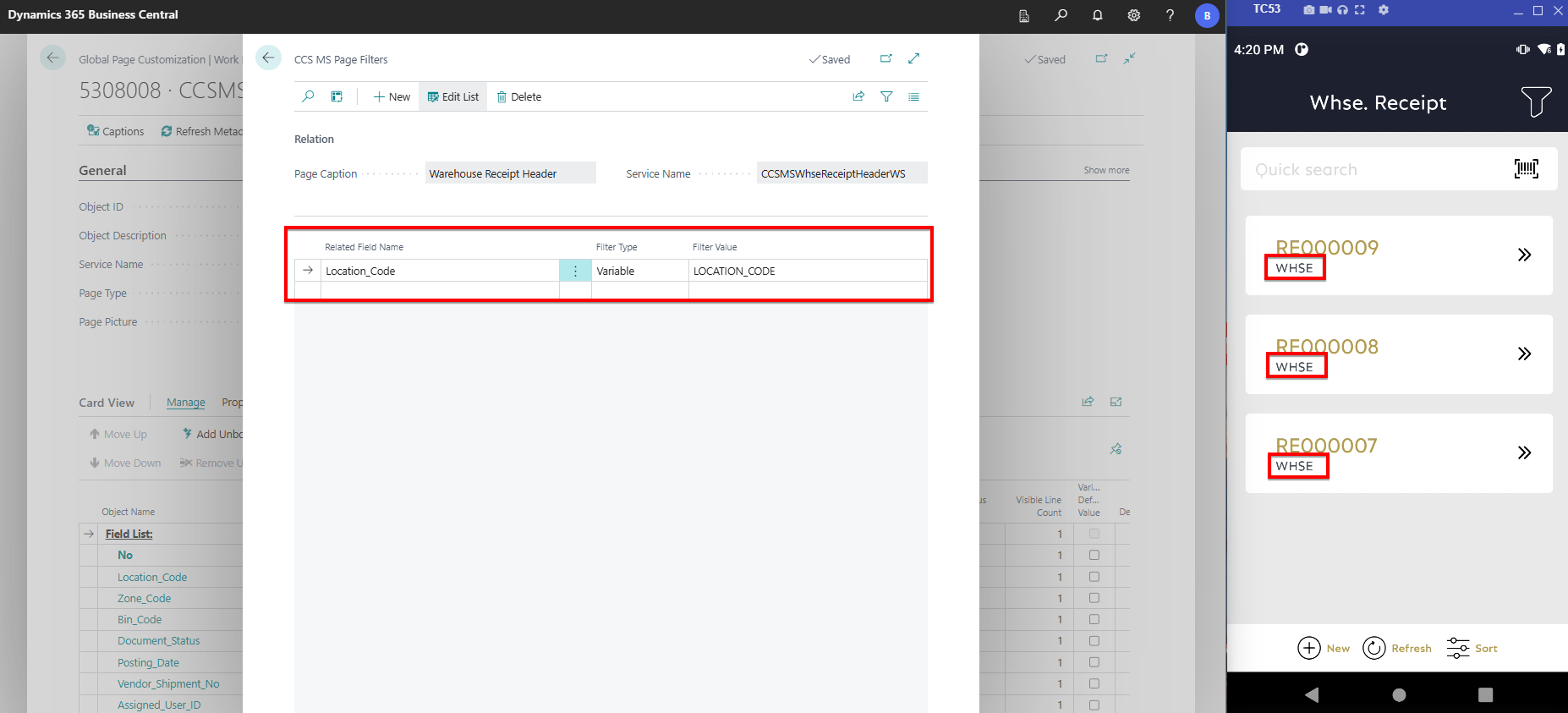
The next step is to configure the user variable for the relevant page. In this example, the Default Location Code is set as a page filter for the Warehouse Receipt Header page, allowing the user to view only open warehouse receipts for a specific location. As a page filter, it also serves as the default value for newly created records. To configure this, open the page configuration for CCSMSWhseReceiptHeaderWS (5308008) and select the Page Filters action. In the Page Filters page, specify the Related Field Name to associate the variable, set the Filter Type to Variable, and use the ellipsis button in the Filter Value field to select the appropriate user variable (e.g., LOCATION_CODE). As shown below, only warehouse receipts for location WHSE will be displayed.
When user variables are modified in the User Settings page of the mobile application, changes are applied upon leaving the page, without needing to press the Refresh Schema button. The CCSMSUserSettings (5308058) page can be further customized or extended through configuration or development, including hiding fields or providing lookups for specific variables. If additional variables need to be displayed in the mobile application, the page can be extended accordingly, including the addition of new predefined user variables through development.
Feedback
Submit feedback for this page .