Sound Effects
- How do I enable and configure sound feedback for different events in the mobile application?
- How do I assign custom sounds to specific actions or pages?
- How do I import, export, or manage sound settings and files?
- How do I optimize the sound experience for different devices?
Tip
Summary: This topic explains how to configure and use sound effects in COSMO Mobile Solution. It covers assigning sounds to events, uploading and importing sound files, and managing global and page-level sound settings. The guide also includes best practices for device setup to ensure clear and effective audio feedback in visually demanding environments. The Sound Effects feature provides immediate, unambiguous audio feedback for certain events in COSMO Mobile Solution. In visually demanding environments—such as warehouses and retail floors—users may not be able to watch the screen constantly. Short, distinct sound cues help operators confirm success, detect errors instantly, and recognize confirmations and blocking dialogs quickly.
Events & Sound Mapping
Users can assign sounds to the following events:
| Event | Description |
|---|---|
| Scan Succeeded Sound | Played when a barcode scan is successful. |
| Scan Rejected Sound | Played when a barcode scan is rejected. (When user input is blocked, for example a popup dialog or confirmation dialog is open) |
| Confirmation Sound | Played when a confirmation popup or message appears. This is a general confirmation event and is not necessarily related to a scan. |
| Error Sound | Played when an error occurs. This is a general error event and is not necessarily related to a scan. |
Add Sounds
There are two ways to add sounds to the configuration:
1. Upload a Sound File Directly
- Choose the
 icon, enter Mobile Solution Settings, and then choose Sound Settings*.
 - Click Upload and select a sound file from your system.
- Supported formats: MP3 and WAV.
- Once uploaded, files are stored in the Sound List page and can be assigned to specific events in the Sound Settings page.
2. Import a Configuration
If you have a configuration file, you can import it to add sounds.
Sound settings and sound files are part of the COSMO Mobile Solution base configuration. Each event category has a default sound provided. They can be exported and imported together or individually.
Export/import includes:
- Sound files.
- Global and page-level settings.
Global Settings
The fields on the Sound Settings page are explained in the following table:
| Field | Description |
|---|---|
| Enable Sound | Enables or disables sound effects globally. If enabled, a Page Customization list appears, allowing users to enable or disable sound per page. |
| Play Success After Validation | If enabled, the application waits for Business Central validation before playing the success sound. If validation fails, the Error Sound is played instead. If disabled, the success sound plays immediately after scanning, and if validation later fails, the error sound interrupts the success sound. |
Tip
Ongoing sounds are stopped before a new sound starts to avoid overlap.
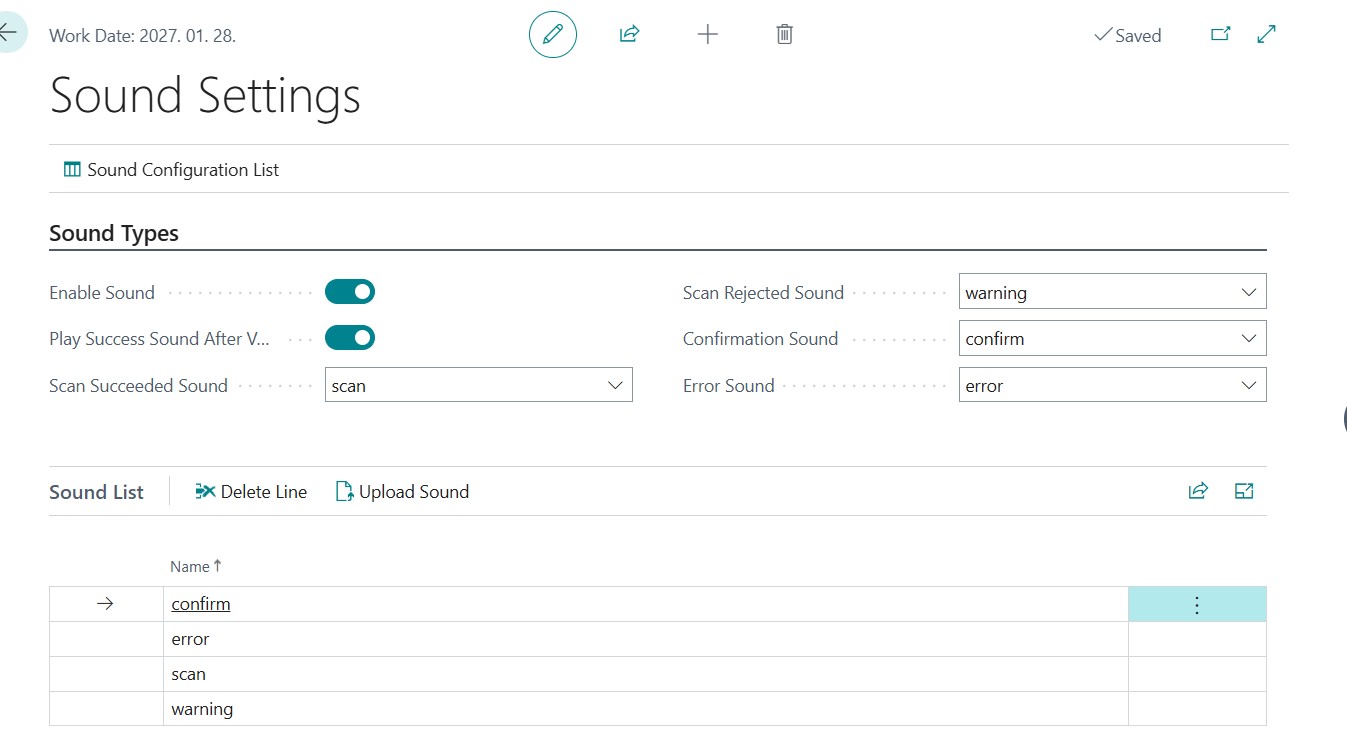
Page-Level Settings
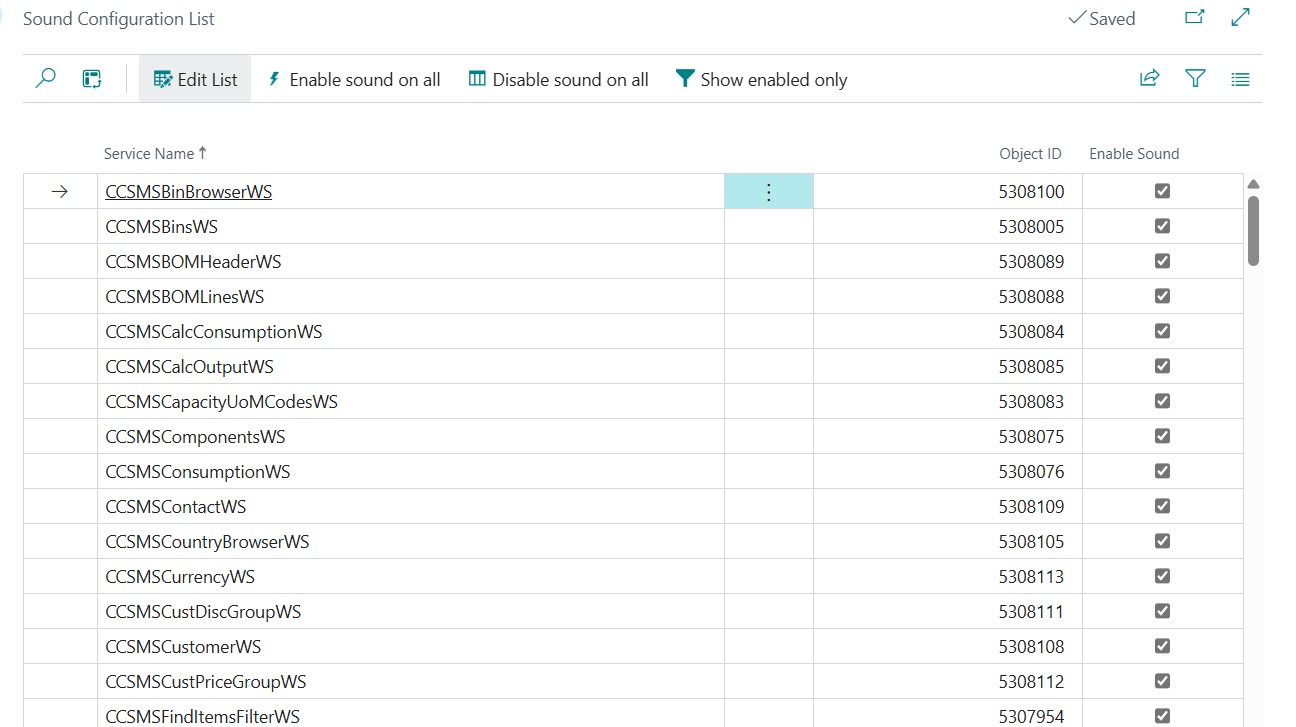
- Sound will only play on pages where Enable Sound is active in Page Customization.
- Enabling sound for a specific page will automatically enable the global sound setting if it is not already enabled.
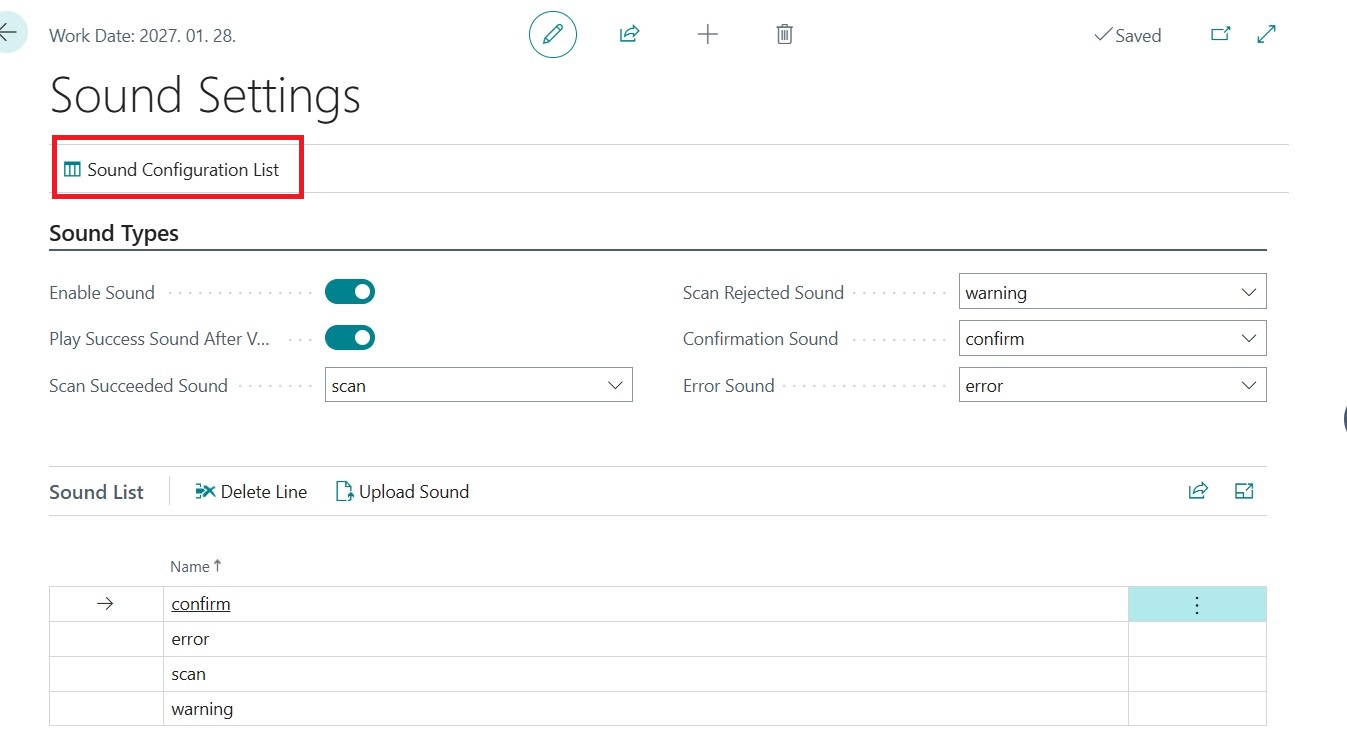
Sound can be enabled either directly from each global page (user level sound configuration is not supported) or by accessing the Sound Configuration List within the Sound Settings
Best Practices
Use short audio clips (≤ 2 seconds) for optimal performance.
Normalize audio levels for consistent volume.
Highly Recommended: Turn off the default scan sounds on the device for the best experience. The steps to disable these sounds can differ depending on the device manufacturer. Here are some examples:
Zebra TC53:
- Open the DataWedge application on the device.
- Go to the Profiles page and select the profile used for COSMO Mobile Solution.
- Locate the Barcode input section and open Configure scanner settings.
- Open Scan params.
- Set the Decode Audio Feedback to None.
- Restart the mobile application for COSMO Mobile Solution.
Honeywell CT37:
- Open Settings and go to Honeywell Settings.
- Open Scanning and go to Internal Scanner.
- Select the profile created for COSMO Mobile Solution.
- Open the Notification Settings.
- Set the Good read Notification to false.
- Restart the mobile application for COSMO Mobile Solution.
Datalogic Memor 20
- Open Settings and go to Datalogic Settings
- Open Scanner & Decoder and go to Notification
- Set the Good Read Audio Mode to None
- Restart the mobile application for COSMO Mobile Solution.
To ensure custom sounds are clearly heard, increase the device's media volume:
- Open Settings.
- Open Sound Settings.
- Increase media volume.
Feedback
Submit feedback for this page .