Frequently asked questions (FAQ)
This chapter explains common challenges that may occur during the setup and use of the COSMO Document Management System and provides clear solutions for each.
Document Box
A folder in the document box displays a lock instead of the folder icon
Challenge
In the Document Box in Business Central, a folder is displayed with a lock icon instead of the usual folder icon, and no files are shown underneath it.
This behavior occurs when authorization code authentication is used for login credentials. In this case, the permissions configured in SharePoint Online are applied to the Document Box.
If the current user does not have access to the corresponding library in SharePoint, the folder in the Document Box will display a lock icon.
Example: If the user does not have access to the Purchase Invoices library in SharePoint, the Posted Purchase Invoices folder will only display a lock.
Solution To resolve this issue:
- Verify the user’s permissions in SharePoint Online for the affected library.
- Grant the necessary access rights to the user for the library if required.
- After updating permissions, refresh the Document Box in Business Central to confirm that the folder and files are displayed correctly.
Busy control add-in
Challenge In the Document Box in Business Central, the following message is displayed:
Busy control add-in
Reduced functionality
The functionality of the control add-in 'COSMO Document Box' has been reduced, and it may not work as expected. Contact the add-in vendor for more information.
This occurs because every change to a data record in Business Central triggers a reload of the Document Box. As a result, multiple requests are sent to SharePoint Online, which can lead to this warning message.
Solution This behavior is related to the resiliency of control add-ins in Business Central.
Important
The message has no effect on the functionality of the document box.
Best Practice:
- Understand that this message is informational and indicates that the add-in is under load due to frequent refreshes.
- Minimize unnecessary changes to data records when working with the Document Box to reduce reload frequency.
For more details on control add-in resiliency in Business Central, refer to Microsoft documentation
Documents are not displayed in the document box after upload
Challenge
When a document is uploaded via the Document Box in Business Central, the Document Box refreshes, but the newly uploaded document does not appear.
There are two common reasons for this:
- The document’s keywords are incomplete.
- The Business Central data record does not contain all the information required to display the document.
Solution To resolve this issue:
- Check the SharePoint filter applied to the folder in which the document should appear.
- Verify that the document’s keywords are complete and match the filter criteria.
- Ensure that the Business Central record contains all necessary data for the document to be displayed correctly.
How to deal with list threshold limitations?
Challenge
In the Document Box, a message appears stating that the threshold has been exceeded, which prevents any files from being displayed.
Background: SharePoint Online enforces a default threshold of 5,000 items per view to maintain service performance. When this limit is exceeded, SharePoint blocks the display to avoid system overload.
Solution
- Use SharePoint filters within the Document Library and ensure that the columns used for filtering are indexed in the SharePoint Online Document Library. Indexed columns allow SharePoint to efficiently process queries and avoid threshold errors.
- If the initial filters are not sufficient, add additional SharePoint filters to further narrow down the results—also within the Document Box in Business Central.
For detailed guidance on creating and managing indexed columns, refer to the official Microsoft documentation
Further Information about SharePoint Filters with the Setup can be found in chapter DMS SharePoint Filters.
Important
Additional you should check if Folder Formulas within the Table Setup are given. These will create a Folder structure on SharePoint, where Documents will be found later on. Threshold limitations are also mitigated with Year/Month Folders.
Loading huge folder in the document box
Challenge
As the number of items displayed in the Document Box in Business Central increases, the loading time may become longer.
This typically happens when:
- The SharePoint filter is very broad, causing many elements to be loaded into the Document Box.
- Large result sets need to be processed, which impacts performance.
Solution To improve performance and reduce loading time:
- Review and optimize the SharePoint filters applied to the Document Box to narrow down the results.
- Use the element limit in the configuration settings for content types of the COSMO Document Management System to restrict the number of items displayed.
- Apply additional filters where possible to minimize the data load.
Authentication
Authorization error during rollout of the construction plan
Challenge
Construction plans are used to deploy SharePoint web structures such as Fields, Content Types, Subwebs, Libraries, and Lists.
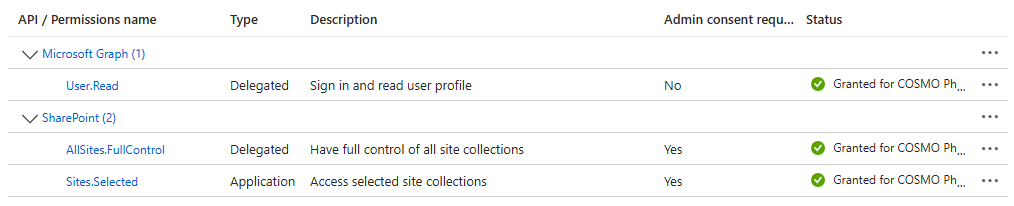
Errors during the upload and execution of a construction plan in the COSMO Document Management System are often related to insufficient API permissions of the Entra App Registration in Azure.
A common symptom is the 403 - Forbidden error message.
Solution To rule out permission issues causing the 403 - Forbidden error:
- Validate the permissions in the App Registration under the API Permissions tab in Azure.
- Ensure that all required permissions for SharePoint and Microsoft Graph are granted and admin consent has been provided.
- If permissions are missing or not consented, update the configuration and re-run the construction plan.
Client Secret expired
Challenge
When loading the Document Box, the following error message appears:
Web server call is with 'Status: 401\Reason: Unauthorized\Content: {"error":"invalid_client","error_description": The provided client secret keys for app '<App-ID>' are expired."}
This indicates that the client secret used for authentication has expired.
Solution To resolve this issue:
- Open the App Registration in Microsoft Entra ID.
- Generate a new client secret for the application.
- Replace the expired client secret in all affected DMS OAuth applications within the COSMO Document Management System setup.
- Save the changes and verify that authentication works correctly.
The given key was not present in dictionary
Challenge
The error message "The given key was not present in dictionary" usually indicates a problem with DMS Authentication.
When you open a list or card in Business Central and the Document Box is displayed, the COSMO Document Management System attempts to authenticate your user credentials against SharePoint Online via the OAuth Application setup.
This process launches a small pop-up window for authentication within the Business Central application. If pop-up blockers are enabled, the authentication cannot complete and triggers this error message.
Solution To resolve this issue:
- Ensure that pop-up blockers are disabled in your browser for Business Central.
- Verify that the OAuth Application setup is correctly configured in the COSMO Document Management System.
- After disabling pop-up blockers, retry the authentication process by reopening the list or card.
Unsupported app only tokens
Challenge
The error message "Unsupported app only token" appears in the COSMO Document Management System setup.
This indicates that the authentication token is either invalid or has not been requested yet.
Solution Validate the OAuth Applications and DMS Credentials in the COSMO Document Management System setup.
Best Practice:
- Check the configuration to ensure all entries are correct (e.g., Client ID, Client Secret, Redirect URL).
- Verify that the authentication token has been generated and is valid.
- Follow every step outlined in the Authentication chapter of the documentation to complete the setup process.
If the token is missing or expired, re-request it according to the instructions in the Authentication section.
Construction Plan Rollout
Different languages when rolling out the construction plan
Challenge
Construction plans are used to provide SharePoint web structures such as fields, content types, subwebsites, libraries, and lists.
If “authorization code” authentication is used in the COSMO Document Management System, issues can occur when the default language of the SharePoint site and the default language of the user do not match.
In this case, libraries cannot be deployed correctly, and the corresponding configuration will fail.
Solution Before rolling out construction plans:
- Verify that the default language of the SharePoint site matches the default language of the user.
- If they differ, adjust the language settings either on the SharePoint site or for the user account to ensure consistency.
- Once the language alignment is confirmed, continue with the rollout of the construction plan.
Important
After changing the user language, allow a few minutes for the update to take effect before proceeding.
The rollout of the construction plan has been canceled
Challenge
The construction plan rolls out structures on SharePoint Online. Depending on the scope of the construction plan, this process can generate a large number of requests to SharePoint Online.
If performance issues occur, the rollout of the construction plan may be interrupted.
Solution If the rollout is interrupted:
- Simply restart the rollout of the construction plan.
- Structures that have already been created will not be created again, so the process will resume from where it left off.
Other
The request was blocked by the runtime to prevent accidental use of production services?
Challenge
The error message "The request was blocked by the runtime to prevent accidental use of production services" appears when trying to use the COSMO Document Management System in Business Central.
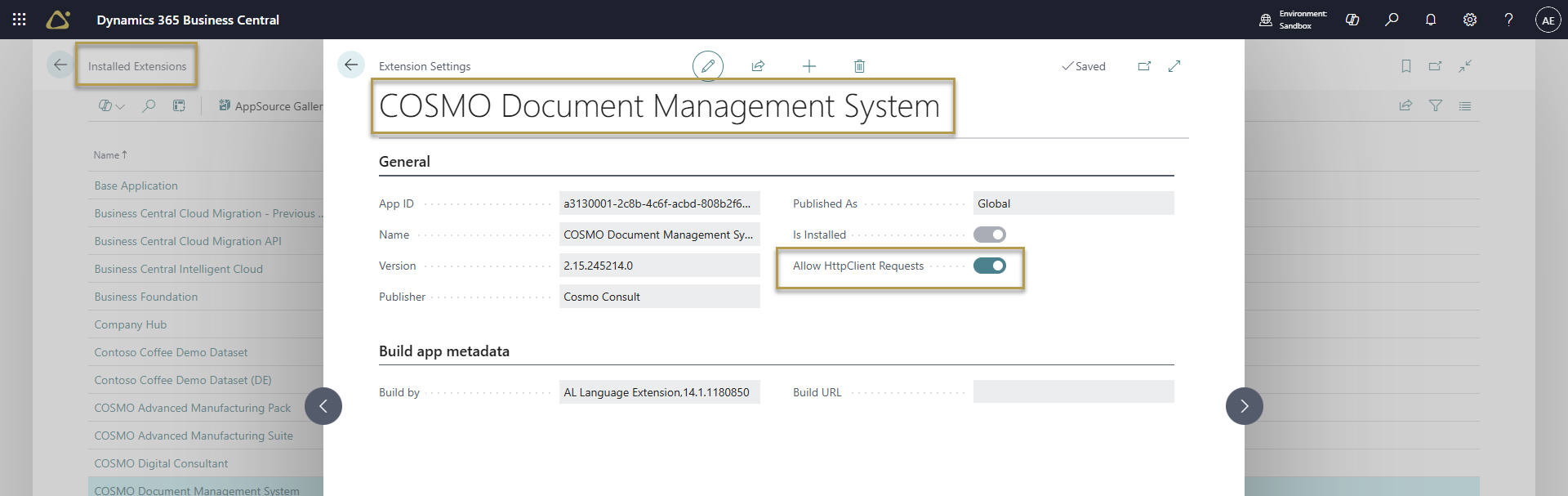
This issue is related to a setting in Extension Management within Business Central.
Solution The fix is straightforward:
- Open Extension Management in Business Central.
- Locate the COSMO Document Management System extension.
- Adjust the configuration according to the instructions provided in the extension settings to allow the intended operation.
Using the BC Outlook Addin causes errors "The given key was not present in dictionary"
Challenge When an authorization code is used for authentication, logging in to the Document Box fails when accessing it through the Microsoft Business Central Outlook Add-in.
Solution
Currently, this issue can only be resolved by using client login information instead of authorization code authentication.
Update the authentication method in the COSMO Document Management System setup to use client credentials for successful login.
Comparison: Attachments in Business Central vs. COSMO DMS Document Box
1. User Handling
Business Central Attachments
- Files are uploaded via the Attachments tab in the FactBox.
- Supports uploading any file type (PDF, images, videos).
- Attachments can be added at document level or line level.
- No drag & drop functionality; upload is done via file selection.
- PDF preview available directly in the web client (in newer versions) without download.
COSMO DMS Document Box
- Integrated as a FactBox on Business Central pages.
- Drag & Drop for files and email messages (Chromium browser required).
- Context menu for actions like Open, Download, Delete, Edit Metadata.
- Folder structure (Content Types) for better organization.
- Metadata can be defined or edited during upload.
2. Storage
Business Central Attachments
- Files are stored in the Business Central database.
- No versioning or advanced document management.
- Attachments remain linked to the record but are not included in outputs (e.g., print).
- No direct access outside Business Central.
COSMO DMS Document Box
- Storage is in SharePoint document libraries.
- Supports versioning, in-document search, and GDPR-compliant archiving.
- Automatic upload of report outputs (e.g., order confirmations).
- Access also possible for users without Business Central via SharePoint.
3. Opening Files
Business Central Attachments
- Files can be opened, launching the associated program (e.g., Word).
- PDFs can be displayed directly in the web client (Preview feature).
- Export/Download available.
COSMO DMS Document Box
- Opening is done directly in SharePoint in the browser.
- Download, email sending, and URL copy available.
Summary
- Business Central Attachments are simple and quick for internal use but lack advanced features like versioning or external access.
- COSMO DMS Document Box provides professional document management with SharePoint integration, metadata, drag & drop, and access inside and outside Business Central.
Feedback
Submit feedback for this page.