COSMO Alpaca – Browser Edition
With the browser-based version of Visual Studio Code available at vscode.dev, you can use COSMO Alpaca without installing VS Code locally. This is particularly useful for:
- Consultants – no local setup required.
- Project Managers – focus on functionality without technical overhead.
For advanced development workflows, and full extension capabilities, we recommend using the local installation of VS Code. The browser edition is ideal for quick access and non-technical roles, but developers will benefit more from the local installation version.
New Features: Most of the well-known PowerApp functions are now integrated into the extension. You can directly manage projects and COSMO entities in COSMO Alpaca: Customize Project, Create Project, Assign Entity, Assign Customer Account. This ensures both technical and non-technical users can work seamlessly in one tool.
Installation
Open vscode.dev
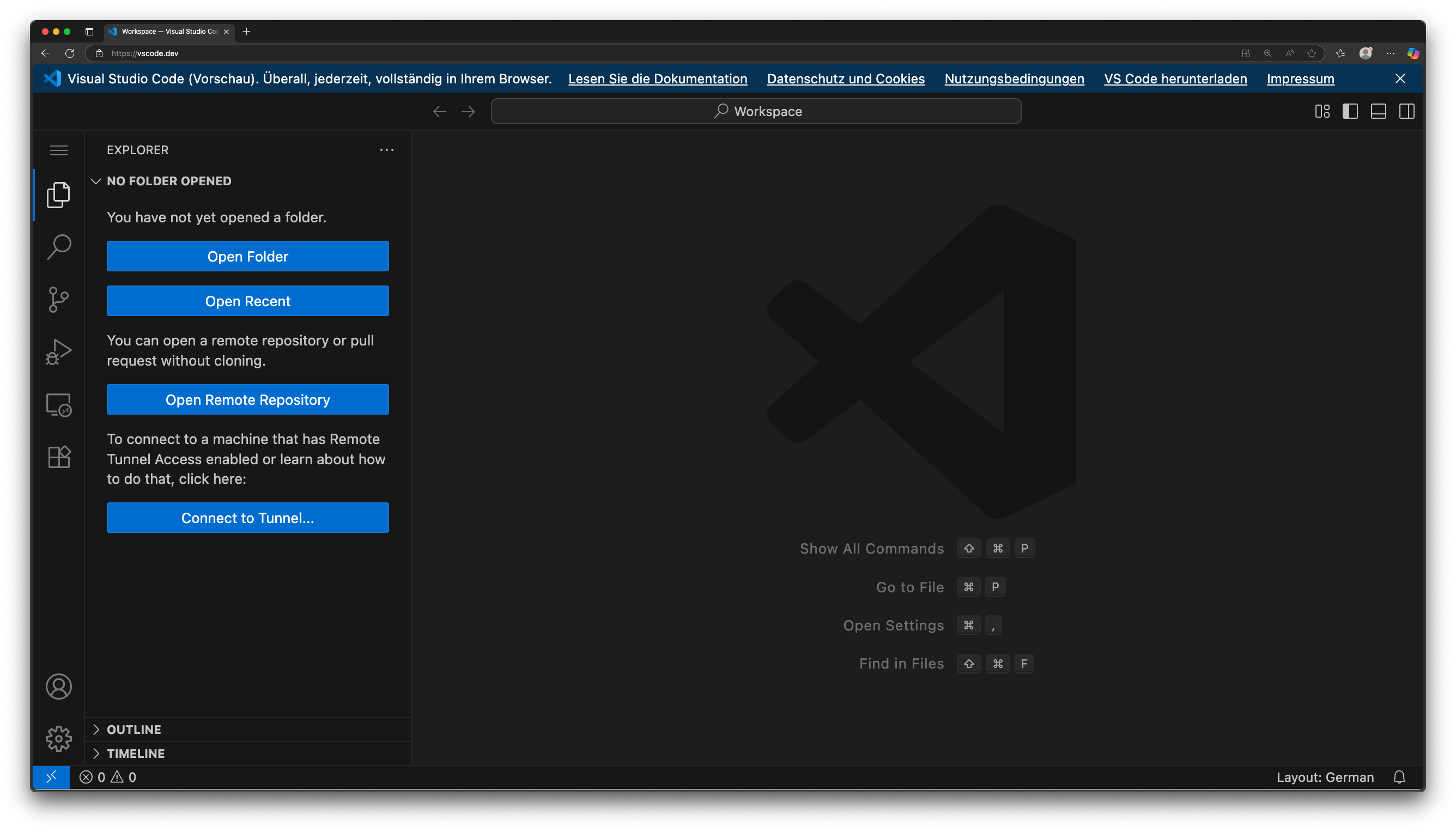
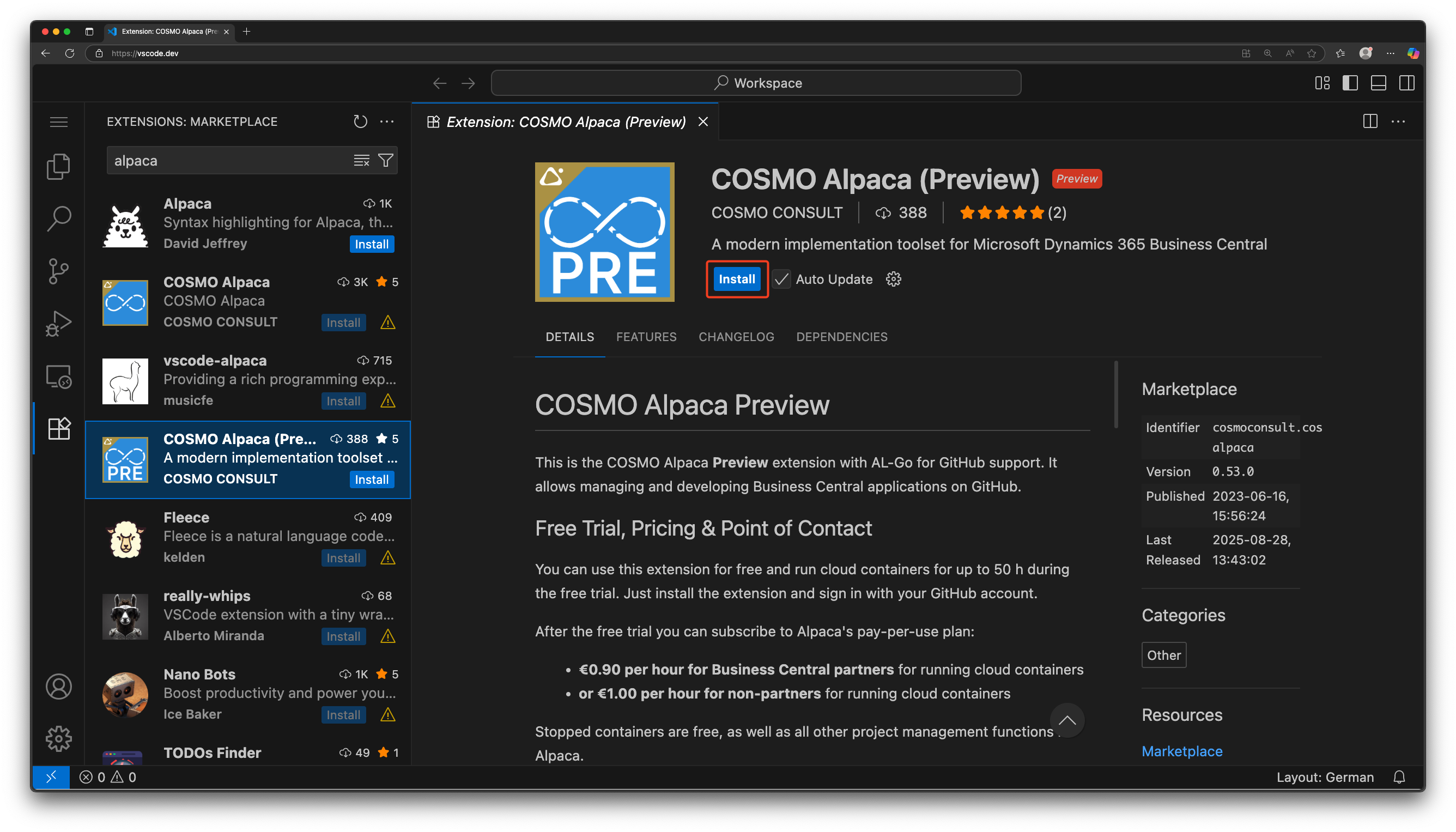
Go to the "Extensions" view in the activity bar, search and install the COSMO Alpaca extension
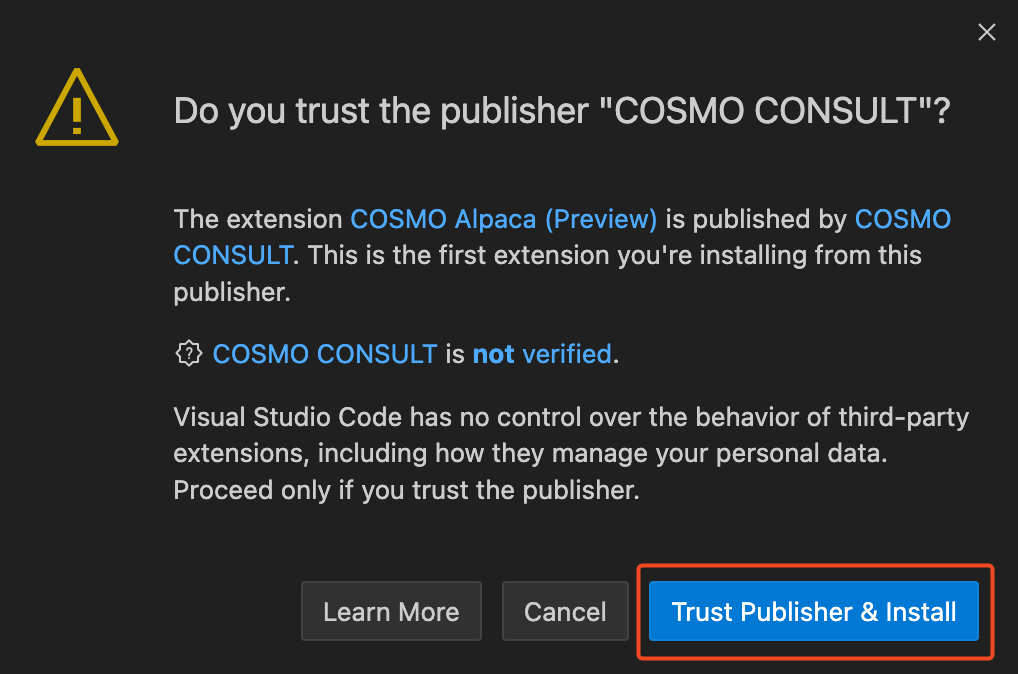
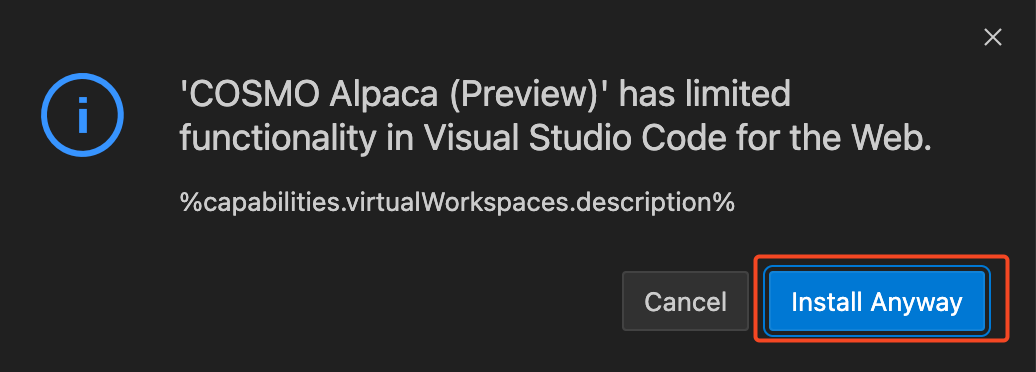
Trust the publisher and confirm installation
First Use
To open the COSMO Alpaca extension, click the respective icon in the activity bar. On first use you'll see a welcome screen, and before you can start you'll be asked for your role. The extension offers two view modes:
- technical: full interface with all features
- functional: simplified interface focused on core features (especially for non-technical users)
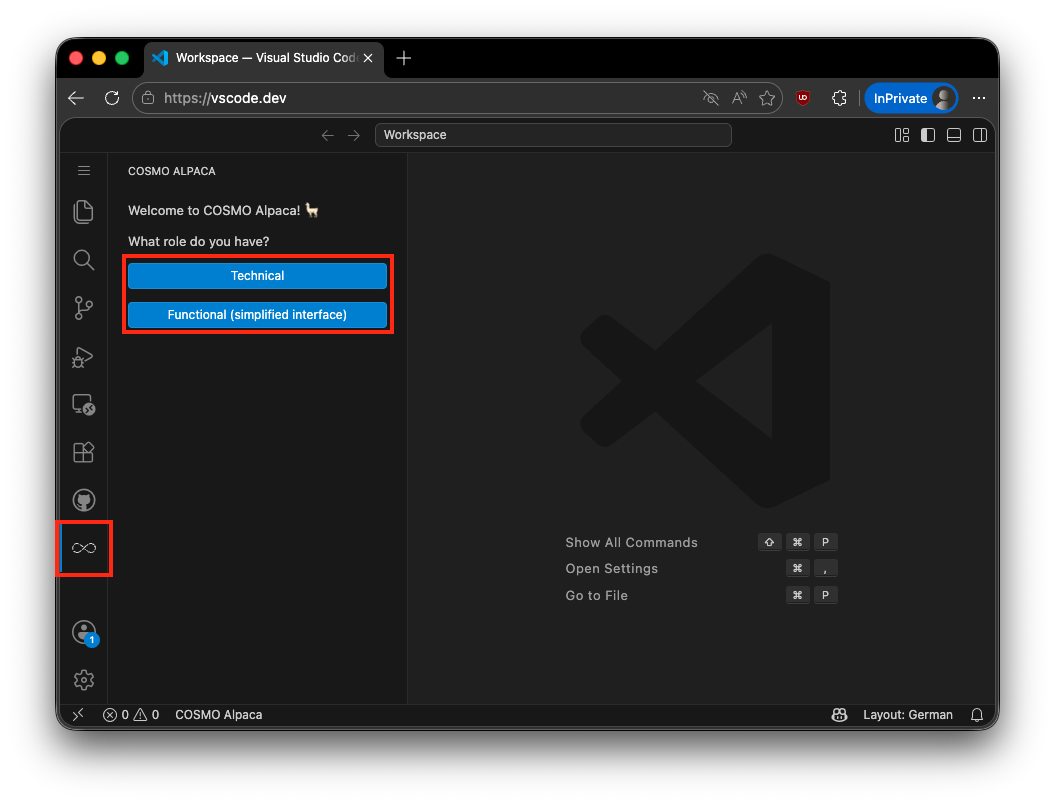
After selecting your role, you will be asked to select the platform you want to use COSMO Alpaca with: GitHub (AL-Go) or Azure DevOps. Depending on what platform you choose you'll be asked to sign in with your GitHub or Microsoft account.
Tip
You can switch between platforms and views at any time.
Now you can make yourself familiar with the interface. The following section will focus on the functional view, if you want to see the technical view, please refer to the VS Code Extension Setup guide.
- The GitHub view lets you navigate through your GitHub organizations, accounts, repositories and more.
- The Containers view shows you all your containers across all your organizations and accounts along with their state and details.
- The Packages view allows you to browse Business Central NuGet feeds and view package and version information.
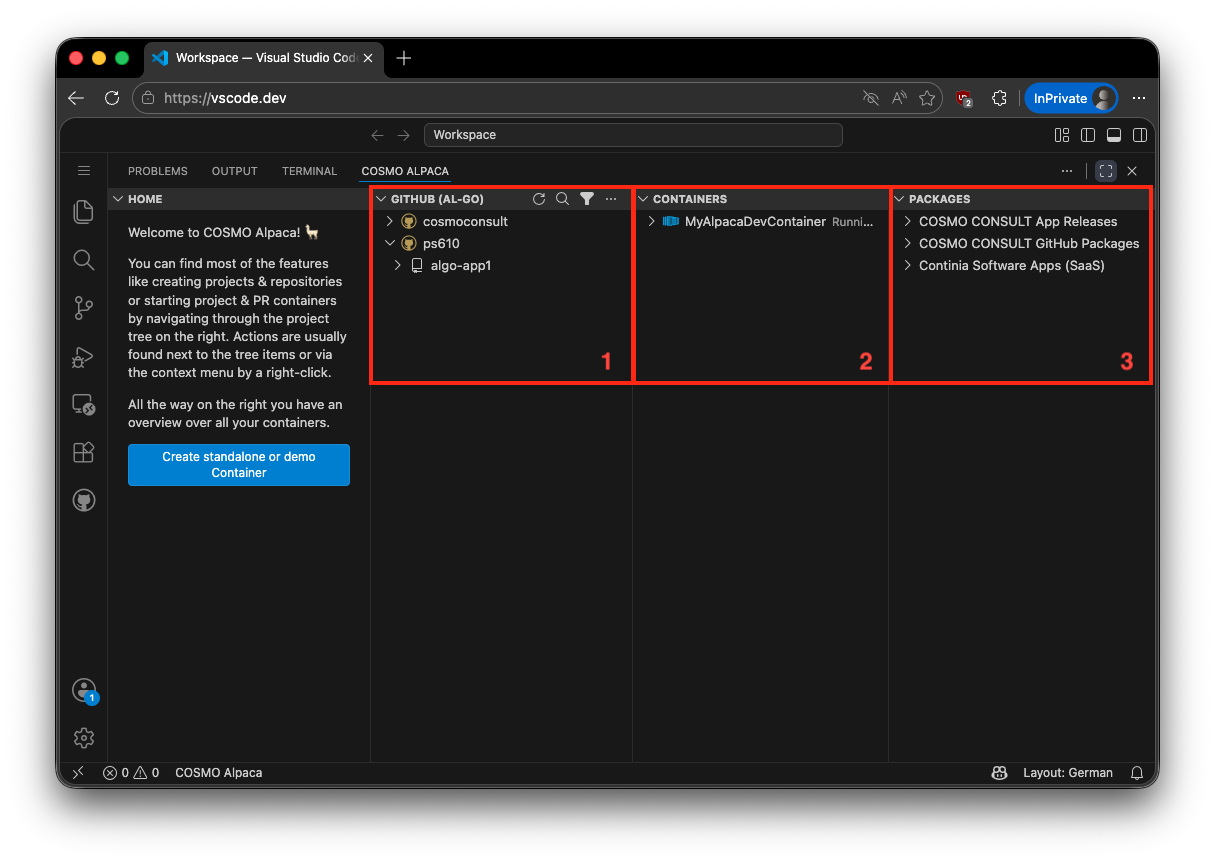
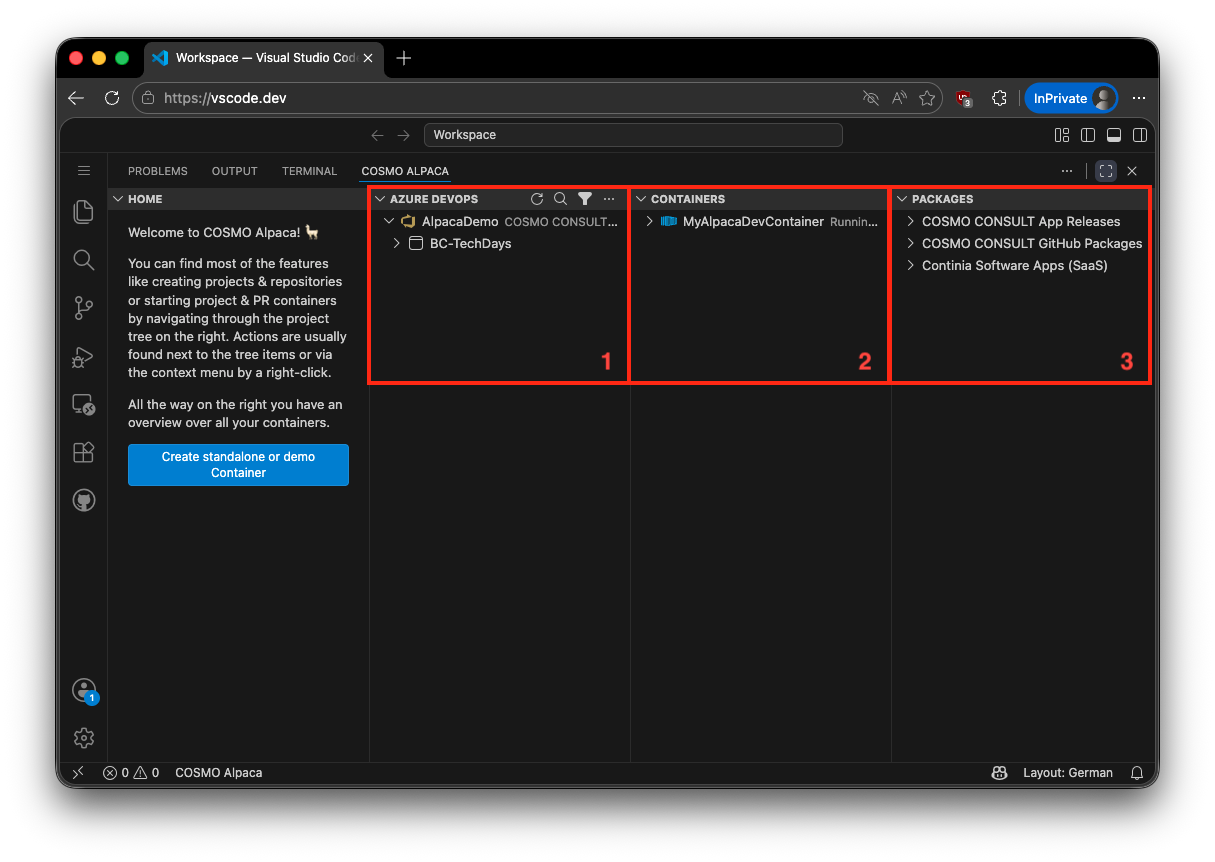
You now may want to get your first impressions of COSMO Alpaca: